
1. Setup
1.1 Battery Installation
This remote control requires two AAA batteries (not included). Follow these steps to install them:
- Locate the battery compartment cover on the back of the remote control.
- Slide the cover downwards or press the latch and lift to open the compartment.
- Insert two AAA batteries, ensuring the positive (+) and negative (-) terminals align correctly with the markings inside the compartment.
- Replace the battery compartment cover by sliding it back into place until it clicks securely.
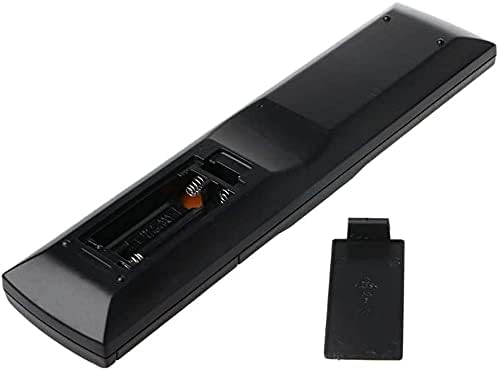
Image: Back of the remote control with the battery compartment open, illustrating the battery insertion process.
1.2 Initial Use
This SymWell remote control is designed as a general replacement for the listed Pioneer Receiver models. It is typically ready for use immediately after battery installation and does not require complex programming for basic functions. Point the remote directly at your receiver and press the desired function button.
2. Operating Instructions
2.1 Basic Functions
The remote control provides access to the primary functions of your compatible Pioneer receiver. Common buttons include:
- Power Button: Turns the receiver On/Off.
- Volume Up/Down: Adjusts the audio output level.
- Input/Source Selection: Cycles through available audio/video inputs (e.g., CD, DVD, TV, AUX).
- Mute Button: Silences the audio output.
- Navigation Buttons (Arrow Keys, Enter): Used for menu navigation and selection.
- Playback Controls: Play, Pause, Stop, Fast Forward, Rewind (functionality depends on the connected device and receiver capabilities).

Image: Front view of the remote control, displaying its button layout for various functions.
2.2 Advanced Functions
While this remote is designed for broad compatibility, specific advanced functions (e.g., setup menus, surround sound modes, custom programming) may vary or require the original receiver remote. Refer to your Pioneer receiver's original manual for detailed instructions on advanced features.
3. Maintenance
3.1 Cleaning the Remote
To maintain the remote control's appearance and functionality:
- Wipe the surface with a soft, dry cloth.
- For stubborn dirt, slightly dampen the cloth with water or a mild, non-abrasive cleaner.
- Avoid using harsh chemicals, solvents, or abrasive materials, as these can damage the remote's finish or internal components.
3.2 Battery Replacement
Replace the batteries when the remote control becomes unresponsive or its range decreases significantly. Always replace both batteries at the same time with new ones of the same type (AAA). Do not mix old and new batteries or different types of batteries.
3.3 Storage
If the remote control will not be used for an extended period, remove the batteries to prevent leakage and potential damage to the device. Store the remote in a cool, dry place away from direct sunlight and extreme temperatures.
4. Troubleshooting
4.1 Remote Not Responding
- Check Batteries: Ensure batteries are correctly installed and not depleted. Replace them if necessary.
- Line of Sight: Make sure there are no obstructions between the remote control and the receiver's infrared sensor. The remote uses infrared technology, which requires a clear line of sight.
- Distance: Ensure you are within the effective operating range (up to 10 meters).
4.2 Some Functions Not Working
- Compatibility: While this is a general replacement remote, some highly specific or advanced functions of your original receiver remote may not be fully supported.
- Receiver Mode: Ensure your receiver is in the correct operating mode (e.g., DVD, CD) for the function you are trying to use.
5. Specifications
| Feature | Specification |
|---|---|
| Brand | SymWell |
| Special Feature | Universal |
| Max Number of Supported Devices | 1 |
| Connectivity Technology | Infrared |
| Number of Buttons | 35 |
| Maximum Range | 10 Meters |
| Item Weight | 0.01 Pounds |
6. Warranty and Support
6.1 Return Policy
This product is eligible for a refund or replacement within 30 days of purchase, in accordance with the seller's return policy. Please refer to your purchase documentation for specific details on initiating a return or exchange.
6.2 Customer Support
For further assistance, troubleshooting not covered in this manual, or inquiries regarding product functionality, please contact the seller directly through your purchase platform. Provide your order number and a detailed description of the issue for prompt support.