
micfuns M-8
Micfuns M-8 8-Channel DJ Console Mixer User Manual
Model: M-8
1. Introduction
This manual provides detailed instructions for the proper setup, operation, and maintenance of your Micfuns M-8 8-Channel DJ Console Mixer. Please read this manual thoroughly before using the product to ensure safe and efficient operation.

Figure 1: Overview of the Micfuns M-8 8-Channel DJ Console Mixer.
2. Safety Information
- Do not expose the unit to rain or moisture to prevent fire or electric shock.
- Do not open the casing. Refer all servicing to qualified personnel.
- Ensure the power supply voltage matches the requirements specified on the unit.
- Avoid placing the unit near heat sources or in direct sunlight.
- Keep the unit away from strong magnetic fields.
- Disconnect the power cord during lightning storms or when unused for long periods.
3. Product Overview
The Micfuns M-8 is an 8-channel audio mixer designed for various applications including DJ setups, studio recording, PC recording, singing, webcasting, and parties. It features XLR and line inputs, 48V phantom power, USB and Bluetooth connectivity, and a graphic equalizer.
Key Features:
- 8 channels with XLR and line inputs, including gain trim and switchable high-pass filters.
- 48V phantom power for condenser microphones.
- Bluetooth playback function for mobile phones, tablets, and other devices.
- Digital display MP3 player with U-DISK MP3 input and recording capabilities.
- Support for wired, wireless, and condenser microphone connections.
- Output jacks for headset monitoring, recording, and stereo devices.
- Each channel includes AUX, effect, gain, channel fader controls, and peak display.
- Ultra-thin and sturdy body with sealed knobs.
Component Identification:

Figure 2: Left side controls including microphone/line inputs, gain, treble, mid-range, bass tone controls, auxiliary output, reverb effect, sound and image positioning, peak signal indicator, channel adjustment, and monitoring button.

Figure 3: Right side controls including left and right balance mono, main out, control room monitor output, effect output, recording output, recording input, auxiliary output, headphone output, computer/U-disk connection, MP3 playback controls, master volume level display, reverb level adjustment, delay time, graphic equalizer, recording input level adjustment, effect channel volume total fader, left and right volume channel control, and single listen switch.
4. Setup
4.1 Power Connection
- Connect the power cord to the mixer's AC IN port.
- Plug the power cord into a suitable electrical outlet.
- Turn on the power switch located on the rear panel of the mixer.
Video 1: Demonstrates connecting the power cord and turning on the mixer. This video also shows an overview of the mixer's features and basic operation, including input/output connections, equalization, and volume control.
4.2 Input Connections
- Microphones: Connect microphones to the XLR inputs (channels 1-8). For condenser microphones, activate the 48V phantom power switch located near the main output section.
- Line-Level Devices: Connect instruments or other line-level audio sources to the 1/4" LINE inputs on each channel.
- USB Audio Interface: Connect the mixer to a PC or laptop via the USB port for recording or playback.

Figure 4: Diagram illustrating USB audio interface connection for PC/Flash reader, compatible with smartphones, tablets, notebooks, and computers.

Figure 5: The 48V phantom power feature, suitable for condenser microphones, designed for noise reduction and clear vocal restoration.
5. Operating Instructions
5.1 Channel Controls
- GAIN: Adjusts the input sensitivity for each channel. Set to an appropriate level to avoid clipping.
- HIGH/MID/LOW (EQ): Three-band equalizer for adjusting the treble, mid-range, and bass frequencies of each channel.
- AUX: Controls the send level to the auxiliary output.
- EFF: Adjusts the send level to the internal effects processor.
- PAN: Positions the channel's sound in the stereo field (left to right).
- PEAK LED: Illuminates when the input signal is too high, indicating potential clipping. Reduce the GAIN if this LED lights up frequently.
- Channel Fader: Controls the overall volume level of each individual channel.
5.2 Bluetooth Connectivity
- Press the 'MODE' button on the MP3 player section until 'Bluetooth' mode is selected.
- On your mobile device, enable Bluetooth and search for available devices.
- Select 'BT-Speaker' from the list to pair with the mixer.
- Once paired, you can play audio from your device through the mixer.
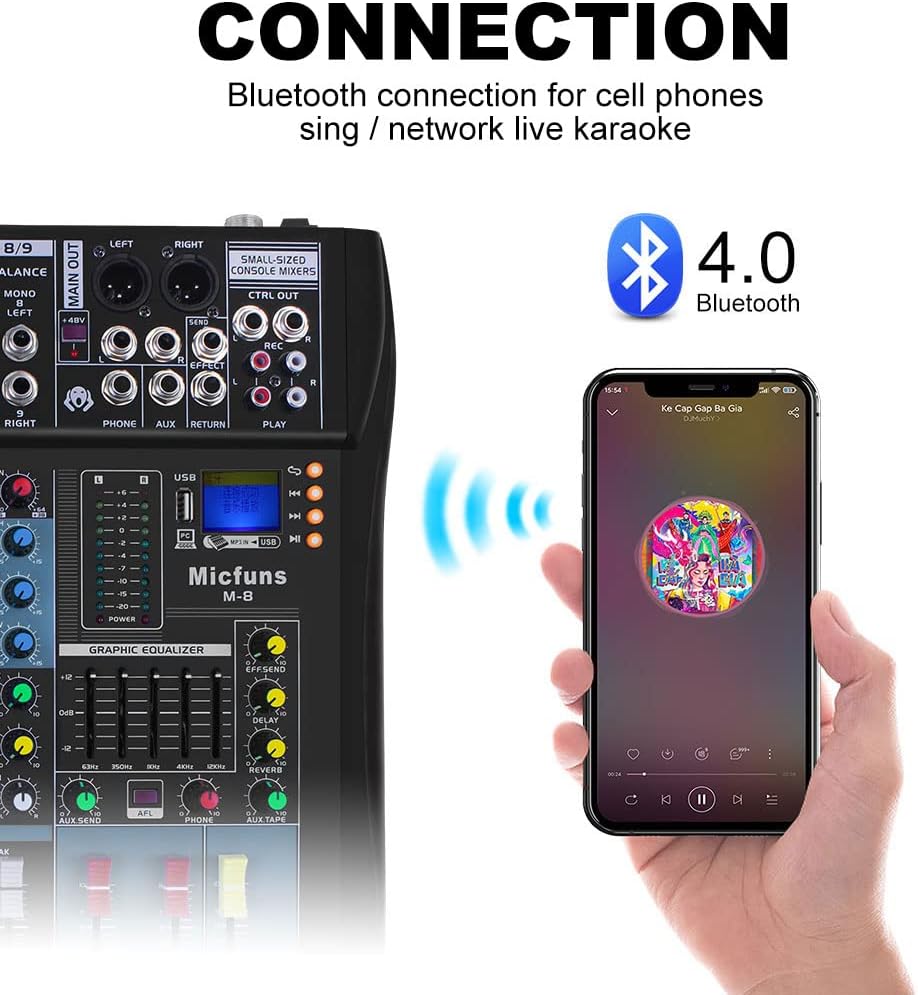
Figure 6: Diagram showing Bluetooth connection for mobile phones, suitable for singing, network live broadcasts, and karaoke.
5.3 USB Playback and Recording
- Playback: Insert a USB flash drive containing MP3 audio files into the USB port. Use the MP3 player controls (play/pause, next/previous) to navigate and play tracks.
- Recording: The mixer supports recording to a U-Disk or directly to a connected PC/laptop/phone via USB. Refer to the recording software on your connected device for specific recording procedures.

Figure 7: Illustration of recording options, including direct recording to a U-Disk or to a laptop/PC/phone via USB.
5.4 Graphic Equalizer
The built-in graphic equalizer allows for fine-tuning the overall sound output. Adjust the sliders for different frequency bands (e.g., 63Hz, 250Hz, 1KHz, 4KHz, 16KHz) to shape the master mix according to your preferences or room acoustics.
5.5 Main Output and Monitoring
- MAIN OUT: Connect your main speakers or amplifier to these outputs.
- PHONE: Connect headphones for monitoring the mix. Adjust the headphone volume control as needed.
- CTRL OUT: Connect to control room monitors.
- REC OUT: Provides an output for external recording devices.
6. Maintenance
- Cleaning: Use a soft, dry cloth to clean the surface of the mixer. Do not use liquid cleaners or solvents.
- Storage: Store the mixer in a cool, dry place away from direct sunlight and extreme temperatures.
- Ventilation: Ensure proper ventilation around the unit to prevent overheating. Do not block any ventilation openings.
- Knobs and Faders: The sealed knobs are designed to resist dust. Avoid excessive force when operating controls.
7. Troubleshooting
- No Power: Check if the power cord is securely connected and the power switch is on. Verify the power outlet is functional.
- No Sound Output: Ensure all volume faders (channel and master) are up. Check all cable connections to speakers/headphones. Verify input sources are active.
- Distorted Sound: Reduce the GAIN on individual channels or the master volume. Check for PEAK LEDs indicating clipping. Ensure cables are not damaged.
- Microphone Not Working: For condenser microphones, ensure 48V phantom power is activated. Check microphone cable connections.
- Bluetooth Connection Issues: Ensure the mixer is in Bluetooth mode and your device's Bluetooth is enabled. Try unpairing and re-pairing the device.
8. Specifications

Figure 8: Detailed technical specifications for the Micfuns M-8 mixer, including frequency response, total harmonic distortion, noise, crosstalk, EQ settings, power consumption, and working conditions.
| Specification | Value |
|---|---|
| Item Weight | 9.48 pounds |
| Product Dimensions | 18.5 x 18 x 5.5 inches |
| Item Model Number | M-8 |
| Hardware Interface | Bluetooth |
| Power Source | Corded Electric |
| Number of Channels | 8 |
| Connectivity Technology | Interface, Aux, XLR, USB, Bluetooth |
9. Warranty and Support
For warranty information and technical support, please refer to the documentation included with your purchase or contact the manufacturer directly. Keep your proof of purchase for warranty claims.