
1. Introduction
This manual provides comprehensive instructions for the setup, operation, and maintenance of your SAFETNET Mini WiFi Wireless Camera. This 1080P camera is designed for audio and video recording, offering smart, portable, and magnetic features for home and office security. It operates via the iWFCAM APP, providing remote monitoring capabilities and motion detection alerts.

Figure 1.1: The camera is suitable for various indoor monitoring environments.
2. Product Features
- Wireless Connectivity: Enables flexible placement within Wi-Fi range, eliminating cable dependency.
- Magnetic Mounting: Allows for quick and secure installation on metal surfaces.
- High Definition Video: Captures clear 1080P video footage for surveillance.
- Remote Monitoring: Access camera feed from a smartphone or computer for real-time property monitoring.
- Motion Detection Alerts: Sends instant notifications upon detecting motion, enhancing security.
- Two-Way Communication: Built-in speakers and microphone facilitate communication.
- Intuitive Mobile Application: Easy setup, configuration, and control via the iWFCAM APP.
- Cloud Storage: Option to store footage securely in the cloud for access and backup.
- SD Card Support: Supports SD cards from 2GB to 32GB (not included) for local storage.
- Loop Recording: Automatically overwrites oldest files when the memory card is full.
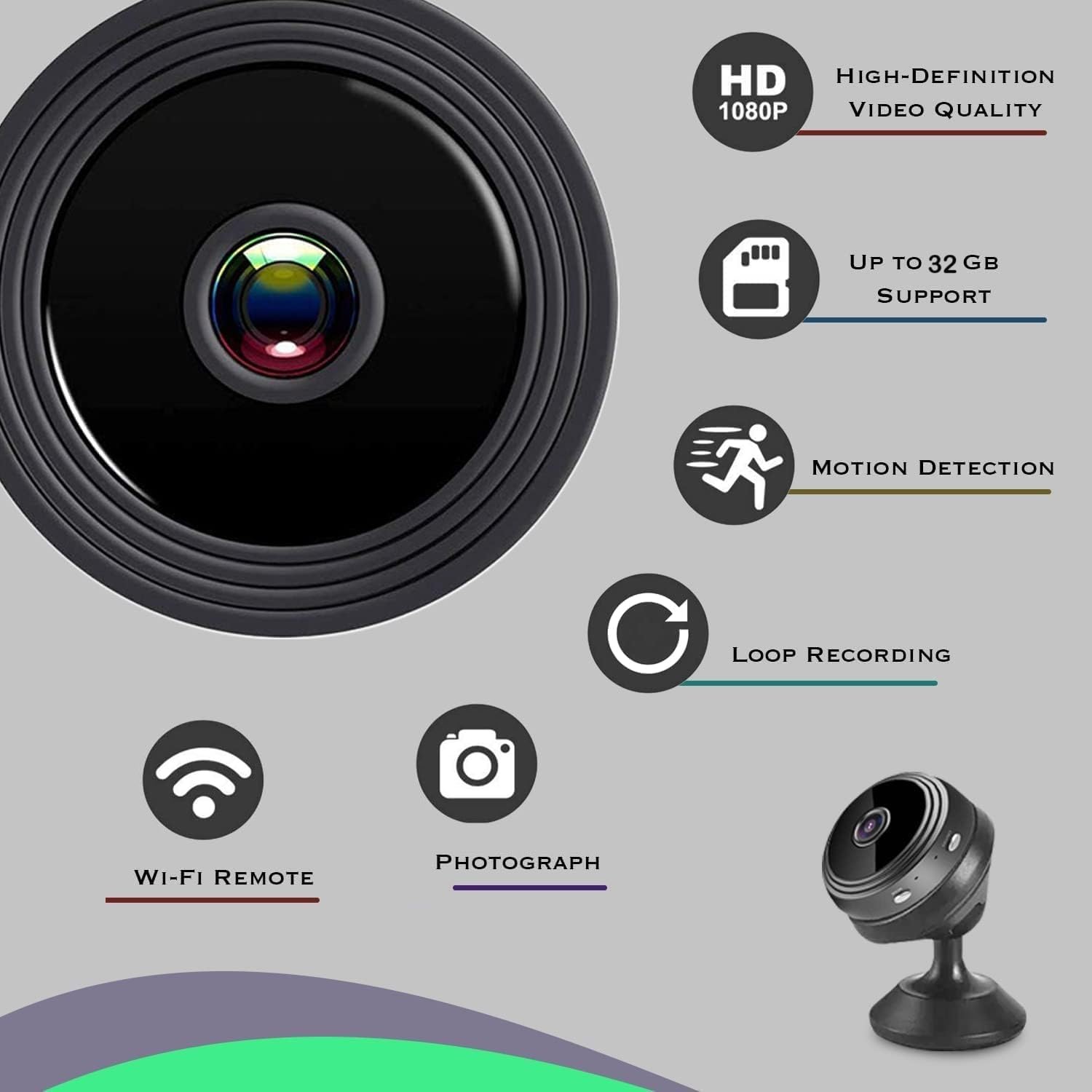
Figure 2.1: Key features of the SAFETNET Mini WiFi Wireless Camera, including HD video, SD card support, and motion detection.
3. What's in the Box
Upon unboxing, please verify that all components are present and in good condition:
- 1 x IP Ball Camera
- 1 x User Manual
- 1 x Charging Cable
- 1 x Stand

Figure 3.1: The SAFETNET Mini WiFi Wireless Camera and its included stand.
4. Specifications
| Attribute | Detail |
|---|---|
| Model Name | Ip Ball Camera |
| Connectivity Technology | Wireless (Wi-Fi) |
| Special Feature | HD Resolution |
| Indoor/Outdoor Usage | Indoor |
| Compatible Devices | Android, iOS, Laptop |
| Power Source | Battery Powered (1 AAA battery included) |
| Product Dimensions | 2 x 2 x 2.5 cm |
| Item Weight | 15 g |
| Country of Origin | Hong Kong |
| SD Card Support | 2GB to 32GB (not included) |

Figure 4.1: Physical dimensions of the camera.

Figure 4.2: Overview of camera components and indicators.

Figure 4.3: Visual comparison of 1080P and 720P resolution.
5. Setup Guide
5.1 Charging the Camera
Before first use, fully charge the camera. Connect the provided charging cable to the camera's USB port and a power source (e.g., USB wall adapter, computer USB port, or power bank). The charge indicator light will show charging status.
- Plugged In: Camera records continuously when connected to power.
- Power Bank (10000mAh): Provides approximately 30 hours of operation.
- Battery Powered: Provides approximately 1.5 hours of operation on a full charge.

Figure 5.1: Charging options for the camera.
5.2 Inserting an SD Card
Insert a Micro SD card (2GB to 32GB, not included) into the Micro SD card slot for local video storage. Ensure the card is inserted correctly to avoid damage.
5.3 App Installation and Connection
The camera operates with the iWFCAM APP. Download the app from your device's app store (Android/iOS).
- Direct Connection (Point-to-Point):
Turn on the camera. It will broadcast a Wi-Fi hotspot. Connect your smartphone directly to this hotspot. This allows for local viewing when your smartphone is near the camera.
- Wireless Router Connection:
For remote viewing, connect the camera to your home or office Wi-Fi router via the iWFCAM APP. Once connected, you can view real-time video from anywhere with an internet connection.

Figure 5.2: Connection methods for the camera.
5.4 Mounting the Camera
The camera features a magnetic base for easy installation. It can be attached to any metal surface or placed on its included stand. The compact size and magnetic design allow for versatile placement options.

Figure 5.3: Easy installation with built-in magnetic bracket.
6. Operating Instructions
6.1 Basic Operation
- Power On/Off: Use the ON/OFF button to power the camera.
- Mode Button: Use the MODE button to switch between different recording modes (e.g., continuous recording, motion detection recording). Refer to the iWFCAM APP for detailed mode configurations.
6.2 Remote Monitoring
Once connected to your Wi-Fi network, open the iWFCAM APP on your smartphone or compatible device to access the live camera feed. You can monitor your property from any location with internet access.

Figure 6.1: Remote monitoring interface showing multiple camera views.

Figure 6.2: Remote monitoring allows you to check on family and pets.
6.3 Motion Detection
Enable the motion detection feature through the iWFCAM APP. When motion is detected within the camera's field of view, the camera will automatically send an alert notification to your connected smartphone, often accompanied by snapshots.

Figure 6.3: Motion detection functionality and alerts.

Figure 6.4: Smart motion detection with prompt notifications and snapshots.
6.4 Loop Recording and Playback
The camera supports loop recording, meaning it will continuously record and overwrite the oldest files when the SD card is full. Recorded footage can be accessed and played back through the iWFCAM APP or by removing the SD card and viewing it on a computer.

Figure 6.5: Loop recording and playback feature.
7. Maintenance
- Cleaning: Use a soft, dry cloth to clean the camera lens and body. Avoid using liquid cleaners or abrasive materials.
- Storage: When not in use for extended periods, store the camera in a cool, dry place away from direct sunlight and extreme temperatures.
- Battery Care: To prolong battery life, avoid fully discharging the battery frequently. Charge the camera regularly, even if not in constant use.
- Firmware Updates: Check the iWFCAM APP periodically for any available firmware updates to ensure optimal performance and security.
8. Troubleshooting
| Problem | Possible Cause | Solution |
|---|---|---|
| Camera not turning on. | Low battery or faulty charging cable. | Charge the camera fully. Try a different charging cable or power adapter. |
| Cannot connect to Wi-Fi. | Incorrect Wi-Fi password, camera too far from router, or router issues. | Ensure correct Wi-Fi password. Move camera closer to the router. Restart your router. Check Wi-Fi indicator on camera. |
| No video recording. | No SD card inserted, SD card full, or faulty SD card. | Insert a compatible SD card. Format or replace the SD card. Check recording settings in the app. |
| Motion detection alerts not received. | Motion detection disabled in app, app notifications blocked, or poor internet connection. | Enable motion detection in the iWFCAM APP. Check phone notification settings. Ensure stable internet connection for both camera and phone. |
| Poor video quality. | Insufficient lighting, dirty lens, or network bandwidth issues. | Ensure adequate lighting. Clean the camera lens. Check your internet speed. |
9. Warranty and Support
This product is manufactured by SAFETY NET, SPY CAMERA.
For technical support or inquiries, please contact:
- Technical Helpline: 9667364893, 8287311123 (WhatsApp available)
- Operating Hours: Monday to Saturday - 10:00 AM to 6:30 PM (Sunday - Closed)
An optional 1-year extended warranty may be available for purchase. Please refer to your purchase documentation for details.
Important Notice: SAFETY NET Hidden Camera Products are strictly prohibited for use in any kind of illegal activity. The seller is not responsible for any crimes committed by using these products. Users are kindly requested to respect the laws of their respective countries regarding the use of hidden cameras. If you have any concerns, please contact the technical helpline.

Figure 9.1: SAFETY NET, SPY CAMERA brand logo.

Figure 9.2: Important legal notice regarding product usage.