
HP HP Smart Tank 790 (4WF66A)
HP Smart Tank 790 All-in-One Printer User Manual
Model: 4WF66A
1. Introduction
The HP Smart Tank 790 is an all-in-one printer designed for efficiency and high-volume printing. It offers print, copy, scan, and fax functionalities, making it suitable for both home and office environments. Key features include automatic duplex printing, a 35-sheet Automatic Document Feeder (ADF), and seamless connectivity options like dual-band Wi-Fi and Bluetooth LE. This manual provides detailed instructions for setting up, operating, maintaining, and troubleshooting your HP Smart Tank 790 printer.

Figure 1.1: Front view of the HP Smart Tank 790 All-in-One Printer.

Figure 1.2: Overview of main, highlighted, and additional features.
2. Setup
2.1 Unboxing and Initial Preparation
Carefully remove the printer from its packaging. Remove all protective tapes and packing materials from the exterior and interior of the printer. Some protective parts may require careful removal; refer to the quick setup guide included in the box for visual instructions. Ensure all components listed in the 'What's in the Box' section are present.
- Ink Bottle
- Printhead
- Power cord
- Setup guide and flyers

Figure 2.1: Side view of the printer, showing its compact design.
2.2 Ink Filling
The HP Smart Tank 790 features a spill-free ink refill system. Open the ink tank covers and remove the caps. Align the corresponding color ink bottle with the correct tank and insert it. The ink will automatically flow into the tank. Do not squeeze the bottle. Once the tank is full, the flow will stop. Remove the bottle and replace the tank cap securely.
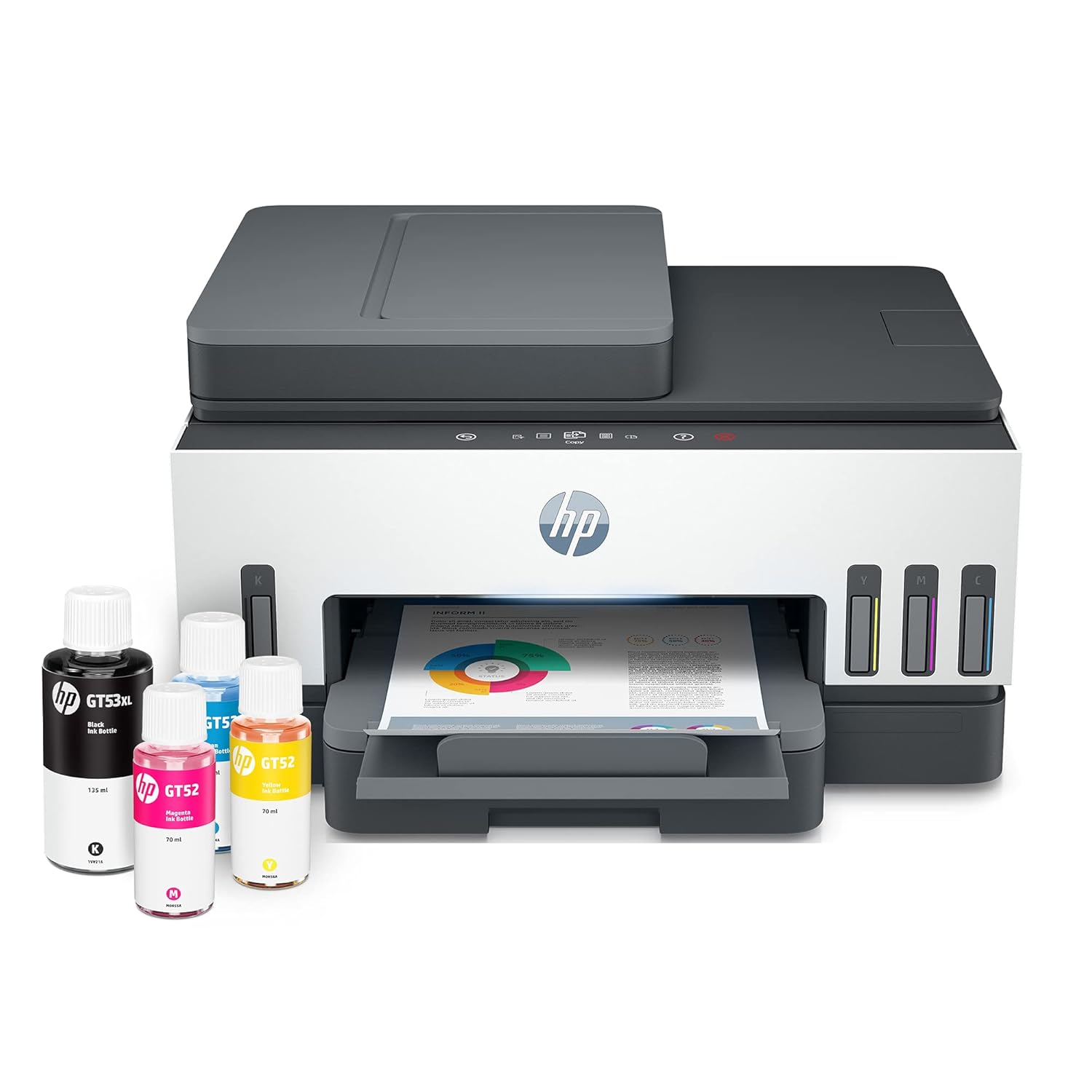
Figure 2.2: HP Smart Tank 790 with included ink bottles ready for filling.
2.3 Software Installation and Connectivity
For optimal functionality, install the HP Smart app on your computer or mobile device. The app provides guided setup, driver installation, and access to various printer features. Connect your printer using one of the following methods:
- Wi-Fi: Connect the printer to your wireless network using the HP Smart app or the printer's control panel. The printer supports dual-band Wi-Fi with self-healing capabilities for reliable connections.
- Bluetooth LE: For quick setup and mobile printing.
- USB: Connect the printer directly to your computer using a USB cable (not always included).
- Ethernet: For wired network connections.

Figure 2.3: Managing the printer via the HP Smart App on a mobile device.

Figure 2.4: Faster connectivity using dual-band Wi-Fi with self-healing.
3. Operation
3.1 Control Panel Overview
The HP Smart Tank 790 features a 3-inch touchscreen Mono Graphics Display (MGD) and touch buttons for intuitive control. Use the touchscreen to navigate menus, select functions, and view printer status. The touch buttons (Cancel, Help, Back) provide quick access to common actions.

Figure 3.1: Detailed view of the printer's control panel.

Figure 3.2: The 3-inch Magic Touch panel with smart-guided lighting for ease of use.
3.2 Printing
Load paper into the input tray. The printer supports various media sizes including A4, A5, A6, B5 (JIS), envelopes, and cards, with an input capacity of up to 250 sheets. Utilize the automatic duplex printing feature to save paper by printing on both sides of the page. The printer offers fast print speeds of up to 15 ppm for black and 9 ppm for color (ISO).

Figure 3.3: Documents being printed from the output tray.

Figure 3.4: Save time with automatic two-sided printing and 35-page automatic document feeder.
3.3 Scanning and Copying
Use the flatbed scanner for single pages or delicate documents. For multi-page documents, the 35-sheet Automatic Document Feeder (ADF) allows for quick and efficient scanning and copying of multiple pages. Select 'Scan' or 'Copy' from the control panel and follow the on-screen prompts.
3.4 Faxing
The HP Smart Tank 790 includes fax capabilities. Connect a phone line to the printer's fax port. Use the control panel to dial numbers and send faxes. Refer to the HP Smart app for advanced fax settings and features.
4. Maintenance
4.1 Checking Ink Levels
The printer is equipped with low-on-ink tank lights and paper sensors, allowing you to easily monitor ink and paper levels. You can also check ink levels through the HP Smart app on your connected device.

Figure 4.1: Visible ink tanks for easy monitoring of ink levels.

Figure 4.2: Easily monitor and maintain ink and paper levels with integrated ink tank light and paper sensors.
4.2 Refilling Ink Tanks
When ink levels are low, refill the tanks using genuine HP ink bottles. Follow the same procedure as during initial setup (Section 2.2). Ensure you use the correct color ink for each tank to prevent damage.
4.3 Cleaning the Printer
Regularly clean the exterior of the printer with a soft, lint-free cloth. For print quality issues, perform print head cleaning or alignment through the printer's maintenance menu or the HP Smart app.
5. Troubleshooting
5.1 Common Issues and Solutions
- Printer Noise During Startup: The printer may produce various sounds during initial setup or power-on sequences. This is normal as the printer calibrates and prepares for operation. Printing itself should be relatively quiet.
- Difficulty with Initial Installation: Some users may find the initial setup challenging due to the need to remove several protective parts. Ensure all orange tapes and packing materials are removed. Follow the step-by-step guidance provided by the HP Smart app for a smoother installation process.
- Print Quality Issues (Streaks, Fades):
- Check ink levels and refill if necessary.
- Perform a print head cleaning cycle through the printer's maintenance menu or the HP Smart app.
- Run a print head alignment.
- Connectivity Problems (Wi-Fi, Bluetooth, USB):
- For Wi-Fi, ensure the printer is within range of your router and the network password is correct. Restart both the printer and router.
- For Bluetooth, ensure Bluetooth is enabled on your device and the printer is discoverable.
- For USB, ensure the cable is securely connected to both the printer and computer. Try a different USB port or cable.
- Use the HP Smart app's diagnostic tools to troubleshoot network issues.
- Printer Head Malfunction: If the print heads are not working despite cleaning and alignment, they may need replacement. This can be a costly repair. Contact HP support for diagnosis and potential solutions.
6. Specifications
| Feature | Detail |
|---|---|
| Model Name | HP Smart Tank 790 |
| Model Number | 4WF66A |
| Functions | Print, Copy, Scan, Fax |
| Connectivity | Dual-band Wi-Fi, Bluetooth LE, Hi-Speed USB 2.0, Ethernet |
| Print Speed (Black ISO) | Up to 15 ppm |
| Print Speed (Color ISO) | Up to 9 ppm |
| Print Resolution (Black) | Up to 1200 x 1200 rendered dpi |
| Print Resolution (Color) | Up to 4800 x 1200 optimized dpi |
| Duplex Printing | Automatic |
| Automatic Document Feeder (ADF) | 35-sheet capacity |
| Input Capacity | Up to 250 sheets |
| Output Capacity | Up to 100 sheets |
| Control Panel | 3-inch touchscreen MGD |
| Compatible OS | Windows 11/10/7, macOS 10.14/10.15/11 |
| Dimensions (LxWxH) | 37 x 43 x 24 cm |
| Weight | 8 kg |
| Included Components | Ink Bottle, Printhead, power cord, guide, flyers |
7. Warranty and Support
The HP Smart Tank 790 printer comes with a 1-year technical support and a limited hardware warranty of up to two years or 50,000 pages, whichever comes first. This ensures peace of mind for your printing needs.

Figure 7.1: Warranty information for the HP Smart Tank 790.
For technical assistance or support, you can reach out to HP's dedicated support channels:
- Voice Support: Available 12x7 (12 hours a day, 7 days a week).
- Chat Support: Available 24x7 (24 hours a day, 7 days a week).
HP also offers a 6-hour repair support service with HP Live Lens and a call-me-back service for efficient problem resolution.

Figure 7.2: Information on HP's repair support services.
For the most up-to-date support information, product registration, and driver downloads, please visit the official HP support website.
Ask a question about this manual
Ask about setup, troubleshooting, compatibility, parts, safety, or missing instructions. Manuals+ will review the question and use this page’s manual context to help answer it.