
1. Introduction
Thank you for choosing the WIWU iPad Keyboard Case. This manual provides detailed instructions on how to set up, operate, and maintain your new keyboard case, ensuring optimal performance and longevity. This versatile accessory transforms your iPad into a powerful productivity tool, offering enhanced typing, navigation, and protection.
2. Compatibility
This keyboard case is compatible with the following iPad models:
- iPad Air 11" (M2, A2902/A2903/A2904)
- iPad Air 5th Gen (2022, 10.9") including models A2588/ A2589/A2591
- iPad Air 4th Gen (2020, 10.9") including models A2072/A2316/A2324/A2325
To identify your iPad model, navigate to Settings > General > About. Look for the model number to confirm compatibility.
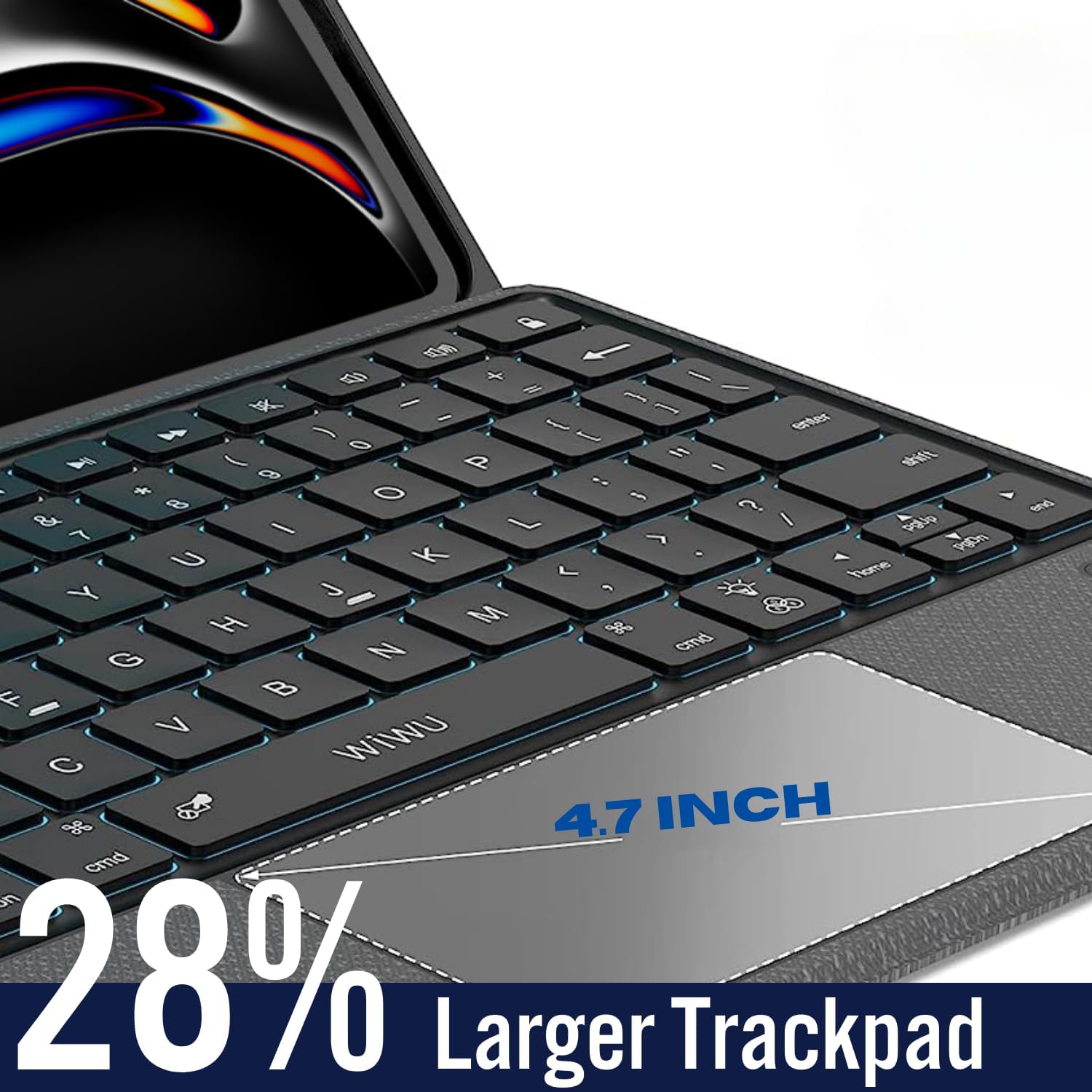
Figure 1: Identifying your iPad model for compatibility.
3. What's in the Box
Your WIWU iPad Keyboard Case package includes:
- Keyboard Case for iPad
- USB Cable
- Product Manual
4. Setup
4.1. Installing Your iPad
- Carefully align your iPad with the protective case.
- Gently press the iPad into the case until it is securely seated. Ensure all corners and edges are properly covered by the silicone TPU protective case.

Figure 2: Components of the WIWU iPad Keyboard Case.
4.2. Bluetooth Pairing
- Ensure your keyboard is charged.
- Turn on the keyboard using the power switch located on the side.
- On your iPad, go to Settings > Bluetooth.
- Toggle Bluetooth ON.
- The iPad will search for nearby devices. Select "Mag Touch Keyboard" from the list of available devices.
- A pairing request may appear. Confirm the pairing on both devices if prompted.
- Once connected, the keyboard is ready for use. The iPad will automatically disconnect after 10 minutes of inactivity to conserve battery life; press any key to wake it up.
Video 1: Demonstrates the setup and Bluetooth pairing process for the WIWU iPad Keyboard Case.
5. Operating the Keyboard Case
5.1. Magnetic Detachable Keyboard
The keyboard is firmly attached to the protective case via a long magnetic strip. This allows for easy detachment, enabling you to use the iPad independently or with the keyboard placed separately for flexible working arrangements. This feature facilitates seamless switching between iPad and Mac-like experiences.

Figure 3: Magnetic detachable keyboard for versatile use.
5.2. Adjustable Stand Angles
The flexible kickstand offers a 0-180° multi-angle tilt, allowing you to adjust the screen to any desired viewing angle. This stable stand prevents the iPad from falling backward, making it suitable for typing, sketching, reading, viewing, gaming, and working in various environments.

Figure 4: Adjustable stand for optimal viewing angles.

Figure 5: Easy switching between landscape and portrait modes.
Video 2: Demonstrates the adjustable stand and various viewing angles of the iPad case.
5.3. Native Multi-Touch Trackpad
The responsive and reliable trackpad supports Multi-Touch gestures, enhancing your navigation experience. You can adjust the sensitivity of the trackpad via Settings > General > Trackpad & Mouse > Tracking Speed.

Figure 6: Multi-Touch trackpad for precise control.
5.4. 7-Color Backlit Keyboard
The keyboard features a full row of iPadOS shortcuts and 7 RGB LED backlight colors (blue, green, red, cyan, purple, yellow, and white). Press the light key + up/down arrow to switch colors. Support three-level brightness adjustment to adapt to indoor, outdoor, or night use. Press the light key to adjust brightness.

Figure 7: Keyboard with customizable 7-color backlighting.
5.5. iPadOS Shortcut Keys
The keyboard includes a dedicated row of iPadOS shortcut keys for quick access to common functions, enhancing your workflow efficiency.

Figure 8: Dedicated iPadOS shortcut keys.
5.6. Integrated Pencil Holder
The case features a convenient hidden pencil slot to securely hold your Apple Pencil, ensuring it is always accessible and preventing loss.

Figure 9: Secure hidden pencil slot.
6. Maintenance
To ensure the longevity and optimal performance of your WIWU iPad Keyboard Case, follow these maintenance guidelines:
- Cleaning: Use a soft, damp cloth to wipe down the exterior of the case and keyboard. Avoid harsh chemicals or abrasive materials.
- Storage: When not in use, keep the keyboard case closed to protect the screen and keyboard. Store in a cool, dry place away from direct sunlight and extreme temperatures.
- Avoid Liquids: Keep the keyboard and iPad case away from liquids to prevent damage to electronic components.
- Handle with Care: While the case offers robust protection, avoid dropping or subjecting it to excessive force.
7. Battery Life
The keyboard offers impressive battery performance:
- Working Time: Up to 80 hours of continuous use.
- Standby Time: Can last for up to 150 days.
- Charging Time: Approximately 2-3 hours for a full charge.
The auto sleep/wake function helps conserve battery life by initiating when the keyboard case is opened and closed.
8. Protection Features
The silicone TPU protective case is designed to safeguard your iPad from daily wear and tear:
- Provides 360-degree protection against scratching, bumps, drops, and dust.
- Features a 3mm raised bezel for enhanced camera protection.
- Ensures easy access to all ports, including volume button, power button, camera, speaker, and microphone.

Figure 10: Comprehensive protection features of the case.
9. Troubleshooting
If you encounter any issues with your WIWU iPad Keyboard Case, please refer to the following common troubleshooting tips:
- Keyboard Not Responding: Ensure the keyboard is powered on and fully charged. Re-establish the Bluetooth connection by turning Bluetooth off and on on your iPad, then re-pairing the keyboard.
- Bluetooth Pairing Issues: Make sure no other Bluetooth devices are interfering. Try restarting both your iPad and the keyboard.
- Trackpad Not Working: Check your iPad's Trackpad & Mouse settings (Settings > General > Trackpad & Mouse) to ensure it's enabled and sensitivity is adjusted.
- Backlight Not Functioning: Ensure the keyboard is powered on. Use the light key to cycle through brightness levels and colors.
If problems persist, please contact WIWU customer support for further assistance.
10. Specifications
| Feature | Detail |
|---|---|
| Product Dimensions | 11.2 x 8.2 x 1.18 inches |
| Item Weight | 2.24 pounds |
| Connectivity Technology | Bluetooth |
| Keyboard Description | iPad Keyboard Case |
| Special Features | Vertical Support, Portable, Backlit, Trackpad, Customizable Display Keys |
| Color | Black |
| Number of Keys | 78 |
| Keyboard Backlighting Color Support | RGB (7 colors) |
| Battery Type | 1 Lithium Polymer battery (included) |
11. Warranty & Support
WIWU is committed to providing high-quality products and customer satisfaction. WIWU offers a worry-free exchange within 365 days, providing protection for every customer’s purchase.
For any product-related inquiries, technical support, or warranty claims, please visit the official WIWU store on Amazon or contact their customer service directly. WIWU aims to provide practical products that make work and life more efficient and convenient.
You can visit the WIWU Store at: WIWU Official Store