
Introduction
This manual provides essential information for setting up, operating, maintaining, and troubleshooting your Dell Precision 5560 Workstation Laptop. Please read this guide thoroughly to ensure proper use and to maximize the performance and longevity of your device.
The Dell Precision 5560 is a high-performance workstation laptop designed for demanding tasks, featuring an Intel Core i7-11850H processor, Nvidia T1200 graphics, 32GB RAM, and a 512GB SSD.
Product Overview
The Dell Precision 5560 is engineered for professional use, offering robust performance and a high-resolution display. Key features include:
- 15.6-inch FHD+ (1920x1200) Non-Touch Screen
- Intel Core i7-11850H Eight-Core Processor (2.5GHz, up to 4.8GHz with Turbo Boost)
- Nvidia T1200 Graphics Card with 4GB GDDR6 memory
- 32GB DDR4 RAM
- 512GB SSD Hard Drive
- Integrated Webcam
- Wireless Wifi & Bluetooth connectivity
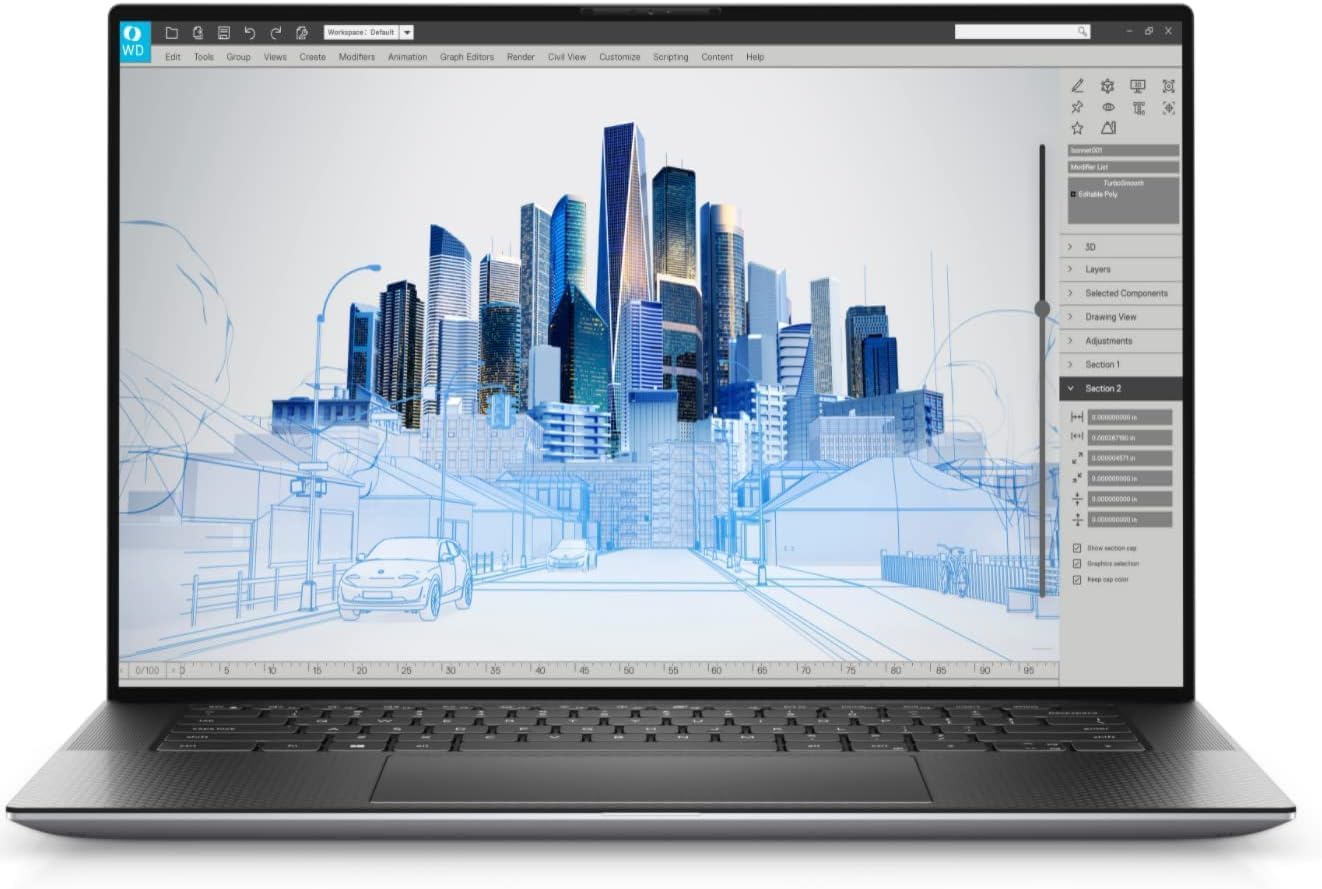
Figure 1: Dell Precision 5560 Workstation Laptop, front view with display active.
Setup Guide
1. Initial Power-On
- Unpack the Laptop: Carefully remove the laptop and all accessories from the packaging.
- Connect Power: Plug the power adapter into the laptop's power port and then into a wall outlet.
- Open the Lid: Gently open the laptop lid.
- Power On: Press the power button, typically located on the top right of the keyboard deck.
- Follow On-Screen Instructions: The laptop will guide you through the initial Windows 10 Pro setup process, including language selection, network connection, and user account creation.
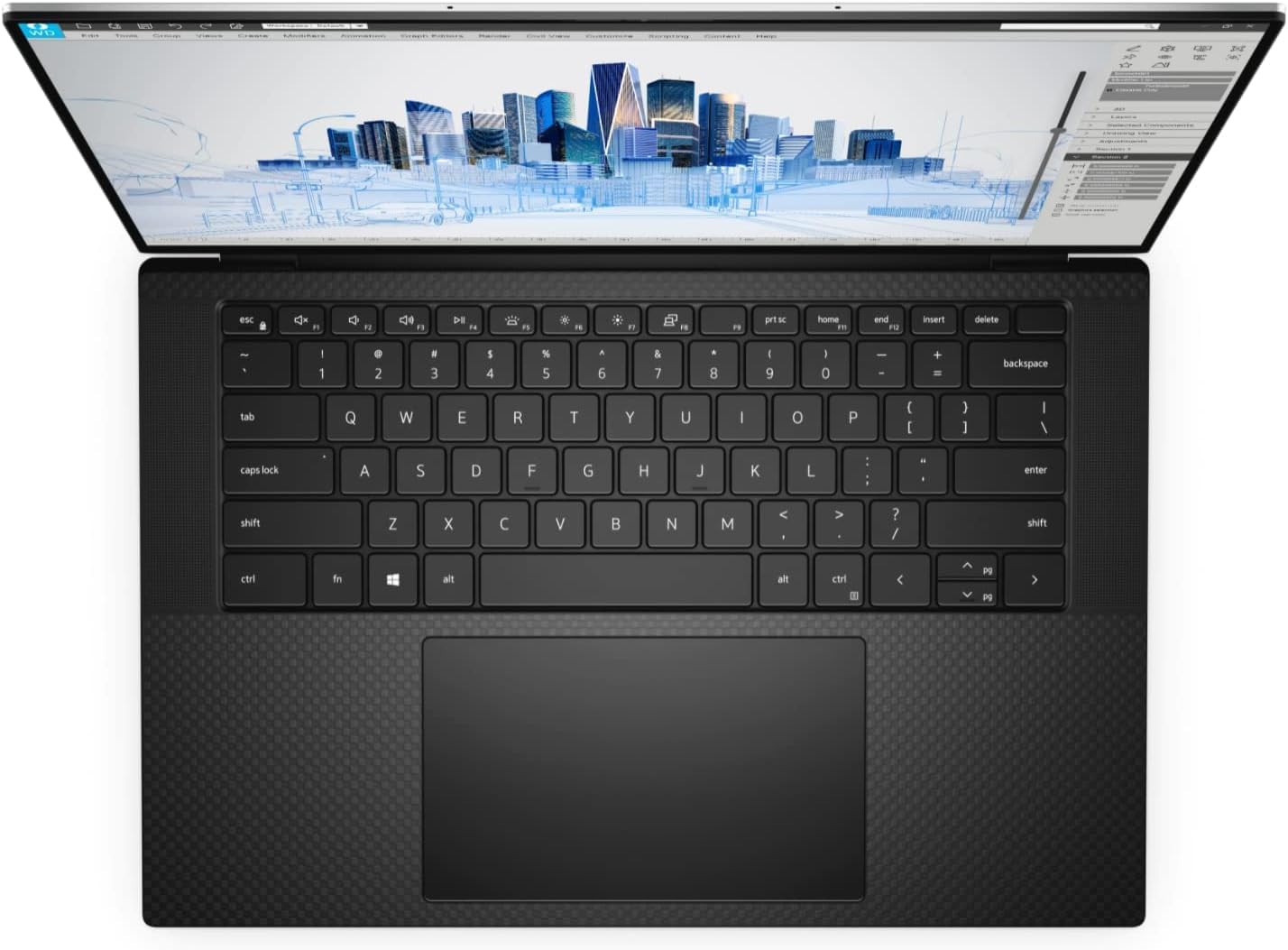
Figure 2: Top view of the Dell Precision 5560, showing the keyboard and large trackpad.
2. Connecting Peripherals
The Dell Precision 5560 includes various ports for connecting external devices. Refer to the side profile images for port locations.
- USB Ports: For mice, keyboards, external drives, etc.
- Thunderbolt/USB-C Ports: For high-speed data transfer, external displays, and charging.
- Audio Jack: For headphones or external speakers.

Figure 3: Left side view of the Dell Precision 5560, highlighting available ports.
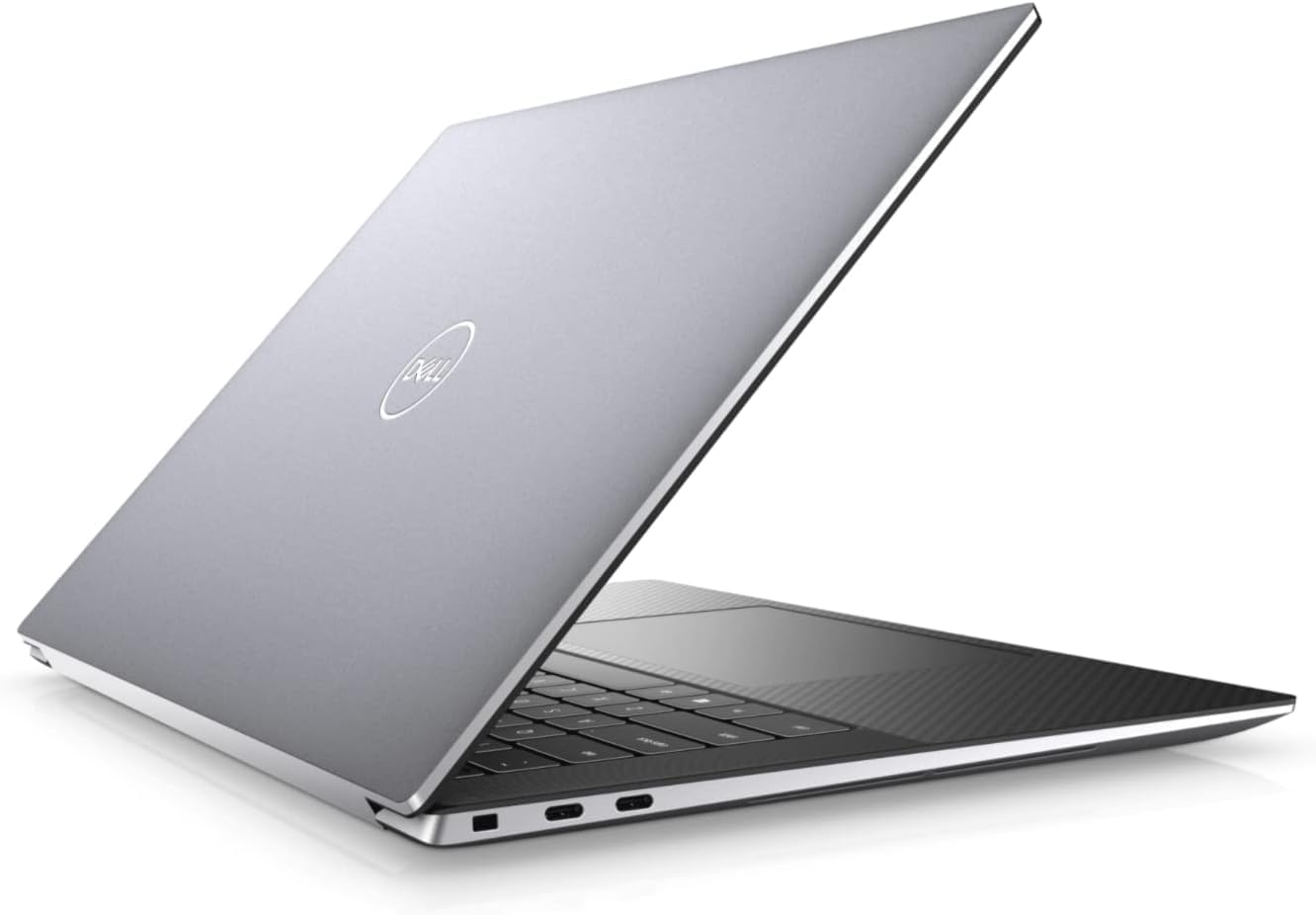
Figure 4: Right side view of the Dell Precision 5560, highlighting available ports.
Operating Instructions
Using Windows 10 Pro
Your Dell Precision 5560 comes pre-installed with Windows 10 Pro. Familiarize yourself with the operating system's interface and features for optimal productivity.
- Start Menu: Access applications, settings, and power options.
- Taskbar: Pin frequently used applications and monitor system status.
- File Explorer: Manage your documents, photos, and other files.
- Settings: Customize your laptop's behavior, display, network, and privacy settings.
Display and Graphics
The 15.6-inch FHD+ display (1920x1200) combined with the Nvidia T1200 graphics card provides a clear and vibrant visual experience. For graphics-intensive applications, ensure your drivers are up to date for optimal performance.
Maintenance and Care
Regular maintenance helps extend the life of your laptop and ensures consistent performance.
- Cleaning: Use a soft, lint-free cloth to clean the screen and exterior. For stubborn smudges, dampen the cloth slightly with water or a screen cleaner. Avoid harsh chemicals.
- Software Updates: Regularly update Windows 10 Pro and device drivers (especially graphics drivers) to ensure security and performance.
- Battery Care: Avoid consistently draining the battery to 0% or keeping it at 100% for extended periods. For long-term storage, charge the battery to about 50-60%.
- Ventilation: Ensure the laptop's vents are not obstructed to prevent overheating. Use the laptop on a hard, flat surface.
- Data Backup: Regularly back up important data to an external drive or cloud storage to prevent data loss.
Troubleshooting Common Issues
This section addresses common problems you might encounter with your Dell Precision 5560.
| Problem | Possible Solution |
|---|---|
| Laptop does not power on. | Ensure the power adapter is securely connected to both the laptop and a working power outlet. Try a different outlet. Check the power adapter for damage. |
| Screen is blank. | Ensure the laptop is powered on. Press Fn + F2 (or the key with a display icon) to toggle the display output. Connect an external monitor to check if the issue is with the laptop's internal display. |
| Wi-Fi not connecting. | Check if Wi-Fi is enabled in Windows settings. Restart your router and modem. Ensure correct Wi-Fi password is entered. Update wireless drivers. |
| Laptop is running slow. | Close unnecessary applications. Check Task Manager for processes consuming high CPU/RAM. Run a disk cleanup. Ensure Windows and drivers are updated. Scan for malware. |
Technical Specifications
| Feature | Detail |
|---|---|
| Brand | Dell |
| Model Name | Dell Precision 5560 Laptop |
| Screen Size | 15.6 Inches |
| Screen Resolution | 1920 x 1200 (FHD+) |
| Processor | Intel Core i7-11850H (8 Cores, 2.5 GHz base, up to 4.8 GHz Turbo) |
| RAM | 32 GB DDR4 |
| Hard Drive | 512 GB SSD |
| Graphics Coprocessor | Nvidia T1200 |
| Graphics Card RAM Size | 4 GB GDDR6 |
| Operating System | Windows 10 Pro |
| Wireless Type | Bluetooth, Wi-Fi |
| Item Weight | 4.06 pounds (approx. 1.84 kg) |
| Product Dimensions | 9.07 x 13.56 x 0.3 inches (approx. 23.04 x 34.44 x 0.76 cm) |
Warranty and Support
This Dell Precision 5560 laptop is a renewed product. It has been professionally inspected and tested to work and look like new. As an Amazon Renewed product, it is eligible for replacement or refund under the Amazon Renewed Guarantee if you are not satisfied with your purchase.
For further assistance or technical support, please refer to the Amazon Renewed program details or contact the seller, ItsWorthMore, directly through your Amazon order history.


