
HP HP Smart Tank 7605
HP Smart Tank 7605 All-in-One Printer User Manual
Model: HP Smart Tank 7605
1. Introduction
This manual provides comprehensive instructions for setting up, operating, and maintaining your HP Smart Tank 7605 All-in-One Printer. Please read this manual carefully to ensure proper use and to maximize the lifespan of your device. The HP Smart Tank 7605 is designed for high-volume printing, offering print, copy, scan, and fax functionalities with a refillable ink tank system.
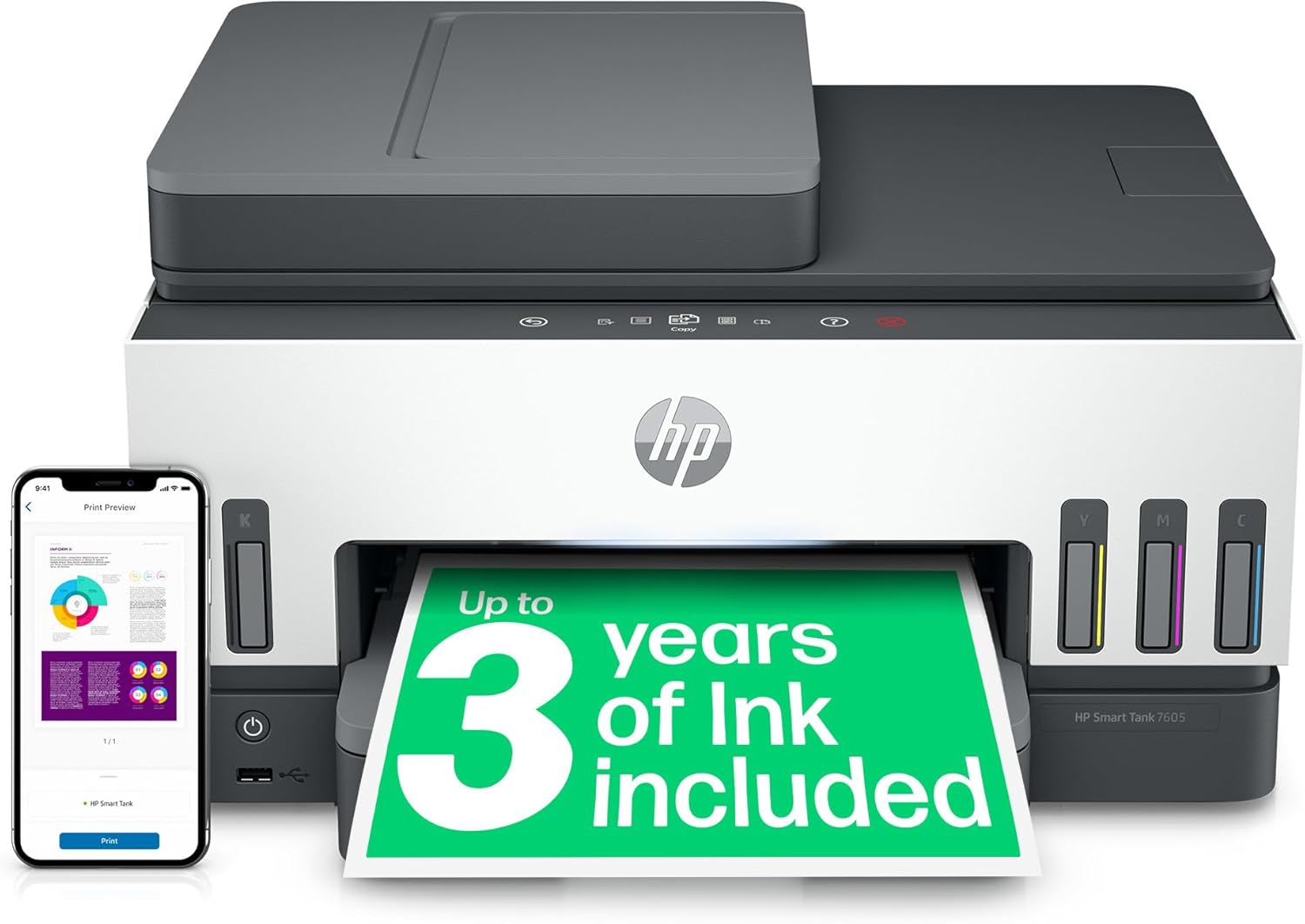
Figure 1: HP Smart Tank 7605 All-in-One Printer overview.
2. Setup Guide
2.1 Unboxing and Component Check
Carefully remove all components from the packaging. Ensure all items listed below are present:
- HP Smart Tank 7605 All-in-One Printer
- Original HP Ink Bottles (Black, Cyan, Magenta, Yellow)
- Setup flyer and reference guide
- Power cord

Figure 2: Included components with the HP Smart Tank 7605.
2.2 Filling the Ink Tanks
The HP Smart Tank 7605 features a spill-free refill system. Follow these steps to fill the ink tanks:
- Open the ink tank cover on the printer.
- Identify the correct color ink bottle for each tank (Black, Cyan, Magenta, Yellow).
- Twist off the cap of the ink bottle.
- Invert the ink bottle and firmly insert its nozzle into the corresponding ink tank opening. The ink will automatically drain into the tank without squeezing.
- Once the tank is full, remove the bottle and replace the tank cover.
- Repeat for all colors.

Figure 3: Spill-free ink refill process.
2.3 Power Connection and Initial Boot
Connect the power cord to the printer and then to a wall outlet. Press the power button to turn on the printer. The printer will perform an initial setup sequence.
2.4 Network Setup (Wireless/Ethernet)
The HP Smart Tank 7605 supports both wireless and Ethernet connectivity.
Wireless Setup:
- On the printer's control panel (LCD display), navigate to the Wireless Setup Wizard.
- Select your Wi-Fi network from the list and enter the password.
- Confirm the connection.
Ethernet Setup:
- Connect an Ethernet cable from your router or network switch to the Ethernet port on the back of the printer.
- The printer will automatically obtain an IP address from your network.

Figure 4: Rear view with Ethernet port.
2.5 Software Installation (HP Smart App)
For optimal functionality, download and install the HP Smart app on your computer or mobile device. This app guides you through the setup process and provides access to various printer features.
- Visit hpsmart.com or your device's app store.
- Download and install the HP Smart app.
- Follow the on-screen instructions within the app to add your printer and complete the setup.

Figure 5: Using the HP Smart App for setup and control.
3. Operating Instructions
3.1 Loading Paper
The printer has a 250-sheet input tray. Ensure paper is loaded correctly to prevent jams.
- Pull out the input tray.
- Adjust the paper guides to fit the paper size.
- Load paper with the print side facing down.
- Push the tray back into the printer.
3.2 Printing Documents
You can print from your computer or mobile device.
From a Computer:
- Open the document you wish to print.
- Select "Print" from the application's menu.
- Choose "HP Smart Tank 7605" as your printer.
- Adjust print settings (e.g., paper size, quality, 2-sided printing) as needed.
- Click "Print".
From a Mobile Device (HP Smart App):
- Open the HP Smart app.
- Select "Print Documents" or "Print Photos".
- Browse and select the file you want to print.
- Adjust print settings and tap "Print".

Figure 6: High-quality printing with the HP Smart Tank 7605.
3.3 Copying Documents
The printer supports both flatbed and Automatic Document Feeder (ADF) copying.
Using the Flatbed Scanner:
- Lift the scanner lid.
- Place the document face down on the scanner glass, aligning it with the guide.
- Close the lid.
- On the control panel, select "Copy" and adjust settings (e.g., number of copies, color/black & white).
- Press the "Start Copy" button.
Using the Automatic Document Feeder (ADF):
- Load documents face up into the ADF tray. The ADF can hold up to 35 pages.
- Adjust the paper guides to fit the document width.
- On the control panel, select "Copy" and adjust settings.
- Press the "Start Copy" button.

Figure 7: Product walkaround showing ADF and control panel.
3.4 Scanning Documents
Scan documents to your computer or mobile device using the HP Smart app.
- Place the document on the scanner glass or in the ADF.
- Open the HP Smart app on your device.
- Select "Scan".
- Adjust scan settings (e.g., resolution, file type, destination).
- Tap "Scan" to initiate the scan.
3.5 Faxing Documents
The HP Smart Tank 7605 includes fax functionality.
- Connect a phone line to the printer's "LINE" port and to your wall jack.
- Place the document on the scanner glass or in the ADF.
- On the printer's control panel, select "Fax".
- Enter the recipient's fax number.
- Adjust fax settings if necessary.
- Press the "Start Fax" button.
4. Maintenance
4.1 Ink Level Monitoring and Refill
The printer features low-on-ink tank lights and sensors. Monitor ink levels regularly through the transparent ink tanks or the HP Smart app. Refill tanks as described in Section 2.2 when levels are low.
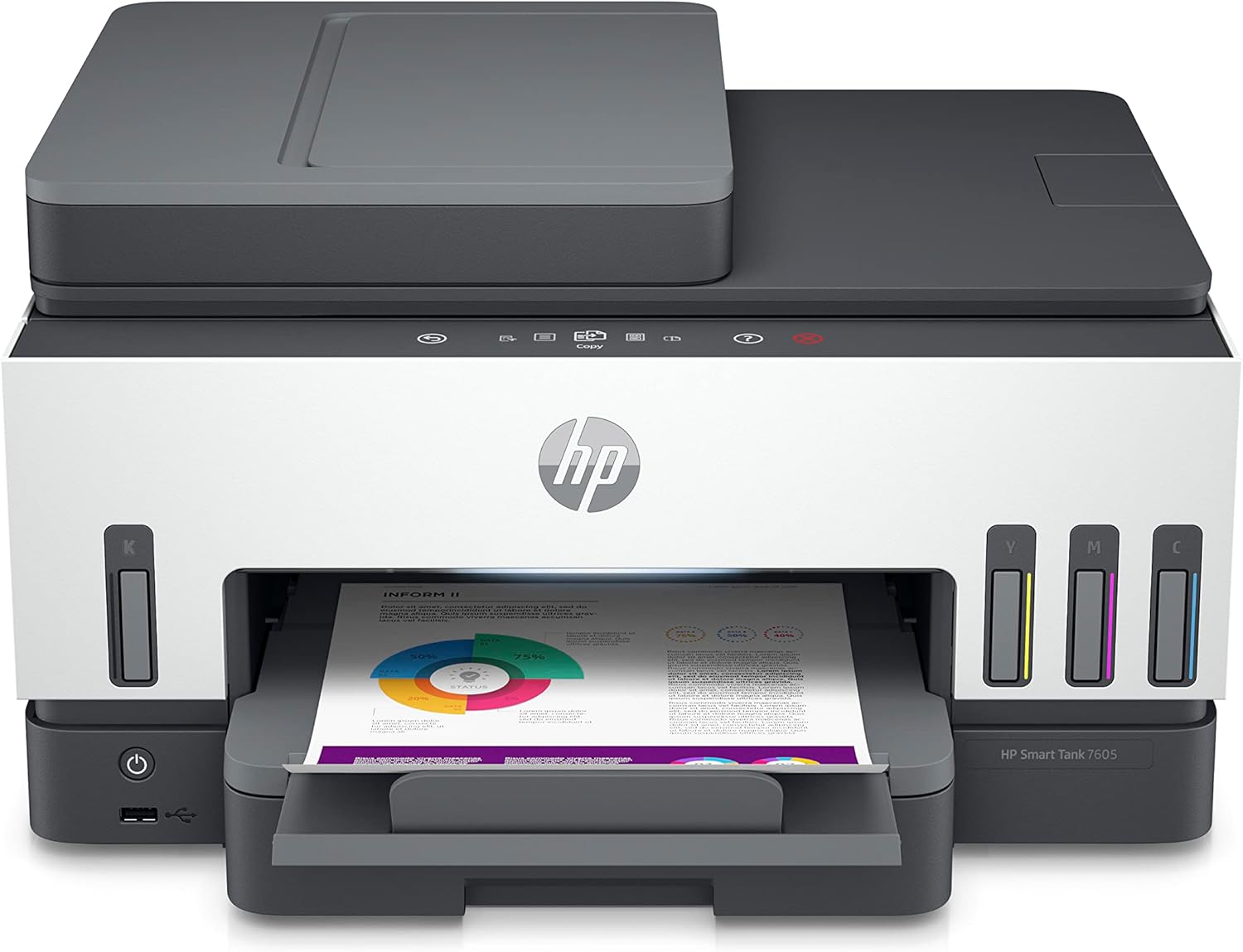
Figure 8: Visible ink tanks for easy monitoring.
4.2 Cleaning the Printer
Cleaning the Exterior:
Wipe the exterior of the printer with a soft, damp, lint-free cloth. Do not use abrasive cleaners or solvents.
Cleaning the Scanner Glass:
Use a soft, lint-free cloth lightly dampened with glass cleaner (non-abrasive) to clean the scanner glass. Ensure no residue is left behind.
Printhead Cleaning:
If print quality issues (streaks, faded colors) occur, perform a printhead cleaning cycle through the HP Smart app or the printer's control panel maintenance menu.
5. Troubleshooting
5.1 Common Issues and Solutions
| Problem | Possible Cause | Solution |
|---|---|---|
| Printer not responding | Power off, network issue, driver problem. | Check power connection. Verify network connection. Restart printer and computer/device. Reinstall printer drivers if necessary. |
| Paper jam | Incorrect paper loading, foreign object. | Carefully remove jammed paper following instructions in the HP Smart app or online support. Ensure paper is loaded correctly. |
| Poor print quality (streaks, faded) | Low ink, clogged printhead, incorrect paper type. | Check ink levels and refill if low. Perform printhead cleaning. Ensure correct paper type is selected in print settings. |
| Cannot connect to Wi-Fi | Incorrect password, router issue, printer too far from router. | Double-check Wi-Fi password. Restart router. Move printer closer to router or use Ethernet. |
For more detailed troubleshooting, refer to the HP support website or the HP Smart app.
6. Specifications
| Feature | Detail |
|---|---|
| Model Name | HP Smart Tank 7605 All-in-One |
| Functions | Print, Copy, Scan, Fax, ADF, Wireless |
| Printing Technology | Thermal Inkjet |
| Print Speed (Black) | Up to 11 ppm (ISO), 23 ppm (Draft) |
| Print Speed (Color) | Up to 5 ppm (ISO), 22 ppm (Draft) |
| Print Resolution (Black) | Up to 1200 x 1200 rendered dpi |
| Print Resolution (Color) | Up to 4800 x 1200 optimized dpi |
| Duplex Printing | Automatic (2-sided) |
| Scanner Type | Flatbed, ADF |
| ADF Capacity | 35 sheets |
| Input Tray Capacity | 250 sheets |
| Connectivity | Dual Band Wi-Fi, Ethernet, USB 2.0, Bluetooth LE |
| Display | LCD with Smart-guided buttons |
| Product Dimensions (W x D x H) | 42.8 x 36.4 x 24.03 cm (approx.) |
| Item Weight | 7.7 kg |
| Operating System Compatibility | Windows 7/10/11, macOS 10.14/10.15, Linux |

Figure 9: HP Smart Tank 7605 dimensions.
7. Warranty and Support
7.1 Product Warranty
The HP Smart Tank 7605 All-in-One Printer comes with a Lifetime Warranty. Please retain your proof of purchase for warranty claims. For specific terms and conditions, refer to the warranty documentation included with your product or visit the official HP support website.
7.2 Customer Support
For further assistance, technical support, or to access updated drivers and software, please visit the official HP support website or use the HP Smart app.
- HP Support Website: support.hp.com
- HP Smart App: Available on iOS, Android, and Windows app stores.
8. Environmental Responsibility
The HP Smart Tank 7605 is designed with sustainability in mind. This printer is made with 25% recycled plastic, contributing to waste reduction.

Figure 10: Commitment to reducing waste with recycled materials.
Ask a question about this manual
Ask about setup, troubleshooting, compatibility, parts, safety, or missing instructions. Manuals+ will review the question and use this page’s manual context to help answer it.