
1. Product Overview
The ASUS RT-AX86S is a high-performance dual-band WiFi 6 gaming router designed to deliver ultrafast WiFi speeds and a low-latency gaming experience. It supports internet connections up to 2 Gbps, optimizing both wired and wireless networking.
Key Features:
- Ultrafast WiFi 6 speeds up to 5700 Mbps.
- Mobile Game Mode for lag-free, low-latency mobile gaming.
- Supports up to 2 Gbps internet connection.
- 2.5G LAN/WAN Port for prioritized traffic and full WiFi 6 potential.
- Quad-core CPU processor, advanced cooling, and optimized antenna design.
- Triple-level Game Acceleration.
- AiMesh support for easy extendable network.
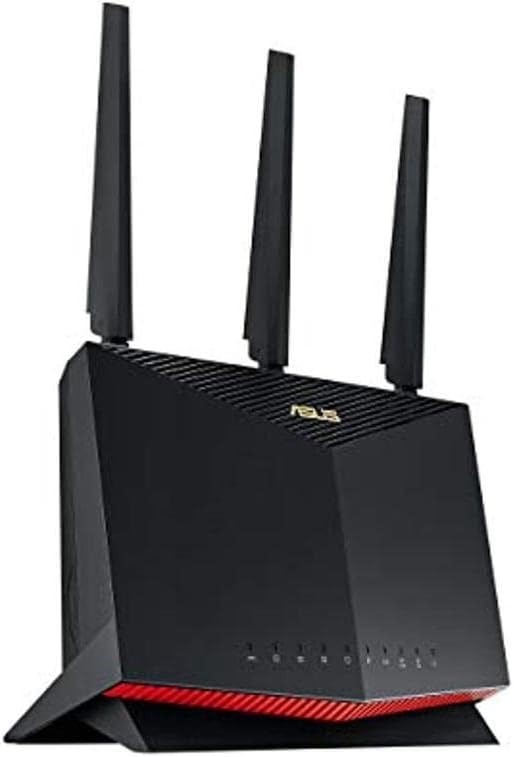
Figure 1: Front view of the ASUS RT-AX86S router, showcasing its design and LED indicators.
2. Package Contents
Before you begin, please ensure all items are present in your package:
- RT-AX86S WiFi router
- RJ-45 cable
- Power adapter
- Quick Start Guide
- Warranty card
3. Setup Guide
Follow these steps to set up your ASUS RT-AX86S router:
- Positioning the Router: Place the router in a central location in your home or office, away from obstructions and other electronic devices that may cause interference. Ensure good airflow around the device.

Figure 2: Rear view of the ASUS RT-AX86S router, showing the various ports for connectivity.
- Connect the Antennas: Screw the three external antennas firmly onto the connectors at the back of the router. Adjust them vertically for optimal signal coverage.

Figure 3: Top-down view of the ASUS RT-AX86S router, highlighting the antenna placement.
- Connect to the Internet:
- Connect one end of the provided RJ-45 cable to the WAN port (usually blue) on your RT-AX86S router.
- Connect the other end of the RJ-45 cable to your modem's LAN port.
- Power On: Connect the power adapter to the router's DC-in port and plug it into a power outlet. Press the power button. Wait for the LED indicators on the front of the router to stabilize (usually solid white or blue for internet and Wi-Fi).
- Initial Configuration:
- Using the ASUS Router App: Download the ASUS Router app from your mobile device's app store. Open the app and follow the on-screen instructions to detect and set up your new router. This is the recommended method for ease of use.
- Using a Web Browser: Connect your computer to the router via Wi-Fi (using the default SSID and password found on the router's label) or via an Ethernet cable to one of the LAN ports. Open a web browser and navigate to
router.asus.comor192.168.1.1. Follow the setup wizard to configure your internet connection and Wi-Fi settings.

Figure 4: Angled view of the ASUS RT-AX86S router, showing its sleek design and LED indicators.
4. Operating Your Router
Once set up, your RT-AX86S router provides advanced features for an optimized network experience:
- Dual-Band Operation: The router operates on both 2.4 GHz and 5 GHz frequencies. The 2.4 GHz band offers wider coverage, while the 5 GHz band provides faster speeds for compatible devices.
- WiFi 6 (802.11ax): To fully utilize WiFi 6 capabilities, ensure your client devices (smartphones, laptops, etc.) are WiFi 6 compatible. This standard offers improved efficiency, higher speeds, and better performance in congested environments.
- Gaming Port: The dedicated Gaming Port (often a specific LAN port, check your router's physical markings or web interface) prioritizes gaming traffic, reducing latency for a smoother online gaming experience.
- AiMesh: If you have other AiMesh-compatible ASUS routers, you can create a seamless whole-home mesh Wi-Fi system. Refer to the ASUS AiMesh documentation for detailed setup instructions.
- Mobile Game Mode: Activate Mobile Game Mode via the ASUS Router app to optimize network performance specifically for mobile gaming, minimizing lag and improving responsiveness.

Figure 5: The ASUS RT-AX86S router enhancing a user's gaming experience, demonstrating its intended use for high-performance networking.
5. Maintenance
Regular maintenance ensures optimal performance and longevity of your router:
- Firmware Updates: Regularly check for and install the latest firmware updates through the ASUS Router app or the router's web interface. Firmware updates often include performance improvements, security patches, and new features.
- Physical Cleaning: Keep the router clean and free from dust. Use a soft, dry cloth to wipe the exterior. Ensure ventilation holes are not blocked.
- Restarting: Periodically restart your router (unplug from power for 10 seconds, then plug back in) to refresh its connection and clear any temporary issues.
- Secure Your Network: Use strong, unique passwords for your Wi-Fi network and router administration. Enable WPA2/WPA3 encryption.
6. Troubleshooting
If you encounter issues with your RT-AX86S router, try the following common troubleshooting steps:
- No Internet Connection:
- Check all cable connections (WAN port to modem, power).
- Restart your modem and then your router.
- Verify your internet service provider (ISP) connection is active.
- Slow Wi-Fi Speed:
- Ensure your device is connected to the appropriate band (5 GHz for faster speeds, if supported).
- Check for Wi-Fi interference from other devices (cordless phones, microwaves).
- Update router firmware and device drivers.
- Consider repositioning the router for better signal coverage.
- Cannot Access Router Settings:
- Ensure your device is connected to the router's network.
- Try accessing
router.asus.comor192.168.1.1. - Clear your browser's cache or try a different browser.
- If you forgot your login credentials, you may need to perform a factory reset (refer to the full user manual for instructions, as this will erase all settings).
For more detailed troubleshooting and advanced configurations, please refer to the official ASUS RT-AX86S User Manual PDF: Download User Guide (PDF)
7. Specifications
| Feature | Detail |
|---|---|
| Model Name | RT-AX86S |
| Wireless Standard | 802.11ax (WiFi 6), 802.11ac, 802.11n, 802.11a, 802.11g, 802.11b |
| Frequency Band | Dual-Band (2.4 GHz, 5 GHz) |
| Data Rate | Up to 5700 Mbps (AX5700) |
| Antennas | External antennas (3) |
| Ports | 1x 2.5G WAN/LAN, 1x Gigabit WAN, 4x Gigabit LAN, 2x USB 3.2 Gen 1 |
| Processor | Quad-core CPU |
| Dimensions (L x W x H) | 12.8 x 3.94 x 9.53 inches |
| Item Weight | 1.8 pounds |
| Special Features | WPS, Internet Security, Mobile Game Mode, AiMesh, Triple-level Game Acceleration |
8. Warranty and Support
Your ASUS RT-AX86S router comes with a manufacturer's warranty. Please refer to the included Warranty Card for specific terms and conditions, including warranty period and coverage details.
For technical support, driver downloads, firmware updates, and additional resources, please visit the official ASUS support website or refer to the comprehensive User Manual:
- Official ASUS Support: https://www.asus.com/support/
- User Guide (PDF): https://manuals.plus/m/bdd961e24cd4d66280ae5baa8a831567fef7b6ac2e2fdac251bffaade4b820f8
Disclaimer: Actual data throughput and WiFi coverage will vary from network conditions and environmental factors, including the volume of network traffic, building material and construction, and network overhead, resulting in lower actual data throughput and wireless coverage. To benefit from WiFi 6 features, the WiFi client needs to be WiFi 6 capable.


