
WIKICO AF3
WIKICO 4K Camcorder AF3 User Manual
Model: AF3
1. Introduction
This manual provides detailed instructions for the proper use and maintenance of your WIKICO 4K Camcorder AF3. Please read this manual thoroughly before operating the device to ensure optimal performance and longevity.

Figure 1.1: WIKICO 4K Camcorder with attached accessories.

Figure 1.2: Key features of the WIKICO 4K Camcorder.
2. Package Contents
Verify that all items listed below are included in your package:
- WIKICO 4K Camcorder AF3
- External Microphone
- Lens Hood
- Handheld Stabilizer
- Fill Light with 35 LED beads
- 2 x Rechargeable Lithium Polymer Batteries (NP-40, 3.7V 1500mAh)
- 360° Remote Control
- Battery Charger (dual charger)
- USB 2.0 Data Cable
- Power Adapter
- 32GB SD Memory Card
- Camera Bag
- User Manual

Figure 2.1: All included accessories with the WIKICO 4K Camcorder.
3. Getting Started
3.1. Battery and SD Card Installation
- Open the battery/SD card compartment cover located at the bottom of the camcorder.
- Insert the fully charged Lithium Polymer battery into the battery slot, ensuring correct polarity.
- Insert the 32GB SD memory card into the SD card slot until it clicks into place.
- Close the compartment cover securely.

Figure 3.1: Battery and SD card insertion points.
3.2. Attaching Accessories
The camcorder comes with several accessories that can be attached to enhance your recording experience:
- External Microphone: Connect the microphone to the designated port on the camcorder.
- Lens Hood: Attach the lens hood to the front of the lens to reduce glare and protect the lens.
- Handheld Stabilizer: Mount the camcorder onto the stabilizer for improved shot stability.
- Fill Light: Attach the fill light to the hot shoe mount on top of the camcorder for additional illumination in low-light conditions.
4. Basic Operation
4.1. Power On/Off
To power on the camcorder, open the 3.0-inch IPS flip screen. To power off, close the screen or press and hold the power button.

Figure 4.1: Camcorder with flip screen open, revealing control buttons.
4.2. Switching Between Photo and Video Modes
Use the 'MODE' button on the camcorder or the remote control to switch between photo and video recording modes. The current mode will be displayed on the screen.
4.3. Zoom Function
The camcorder features 18X digital zoom. Use the zoom rocker switch on the top of the camcorder or the zoom buttons on the remote control to zoom in or out.
4.4. Autofocus
The camcorder supports autofocus. To focus, gently tap the 'photograph' button. A red focus frame will appear and turn green upon successful focus. This ensures clear and sharp images.

Figure 4.2: Autofocus in action, indicated by a green frame.

Figure 4.3: Comparison of focused and unfocused images.
5. Advanced Features
5.1. WiFi Function
Activate the WiFi function to remotely control the camcorder using a smartphone or tablet. This allows for live preview, remote recording, and sharing of photos and videos.

Figure 5.1: Using the WiFi function to connect the camcorder to a smartphone.
Scan this QR code to download the companion app: http://qr24.cn/EqyM2h
5.2. PC Camera Function
Connect the camcorder to your computer via USB to use it as a PC camera for video calls or live streaming.
5.3. Night Vision and Fill Light
The camcorder supports night vision for recording in low-light environments. Additionally, the included fill light provides extra illumination to capture clear images and videos even in dark settings.
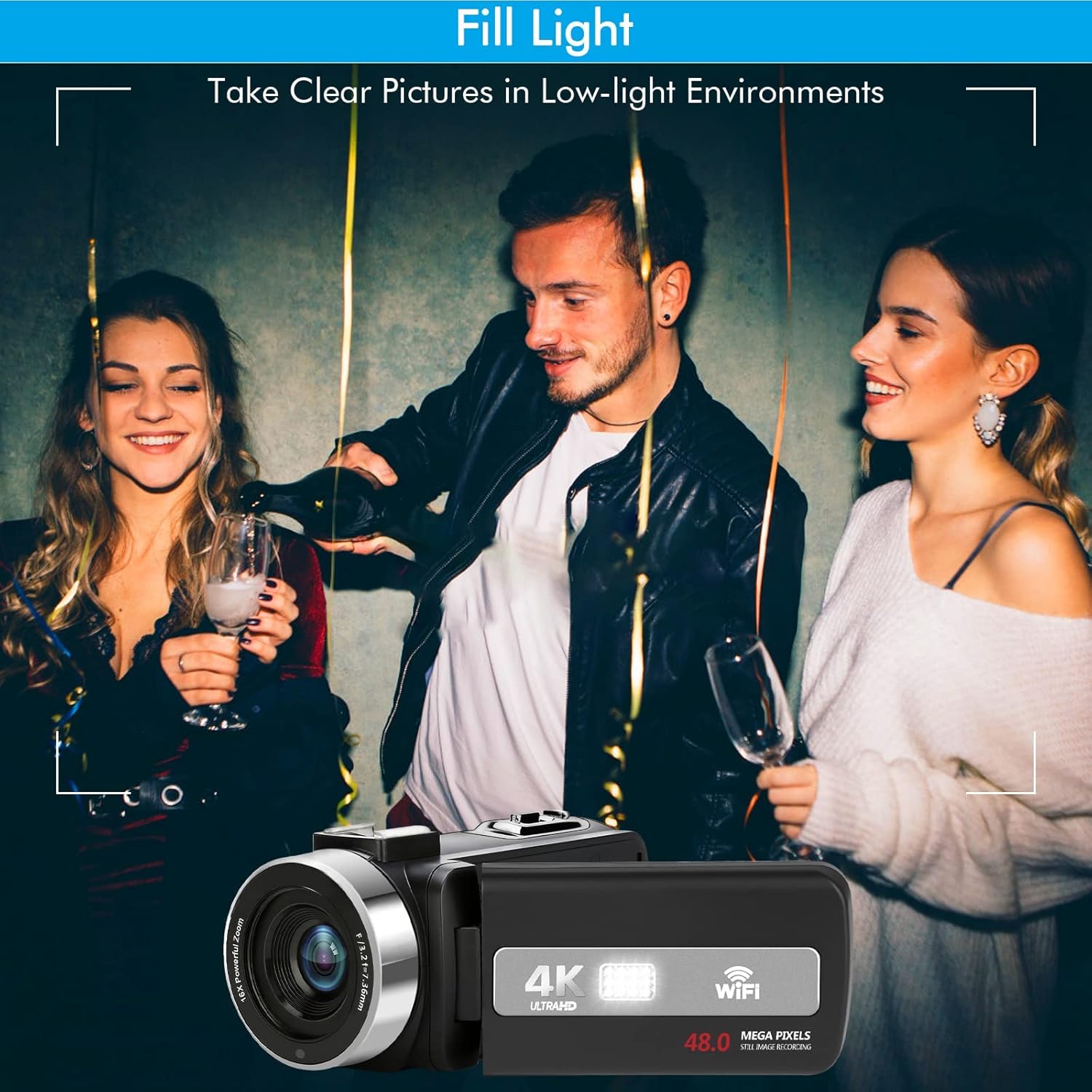
Figure 5.2: Utilizing the fill light for clear pictures in low-light environments.
5.4. Remote Control Operation
The included 360° remote control allows you to operate the camcorder from a distance, controlling power, mode switching, zoom, and recording functions without touching the device.

Figure 5.3: Remote control for convenient operation.
5.5. Other Recording Functions
The camcorder supports various recording functions:
- Recording While Charging: Continue recording even when the battery is low by connecting the camcorder to a power source.
- Time-Lapse Photography: Capture sequences of images over time to create time-lapse videos.
- Slow Motion: Record videos in slow motion for dramatic effects.
- Pause Function: Pause and resume video recording without creating multiple files.
- Selfie Mode: Utilize the rotatable screen for easy self-recording.

Figure 5.4: Various advanced recording features.
5.6. HDMI Output
Connect the camcorder to an HDTV using the provided HDMI cable to view your recordings on a larger screen.

Figure 5.5: Camcorder connected to a laptop for webcam use and to a TV via HDMI.
6. Care and Maintenance
- Keep the camcorder and accessories dry. Do not expose them to moisture.
- Clean the lens with a soft, lint-free cloth specifically designed for optical surfaces.
- Avoid dropping or subjecting the camcorder to strong impacts.
- Store the camcorder in the provided camera bag when not in use to protect it from dust and scratches.
- Charge batteries regularly, even if not in use, to maintain battery health.
7. Troubleshooting
If you encounter issues with your WIKICO 4K Camcorder, please refer to the following common solutions:
- Camcorder not powering on: Ensure the battery is fully charged and correctly inserted.
- Poor image/video quality: Check lens cleanliness, ensure adequate lighting, and verify focus settings.
- SD card error: Reinsert the SD card, try a different compatible SD card, or format the card (this will erase all data).
- WiFi connection issues: Ensure the camcorder's WiFi is enabled and your smart device is within range. Refer to the app's instructions for connection.
- No audio recording: Check if the external microphone is properly connected and enabled in settings.
For persistent issues, please contact WIKICO customer support.
8. Specifications
| Feature | Detail |
|---|---|
| Brand | WIKICO |
| Model Number | AF3 |
| Camcorder Type | Video Camera |
| Video Capture Resolution | 4K (3840x2160) |
| Image Resolution | 48.0MP |
| Digital Zoom | 18X |
| Screen Size | 3 Inches (IPS Flip Touch Screen) |
| Connectivity Technology | Wi-Fi |
| Photo Sensor Technology | CMOS |
| Flash Memory Type | SD |
| Video Capture Format | MP4 |
| Special Features | Infrared (Night Vision), Lightweight, Time Lapse, Autofocus, PC Camera Function, Remote Control, Record While Charging |
| Item Weight | 7.8 ounces |
| Product Dimensions | 5 x 2.2 x 2.5 inches |
| Batteries | 2 Lithium Polymer batteries required |
9. Warranty and Support
WIKICO provides a 12-month warranty for this product, covering replacement or refund for eligible issues. Additionally, lifetime technical support is available for all customers.
For warranty claims, technical assistance, or any inquiries, please contact WIKICO customer support through the official channels provided at the time of purchase or on the WIKICO website.
Ask a question about this manual
Ask about setup, troubleshooting, compatibility, parts, safety, or missing instructions. Manuals+ will review the question and use this page’s manual context to help answer it.