
Dpofirs K870T
RGB Mechanical Gaming Keyboard K870T User Manual
Brand: Dpofirs
Product Overview
The Dpofirs K870T is an 87-key RGB mechanical gaming keyboard designed for versatile use with both wired and Bluetooth dual-mode connectivity. It features 18 colorful RGB lighting effects, mechanical key shafts, and a durable design suitable for gaming, typing, and office work.
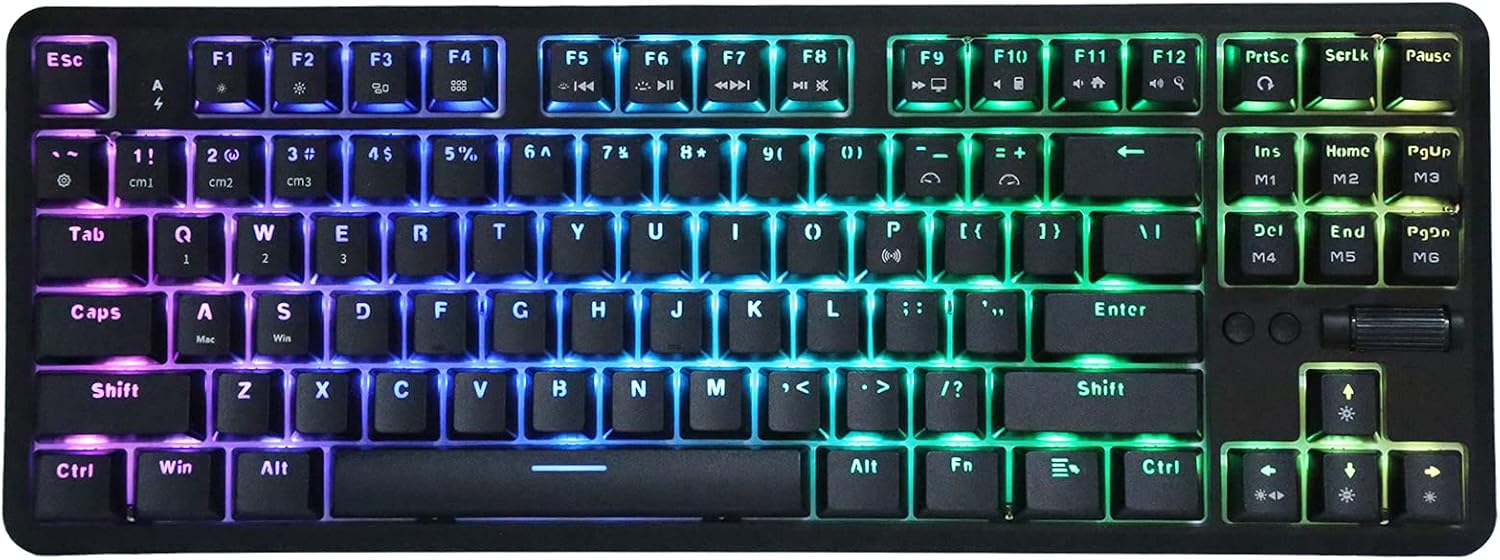
Figure 1: Dpofirs K870T RGB Mechanical Gaming Keyboard with illuminated keys.
Package Contents
Upon opening the package, please verify that all the following items are included:
- 1 x Mechanical Keyboard (K870T)
- 1 x Power Cable (USB-A to USB-C, approx. 1.6m / 5.2ft)
- 10 x Replaceable Buttons (Keycaps)
- 1 x Keycap Puller (Folder)
- 1 x User Manual

Figure 2: Included accessories: keyboard, cable, replaceable keycaps, and keycap puller.
Setup and Connection
Wired Connection
- Locate the USB-C port on the keyboard, typically on the top edge.
- Connect the smaller USB-C end of the provided power cable to the keyboard.
- Connect the standard USB-A end of the cable to an available USB port on your computer or device.
- The keyboard will be automatically recognized by your operating system and is ready for use.

Figure 3: USB-C port for wired connection.
Bluetooth Connection
The K870T keyboard supports Bluetooth connectivity for wireless operation. Ensure your device has Bluetooth enabled.
- Turn on the keyboard's Bluetooth mode. (Specific key combination or switch location not provided in product data, assume standard method or refer to quick start guide if available).
- On your computer or device, navigate to Bluetooth settings.
- Search for new devices. The keyboard should appear as "K870T" or similar.
- Select the keyboard to pair. If prompted for a passkey, enter "0000" or "1234" or follow on-screen instructions.
- Once paired, the keyboard is ready for wireless use.
Operating Instructions
Dual Mode Switching
The keyboard supports seamless switching between wired and Bluetooth modes. When the USB cable is connected, the keyboard will prioritize the wired connection. Disconnect the cable to use Bluetooth mode.
RGB Lighting Effects
The K870T features 18 colorful RGB light effects. Specific key combinations are used to cycle through these effects and adjust brightness or speed. Look for dedicated function keys or combinations with the Fn key.
- Changing Effects: Typically Fn + [Light Key] (often indicated by a sun or star icon).
- Adjusting Brightness: Fn + Up/Down Arrow keys.
- Adjusting Speed: Fn + Left/Right Arrow keys.

Figure 4: Keyboard multimedia and lighting control keys.
Function Keys (Fn Combinations)
The keyboard utilizes an Fn key to access secondary functions on certain keys. Common functions include:
- F1-F12: Multimedia controls (Play/Pause, Stop, Previous/Next Track, Volume Up/Down/Mute).
- Windows Key Lock: Prevents accidental presses during gaming.
- Macro Keys: Some keyboards allow programming of custom macros. Refer to specific software instructions if applicable.
Maintenance
Cleaning the Keyboard
Regular cleaning helps maintain the keyboard's performance and appearance.
- Disconnect the keyboard from your computer before cleaning.
- Use a can of compressed air to blow away dust and debris from between the keycaps.
- Wipe the keycaps and keyboard surface with a soft, slightly damp, lint-free cloth. Avoid excessive moisture.
- For stubborn grime, a small amount of isopropyl alcohol on a cloth can be used, but avoid direct application to the keyboard.
Replacing Keycaps
The included keycap puller allows for easy replacement of keycaps.
- Gently place the keycap puller over the keycap you wish to remove, ensuring the wires hook under opposite sides of the keycap.
- Pull straight up with even pressure until the keycap detaches from the switch.
- Align the new keycap with the switch stem and press down firmly until it clicks into place.

Figure 5: Replaceable keycaps and keycap puller.
Troubleshooting
| Problem | Possible Cause | Solution |
|---|---|---|
| Keyboard not responding (Wired) | Loose cable connection, faulty USB port, driver issue. | Ensure cable is securely connected. Try a different USB port. Restart your computer. |
| Keyboard not responding (Bluetooth) | Bluetooth not enabled, not paired, low battery, interference. | Ensure Bluetooth is on and keyboard is paired. Recharge the keyboard. Move closer to the device. |
| RGB lights not working | Lights turned off, brightness set to minimum, software conflict. | Press Fn + Light key to cycle effects. Increase brightness with Fn + Up Arrow. Check for keyboard software if installed. |
| Keys not registering | Dust/debris under keycap, faulty switch. | Remove keycap and clean the switch area with compressed air. If issue persists for a single key, it might be a hardware fault. |
Specifications
| Model | K870T |
| Number of Keys | 87 |
| Connection Method | Bluetooth + Wired (USB) |
| Shaft Body | Mechanical Key Shaft |
| Built-in Battery | 2000 mAh rechargeable lithium battery |
| No Punch Quantity | Wired mode supports full key no punch |
| Wire Length | Approx. 1.6m / 5.2ft |
| RGB Lighting | 18 colorful light effects |
| Dimensions | 15.67 x 6.93 x 2.05 inches |
| Item Weight | 2.48 pounds |
| Manufacturer | Dpofirs |
| Country of Origin | China |
Warranty and Support
For product support, troubleshooting assistance, or warranty inquiries, please contact the manufacturer, Dpofirs, or refer to the seller's return policy.
- Return Policy: This product typically has a 30-day return policy for refund or replacement from the date of purchase. Please check with your retailer for specific terms.
- Protection Plans: Extended protection plans may be available for purchase separately.
Always retain your proof of purchase for warranty claims.