
BASERY G10-VR
BASERY VR Headset Instruction Manual
Model: G10-VR
Introduction
Thank you for choosing the BASERY VR Headset. This manual provides detailed instructions for setting up, operating, and maintaining your new virtual reality glasses. Please read this manual thoroughly before use to ensure optimal performance and safety. This VR headset is designed to provide an immersive 3D experience for compatible smartphones ranging from 3.5 to 7.2 inches.

The BASERY VR Headset offers an immersive experience for IMAX Cinema, 360° View, and 3D Games.
Safety Information
- Do not use the VR headset while driving, walking, or engaging in activities that require your full attention.
- Take regular breaks to avoid eye strain or discomfort. If you experience dizziness, nausea, or disorientation, discontinue use immediately.
- Keep the device away from direct sunlight, high temperatures, and humidity.
- Do not attempt to disassemble or modify the headset or remote control.
- Ensure your smartphone is securely placed in the headset before use.
Package Contents
Please check the box for the following items:
- BASERY VR Headset (G10-VR)
- Remote Control (SC-B03)
- User Manual
- Cleaning Cloth (may vary by package)
Product Overview

The BASERY VR Headset and its accompanying remote control.
VR Headset Components
- Adjustable Head Straps: For a secure and comfortable fit.
- Phone Compartment: Holds smartphones from 3.5 to 7.2 inches.
- Pupil Distance Adjustment Wheel: Adjusts the distance between the lenses to match your eye spacing.
- Focal Distance Adjustment Dials: Adjusts the clarity of the image for individual eyes.
- Detachable Spongy Patch: Removable padding for comfort and hygiene.
- Cooling Vents: Designed to dissipate heat from the smartphone.

Ergonomic design for balanced weight distribution and comfort.

Multi-angle cooling design helps prevent phone overheating.

The detachable spongy patch allows for easy cleaning and replacement.
Remote Control (SC-B03)
The remote control provides navigation and interaction within VR applications.

Side view of the remote control.
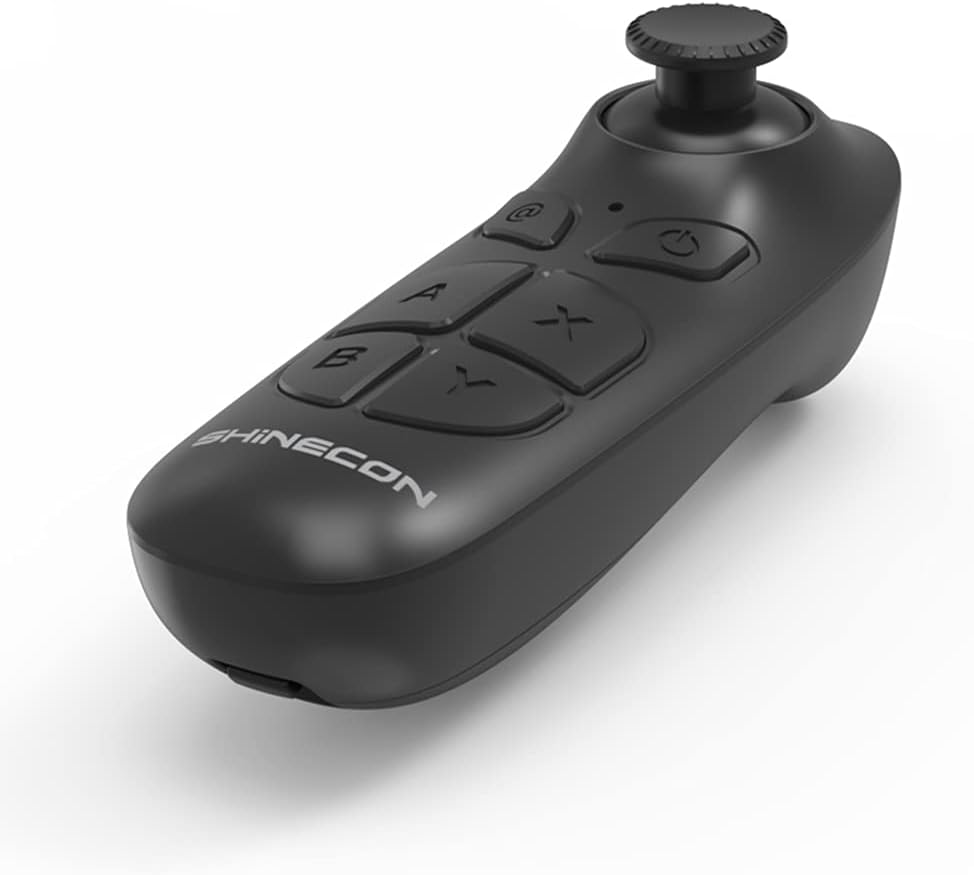
Top view of the remote control with joystick and action buttons.

Back view of the remote control, indicating the battery compartment.
Setup
1. Inserting Your Smartphone
- Open the front cover of the VR headset.
- Place your smartphone into the phone compartment, ensuring it is centered and secure. The headset supports phones with screen sizes from 3.5 to 7.2 inches.
- Close the front cover firmly.

Properly insert your smartphone into the headset's compartment.

The headset is compatible with smartphones ranging from 3.5 to 7.2 inches.
2. Adjusting Head Straps
Adjust the elastic head straps to ensure a snug yet comfortable fit around your head. The straps should hold the headset securely without causing pressure points.
3. Adjusting Lenses for Clarity
For the best visual experience, adjust the pupil distance and focal distance:
- Pupil Distance (IPD) Adjustment: Use the wheel on top of the headset to adjust the distance between the lenses until the image appears as a single, clear picture without overlap.
- Focal Distance Adjustment: Use the individual dials on the sides of the headset to fine-tune the focus for each eye until the image is sharp and clear.

Adjust the pupil distance for optimal viewing comfort.

Fine-tune both focal and pupillary distances for a clear image.

Adjustments ensure a sharp and clear virtual reality experience.
4. Pairing the Remote Control
- Ensure the remote control has batteries installed (not included).
- Turn on the remote control by pressing the power button.
- On your smartphone, enable Bluetooth and search for available devices.
- Select the remote control (e.g., "SC-B03" or similar) from the list to pair.
- Once paired, the remote control can be used to navigate and interact with VR content.

General instructions for use: Prepare content, insert phone, adjust, and wear.
Operating
Using VR Applications and Content
- Download and install VR-compatible applications or content on your smartphone. Many apps are available on your phone's app store.
- Launch the VR application on your smartphone. Ensure the content is in split-screen VR format.
- Insert your smartphone into the headset as described in the Setup section.
- Wear the headset and adjust the straps and lenses for comfort and clarity.
- Use the remote control to navigate menus, select options, and interact within the VR environment.

The G10 VR Headset is compatible with various controllers for an enhanced experience.

Experience immersive virtual reality content with the BASERY VR Headset.
Maintenance
- Cleaning Lenses: Use the provided cleaning cloth or a soft, dry microfiber cloth to gently wipe the lenses. Do not use liquid cleaners or abrasive materials.
- Cleaning Headset Body: Wipe the exterior of the headset with a slightly damp cloth. Avoid getting moisture into any openings.
- Cleaning Spongy Patch: The detachable spongy patch can be carefully removed and hand-washed with mild soap and water. Allow it to air dry completely before reattaching.
- Storage: Store the headset and remote control in a cool, dry place away from direct sunlight and dust.
Troubleshooting
| Problem | Possible Cause | Solution |
|---|---|---|
| Image is blurry or out of focus. | Incorrect focal or pupil distance adjustment. | Adjust the focal distance dials and pupil distance wheel until the image is clear. Ensure lenses are clean. |
| Remote control not connecting. | Batteries low/dead; Bluetooth not enabled; remote not paired. | Replace batteries. Ensure Bluetooth is on and the remote is in pairing mode. Re-pair the remote via your phone's Bluetooth settings. |
| Smartphone overheating. | Extended use; demanding VR applications. | Take breaks. Ensure phone is not running unnecessary background apps. The headset has cooling vents to help. |
| Image appears doubled or misaligned. | Incorrect pupil distance; phone not centered. | Adjust the pupil distance. Ensure your smartphone is perfectly centered within the phone compartment. |
Specifications
- Product Dimensions: 7.08 x 5.12 x 3.54 inches
- Item Weight: 11.7 ounces
- Model Number: G10-VR
- Compatible Screen Size: 3.5 - 7.2 inches
- Field Of View: 360 Degrees
- Controller Type: Remote Control (SC-B03)
- UPC: 653846862396
Warranty and Support
BASERY products are manufactured with high-quality standards. For any issues or support inquiries, please refer to the contact information provided with your purchase or visit the official BASERY website. Please retain your proof of purchase for warranty claims.
Ask a question about this manual
Ask about setup, troubleshooting, compatibility, parts, safety, or missing instructions. Manuals+ will review the question and use this page’s manual context to help answer it.