
LETTON L13-Black
LETTON Wireless Gaming Headset User Manual
Model: L13-Black
Product Overview
The LETTON L13-Black Wireless Gaming Headset is designed for an immersive audio experience across multiple platforms, including PC, PS4, PS5, Nintendo Switch, and mobile devices. It features low-latency 2.4GHz wireless connectivity, 7.1 surround sound, and a long-lasting battery for extended gaming sessions. The headset is built with a durable aluminum frame and comfortable memory foam earcups.

Figure 1: LETTON L13-Black Wireless Gaming Headset with its accompanying USB wireless dongle.
Package Contents
Please ensure all items are present in the package before proceeding with setup.
- LETTON L13-Black Wireless Gaming Headset
- Detachable Microphone
- USB Wireless Dongle
- 3.5mm Audio Cable
- USB-C Charging Cable
- User Manual (this document)

Figure 2: Included accessories with the LETTON L13-Black headset.
Setup Guide
1. Charging the Headset
Before first use, fully charge the headset. The LETTON L13-Black features a 1000mAh Li-Polymer battery, providing up to 40 hours of usage on a single charge. A full charge typically takes approximately 2.5 hours using the provided USB-C charging cable.
- Connect the USB-C end of the charging cable to the headset's charging port.
- Connect the USB-A end to a compatible USB power source (e.g., computer USB port, USB wall adapter).
- The LED indicator on the headset will show charging status (refer to LED indicator section for details).

Figure 3: The headset's 1000mAh battery provides up to 40 hours of use and supports USB-C fast charging.
2. Connecting the Headset
The LETTON L13-Black offers both wireless and wired connectivity options.
Wireless Connection (2.4GHz)
For PC, PS4, PS5, and Nintendo Switch (docked mode), use the 2.4GHz wireless dongle for low-latency audio.
- Insert the USB wireless dongle into an available USB port on your PC, PS4, PS5, or Nintendo Switch dock.
- Power on the headset by pressing and holding the Power button until the LED indicator lights up.
- The headset will automatically pair with the dongle. A solid LED light on the headset indicates a successful connection.

Figure 4: The headset supports USB Plug and Play for easy wireless connection.
The wireless connection provides a range of up to 20 meters with a delay as low as 40 milliseconds.
Wired Connection (3.5mm Audio Cable)
For Xbox Series X/S, Xbox One, Nintendo Switch (handheld mode), PS4/PS5 controllers, and mobile devices, use the 3.5mm audio cable.
- Plug one end of the 3.5mm audio cable into the headset's 3.5mm audio jack.
- Plug the other end into the 3.5mm audio port of your device or controller.
- The headset will function in passive mode when connected via 3.5mm cable.
Note: An Xbox Wired Adapter for Windows (not included) may be required for wired connection to some PC setups.
3. Attaching the Microphone
The headset comes with a detachable noise-cancelling microphone.
- Locate the microphone jack on the left earcup of the headset.
- Align the microphone's connector with the jack and gently push it in until it clicks into place.
- To remove, gently pull the microphone straight out from the jack.

Figure 5: The microphone is easily plugged in and removed for convenience.
Operating Instructions
Power On/Off
- To power on: Press and hold the Power button for 3 seconds.
- To power off: Press and hold the Power button for 3 seconds.
Volume Control
Adjust the audio volume using the dedicated volume control wheel located on the headset's earcup.
- Roll the wheel upwards to increase volume.
- Roll the wheel downwards to decrease volume.
7.1 Surround Sound
The headset supports virtual 7.1 surround sound for enhanced positional audio cues in games.
- To toggle 7.1 surround sound: Press the dedicated 7.1 button (if available, or refer to specific button functions in the quick start guide).
The 53mm drivers deliver immersive audio quality.
Microphone Usage
The detachable microphone features noise-cancelling technology and mic monitoring.
- Noise Cancelling: The AI ENC microphone reduces background noise for clear communication.
- Mic Monitoring: Allows you to hear your own voice through the headset, preventing you from speaking too loudly.
- Mute/Unmute: Use the microphone mute button on the headset to quickly mute or unmute your voice.

Figure 6: The dual microphone function utilizes AI algorithms and ENC for superior noise reduction.
Adjusting Headset Fit
The headset is designed for comfort during long gaming sessions, featuring an adjustable headband and memory foam earcups.
- Gently extend or retract the headband on both sides to achieve a comfortable fit over your head.
- Ensure the earcups fully enclose your ears for optimal sound isolation and comfort.
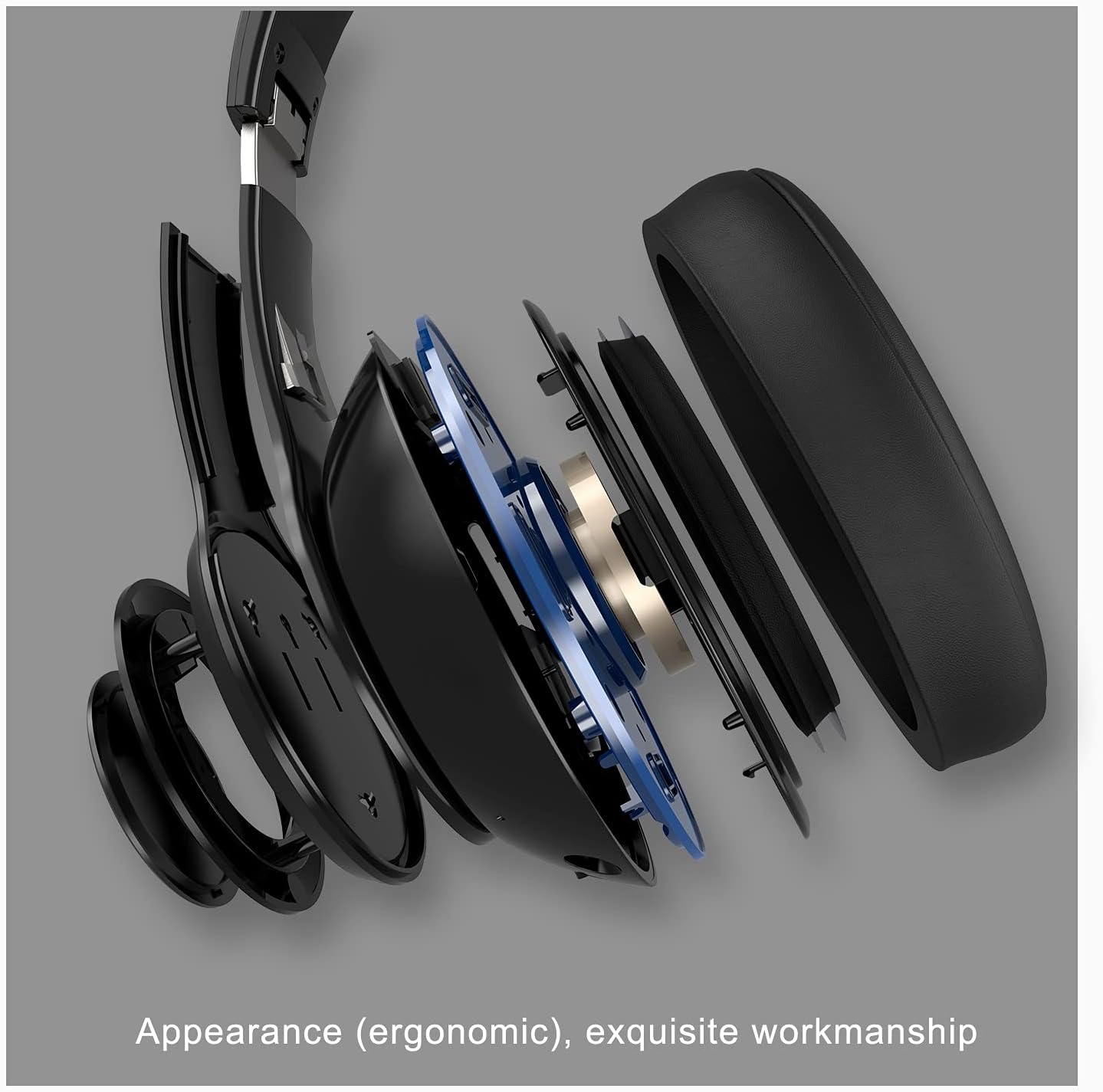
Figure 7: The ergonomic design and exquisite workmanship ensure comfort and durability.
Maintenance
Proper maintenance ensures the longevity and performance of your LETTON headset.
- Cleaning: Use a soft, dry cloth to wipe down the headset. For earcups, a slightly damp cloth can be used, but avoid excessive moisture. Do not use harsh chemicals or abrasive cleaners.
- Storage: Store the headset in a cool, dry place away from direct sunlight and extreme temperatures. The headset can be folded for compact storage.
- Cable Care: Avoid sharp bends or kinks in the cables. Disconnect cables by pulling on the plug, not the cable itself.
- Battery Care: For optimal battery life, avoid fully discharging the headset frequently. Charge it regularly, even if not in use for extended periods.
Troubleshooting
If you encounter issues with your LETTON headset, please refer to the following common solutions:
No Sound or Low Volume
- Check Volume: Ensure the headset's volume control is turned up. Also, check the volume settings on your connected device (PC, console, phone).
- Wireless Connection: Verify the USB dongle is securely plugged in and the headset is paired (solid LED indicator). Try unplugging and re-inserting the dongle.
- Wired Connection: Ensure the 3.5mm cable is fully inserted into both the headset and the device/controller.
- Audio Output Settings: On your PC or console, ensure the LETTON headset is selected as the default audio output device. Sometimes, refreshing web pages or restarting applications might be necessary after changing audio output.
- Battery Level: A low battery can affect performance. Charge the headset fully.
Microphone Not Working
- Check Connection: Ensure the detachable microphone is securely plugged into the headset.
- Mute Button: Verify the microphone is not muted using the headset's mute button.
- Input Settings: On your PC or console, ensure the LETTON headset microphone is selected as the default audio input device. Adjust microphone input levels.
- Microphone Position: Ensure the microphone is positioned correctly near your mouth for optimal voice pickup.
Connection Issues (Wireless)
- Interference: Move away from other wireless devices (e.g., Wi-Fi routers, cordless phones) that might cause interference.
- Range: Ensure you are within the 20-meter operating range of the USB dongle.
- Re-pairing: If the headset loses connection, try powering it off and on again, and re-inserting the USB dongle.
Specifications
| Feature | Detail |
|---|---|
| Brand | LETTON |
| Model Number | L13-Black |
| Connectivity Technology | Wired, Wireless (2.4GHz) |
| Wireless Communication Technology | Bluetooth (Note: Product description mentions 2.4GHz wireless, while specifications list Bluetooth. Prioritize 2.4GHz as per feature bullets for gaming-grade low latency, but include Bluetooth as per specs.) |
| Headphones Jack | 3.5 mm Jack |
| Form Factor | Over Ear |
| Material | Aluminum |
| Control Type | Volume Control |
| Battery Life | Up to 40 Hours |
| Battery Type | 1 Lithium Polymer battery (included) |
| Driver Size | 53 millimeter |
| Weight | 15.9 ounces |
| Package Dimensions | 7.44 x 7.2 x 3.62 inches |
Figure 8: Key technical specifications and features of the headset.
Official Product Video
Video 1: An official product video showcasing the LETTON Wireless Gaming Headset's features, design, and multi-device compatibility. This video provides a visual overview of the headset's key aspects, including its detachable microphone, comfortable earcups, and connectivity options.
Warranty and Support
Warranty information for your LETTON Wireless Gaming Headset is typically provided with the product packaging or can be found on the official LETTON website. Please retain your proof of purchase for warranty claims.
For further assistance, technical support, or to view other products, please visit the official LETTON store on Amazon:
Ask a question about this manual
Ask about setup, troubleshooting, compatibility, parts, safety, or missing instructions. Manuals+ will review the question and use this page’s manual context to help answer it.