
1. Introduction
The LogiLink BT0062 is a versatile Bluetooth audio device designed to function as both a transmitter (TX) and a receiver (RX). In transmitter mode, it can send audio wirelessly from non-Bluetooth devices (like TVs or stereos) to Bluetooth headphones or speakers. In receiver mode, it can receive audio wirelessly from Bluetooth-enabled devices (like smartphones or tablets) and output it to non-Bluetooth audio systems. This manual provides comprehensive instructions for the proper setup, operation, and maintenance of your BT0062 device.
2. Package Contents
Please verify that all items are present in your package:
- LogiLink BT0062 Bluetooth Audio Transmitter and Receiver
- USB-A to USB-C Power Cable
- 3.5mm AUX Audio Cable
- Optical Audio Cable (Toslink)
- RCA Audio Cable
- User Manual (this document)
3. Product Overview
3.1 Device Layout
Familiarize yourself with the various components and controls of your LogiLink BT0062 device.

Front view of the LogiLink BT0062, showing the display, power button, Bluetooth button, mode switch, and the central control knob with play/pause functionality.

Rear view of the LogiLink BT0062, detailing the DC IN (USB-C) port, 3.5mm AUX RX Output, Optical Input, Optical Output, and 3.5mm AUX TX Input, along with the antenna connection.
3.2 Controls and Ports
- Power Button: Press and hold to turn the device on or off.
- BT Button: Initiates Bluetooth pairing mode.
- Mode Switch (TX/RX): Toggles between Transmitter and Receiver modes.
- Rotary Knob: Controls volume, navigates menus, and acts as Play/Pause button when pressed.
- 1.8" LCD Screen: Displays current mode, connected devices, volume level, and other status information.
- DC IN (USB-C): Power input port.
- RX Output (3.5mm AUX): Audio output in Receiver mode.
- Optical Input: Digital audio input.
- Optical Output: Digital audio output.
- TX Input (3.5mm AUX): Audio input in Transmitter mode.
- Antenna: For improved Bluetooth signal range and stability.
4. Setup
4.1 Powering On the Device
- Connect the provided USB-A to USB-C power cable to the DC IN port on the BT0062.
- Plug the other end of the USB cable into a USB power adapter (not included) or a powered USB port (e.g., on a TV or computer).
- Press and hold the Power button on the BT0062 until the LCD screen illuminates.
4.2 Connecting Audio Source/Device
The connection method depends on whether you are using the device as a transmitter (TX) or a receiver (RX).
4.2.1 Transmitter (TX) Mode Setup
Use this mode to send audio from a non-Bluetooth source (e.g., TV, CD player) to Bluetooth headphones or speakers.
- Using 3.5mm AUX: Connect one end of the 3.5mm AUX cable to the audio output of your source device (e.g., headphone jack on TV) and the other end to the TX Input (3.5mm AUX) port on the BT0062.
- Using Optical: Connect one end of the optical cable to the digital optical audio output of your source device (e.g., TV) and the other end to the Optical Input port on the BT0062. Ensure your source device's optical output is set to PCM format.
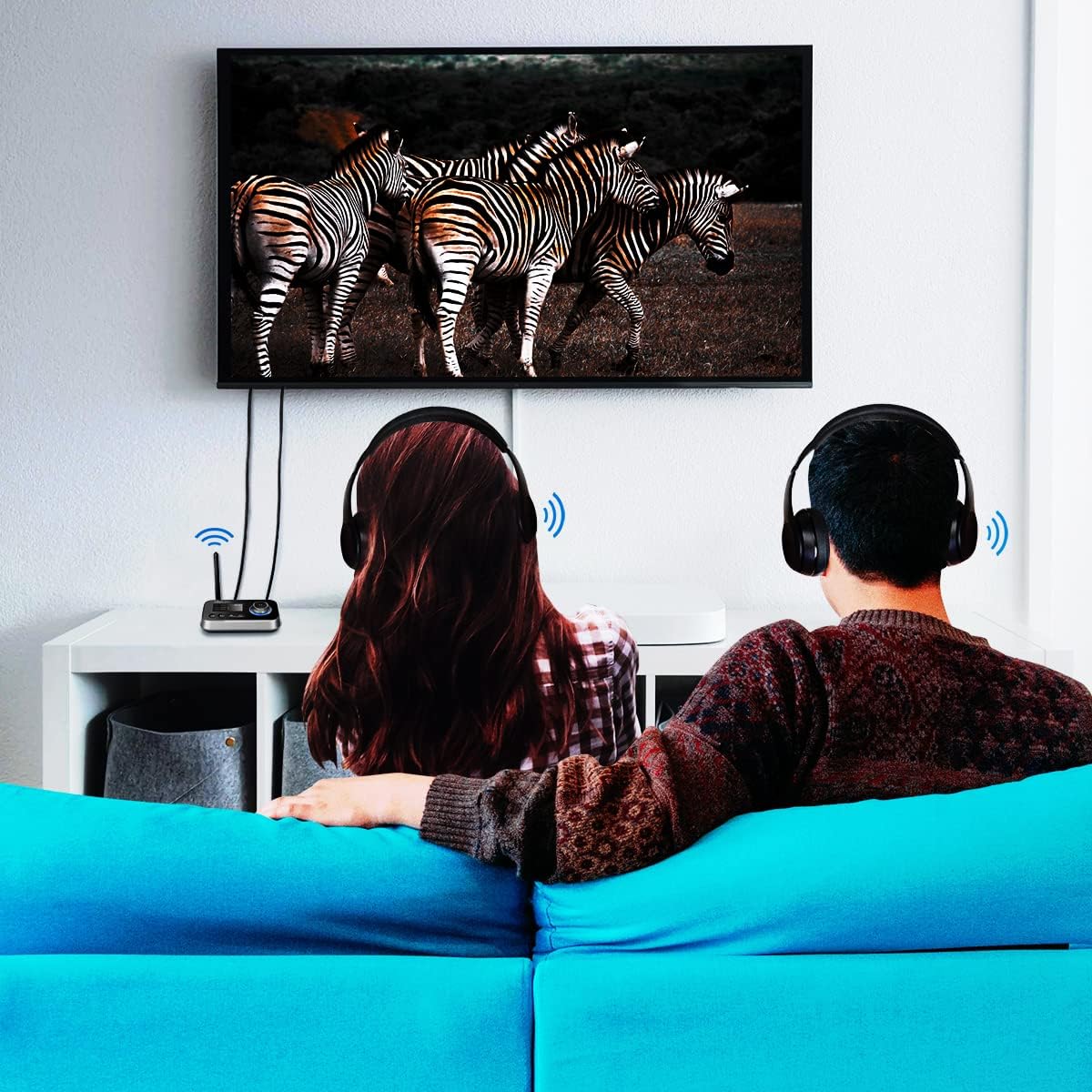
The BT0062 connected to a television, transmitting audio to two individuals wearing headphones, illustrating its use as a transmitter (TX) for shared silent viewing.
4.2.2 Receiver (RX) Mode Setup
Use this mode to receive audio from a Bluetooth source (e.g., smartphone, tablet) and output it to a non-Bluetooth audio system (e.g., wired speakers, home stereo).
- Using 3.5mm AUX: Connect one end of the 3.5mm AUX cable to the RX Output (3.5mm AUX) port on the BT0062 and the other end to the audio input of your speaker or stereo system.
- Using Optical: Connect one end of the optical cable to the Optical Output port on the BT0062 and the other end to the digital optical audio input of your audio system.

The BT0062 connected to a large speaker, wirelessly receiving audio from a smartphone, illustrating the receiver (RX) mode functionality.
5. Operation
5.1 Switching Between TX and RX Modes
After powering on the device, use the Mode Switch button to select either Transmitter (TX) or Receiver (RX) mode. The selected mode will be displayed on the LCD screen.
5.2 Pairing in Transmitter (TX) Mode
In TX mode, the BT0062 sends audio to Bluetooth headphones or speakers.
- Ensure the BT0062 is in TX mode.
- Put your Bluetooth headphones or speaker into pairing mode (refer to their respective manuals).
- Press the BT button on the BT0062. The device will scan for nearby Bluetooth devices.
- On the LCD screen, use the rotary knob to select your desired Bluetooth device from the list. Press the knob to confirm.
- Once connected, the screen will indicate the paired device, and audio from your source will be transmitted wirelessly. The BT0062 supports connecting to two Bluetooth devices simultaneously in TX mode.

The BT0062 depicted wirelessly connected to two pairs of headphones, demonstrating its ability to transmit audio to multiple Bluetooth devices simultaneously.
5.3 Pairing in Receiver (RX) Mode
In RX mode, the BT0062 receives audio from a Bluetooth source (e.g., smartphone) and outputs it to a wired audio system.
- Ensure the BT0062 is in RX mode.
- On your Bluetooth-enabled source device (e.g., smartphone), go to its Bluetooth settings and search for available devices.
- Select 'LogiLink BT0062' from the list of found devices to pair.
- Once connected, the screen will indicate the paired device, and audio from your source device will play through the audio system connected to the BT0062.
5.4 Volume Control and Playback
- Volume Adjustment: Rotate the central knob clockwise to increase volume and counter-clockwise to decrease volume.
- Play/Pause: Press the central knob to play or pause audio playback.
6. Maintenance
To ensure the longevity and optimal performance of your LogiLink BT0062, follow these maintenance guidelines:
- Cleaning: Use a soft, dry cloth to clean the device. Do not use liquid cleaners or aerosols.
- Storage: Store the device in a cool, dry place away from direct sunlight and extreme temperatures.
- Handling: Avoid dropping the device or subjecting it to strong impacts.
- Power: Always use the provided power cable or a certified USB-C cable with a compatible power adapter.
7. Troubleshooting
If you encounter issues with your LogiLink BT0062, refer to the following table for common problems and solutions.
| Problem | Possible Cause | Solution |
|---|---|---|
| No power/Device won't turn on | Power cable not connected properly; Faulty power source. | Ensure the USB-C cable is securely connected. Try a different USB power adapter or port. |
| Cannot pair Bluetooth device | Device not in pairing mode; Too far from BT0062; Interference. | Ensure your Bluetooth device is in pairing mode. Place devices closer together. Restart both devices. |
| No audio output/input | Incorrect cable connection; Wrong mode (TX/RX); Volume too low; Optical source not set to PCM. | Verify all audio cables are correctly connected to the appropriate ports (TX Input for TX mode, RX Output for RX mode). Ensure the BT0062 is in the correct mode. Increase volume on both the BT0062 and connected devices. For optical input, set the source device's audio output to PCM. |
| Audio cutting out or poor quality | Too far from paired device; Obstructions; Interference. | Reduce the distance between the BT0062 and the paired Bluetooth device. Remove any large obstructions. Avoid placing near Wi-Fi routers or other strong wireless signals. |
| LCD screen not responding | Temporary software glitch. | Try restarting the device by disconnecting and reconnecting power, then pressing the power button. |
8. Specifications
Key technical specifications for the LogiLink BT0062:
| Feature | Specification |
|---|---|
| Model | BT0062 |
| Bluetooth Version | Bluetooth 5.0 |
| Display | 1.8 Inches LCD |
| Wireless Range | Up to 10 meters (33 feet) |
| Audio Inputs | 3.5mm AUX (TX Input), S/PDIF (Optical Input) |
| Audio Outputs | 3.5mm AUX (RX Output), S/PDIF (Optical Output) |
| Audio Output Mode | Stereo |
| Compatible Audio Formats | AAC, MP3, WAV, FLAC |
| Power Source | 5V DC (USB-C) |
| Material | Plastic |
| Dimensions (L x W x H) | 11.15 x 8.4 x 3.27 cm |
| Weight | 60 g |
9. Warranty and Support
Information regarding product warranty and customer support is typically provided by the manufacturer or retailer at the point of purchase. Please refer to your purchase documentation or the official LogiLink website for details on warranty coverage, technical support, and service options.

