
Introduction
This manual provides essential information for the safe and efficient operation of your Shark IQ Robot RV1001/RV1100. Please read these instructions carefully before using your robot vacuum and retain them for future reference. The Shark IQ Robot is designed for automated cleaning of various floor types, featuring intelligent navigation, app control, and strong suction for pet hair.
Setup
1. Unboxing and Placement
Carefully remove all packaging materials from the robot and its accessories. Place the charging dock on a level surface against a wall, ensuring there are no obstacles within 3 feet (1 meter) on either side and 5 feet (1.5 meters) in front. Connect the power cord to the charging dock and plug it into a wall outlet.

Image: The Shark IQ Robot intelligently maps your home, identifying areas for cleaning.
2. Initial Charge
Place the robot onto the charging dock. Ensure the charging contacts on the robot align with those on the dock. The robot's indicator lights will illuminate to show it is charging. Allow the robot to fully charge before its first use, which may take several hours.
3. App Connection and Home Mapping
Download the Shark Clean App from your smartphone's app store. Follow the in-app instructions to connect your robot to your home Wi-Fi network. Once connected, the robot will begin its initial mapping run. This process allows the robot to learn your home's layout for efficient, row-by-row cleaning and enables room selection features.

Image: Control your Shark IQ Robot and view its cleaning map through the Shark Clean App.
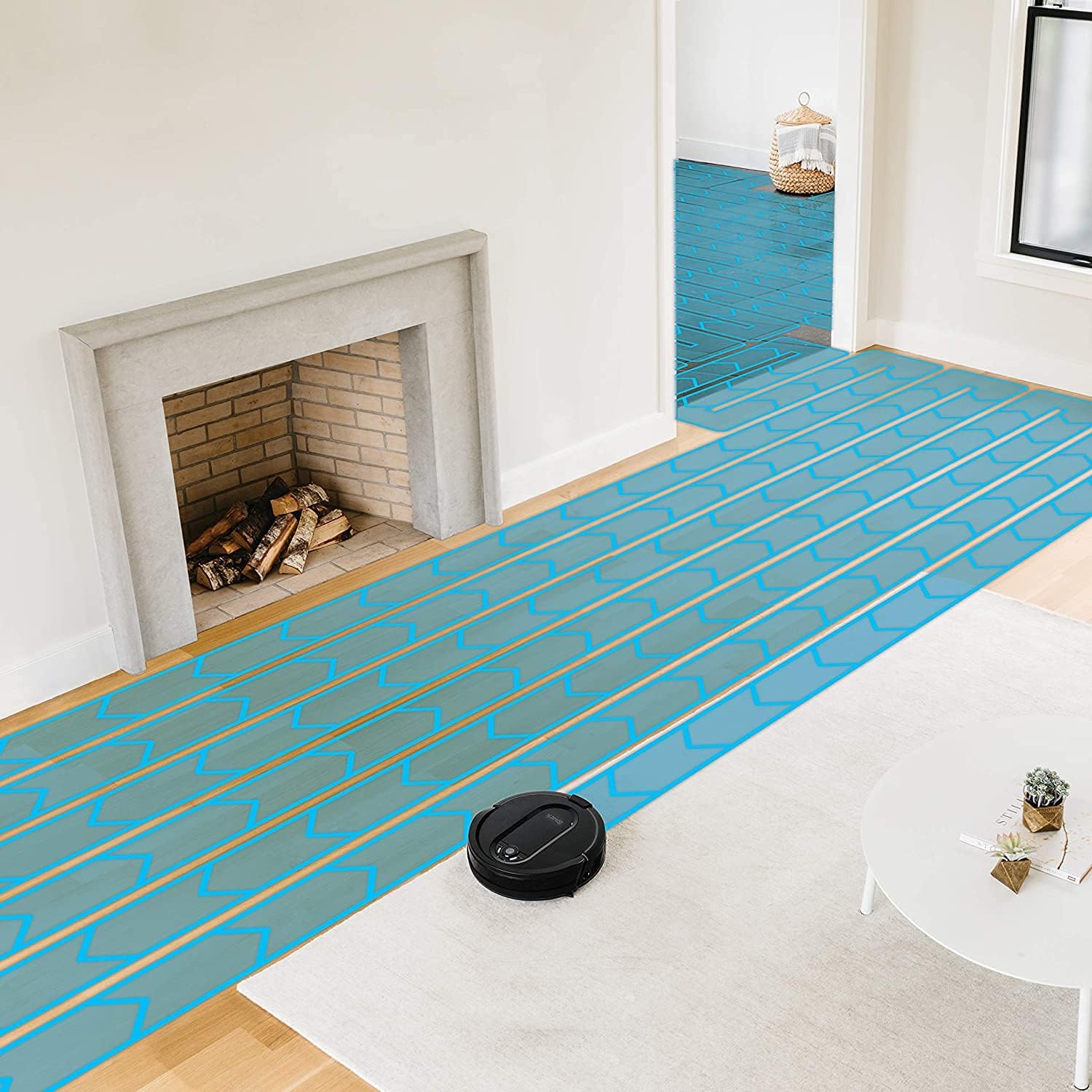
Image: The robot uses IQ NAV technology to clean methodically, ensuring comprehensive coverage.
4. Preparing Your Home (Shark Proofing)
Before each cleaning cycle, prepare your home by removing potential obstacles. This includes:
- Loose items like small toys, pet bowls, or clothing.
- Electrical cords and charging cables to prevent entanglement.
- Frilly rugs or lightweight mats that could get caught in the brush roll.
This preparation helps prevent the robot from getting stuck and ensures an uninterrupted cleaning session.
Operating Your Robot
1. Starting a Cleaning Cycle
You can start a cleaning cycle in several ways:
- Manual Start: Press the Clean button on the robot.
- Shark Clean App: Use the app to initiate cleaning, select specific rooms, or set cleaning schedules.
- Voice Control: Integrate with Amazon Alexa for hands-free control. Use commands like "Alexa, tell Shark to start cleaning."
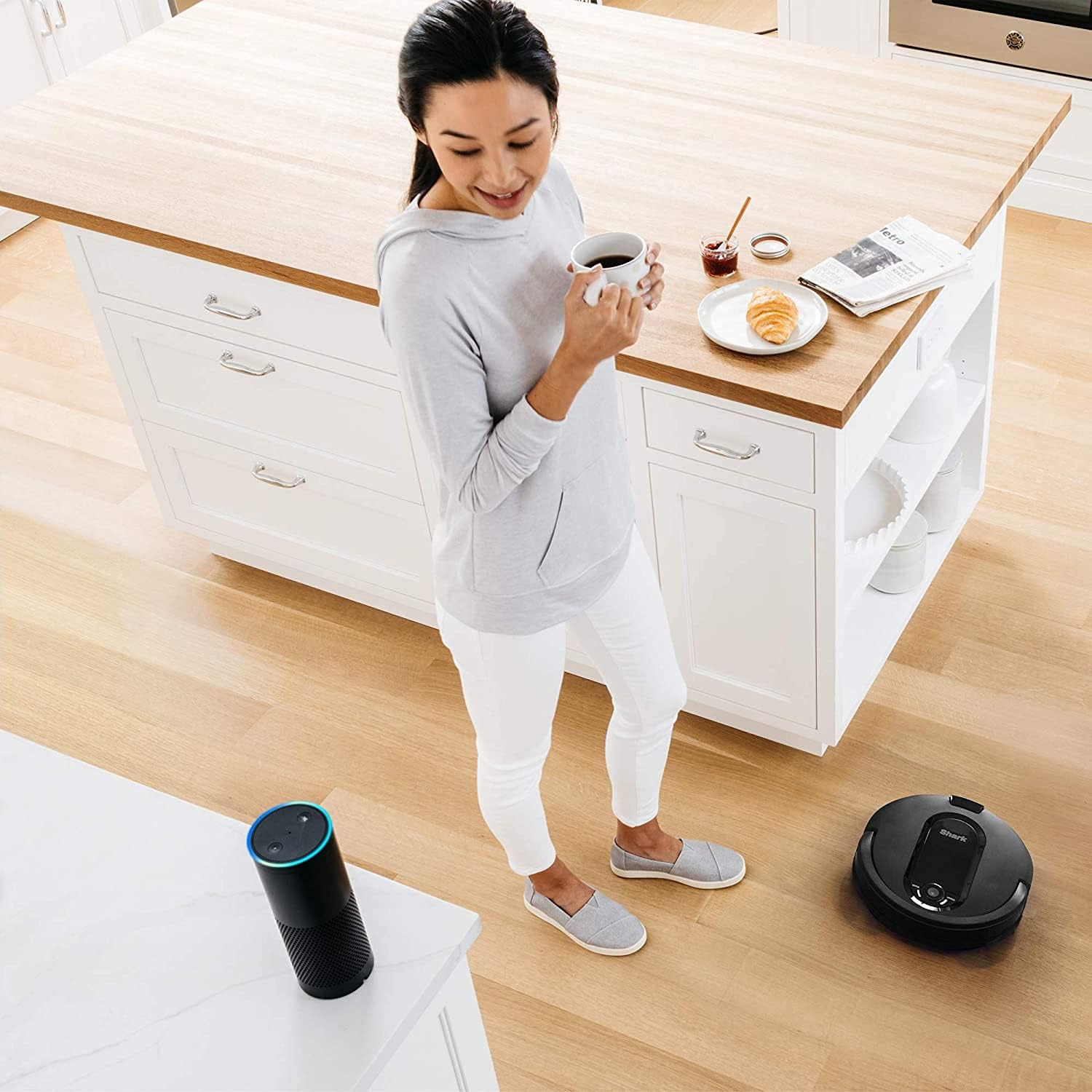
Image: The Shark IQ Robot can be conveniently controlled via voice commands through Amazon Alexa.
2. Intelligent Navigation and Cleaning
The Shark IQ Robot uses IQ NAV technology to methodically clean your home row by row. It navigates efficiently between rooms, ensuring comprehensive coverage. The robot automatically returns to its charging dock when the battery is low or when a cleaning cycle is complete.

Image: Advanced sensors enable the robot to navigate and map your home effectively.
Maintenance
Regular maintenance ensures your Shark IQ Robot continues to perform optimally.
1. Emptying the XL Dust Bin
The robot features an XL Dust Bin designed to hold more debris. Empty the dust bin after each cleaning cycle or as needed. Press the release button on the robot to remove the bin, open it, and discard the contents. Close the bin securely and reinsert it into the robot.
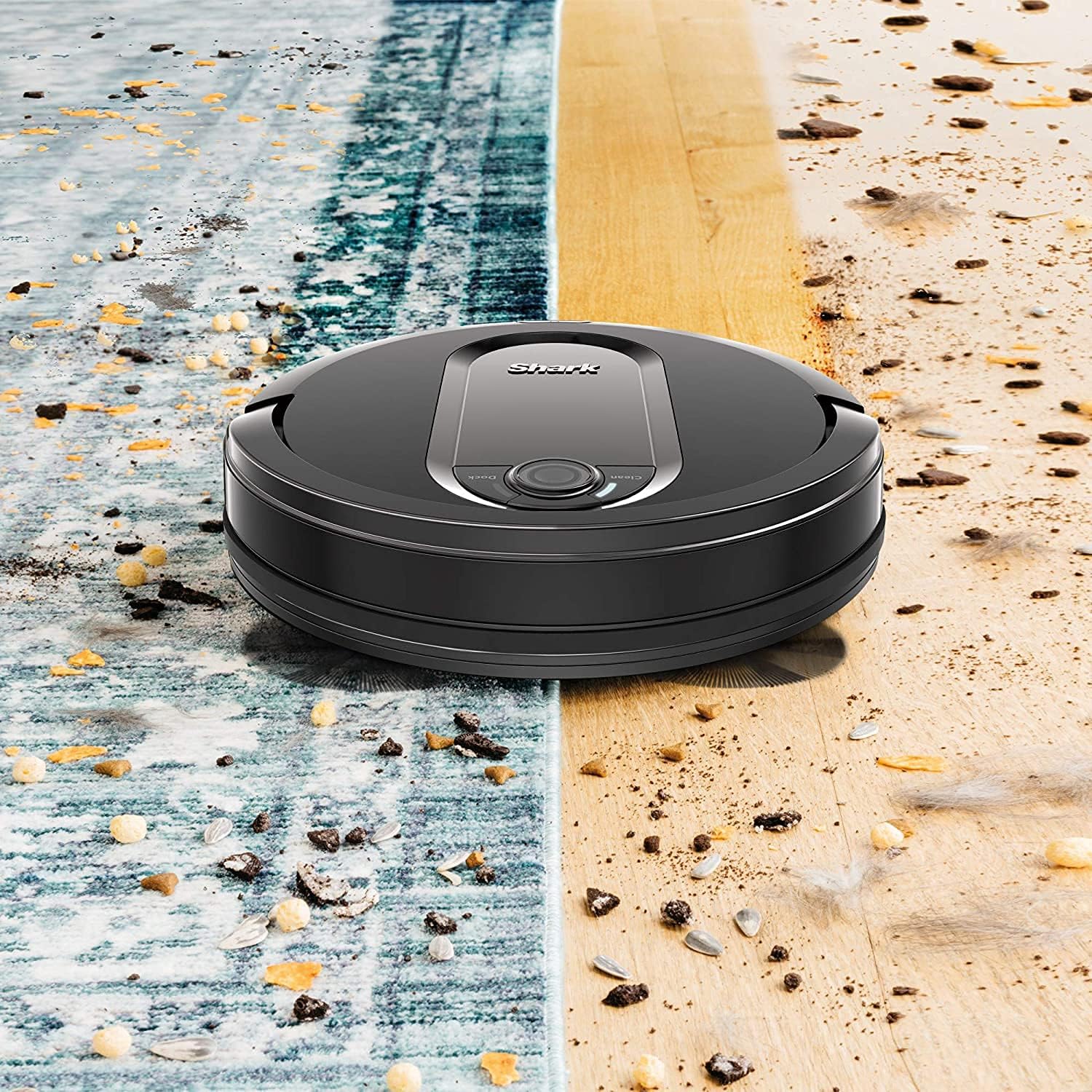
Image: The robot effectively cleans various debris from both carpet and hard floors.
2. Cleaning the Self-Cleaning Brush Roll
The self-cleaning brush roll actively removes hair wrap during cleaning. Periodically inspect the brush roll for any remaining hair or debris. Use the cleaning tool provided (if applicable) or scissors to carefully cut and remove any tangled hair. Ensure the brush roll spins freely.
3. High-Efficiency Filter Maintenance
The High-Efficiency Filter captures dust, debris, and pet hair. Tap the filter clean over a trash can to remove loose dirt. Replace the filter every 6-12 months, or more frequently depending on usage, to maintain optimal suction performance. Note: This filter type is not washable.
4. Side Brush and Sensor Cleaning
Inspect the side brushes for wear or damage and clean them of any tangled hair or debris. Wipe the robot's sensors (cliff sensors, bumper sensors) with a clean, dry cloth to ensure proper navigation.
Troubleshooting
If your Shark IQ Robot encounters an issue, refer to the following common solutions:
Robot Not Charging
- Ensure the charging dock is plugged in and receiving power.
- Verify that the robot's charging contacts are clean and making proper contact with the dock.
- Check for any obstructions preventing the robot from docking correctly.
Robot Getting Stuck Frequently
- Review the "Preparing Your Home" section and remove loose items, cords, and frilly rugs.
- Clean the robot's sensors to ensure they are not obstructed.
- Ensure there is adequate clearance around furniture.
Poor Cleaning Performance
- Empty the dust bin.
- Clean or replace the High-Efficiency Filter.
- Inspect and clean the brush roll and side brushes for tangled hair or debris.
- Ensure the robot is fully charged before starting a cleaning cycle.
Dust Bin Stuck
- Ensure no debris is lodged around the bin's release mechanism.
- Gently but firmly attempt to remove the bin. If it remains stuck, contact customer support.
Specifications
| Feature | Detail |
|---|---|
| Brand | Shark |
| Model Number | RV1001/RV1100 |
| Surface Recommendation | Carpets, Hard Floors |
| Special Feature | Bagless, Self-Cleaning Brushroll |
| Color | Black |
| Controller Type | App Control, Voice Control |
| Filter Type | Disk (High-Efficiency, Not Washable) |
| Battery Type | Lithium Ion |
| Power Source | Battery Powered |
| Control Method | App, Voice |
| Form Factor | Robotic |
| Recommended Uses | Vacuuming carpets, especially in homes with pets, hands-free cleaning |
| Portable | Yes |
| Number of Power Levels | 2 |
| Indoor Outdoor Usage | Indoor |
| Included Components | Brush |
Warranty and Support
For warranty information, please refer to the documentation included with your original purchase or visit the official Shark website. If you require further assistance, have questions about your robot's operation, or need to order replacement parts, please contact Shark customer support directly. Ensure you have your model number (RV1001/RV1100) and purchase details available when contacting support.
You can often find helpful resources, FAQs, and troubleshooting guides on the manufacturer's support pages.


