
Introduction
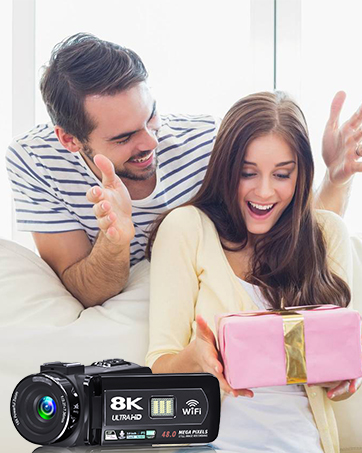
Thank you for choosing the VETEK AF6 4K Video Camera Camcorder. This manual provides comprehensive instructions for the proper setup, operation, and maintenance of your device. Please read this manual thoroughly before using the camcorder to ensure optimal performance and longevity.
Package Contents
Verify that all items listed below are included in your package:
- 1x VETEK AF6 4K Camcorder
- 1x USB Cable
- 1x HDMI Cable
- 1x Lens Hood
- 1x Fill Light (External LED Light)
- 1x USB Charger
- 1x Remote Control
- 1x 32GB SD Card
- 1x Microphone Cable
- 1x External Microphone
- 1x Reusable Camera Bag
- 2x Rechargeable Lithium Batteries
- 1x Dual External Battery Charger
- 1x Camera Instruction Manual
- 1x Microphone Instruction Manual
- 1x Handheld Stabilizer

Product Overview
Familiarize yourself with the main components of your VETEK AF6 camcorder.

Key Features:
- 4K Video Resolution: Records videos at 3840*2160.
- 48.0 MP Image Resolution: Captures still images at 7920*5940.
- 3.0-inch 270° Rotatable Touch Screen: Provides flexible viewing angles and intuitive control.
- 18X Digital Zoom: Allows for closer shots of distant subjects.
- Wi-Fi Connectivity: Enables remote control and file transfer via a smartphone app.
- PC Camera Function: Can be used as a webcam for live streaming and video calls.
- External Microphone Support: Enhances audio quality.
- External Fill Light Support: Improves illumination in low-light conditions.
- Handheld Stabilizer Compatibility: Reduces camera shake for smoother footage.
- Special Shooting Modes: Includes Slow Motion and Time-Lapse.
Setup
1. Battery Installation and Charging
- Open the battery compartment cover on the camcorder.
- Insert a rechargeable lithium battery, ensuring correct polarity.
- Close the battery compartment cover.
- To charge, insert the batteries into the dual external battery charger. Connect the charger to a power source using the provided USB cable and charger. The indicator lights will show charging status.
Note: Ensure batteries are fully charged before first use for optimal performance. If indicator lights flicker or do not show a stable charging status, ensure the batteries are correctly seated in the charger and the power connection is stable.
2. SD Card Installation
- Locate the SD card slot on the camcorder.
- Insert the 32GB SD card (included) into the slot with the metal contacts facing the correct direction, until it clicks into place.
- To remove, gently press the SD card until it pops out.
Important: Format the SD card in the camcorder's menu before initial use to ensure compatibility and prevent data corruption.
3. Attaching Accessories
- External Microphone: Slide the external microphone onto the hot shoe mount on top of the camcorder. Connect the microphone cable to the MIC input port.
- Lens Hood: Attach the lens hood to the front of the camcorder lens by twisting it clockwise until secure. The lens hood helps reduce glare and protects the lens.
- External LED Light: Slide the external fill light onto the hot shoe mount. Ensure it is securely fastened. This light provides additional illumination.
- Handheld Stabilizer: Attach the camcorder to the handheld stabilizer using the screw mount at the bottom of the camcorder. The stabilizer helps maintain steady footage.



Operating Instructions
1. Power On/Off
Open the LCD screen to power on the camcorder. Close the LCD screen to power off. Alternatively, use the power button located on the device.
2. Basic Recording (Video/Photo)
- Switch Modes: Use the Mode button to switch between video recording mode and photo capture mode.
- Start/Stop Recording: In video mode, press the Record button to start recording. Press it again to stop.
- Take Photo: In photo mode, press the Photo button to capture a still image.

3. Zoom Function
Use the T (Telephoto) and W (Wide) buttons on the camcorder or the zoom controls on the remote control to adjust the 18X digital zoom.
4. Touch Screen Operation
The 3.0-inch LCD screen is rotatable up to 270 degrees and supports touch input. Navigate menus, adjust settings, and review footage by tapping or swiping on the screen.
5. Wi-Fi Connection & App
Download the specified app (refer to the camera's manual for the app name) on your smartphone or tablet. Enable Wi-Fi on the camcorder and connect your mobile device to the camcorder's Wi-Fi network (SSID: 4K_WIFI1079, Password: 12345678). This allows for remote viewing, image capture, video shooting, and sharing to social media.

6. PC Camera Mode (Webcam Function)
Connect the camcorder to your PC using the USB cable. Select "PC CAM" mode on the camcorder. Your computer will recognize the camcorder as a webcam, enabling its use for video chatting and live streaming on platforms like YouTube or Facebook.

7. Special Features
- Slow Motion: Access this mode through the camcorder's menu to record videos at a higher frame rate, allowing for slow-motion playback.
- Time-Lapse Photography: Select this option in the menu to capture a series of still images at set intervals, which can then be compiled into a time-lapse video.
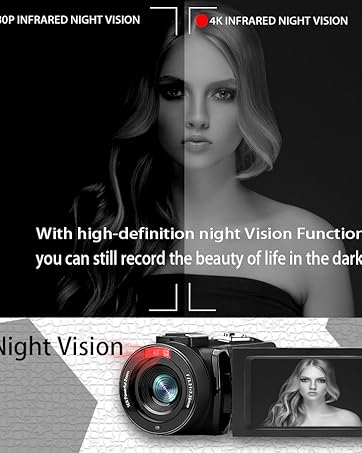
- Night Vision: The camcorder features an infrared night vision function, enabling recording in low-light or dark environments. Activate this feature via the menu.


8. Remote Control
The included remote control allows you to operate the camcorder from a distance, controlling functions such as recording, photo capture, and zoom without touching the device.

Maintenance
- Cleaning: Use a soft, dry cloth to clean the camcorder body. For the lens, use a specialized lens cleaning cloth and solution. Avoid abrasive materials or harsh chemicals.
- Storage: Store the camcorder in a cool, dry place away from direct sunlight and extreme temperatures. Remove batteries if storing for extended periods.
- Water Resistance: This camcorder is not water resistant. Avoid exposure to water or high humidity.
Troubleshooting
| Problem | Possible Cause | Solution |
|---|---|---|
| Camcorder does not power on. | Battery is depleted or incorrectly installed. | Ensure batteries are fully charged and correctly inserted. |
| Battery charger indicator lights flicker. | Poor contact between battery and charger, or unstable power supply. | Re-seat batteries firmly in the charger. Check USB cable and power adapter connection. Try a different USB port or power source. |
| Cannot record video or take photos. | SD card is full, not inserted, or corrupted. Incorrect mode selected. | Check SD card status, ensure it's inserted and has free space. Format the SD card if necessary (this will erase all data). Verify camcorder is in the correct mode. |
| Poor video/photo quality. | Lens is dirty. Insufficient lighting. Incorrect settings. | Clean the lens. Use the external fill light or shoot in better-lit conditions. Adjust resolution and other settings in the menu. |
| Wi-Fi connection issues. | Incorrect Wi-Fi password or app not installed. | Ensure correct SSID (4K_WIFI1079) and password (12345678). Download and install the correct app. |
Specifications
- Brand: VETEK
- Model Number: AF6
- Video Capture Resolution: 4K (3840*2160)
- Effective Still Resolution: 48.0 MP (7920*5940)
- Digital Zoom: 18X
- Screen Size: 3.0 Inches
- Display Type: 270° Rotatable Touch Screen
- Flash Memory Type: SD (supports up to 128GB, 32GB included)
- Video Capture Format: MP4
- Supported Audio Format: MP4
- Connectivity Technology: USB, HDMI, Wi-Fi
- Operating System Compatibility: Windows XP/7/8/10, MAC
- Image Stabilization: Digital
- Water Resistance Level: Not Water Resistant
- Number of Batteries: 2 Lithium Polymer batteries (included)
- Item Dimensions (D x W x H): 3.9"D x 6.2"W x 7.8"H
Warranty and Support
For warranty information and technical support, please refer to the contact details provided in the separate warranty card or visit the official VETEK website. If you encounter any issues not covered in this manual, please contact customer service for assistance.