
Introduction
This manual provides essential information for the safe and efficient use of your Oangcc Tab_A6 Android 10 Tablet. Please read this manual thoroughly before operating the device and retain it for future reference.
Package Contents
Verify that all items are present in your package:
- Oangcc A6 Tablet
- 2-in-1 Tablet Case
- Bluetooth Keyboard
- Wireless Mouse
- Type-C to USB Adapter
- Protective Film
- Capacitive Pen (Stylus)
- Instruction Manual
- USA Standard Charger
- Type-C Data Cable

Image: The Oangcc Tab_A6 tablet displayed with its full set of accessories, including the keyboard, mouse, stylus, and case.
Product Overview
The Oangcc Tab_A6 is a 10.1-inch Android 10 tablet designed for versatile use. It features an Octa-Core processor, 4GB RAM, 64GB internal storage (expandable up to 128GB via Micro SD card), and an 8000mAh battery.
Key Features:
- Display: 10.1-inch HD IPS Touchscreen (1280x800 resolution)
- Processor: 1.8GHz Octa-Core Processor (SC3566)
- Memory: 4GB RAM
- Storage: 64GB ROM, expandable up to 128GB with a TF card
- Operating System: Android 10 (GMS Certified)
- Battery: 8000mAh Lithium Polymer, offering up to 12 hours of average use
- Cameras: Front 5.0MP, Rear 8.0MP with Flash Light
- Connectivity: 2.4G Wi-Fi (802.11abg), Bluetooth 5.0, GPS
- Ports: USB-C port, TF card slot

Image: The Oangcc Tab_A6 tablet displaying the Android 10 operating system interface.

Image: The Oangcc Tab_A6 tablet highlighting its 8000mAh battery capacity.
Setup
1. Initial Charge
Before first use, fully charge the tablet using the provided USA standard charger and Type-C data cable. Connect the Type-C cable to the tablet's USB-C port and the charger to a power outlet. The charging indicator will show the charging status.
2. Power On/Off
- To Power On: Press and hold the power button located on the side of the tablet until the Oangcc logo appears.
- To Power Off: Press and hold the power button, then select "Power off" from the options displayed on the screen.
3. Initial Configuration
Upon first power-on, follow the on-screen prompts to set up your tablet. This includes selecting your language, connecting to a Wi-Fi network, and signing in with your Google account (optional, but recommended for full access to Google Play services).
4. Inserting a Micro SD Card
To expand storage, locate the TF card slot on the tablet. Gently insert a Micro SD card (up to 128GB) into the slot until it clicks into place. Ensure the card is oriented correctly.
5. Connecting Accessories
- Bluetooth Keyboard/Mouse: Turn on the keyboard/mouse. On your tablet, go to Settings > Connected devices > Bluetooth. Turn on Bluetooth and pair with the keyboard/mouse.
- 2-in-1 Tablet Case: Place the tablet securely into the provided case. The case can also function as a stand.
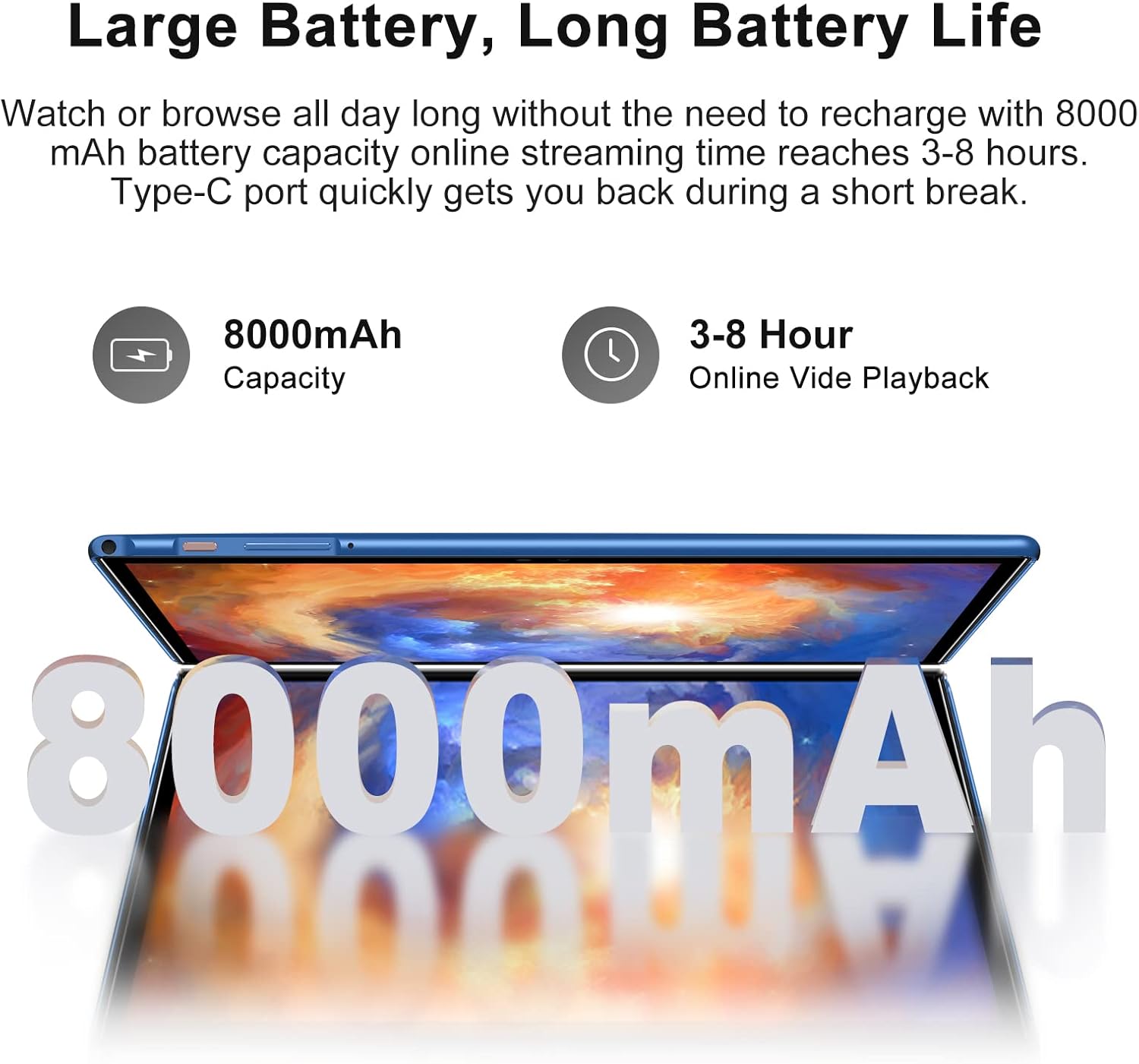
Image: The Oangcc Tab_A6 tablet connected to its Bluetooth keyboard and wireless mouse, demonstrating its use as a mini-laptop.
Operating Instructions
1. Navigation
- Home Screen: Swipe up from the bottom to access the app drawer. Swipe left/right to navigate between home screens.
- Notifications & Quick Settings: Swipe down from the top of the screen to view notifications and quick settings toggles (Wi-Fi, Bluetooth, brightness, etc.).
- Multitasking: Tap the square icon (recent apps) at the bottom of the screen to view and switch between open applications.
2. Wi-Fi Connection
Go to Settings > Network & internet > Wi-Fi. Turn on Wi-Fi, select your desired network, and enter the password if prompted.
3. App Installation
The tablet comes with Google Play Store pre-installed. Open the Play Store app, search for desired applications, and tap "Install" to download them.
4. Camera Usage
Open the Camera app. Tap the shutter button to take photos. Switch between front and rear cameras using the camera switch icon. The rear camera includes a flash light for low-light conditions.
5. Parental Control
The Android 10 system supports parental control features. Access these settings via Settings > Digital Wellbeing & parental controls to manage screen time, app access, and content filters.
Maintenance
1. Cleaning
Use a soft, lint-free cloth to clean the screen and body of the tablet. Avoid using harsh chemicals or abrasive materials. For stubborn smudges, a screen cleaner specifically designed for electronics can be used sparingly.
2. Battery Care
- Avoid fully discharging the battery frequently.
- Do not expose the tablet to extreme temperatures.
- Use only the original charger and cable provided.
3. Software Updates
Regularly check for and install system updates to ensure optimal performance and security. Go to Settings > System > System update.
4. Storage Management
Periodically clear unnecessary files and uninstall unused apps to free up storage space and maintain performance. You can manage storage in Settings > Storage.
Troubleshooting
If you encounter issues with your Oangcc Tab_A6 tablet, refer to the following common problems and solutions:
| Problem | Possible Solution |
|---|---|
| Tablet does not power on | Ensure the battery is charged. Connect the charger and wait a few minutes before attempting to power on again. If unresponsive, perform a forced restart by holding the power button for 10-15 seconds. |
| Slow performance / Apps lagging | Close unused applications. Clear cache for frequently used apps. Check for available system updates. Ensure sufficient free storage space. Restart the tablet. |
| Battery drains quickly | Reduce screen brightness. Close background apps. Disable Wi-Fi/Bluetooth when not in use. Check battery usage in settings to identify power-hungry apps. |
| Wi-Fi / Bluetooth connectivity issues | Toggle Wi-Fi/Bluetooth off and on. Restart the tablet and your router/Bluetooth device. Forget the network/device and reconnect. Ensure you are within range. |
| Accessories (keyboard/mouse) not connecting | Ensure the accessories are powered on and in pairing mode. Check tablet's Bluetooth settings to ensure it's enabled and visible. Re-pair the devices. Check battery levels of accessories. |
| Touchscreen unresponsive or inaccurate | Clean the screen. Restart the tablet. If the issue persists, a factory reset might be necessary (back up data first). |
If these solutions do not resolve your issue, please contact Oangcc customer support.
Specifications
| Feature | Detail |
|---|---|
| Model Name | Tab_A6 |
| Operating System | Android 10 |
| Screen Size | 10.1 Inches |
| Screen Resolution | 1280x800 Pixels |
| Processor | 1.8 GHz Octa-Core (SC3566) |
| RAM | 4 GB SDRAM DDR3 |
| Internal Storage | 64 GB |
| Expandable Storage | Up to 128 GB (Micro SD/TF Card) |
| Battery Capacity | 8000 mAh Lithium Polymer |
| Average Battery Life | 12 Hours |
| Rear Camera Resolution | 8 MP |
| Front Camera Resolution | 5 MP |
| Wireless Type | 802.11abg (2.4G Wi-Fi) |
| Bluetooth | Bluetooth 5.0 |
| GPS | Yes |
| Item Weight | 15.8 ounces |
| Product Dimensions | 9.25 x 6.29 x 0.3 inches |
Warranty and Support
Oangcc provides a 1+1 warranty service for non-human factor damage. This means your tablet is covered for manufacturing defects. For any issues encountered during the use of your tablet, please do not hesitate to contact the Oangcc support team. They offer 7/24 hours service and technical support to assist you.
For support, please refer to the contact information provided with your product packaging or visit the official Oangcc website.