
1. Introduction
Thank you for purchasing the JUAREZ JRK663 61-Key Light-Up Piano Electronic Keyboard. This manual provides essential information for the safe and effective use of your new instrument. Please read it thoroughly before operation and retain it for future reference.
2. Safety Information
- Do not expose the keyboard to water, moisture, or extreme temperatures.
- Avoid placing heavy objects on the keyboard.
- Use only the specified power adapter.
- Keep out of reach of small children to prevent choking hazards from small parts.
- Disconnect power during thunderstorms or when not in use for extended periods.
3. Package Contents
Verify that all items are present in the package:
- JUAREZ JRK663 Electronic Keyboard
- Power Adapter
- Microphone
- Instruction Manual
4. Product Overview
The JUAREZ JRK663 is a versatile 61-key electronic keyboard designed for beginners and casual musicians. It features light-up keys for interactive learning and a comprehensive set of functions.
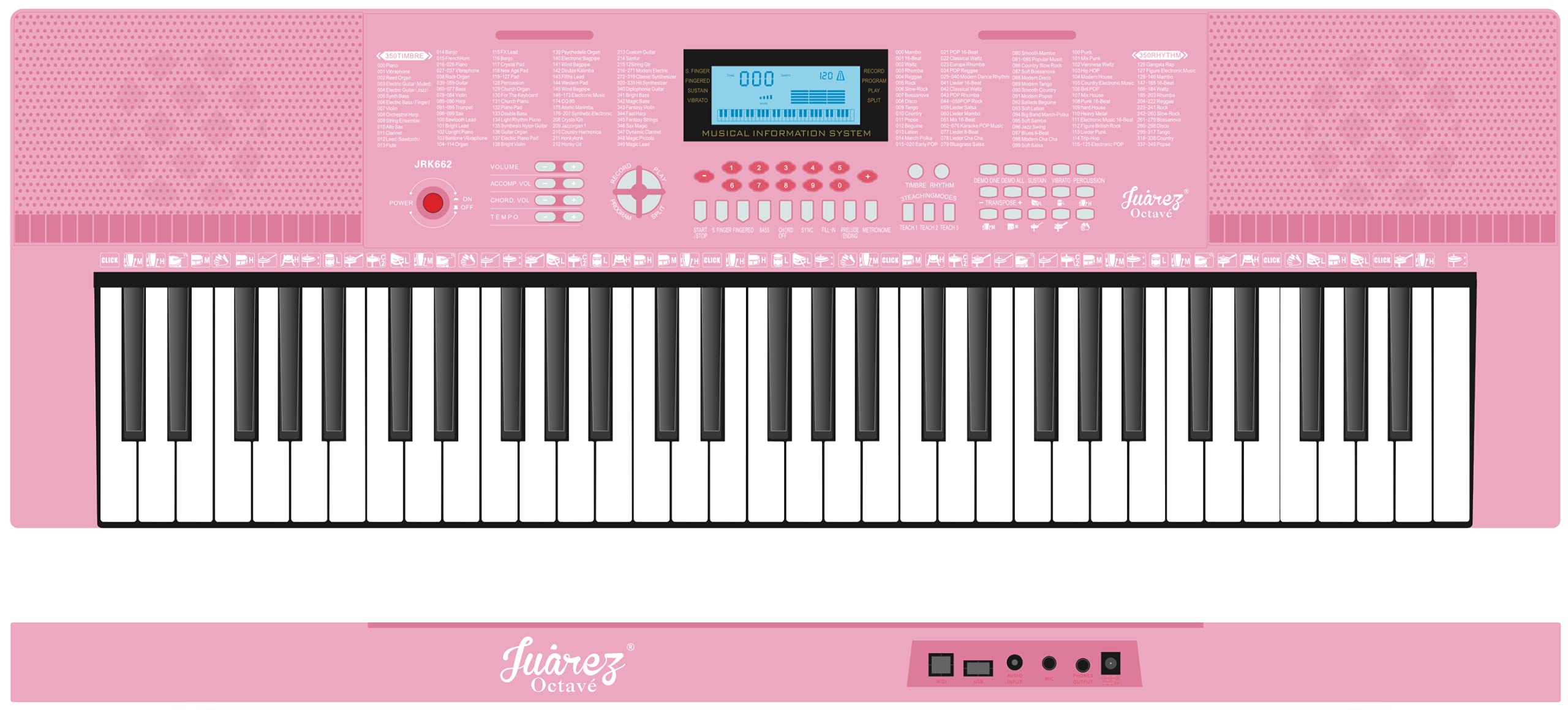
Image 1: Front view of the JUAREZ JRK663 Electronic Keyboard.
Key Features:
- 61 Piano-Style Light-Up Keys: Aids in visual learning and practice.
- LED Display: Provides visual feedback for selected functions.
- 350 Timbres: A wide selection of instrument sounds.
- 350 Rhythms: Various backing beats for diverse musical styles.
- 30 Demo Songs: Pre-recorded songs for listening and practice.
- 3 Teaching Modes: Structured lessons for progressive learning.
- 61 Keyboard Percussion Sounds: Integrated percussion effects on keys.
- 8 Panel Percussion Options: Dedicated percussion pads.
- Record/Playback Function: For capturing and reviewing performances.
- External Earphone/Microphone/Audio Input: Connectivity for accessories.
5. Setup
5.1 Power Connection
- Ensure the keyboard is switched off.
- Connect the power adapter to the DC IN jack on the keyboard.
- Plug the power adapter into a standard electrical outlet.
5.2 Connecting Accessories
- Microphone: Insert the microphone plug into the MIC IN jack.
- Headphones: Connect headphones to the PHONES/OUTPUT jack for private practice.
- External Audio Device: Connect an external audio source (e.g., MP3 player) to the AUDIO IN jack to play along with music.
6. Operating Instructions
6.1 Power On/Off and Volume
- Press the POWER button to turn the keyboard on or off.
- Adjust the master volume using the VOLUME +/- buttons or knob.
6.2 Selecting Timbres (Instrument Sounds)
The keyboard offers 350 different timbres. To select a timbre:
- Press the TIMBRE button.
- Use the number pad or +/- buttons to enter the desired timbre number (000-349).
- The selected timbre will be displayed on the LED screen.
6.3 Selecting Rhythms (Backing Beats)
Choose from 350 rhythms to accompany your playing:
- Press the RHYTHM button.
- Use the number pad or +/- buttons to enter the desired rhythm number (000-349).
- Press START/STOP to begin or end the rhythm.
- Adjust the rhythm tempo using the TEMPO +/- buttons.
6.4 Playing Demo Songs
The keyboard includes 30 demo songs:
- Press the DEMO button.
- Use the +/- buttons to cycle through the demo songs.
- Press DEMO again to play the selected song. Press START/STOP to stop.
6.5 Teaching Modes
The JRK663 features 3 teaching modes to assist with learning:
- Consult the specific teaching mode buttons (e.g., ONE KEY, FOLLOW, ENSEMBLE) and follow the on-screen prompts or light-up keys.
- These modes guide you through playing demo songs or exercises.
6.6 Recording and Playback
To record your performance:
- Press the RECORD button. The LED display will indicate recording mode.
- Play your desired melody.
- Press PLAY to listen to your recorded performance.
6.7 Percussion Features
- Keyboard Percussion: Activate the percussion mode to assign various percussion sounds to the keys.
- Panel Percussion: Use the dedicated 8 panel percussion pads for additional drum sounds.
6.8 Other Functions
- Chord Control: Engage single-finger or fingered chord modes.
- Vibrato & Sustain: Add effects to your notes.
- Metronome: Use the built-in metronome for timing practice.
7. Maintenance
- Cleaning: Wipe the keyboard with a soft, dry cloth. Do not use abrasive cleaners or solvents.
- Storage: Store the keyboard in a cool, dry place away from direct sunlight and dust.
- Transportation: When moving the keyboard, ensure it is powered off and all cables are disconnected.
8. Troubleshooting
| Problem | Possible Cause | Solution |
|---|---|---|
| No sound | Volume too low; headphones connected; power issue. | Increase volume; disconnect headphones; check power connection. |
| Keys not lighting up | Light-up feature disabled; teaching mode not active. | Check settings for light-up keys; activate a teaching mode. |
| Rhythm not playing | Rhythm not selected; START/STOP not pressed. | Select a rhythm; press START/STOP. |
9. Specifications
- Model: JRK663
- Number of Keys: 61 (Piano-Style, Light-Up)
- Timbres: 350
- Rhythms: 350
- Demo Songs: 30
- Teaching Modes: 3
- Display: LED
- Connectivity: Microphone Input, Headphone Output, Audio Input, USB (Connector Type)
- Dimensions (LxWxH): Approximately 30 x 20 x 10 cm
- Item Weight: Approximately 1 kg
- Body Material: Plastic
- Manufacturer: YAMONA
- Country of Origin: China
10. Warranty and Support
This product comes with a standard manufacturer's warranty. For specific warranty details, please refer to the warranty card included with your purchase or contact JUAREZ customer support. An optional 1-year extended warranty may be available from third-party providers.
For technical assistance or service inquiries, please visit the official JUAREZ website or contact their customer service department.
