1. Product Overview
This manual provides instructions for the PICTRON ULANZI MT-40 Wireless Shooting Grip and the VIJIM VL120 RGB Camera Light. The ULANZI MT-40 is a versatile grip that functions as a selfie stick and tripod, featuring a wireless Bluetooth module for remote camera control. The VIJIM VL120 RGB is a compact, portable LED light offering adjustable brightness, color temperature, and RGB lighting modes for various photographic and videographic applications.
2. Safety Information
- Do not expose the devices to water or excessive humidity.
- Avoid dropping or subjecting the devices to strong impacts.
- Keep out of reach of children.
- Do not attempt to disassemble or repair the devices yourself. Contact qualified service personnel.
- Use only specified charging cables and adapters for the VIJIM VL120 RGB light.
- Do not look directly into the LED light when it is at full brightness to avoid eye strain.
3. Package Contents
Please check that all items are present:
- ULANZI MT-40 Wireless Shooting Grip
- VIJIM VL120 RGB Camera Light
- USB Charging Cable (for VL120 RGB)
- Remote Control (for MT-40)
- User Manual (this document)

Image 3.1: Overview of the ULANZI MT-40 Wireless Shooting Grip and VIJIM VL120 RGB Camera Light, including the remote control.
4. Component Identification
4.1 ULANZI MT-40 Wireless Shooting Grip
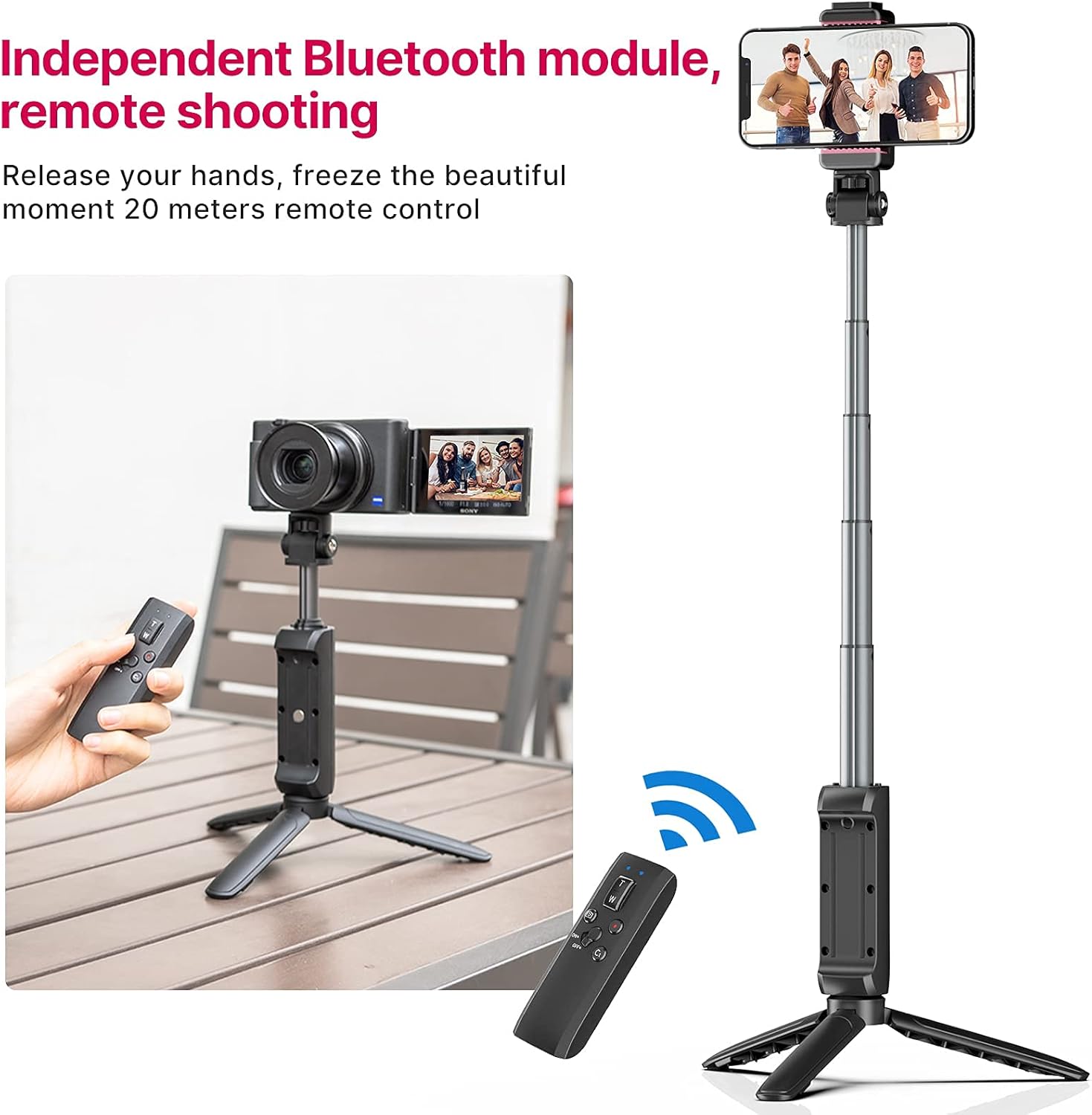
Image 4.1: Detailed view of the ULANZI MT-40 grip with labeled components.
- 1/4 Screw Hole: For attaching cameras or other accessories.
- Rotating Ballhead: Allows for angle adjustment of the mounted device.
- Power and Charging Indicator: Shows device status and battery level.
- Bluetooth Connection Indicator: Lights up when Bluetooth is connected.
- TW Zoom Fader Button: Controls zoom in (T) and zoom out (W) functions.
- Focus/Photo Button: Activates focus and takes photos.
- Video Button: Starts and stops video recording.
- On/Off Button: Powers the grip on or off.
- Custom Button: Programmable button for specific functions.
4.2 VIJIM VL120 RGB Camera Light

Image 4.2: Front and side view of the VIJIM VL120 RGB Camera Light, showing the LED panel and control interface.
- LED Panel: Provides illumination.
- Control Buttons/Dial: For adjusting brightness, color temperature, RGB values, and cycling through effects.
- USB-C Charging Port: For recharging the internal battery.
- 1/4 Screw Hole: For mounting the light onto the grip or other stands.
- Display Screen: Shows current settings (brightness, CCT, HSI, battery).
5. Setup
5.1 ULANZI MT-40 Wireless Shooting Grip Setup
- Attach Camera or Phone: Secure your camera or smartphone to the 1/4 screw hole on the rotating ballhead. Ensure it is firmly attached.
- Extend Telescopic Pole: The grip features a 5-section telescopic pole. Pull the top section upwards to extend it to your desired length, up to 53cm (20.8 inches).

Image 5.1: The ULANZI MT-40 grip extended to different lengths, from 33cm to 53cm.
- Bluetooth Pairing:
- Press and hold the On/Off button on the grip until the Bluetooth connection indicator blinks.
- On your camera or smartphone, enable Bluetooth and search for available devices.
- Select "ULANZI MT-40" (or similar name) from the list to pair. The indicator light will become solid once connected.
- The Bluetooth module supports Sony/Canon cameras and mobile phones.

Image 5.2: Close-up of the ULANZI MT-40's control panel, highlighting the Bluetooth module and buttons.
- Remote Control: The grip comes with an independent Bluetooth remote control for shooting up to 20 meters away. Ensure the remote is paired with your device following similar Bluetooth pairing steps.

Image 5.3: Example of using the ULANZI MT-40 grip with its remote control for distant shooting.
5.2 VIJIM VL120 RGB Camera Light Setup
- Mounting: Attach the VIJIM VL120 RGB light to the 1/4 screw hole on the ULANZI MT-40 grip or any compatible camera hot shoe/cold shoe mount.
- Charging: Connect the provided USB charging cable to the light's USB-C port and a suitable USB power adapter (not included). The display will indicate charging status.
6. Operating Instructions
6.1 ULANZI MT-40 Wireless Shooting Grip Operation
- Power On/Off: Press and hold the On/Off button to power the grip on or off.
- Focus/Photo: Press the Focus/Photo button to focus your camera and then press again to take a picture.
- Video Recording: Press the Video button to start recording, and press it again to stop recording.
- Zoom Control: Use the "T" button to zoom in and the "W" button to zoom out. This function is dependent on camera compatibility.
- Custom Button: Refer to your camera's manual or the grip's specific settings for custom button functionality.
- Tripod Mode: Unfold the legs at the base of the grip to use it as a stable tripod.
6.2 VIJIM VL120 RGB Camera Light Operation

Image 6.1: The VIJIM VL120 RGB light's display showing options for brightness, CCT, and HSI (RGB) adjustments.
- Power On/Off: Press and hold the power button on the side of the light.
- Mode Selection: Cycle through different modes (CCT, HSI/RGB, Effects) using a dedicated mode button or by pressing the control dial.
- Brightness Adjustment: In any mode, rotate the control dial to adjust brightness from 0% to 100%.
- Color Temperature Adjustment (CCT Mode): In CCT mode, rotate the control dial to adjust the color temperature from 2500K (warm) to 9000K (cool).
- RGB Color Adjustment (HSI Mode): In HSI mode, rotate the control dial to adjust the hue (0-359 degrees) and saturation.
- Special Light Effects: The VL120 RGB offers 20 different light effects to simulate various scenarios.
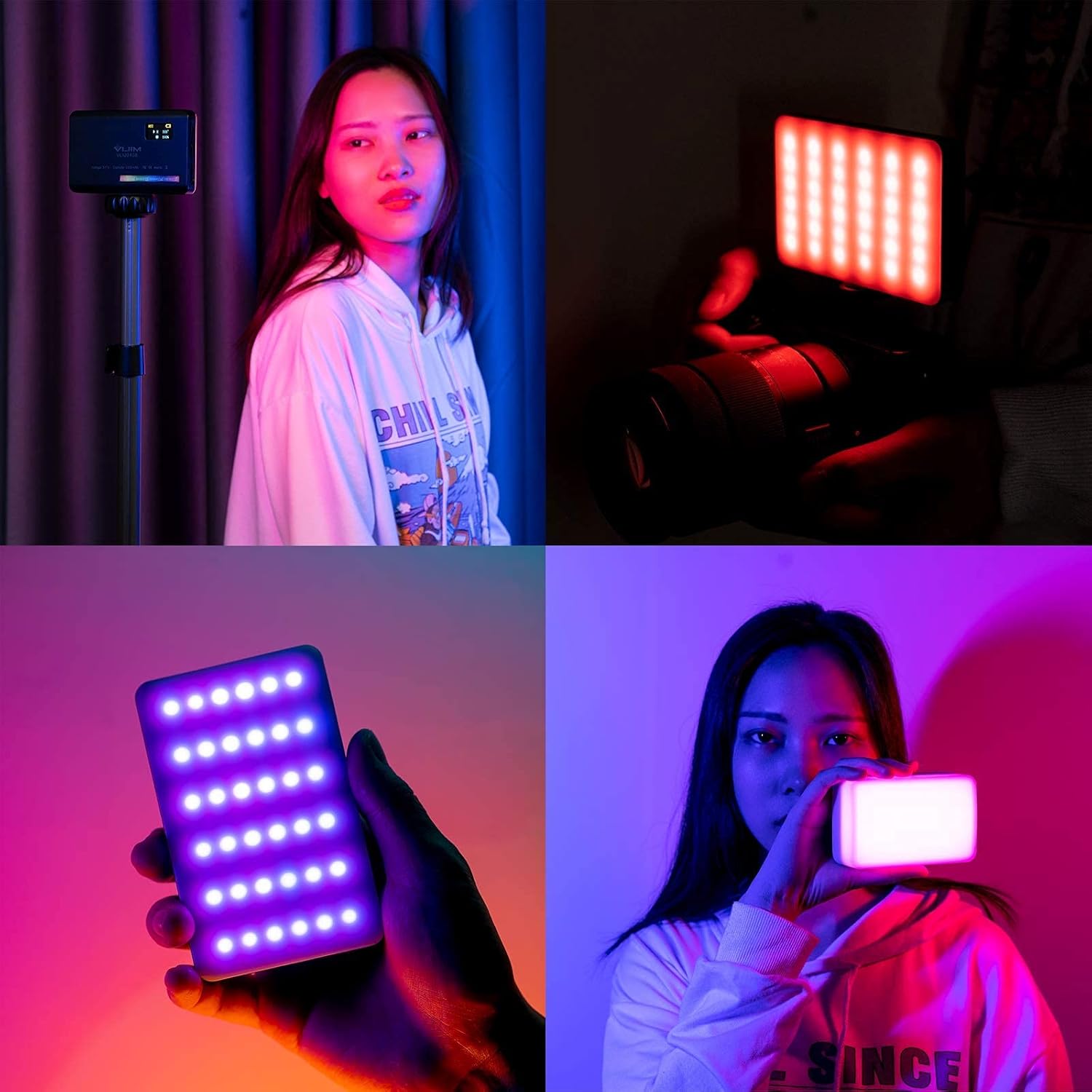
Image 6.2: Icons representing the 20 available light effects on the VIJIM VL120 RGB light, including Cop Car, Ambulance, Fire Engine, Lightning, Fireworks, TV, Candle, Party, Fault Bulb, Pulsing, Strobe, RGB Strobe, Paparazzi, Emergency, H/L Beam, Red Flash, Green Flash, Blue Flash, HSI Slow, and HSI Fast.
To activate, select the effects mode and then rotate the dial to choose from effects such as Cop Car, Ambulance, Fire Engine, Lightning, Fireworks, TV, Candle, Party, Fault Bulb, Pulsing, Strobe, RGB Strobe, Paparazzi, Emergency, H/L Beam, Red Flash, Green Flash, Blue Flash, HSI Slow, and HSI Fast.
7. Maintenance
- Cleaning: Use a soft, dry cloth to clean the surfaces of both devices. Do not use harsh chemicals or abrasive materials.
- Storage: Store the grip and light in a cool, dry place away from direct sunlight and extreme temperatures.
- Battery Care: For optimal battery life, fully charge the VIJIM VL120 RGB light before long periods of storage and recharge it every three months if not in use.
8. Troubleshooting
- Device Not Powering On:
- Ensure the battery is charged (VIJIM VL120 RGB) or fresh batteries are installed (ULANZI MT-40 remote).
- Press and hold the power button for a few seconds.
- Bluetooth Connection Issues:
- Ensure the grip is in pairing mode (blinking indicator).
- Check that Bluetooth is enabled on your camera/smartphone.
- Move the grip closer to your device.
- Forget the device in your camera/phone's Bluetooth settings and attempt to re-pair.
- Light Not Changing Settings:
- Ensure the light is powered on.
- Check the display for the current mode (CCT, HSI, Effects) and adjust accordingly.
- Recharge the light if the battery is low.
- Remote Control Not Working:
- Check the remote's battery.
- Ensure the remote is paired with your device.
- Verify line of sight and distance (max 20m).
9. Specifications
9.1 ULANZI MT-40 Wireless Shooting Grip
- Model: MT-40
- Type: Wireless Shooting Grip / Selfie Stick / Tripod
- Telescopic Length: 33cm (12.9in) to 53cm (20.8in)
- Bluetooth Range: Up to 20 meters
- Compatibility: Sony/Canon Cameras, Mobile Phones
- Mounting: 1/4 inch screw
9.2 VIJIM VL120 RGB Camera Light
- Model: VL120 RGB
- Type: RGB LED Video Light
- Voltage: 3.7V
- Battery Capacity: 3100 mAh
- Color Temperature Range: 2500K - 9000K
- RGB Hue Range: 0 - 359 degrees
- Brightness Adjustment: 0% - 100%
- Special Effects: 20 types
- Mounting: 1/4 inch screw
10. Warranty and Support
For warranty information and technical support, please refer to the documentation provided at the time of purchase or visit the official PICTRON website. Keep your proof of purchase for any warranty claims.
For further assistance, you may contact PICTRON customer service via their official website: PICTRON Store on Amazon.


