
1. Introduction
This manual provides essential information for setting up, operating, maintaining, and troubleshooting your HP EliteDesk 800 G8 Desktop Mini computer. Please read this manual thoroughly before using the product to ensure proper functionality and longevity.

Figure 1: Front view of the HP EliteDesk 800 G8 Desktop Mini.
2. Setup Guide
Follow these steps to set up your HP EliteDesk 800 G8 Desktop Mini.
2.1 Unpacking the Box
Carefully remove all components from the packaging. The box should contain:
- HP EliteDesk 800 G8 Desktop Mini
- AC Adapter
- Keyboard
- Mouse
- Documentation (including this manual)
2.2 Connecting Peripherals
Connect your monitor, keyboard, mouse, and other devices to the appropriate ports.

Figure 2: Front panel ports. Includes USB-C, USB-A, headphone jack, and power button.
- Front Ports:
- USB-C (SuperSpeed USB 10Gbps signaling rate): Connect compatible USB-C devices.
- USB-A (SuperSpeed USB 10Gbps signaling rate): Connect USB devices like keyboards, mice, or external drives.
- Headphone/Microphone Combo Jack: Connect headphones or a headset.
- Power Button: To turn the computer on or off.
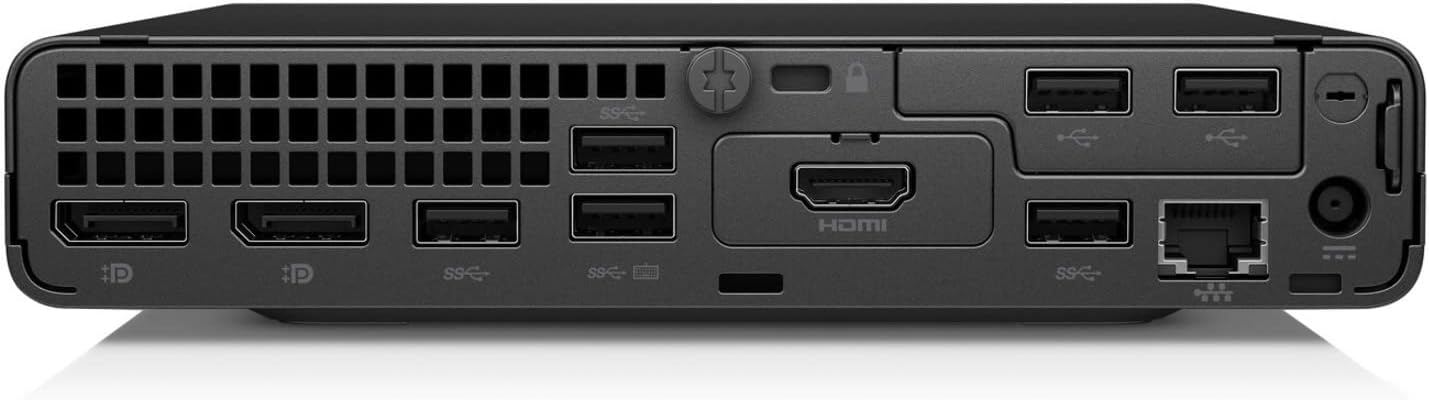
Figure 3: Rear panel ports. Includes DisplayPort, HDMI, USB-A, and Ethernet.
- Rear Ports:
- DisplayPort: Connect a monitor.
- HDMI: Connect a monitor or TV.
- USB-A (SuperSpeed USB 10Gbps signaling rate): Connect additional USB devices.
- Ethernet (RJ-45): Connect to a wired network.
- Power Connector: Connect the AC adapter.
2.3 Powering On
- Connect the AC adapter to the power connector on the rear of the computer, then plug the adapter into a power outlet.
- Press the power button located on the front panel. The power indicator light will illuminate.
- The computer will boot up, and the operating system (Windows 10 Pro) will load.
3. Operating Instructions
This section covers basic operation of your HP EliteDesk 800 G8 Desktop Mini.
3.1 First-Time Use
Upon first power-on, you may be prompted to complete the Windows 10 Pro setup process. Follow the on-screen instructions to configure your language, region, network settings, and user account.
3.2 Power Management
- Shut Down: Click the Start button, then Power, and select "Shut down".
- Restart: Click the Start button, then Power, and select "Restart".
- Sleep: Click the Start button, then Power, and select "Sleep".
- Force Shut Down: If the system is unresponsive, press and hold the power button for approximately 10 seconds until the computer turns off. Use this only as a last resort.
3.3 Connecting to a Network
- Wired Connection: Connect an Ethernet cable from your router or modem to the Ethernet port on the rear of the computer.
- Wireless Connection:
- Click the network icon in the system tray (usually bottom-right of the screen).
- Select your desired Wi-Fi network from the list.
- Click "Connect" and enter the network security key (password) if prompted.
4. Maintenance
Regular maintenance helps ensure the optimal performance and longevity of your HP EliteDesk 800 G8 Desktop Mini.
4.1 Cleaning the Device
- Exterior: Use a soft, lint-free cloth slightly dampened with water or a mild cleaning solution. Avoid harsh chemicals or abrasive materials.
- Vents: Periodically use compressed air to clear dust from the ventilation openings to prevent overheating. Ensure the computer is powered off before cleaning vents.
- Ports: Keep ports free of dust and debris.
4.2 Software Updates
Regularly check for and install operating system updates (Windows Update) and driver updates from the HP support website to ensure security and performance.
4.3 Data Backup
It is recommended to regularly back up your important data to an external drive or cloud storage to prevent data loss.
5. Troubleshooting
This section addresses common issues you might encounter with your HP EliteDesk 800 G8 Desktop Mini.
| Problem | Possible Cause | Solution |
|---|---|---|
| Computer does not power on. | No power, faulty power adapter, loose connection. |
|
| No display on monitor. | Loose video cable, incorrect input source, monitor off. |
|
| Keyboard or mouse not responding. | Loose connection, faulty device, driver issue. |
|
| No internet connection. | Network cable disconnected, Wi-Fi off, router issue. |
|
6. Specifications
Detailed technical specifications for the HP EliteDesk 800 G8 Desktop Mini.
| Feature | Detail |
|---|---|
| Model | HP EliteDesk 800 G8 Desktop Mini (499W7UT#ABA) |
| Processor | Intel Core i7-11700T Octa-core (8 Core) 1.40 GHz |
| RAM | 16 GB DDR4 SDRAM |
| Storage | 512 GB M.2 PCI Express NVMe SSD |
| Graphics | Intel UHD Graphics 750 (Shared) |
| Operating System | Windows 10 Pro |
| Wireless Connectivity | 802.11ax, Bluetooth |
| Ports (Front) | USB-C (SuperSpeed USB 10Gbps), USB-A (SuperSpeed USB 10Gbps), Headphone/Microphone Combo |
| Ports (Rear) | DisplayPort, HDMI, USB-A (SuperSpeed USB 10Gbps), Ethernet (RJ-45) |
| Dimensions (LxWxH) | 6.9 x 7 x 1.4 inches |
| Weight | 3.13 pounds |
7. Warranty and Support
Your HP EliteDesk 800 G8 Desktop Mini comes with a standard manufacturer's warranty. For specific warranty terms and conditions, please refer to the warranty documentation included with your product or visit the official HP support website.
For technical support, driver downloads, and additional resources, please visit:
HP Official Support Website
When contacting support, please have your product model number (EliteDesk 800 G8) and serial number ready.