
HENGHUI Galaxy Tab A7 10.4 inch (2020) SM-T500 T505 T507
HENGHUI Keyboard Case for Samsung Galaxy Tab A7 10.4 inch (2020) User Manual
Models: SM-T500, SM-T505, SM-T507
Introduction
This manual provides detailed instructions for the setup, operation, and maintenance of your HENGHUI Keyboard Case for the Samsung Galaxy Tab A7 10.4 inch (2020). Please read this manual thoroughly to ensure proper use and to maximize the functionality of your device.
Compatibility
This keyboard case is specifically designed for the Samsung Galaxy Tab A7 10.4 inch (2020) tablet models:
- SM-T500
- SM-T505
- SM-T507
It is not compatible with any other tablet models.
Package Contents
Verify that all items are present in the package:
- HENGHUI Keyboard Case
- Detachable Bluetooth Keyboard
- USB Charging Cable
- User Manual (this document)
Setup
1. Charging the Keyboard
Before initial use, ensure the keyboard is fully charged. Connect the provided USB charging cable to the keyboard's charging port and a suitable USB power source. The charging indicator light will illuminate during charging and turn off when fully charged. The keyboard contains 1 Lithium Polymer battery.
2. Pairing the Bluetooth Keyboard with your Galaxy Tab A7
- Turn on the power button located on the right side of the keyboard. The power indicator will flash briefly and then turn off to conserve power. This is normal operation.
- Press and hold the "FN" key, then simultaneously press the "C" key. The Bluetooth indicator light will begin to flash, indicating the keyboard is in pairing mode.
- On your Galaxy Tab A7, navigate to the Home screen and tap Settings.
- Tap on Bluetooth. Ensure Bluetooth is toggled On. Your tablet will begin searching for nearby devices.
- Locate and tap on "Bluetooth Keyboard" (or a similar name) when it appears in the list of available devices to initiate pairing.
- If a PIN code appears on your tablet screen, type this code using the keyboard and then press the "Enter" key on the keyboard.
- Once the connection is successful, the Bluetooth indicator light on the keyboard will turn off.
3. Selecting the Correct System Mode
This keyboard supports three operating systems (Windows, Android, iOS). For optimal performance with your Galaxy Tab A7, you must select the Android system mode.
- Press and hold the "FN" key, then simultaneously press the "Q" key. This sets the keyboard to Android mode, which is compatible with your Galaxy tablet.
Operating Instructions
Touchpad Functionality
The integrated touchpad allows for mouse-like navigation directly from the keyboard. Use standard touchpad gestures for pointing, clicking, and scrolling.

Image: The keyboard features a built-in touchpad and stylish round keys, enhancing navigation and typing experience.
Detachable Keyboard
The keyboard is magnetically detachable from the case, offering flexibility. You can use the keyboard separately or with other compatible devices (Windows, Android, iOS) after switching the system mode (FN+Q/W/E).

Image: The keyboard can be easily detached from the case, providing versatility for various uses and devices.
Shortcut Keys
The keyboard includes multi-function shortcut keys to enhance productivity. Combine the "FN" key with specific function keys for quick access to tablet features:
- FN + F1-F12: Access various system functions (e.g., media control, volume adjustment, screen lock, screenshot). Refer to the key icons for specific functions.

Image: A detailed view of the keyboard layout, highlighting the function keys and their associated icons for quick access to tablet features.
Maintenance
- Cleaning: Use a soft, damp cloth to wipe the keyboard and case. Avoid harsh chemicals or abrasive materials. Ensure the keyboard is powered off before cleaning.
- Storage: Store the keyboard case in a cool, dry place away from direct sunlight and extreme temperatures.
- Battery Care: To prolong battery life, avoid fully discharging the keyboard frequently. Charge it regularly, even if not in constant use.
Troubleshooting
- Keyboard not connecting:
- Ensure the keyboard is powered on and fully charged.
- Verify Bluetooth is enabled on your Galaxy Tab A7.
- Repeat the pairing steps (FN+C) to re-enter pairing mode.
- Forget the device from your tablet's Bluetooth settings and attempt to pair again.
- Ensure the correct system mode is selected (FN+Q for Android).
- Keys not responding:
- Check if the keyboard is charged.
- Ensure the keyboard is properly connected via Bluetooth.
- Restart both the keyboard and your tablet.
- Touchpad not working:
- Ensure the keyboard is connected.
- Some tablet settings might disable external mouse input; check your tablet's accessibility settings.
Specifications
| Brand | HENGHUI |
| Compatible Devices | Samsung Galaxy Tab A7 10.4'' (2020) (SM-T500/T505/T507) |
| Connectivity Technology | Bluetooth |
| Keyboard Description | Wireless |
| Special Features | Non-slip, Magnetic, Built-in Touchpad, Detachable Keyboard, Pencil Holder |
| Material | Thermoplastic Polyurethane (TPU) |
| Battery | 1 Lithium Polymer battery (included) |
| Item Weight | 1.37 pounds (approximately 0.62 kg) |
| Package Dimensions | 10.71 x 8.03 x 1.18 inches |

Image: The keyboard case is rechargeable, featuring a high-capacity lithium-ion battery for extended use.
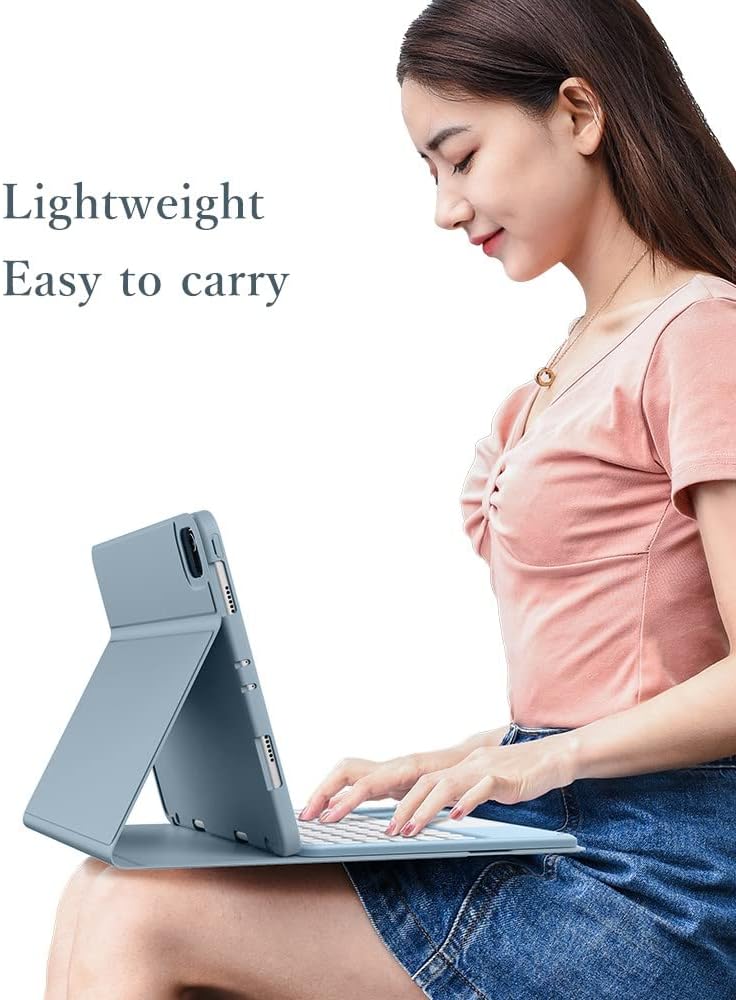
Image: The lightweight design of the keyboard case makes it easy to carry and use in various settings.

Image: The case features a soft TPU back cover, providing protection and a comfortable grip.
Warranty and Support
For warranty information or technical support, please refer to the retailer's policy or contact HENGHUI customer service through the platform where the product was purchased. Keep your purchase receipt for warranty claims.
Ask a question about this manual
Ask about setup, troubleshooting, compatibility, parts, safety, or missing instructions. Manuals+ will review the question and use this page’s manual context to help answer it.