
Introduction
The Samsung EVO Plus microSD card is designed for fast and smooth performance, capable of handling large files and 4K video with its superfast U3, Class 10 rated transfer speeds of up to 130MB/s. Featuring A2, V30, and UHS-I Interface, it ensures smooth loading and running of demanding applications. This memory card provides ample storage to expand the capacity of your devices, ensuring space for all your digital memories.
Product Features
- High-Speed Performance: Up to 130MB/s read and write speeds, ideal for 4K UHD video recording and high-resolution photos.
- Application Performance Class 2 (A2): Optimized for faster app loading and performance on smartphones and tablets.
- Video Speed Class 30 (V30): Guarantees minimum write speed for smooth video recording, including 4K UHD.
- UHS Speed Class 3 (U3) & Class 10: Ensures high-speed data transfer for demanding tasks.
- Durability: Built to withstand extreme conditions, featuring X-ray proof, water-proof, and temperature-proof capabilities.
- Versatile Compatibility: Compatible with a wide range of devices, including smartphones, cameras, drones, and more.
Package Contents
Your Samsung EVO Plus microSD card package typically includes:
- Samsung EVO Plus microSDXC Memory Card (512GB)
- SD Adapter for microSD
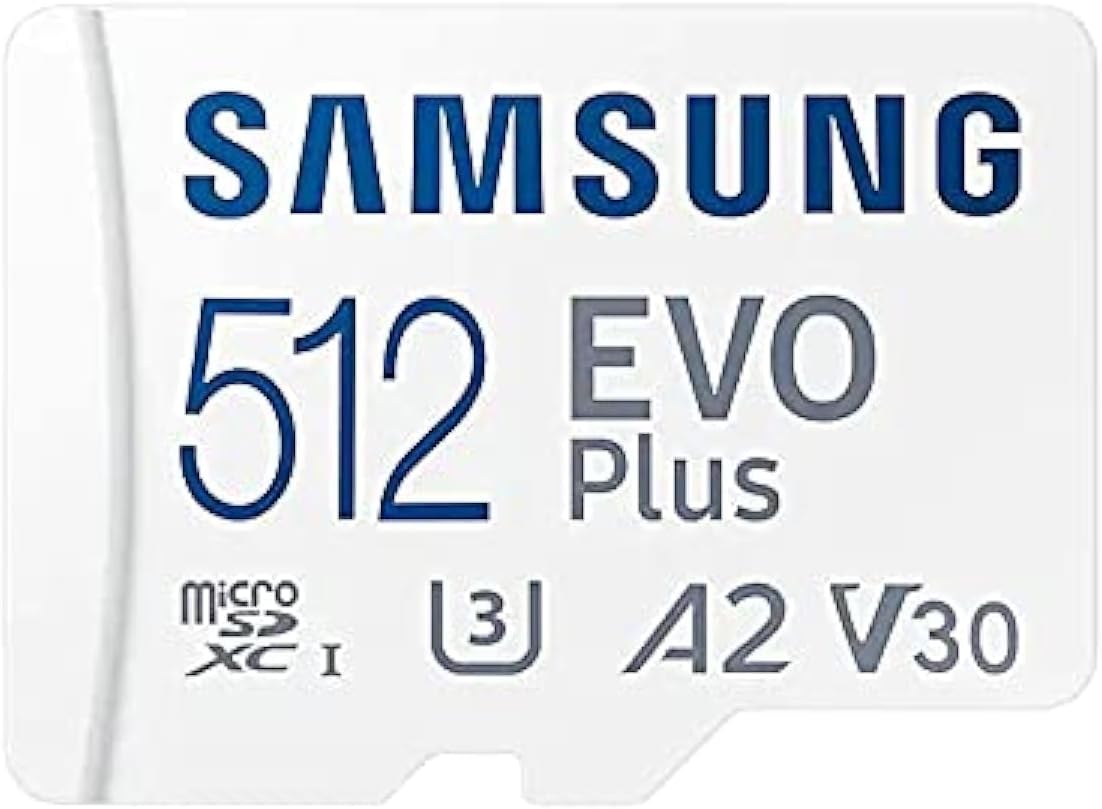
Image: Samsung EVO Plus microSDXC Memory Card.

Image: Samsung EVO Plus microSDXC Memory Card and included SD Adapter.
Setup and Installation
To begin using your Samsung EVO Plus microSD card, follow these general steps:
- Identify the microSD Slot: Locate the microSD card slot on your compatible device (e.g., smartphone, tablet, camera, drone). This slot is often found on the side or under the battery cover.
- Insert the Card: Gently insert the microSD card into the slot with the gold contacts facing down (or as indicated by your device's manual). Push until it clicks into place.
- Using the SD Adapter: If your device uses a standard SD card slot (e.g., some cameras, laptops), insert the microSD card into the provided SD adapter first, then insert the adapter into the device's SD card slot.
- Device Recognition: Your device should automatically detect the new memory card. You may receive a notification.
- Formatting (Optional but Recommended): For optimal performance and compatibility, it is recommended to format the card using your device's internal formatting function. Warning: Formatting will erase all data on the card. Back up any important data before proceeding.
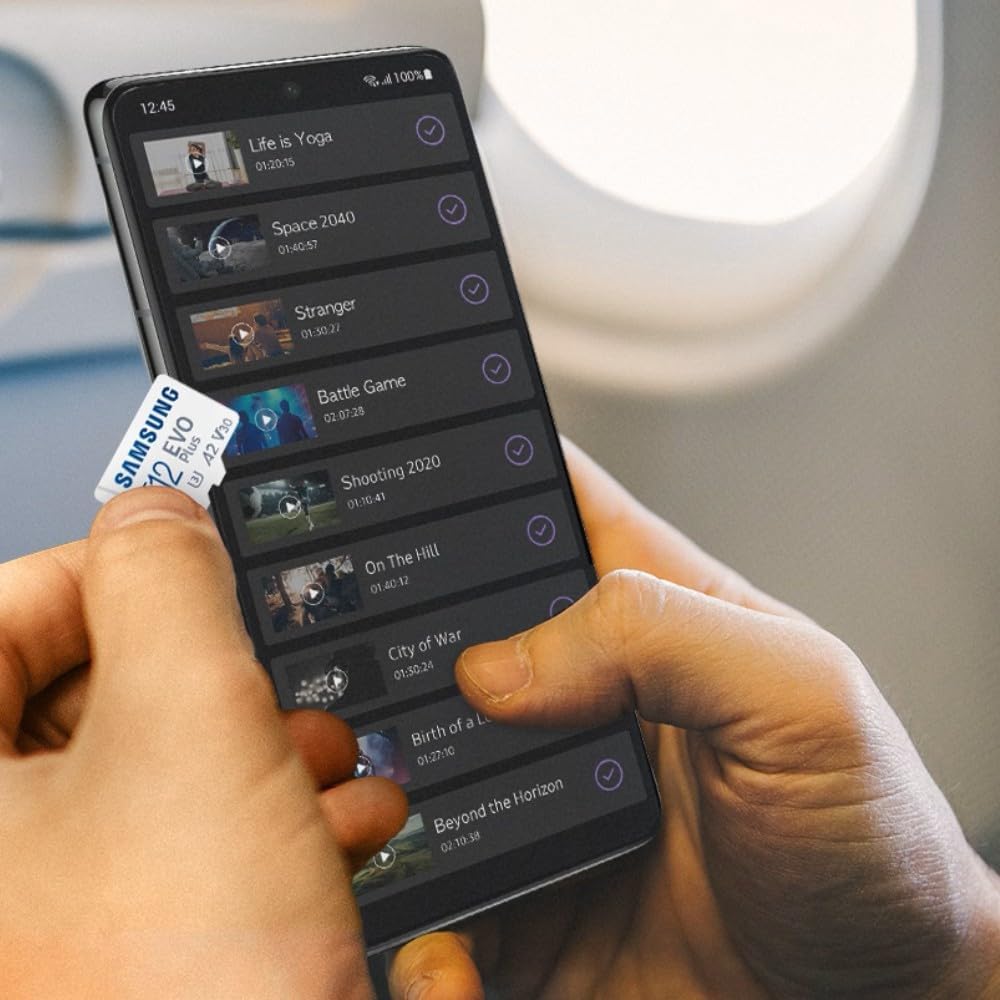
Image: Illustrates inserting the microSD card into a compatible device.
Operating Instructions
Once installed, the Samsung EVO Plus microSD card functions as expanded storage for your device. Here are common operations:
- Saving Files: Most devices will automatically prompt you to save new photos, videos, or app data to the external storage. You can also manually move files using your device's file manager.
- App Storage: On Android devices, you can often move compatible applications to the microSD card to free up internal storage. Navigate to your device's App settings to manage app storage.
- Data Transfer: To transfer data to or from a computer, you can either connect your device directly to the computer via USB or remove the microSD card and insert it into a card reader connected to your computer.
- Ejecting Safely: Always safely eject the microSD card from your device before physically removing it to prevent data corruption. This option is usually found in your device's storage settings.
Maintenance and Care
The Samsung EVO Plus microSD card is built for durability. To ensure its longevity and optimal performance, consider the following:
- Keep Contacts Clean: Avoid touching the gold contacts on the card. If necessary, gently wipe them with a soft, dry, lint-free cloth.
- Protect from Physical Damage: Store the card in its protective case or a secure slot when not in use to prevent bending, scratching, or exposure to dust.
- Leverage Durability Features: The card is X-ray proof, water-proof, and temperature-proof, offering protection against common environmental hazards. However, extreme conditions should still be avoided where possible.
- Regular Backups: Periodically back up important data from your microSD card to another storage device (e.g., computer, cloud storage) to prevent data loss.
Troubleshooting
If you encounter issues with your Samsung EVO Plus microSD card, consider these common troubleshooting steps:
- Card Not Detected:
- Ensure the card is fully and correctly inserted into the slot.
- Restart your device.
- Try the card in another compatible device or a different card reader to determine if the issue is with the card or the device.
- Clean the card's contacts.
- Slow Performance:
- Ensure your device supports the card's speed class (UHS-I).
- Avoid filling the card to its maximum capacity; leaving some free space can improve performance.
- Format the card (after backing up data) to resolve potential file system fragmentation.
- Capacity Discrepancy:
It is common for the usable capacity of a memory card to be slightly less than the advertised capacity. This is due to differences in how storage manufacturers and operating systems calculate gigabytes (decimal vs. binary) and space reserved for firmware and file system overhead. For example, a 512GB card may show as approximately 477GB usable capacity on a computer.
- Data Corruption:
- Always safely eject the card before removal.
- Avoid removing the card during data transfer or while the device is actively accessing it.
- If data appears corrupted, try running a disk check utility on a computer.
Specifications
| Feature | Detail |
|---|---|
| Brand | Samsung |
| Model Number | MB-MC512KA |
| Flash Memory Type | Micro SDXC |
| Memory Storage Capacity | 512 GB |
| Read Speed | Up to 130 MB/s |
| Write Speed | Up to 130 MB/s |
| Speed Class | U3, Class 10, A2, V30 |
| Hardware Interface | microSDXC |
| Special Features | X-ray Proof, Water Proof, Temperature Proof |
| Product Dimensions | 0.59 x 0.43 x 0.04 inches |
| Compatible Devices | Smartphone and other compatible devices |
Warranty and Support
For warranty information and technical support, please refer to the official Samsung website or contact Samsung customer service. Keep your proof of purchase for warranty claims.
You can visit the official Samsung Store for more information: Samsung Store on Amazon


