
1. Introduction
The AITRIP NodeMCU V3 Lua WiFi Module is a versatile development board that integrates the ESP8266 Wi-Fi System-on-Chip (SoC) with extra memory and a USB-Serial CH340G converter. This module combines the functionalities of a Wi-Fi access point, station, and a microcontroller, enabling easy development of IoT applications using the Lua scripting language or Arduino IDE.
It is designed for rapid prototyping and development, offering a rich set of I/O capabilities and network connectivity. The inclusion of 32M Flash memory provides ample space for complex projects and libraries.
2. Key Features
- Integrated ESP8266 SoC: Powerful Wi-Fi enabled microcontroller for IoT applications.
- Extended Memory: Features 32Mb (megabit) flash memory, allowing for larger projects and extensive libraries without memory constraints.
- USB-TTL Serial Converter: On-board CH340G chip with a Micro-USB socket for easy programming and serial communication.
- Arduino IDE Compatibility: Supports programming using the Arduino IDE, providing a familiar development environment.
- Flexible I/O: Includes 10 GPIOs (D0-D10) with PWM functionality, IIC, SPI communication, 1-Wire, and ADC (A0) capabilities.
- Wi-Fi Networking: Can operate as both an access point and/or a station, enabling web server hosting and data exchange over the internet.
- Breadboard Friendly: Designed with 2.54mm (0.1") pin headers for easy integration into breadboard setups.
- Power Input: Supports DC 4~9V power input via the VIN pin.
3. Package Contents
Each package contains the following components:
- NodeMCU V3 Lua WiFi Module (ESP8266 + 32M Flash, USB-serial CH340G)
- Pin headers (2.54mm, 0.1", 15 pins x 2 lines) - Note: Pin headers are not pre-soldered.

Image 3.1: Overview of the AITRIP NodeMCU V3 Lua WiFi Module and its accompanying pin headers.
4. Setup Guide
4.1. Driver Installation (CH340G)
Before connecting the NodeMCU module to your computer, you may need to install the CH340G USB-to-Serial driver. This driver allows your computer to recognize the module as a serial port.
- Download the appropriate CH340G driver for your operating system (Windows, macOS, Linux) from a reliable source.
- Install the driver by following the on-screen instructions. You may need to restart your computer after installation.
- Verify the installation by connecting the NodeMCU module to your computer via a Micro-USB cable. Check your device manager (Windows) or
ls /dev/tty*(Linux/macOS) for a new serial port (e.g., COMx or /dev/tty.wchusbserial).
4.2. Pin Header Soldering (Optional but Recommended)
The included pin headers are not pre-soldered. For easy use with breadboards or custom PCBs, it is highly recommended to solder the pin headers to the module. Ensure proper alignment and good solder joints.
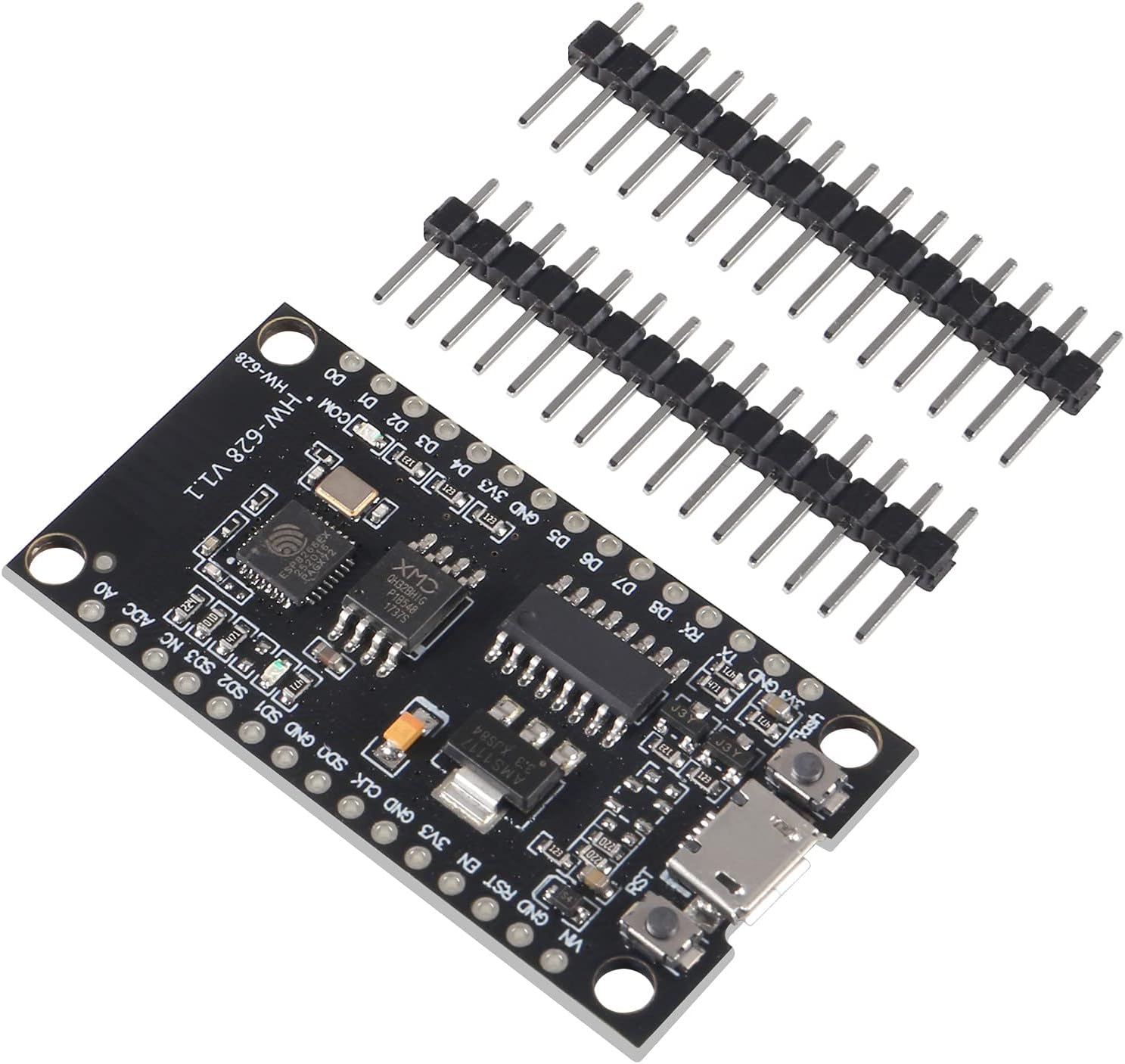
Image 4.1: NodeMCU module shown with separate pin headers, illustrating the need for soldering.
4.3. Powering the Module
The module can be powered in several ways:
- Micro-USB Port: Connect a standard Micro-USB cable to a 5V USB power source (e.g., computer USB port, USB wall adapter). This is the most common method for programming and initial testing.
- VIN Pin: Provide a DC voltage between 4V and 9V to the VIN pin. Ensure the ground (GND) pin is also connected.
Caution: Do not apply voltage to other pins unless specifically required by your circuit design, and always verify pin voltage limits.
5. Operation and Programming
5.1. Programming with Arduino IDE
The NodeMCU V3 module can be programmed using the Arduino IDE, making it accessible for users familiar with Arduino development.
- Install ESP8266 Board Package: In Arduino IDE, go to File > Preferences. In "Additional Boards Manager URLs", add:
http://arduino.esp8266.com/stable/package_esp8266com_index.json. Click OK. - Go to Tools > Board > Boards Manager... Search for "ESP8266" and install the "esp8266 by ESP8266 Community" package.
- Select the Board: Go to Tools > Board and select "NodeMCU 1.0 (ESP-12E Module)".
- Select the Port: Go to Tools > Port and select the serial port corresponding to your NodeMCU module (e.g., COMx or /dev/tty.wchusbserial).
- Upload Code: Write your Arduino sketch and click the "Upload" button. The IDE will compile and upload the code to the module.
5.2. Programming with Lua (NodeMCU Firmware)
The module can also be programmed using Lua scripting, which is the native language for NodeMCU firmware.
- Flash NodeMCU Firmware: If not already present, you may need to flash the NodeMCU firmware onto the ESP8266. Tools like NodeMCU Flasher or esptool.py can be used for this.
- Use an IDE/Editor: Use a Lua-compatible IDE or text editor (e.g., ESPlorer, VS Code with Lua extensions) to write your Lua scripts.
- Upload Scripts: Use a serial communication tool (like ESPlorer) to upload your Lua scripts to the module's file system.
- Execute Scripts: Scripts can be set to run automatically on boot (e.g.,
init.lua) or executed manually via the serial console.

Image 5.1: Detailed view of the NodeMCU module, highlighting the various pins and components for programming and connectivity.
6. Specifications
| Feature | Detail |
|---|---|
| Model Name | NodeMCU V3 Lua |
| Processor | ESP8266 (Espressif) |
| Flash Memory | 32 MB (Megabit) |
| USB-Serial Chip | CH340G |
| Connectivity | Wi-Fi (802.11 b/g/n), Micro-USB |
| GPIO Pins | 10 (D0-D10), with PWM, IIC, SPI, 1-Wire, ADC (A0) |
| Input Voltage (VIN) | DC 4V ~ 9V |
| Operating System Compatibility | Linux (and other OS with CH340G driver) |
| Item Weight | 1.44 ounces (approx. 40.8 grams) |
| Package Dimensions | 4.02 x 3.03 x 0.79 inches |

Image 6.1: The compact size of the NodeMCU module, suitable for various embedded projects.
7. Troubleshooting
- Module Not Recognized by Computer:
- Ensure the CH340G driver is correctly installed.
- Try a different Micro-USB cable; some cables are for charging only and do not support data transfer.
- Test with a different USB port on your computer.
- Upload Errors (Arduino IDE/Lua):
- Verify that the correct board ("NodeMCU 1.0 (ESP-12E Module)") and serial port are selected in the IDE.
- Ensure no other program is using the serial port.
- Check your code for syntax errors.
- Sometimes pressing the "Flash" or "RST" button on the module during upload can help initiate programming mode.
- Wi-Fi Connection Issues:
- Double-check Wi-Fi SSID and password in your code.
- Ensure the module is within range of the Wi-Fi network.
- Verify that your router settings are not blocking new devices.
- Insufficient Memory:
- Although the module has 32M Flash, complex projects can still consume significant memory. Optimize your code and libraries.
- Consider using a more memory-efficient programming approach if possible.
8. Maintenance
To ensure the longevity and proper functioning of your NodeMCU module, follow these maintenance guidelines:
- Handle with Care: Electronic components are sensitive. Avoid dropping the module or subjecting it to physical shock.
- Keep Dry: Protect the module from moisture and liquids, which can cause short circuits and damage.
- Static Electricity: Discharge any static electricity from your body before handling the module to prevent damage to sensitive components.
- Cleanliness: Keep the module free from dust and debris. Use a soft, dry brush or compressed air for cleaning if necessary.
- Proper Storage: When not in use, store the module in an anti-static bag or a protective container to prevent damage.
9. Warranty and Support
For warranty information and technical support regarding your AITRIP NodeMCU V3 Lua WiFi Module, please refer to the seller's policies or contact AITRIP customer service directly. Specific warranty terms may vary based on your region and point of purchase.
For community support and extensive documentation on ESP8266 and NodeMCU development, consider exploring online forums, official ESP8266 documentation, and the NodeMCU project GitHub page.