
ROZELLA HOME GK68
CIY GK68 Dual Mode Wireless Hotswap Keyboard Kit User Manual
Model: GK68 | Brand: ROZELLA HOME
1. Introduction
This manual provides detailed instructions for the setup, operation, and maintenance of your CIY GK68 Dual Mode Wireless Hotswap Keyboard Kit. This 65% DIY keyboard kit offers both Bluetooth 5.0 and 2.4G wireless connectivity, allowing for a customizable and versatile typing experience. It features a hot-swappable switch base compatible with 3-pin and 5-pin MX switches, an ABS shell, a metal positioning plate, and sound insulation materials for optimized acoustics.
2. Package Contents
Please verify that all items are present in your package:
- CIY GK68 Keyboard PCB and Case Assembly
- 2.4G USB Receiver
- Keycap Puller
- User Manual (this document)
Note: Switches and keycaps are not included and must be purchased separately.
3. Product Overview & Components
The CIY GK68 keyboard kit is designed for user customization. Below is an overview of its main components and structure.

Figure 3.1: CIY GK68 Keyboard Kit components, including the PCB with hot-swap sockets, side profile, and bottom view with the battery compartment.

Figure 3.2: Exploded view illustrating the internal structure of the CIY GK68 keyboard, detailing the ABS housing, sound-absorbing cotton, dual-mode PCB, sound insulation silicone, metal positioning plate, and stabilizers.
Key Structural Elements:
- ABS Integrated Housing: The outer shell of the keyboard, providing durability and an ergonomic shape.
- Metal Positioning Plate: Provides stability for switches and contributes to typing feel.
- Dual-mode PCB Motherboard: Supports both Bluetooth 5.0 and 2.4G wireless connectivity, featuring hot-swappable sockets.
- Sound Insulation Silicone Mat: Placed between the PCB and the positioning plate to reduce unwanted sound.
- Bottom Sound-absorbing Cotton: Further enhances acoustic performance by dampening sounds from the bottom of the case.
- Hot-swappable Shaft Seat: Allows for easy installation and removal of 3-pin and 5-pin MX-style mechanical switches without soldering.
4. Setup
4.1 Battery Installation
The CIY GK68 keyboard is powered by two AAA batteries. It does not support USB wired connection or charging.
- Locate the battery compartment on the underside of the keyboard.
- Slide open the battery compartment cover.
- Insert two AAA batteries, ensuring correct polarity (+/-).
- Close the battery compartment cover securely.
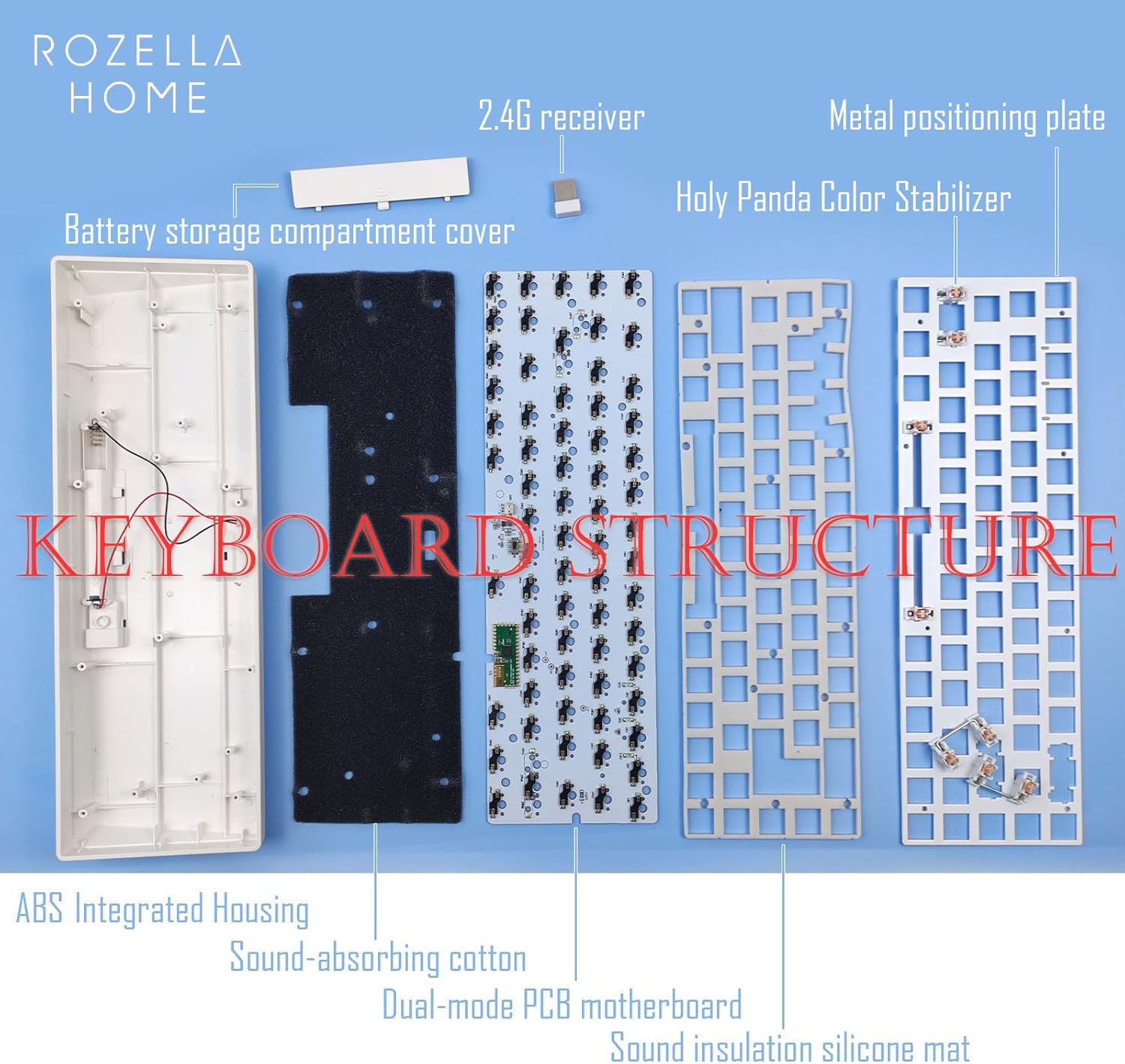
Figure 4.1: Battery compartment with AAA batteries and 2.4G receiver storage.
4.2 Switch Installation
The GK68 features hot-swappable sockets, allowing you to install compatible 3-pin or 5-pin MX-style mechanical switches without soldering.
- Ensure the switch pins are straight and not bent.
- Align the pins of the switch with the holes in the hot-swap socket on the PCB.
- Gently press the switch vertically into the socket until it clicks into place. Avoid applying excessive force or inserting at an angle to prevent bending pins or damaging the socket.
- Repeat for all desired switch positions.

Figure 4.2: Hot-swappable shaft seat compatible with 3-pin and 5-pin MX switches.
4.3 Keycap Installation
After installing all switches, you can proceed to install your preferred keycaps.
- Align the stem of the keycap with the cross-shaped stem on the switch.
- Gently push the keycap down until it is fully seated on the switch.
- Use the included keycap puller to remove keycaps if needed, by hooking it onto the keycap and pulling upwards evenly.
5. Operating Instructions
5.1 Connectivity Modes
The GK68 supports two wireless connectivity modes: 2.4G and Bluetooth 5.0.

Figure 5.1: Overview of Bluetooth 5.0 and 2.4G wireless modes.
5.1.1 2.4G Wireless Mode
For 2.4G wireless connection:
- Retrieve the 2.4G USB receiver from its storage slot in the battery compartment.
- Plug the 2.4G USB receiver into an available USB port on your computer.
- Press the FN + Q keys simultaneously on the keyboard. The green indicator light will flash, indicating 2.4G mode is active and attempting to connect.
- Once connected, the green light will stop flashing.
5.1.2 Bluetooth 5.0 Mode
The keyboard can connect to and save two Bluetooth devices (BT1 and BT2).
- For first connection (pairing): Press FN + W (for BT1) or FN + E (for BT2) simultaneously. The blue indicator light will flash rapidly, indicating pairing mode.
- On your computer or device, enable Bluetooth and search for new devices. Select "CIY GK68" (or similar) from the list of available devices to pair.
- Once paired, the blue light will stop flashing.
- To switch between paired Bluetooth devices: Press FN + W to switch to BT1 or FN + E to switch to BT2. The blue light will flash slowly to confirm the switch.

Figure 5.2: Connectivity mode switching instructions.
5.2 Function Key Combinations
The keyboard features a compact 65% layout with various functions accessible via the FN key in combination with other keys.

Figure 5.3: FN Function Key Combinations.
Pressing and holding the FN key and a function key will activate the secondary function. Refer to the diagram above for specific combinations:
- FN + Q: Switch to 2.4G mode
- FN + W: Switch to Bluetooth 1 (BT1)
- FN + E: Switch to Bluetooth 2 (BT2)
- FN + R: Music player
- FN + T: Stop playing
- FN + Y: Volume reduction
- FN + U: Volume increase
- FN + I: Mute
- FN + O: Previous song
- FN + P: Play/pause
- FN + [: Next song
- FN + \|: Print Screen/SysRq
- FN + ]: Insert
- FN + ;: Delete
- FN + ': Page Up
- FN + /?: Page Down
- FN + Win: Win key lock/unlock
6. Maintenance
Proper maintenance ensures the longevity and performance of your keyboard.
- Cleaning: Regularly clean the keyboard using a soft, dry cloth. For deeper cleaning, remove keycaps using the provided keycap puller and use compressed air to clear debris from between switches. A damp cloth (not wet) can be used for the case, but avoid moisture near the PCB or switches.
- Battery Replacement: Replace AAA batteries when the keyboard's performance degrades or connectivity issues arise.
- Storage: Store the keyboard in a cool, dry place away from direct sunlight and extreme temperatures.
- Handling: Avoid dropping the keyboard or exposing it to liquids, which can cause permanent damage.
7. Troubleshooting
7.1 Keyboard Not Responding
- Check Batteries: Ensure fresh AAA batteries are correctly installed.
- Power Switch: Verify the keyboard's power switch (located on the bottom) is in the 'ON' position.
- Connectivity Mode: Ensure you are in the correct mode (2.4G or Bluetooth) for your connection type.
7.2 2.4G Connection Issues
- Receiver: Ensure the 2.4G USB receiver is securely plugged into a working USB port on your computer.
- Mode Selection: Press FN + Q to ensure the keyboard is in 2.4G mode.
- Interference: Move the keyboard closer to the receiver or away from other wireless devices that might cause interference.
7.3 Bluetooth Connection Issues
- Bluetooth Enabled: Confirm Bluetooth is enabled on your computer or device.
- Pairing Mode: For initial connection, ensure the keyboard is in pairing mode (rapid blue light flash) by pressing FN + W or FN + E.
- Device List: Remove any previous pairings of the keyboard from your device's Bluetooth settings and attempt to pair again.
- Compatibility: Ensure your computer's Bluetooth supports Bluetooth 5.0. If issues persist, contact customer service.
7.4 Keys Not Registering / Double Typing
- Switch Installation: Re-check that the switches are fully and correctly seated in their hot-swap sockets. Gently press down on the affected switch.
- Bent Pins: If a switch is not working, carefully remove it and inspect its pins. Straighten any bent pins before reinserting.
- Faulty Switch: If a specific switch continues to malfunction, it may be defective and require replacement.
7.5 No USB Wired Connection
Important: This keyboard does not support a USB wired connection. It is designed exclusively for wireless operation (2.4G and Bluetooth) and does not have a USB port for data transfer or charging.
8. Specifications
| Feature | Detail |
|---|---|
| Model | GK68 |
| Connectivity Technology | Bluetooth 5.0, 2.4G Wireless |
| Keyboard Layout | 65% |
| Switch Compatibility | Hot-swappable 3-pin/5-pin MX Switches |
| Shell Material | ABS (Acrylonitrile Butadiene Styrene) |
| Internal Structure | Metal Positioning Plate, Sound Insulation Silicone, Sound-absorbing Cotton |
| Power Source | 2 x AAA Batteries (not included) |
| Battery Life | Up to two months (with smart sleep power saving mode) |
| Product Dimensions | 12.2 x 3.97 x 1.22 inches (310 x 101 x 31 mm) |
| Item Weight | 14.4 ounces |
| Compatible Devices | PC |
9. Support Information
For technical assistance, troubleshooting beyond this manual, or inquiries regarding your CIY GK68 keyboard kit, please contact ROZELLA HOME customer service. Refer to your purchase documentation for specific contact details or visit the official ROZELLA HOME support website.
Please have your product model (GK68) and purchase date available when contacting support.
Related Documents - GK68
 |
GK68 User Manual - Wireless Keyboard Guide Comprehensive user manual for the GK68 keyboard, covering system requirements, installation, 2.4G wireless and Bluetooth modes, smart power saving, and FCC compliance information. |
 |
Table Mat Instruction Manual: Installation and Usage Guide Comprehensive guide to installing and using EVA drawer mats. Learn how to measure, cut, fit, and maintain your non-slip, waterproof, and anti-fouling drawer liners for kitchens, cabinets, and desktops. Includes safety warnings and FAQs. |
 |
Knauf Insulation Multi-Use Roll Installation Guide Detailed installation instructions for Knauf Insulation Multi-Use Roll, covering applications for ceilings, internal/external walls, and roofs, along with crucial health and safety information. |
 |
EVA Floor Protection Mat Set - Interlocking Puzzle Tiles for Home Gym, Play Area Durable EVA floor protection mat set featuring interlocking puzzle tiles. Provides cushioning and protection for home gyms, play areas, garages, and more. Easy to assemble and clean. Warning: Contains small parts, not suitable for children under 3. |
 |
Petermann Alpha Non Slip Mat User Manual Comprehensive user manual for the Petermann Alpha Non Slip Mat, detailing product features, usage instructions, safety precautions, cleaning procedures, technical specifications, warranty information, and disposal guidelines. Designed for patient positioning and transfer in healthcare and home care environments. |
 |
VEVOR Chair Mat PVC-364818R User Manual and Instructions Official user manual and safety instructions for the VEVOR PVC-364818R Chair Mat. Learn about assembly, usage precautions, and product specifications. |
Ask a question about this manual
Ask about setup, troubleshooting, compatibility, parts, safety, or missing instructions. Manuals+ will review the question and use this page’s manual context to help answer it.