
1. Introduction
The Yealink SIP-T43U IP Phone is a professional communication device designed for business environments, offering advanced features and high-definition audio quality. This manual provides comprehensive instructions for setting up, operating, maintaining, and troubleshooting your SIP-T43U phone.
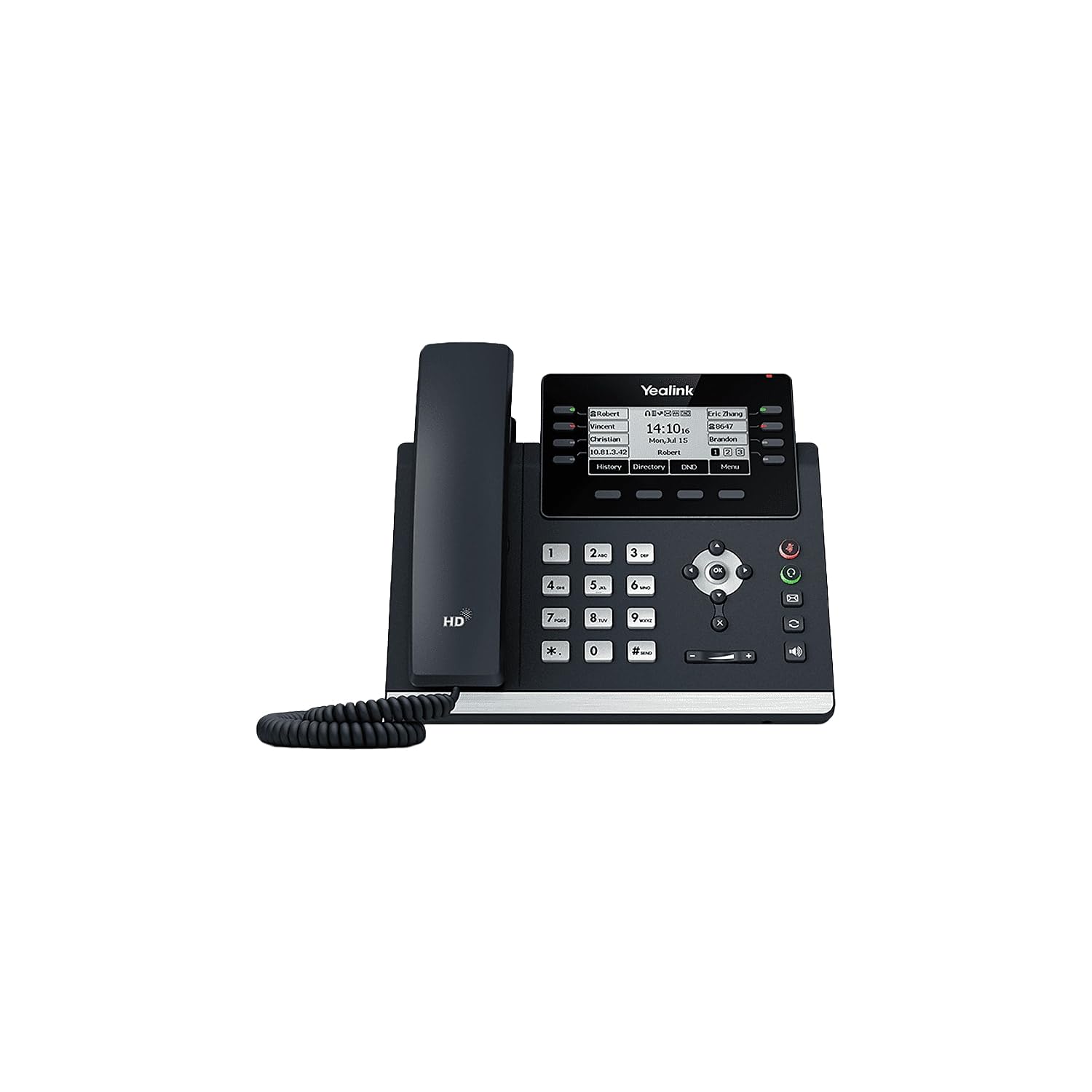
Figure 1: Front view of the Yealink SIP-T43U IP Phone, showcasing its display, keypad, and handset.
2. What's in the Box
Verify that all items are present in your package:
- SIP-T43U IP Phone Unit
- Handset with Handset Cord
- Ethernet Cable (2m CAT5E UTP Cable)
- Phone Stand
- Quick Start Guide
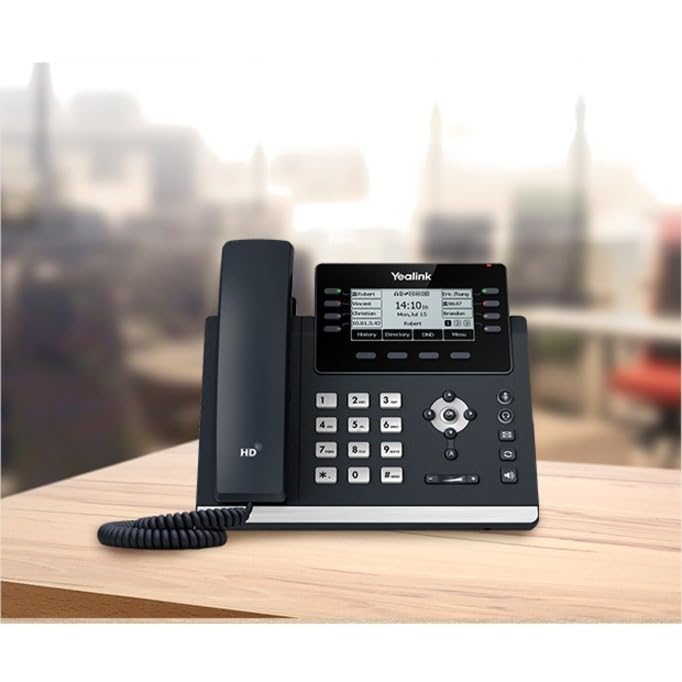
Figure 2: The Yealink SIP-T43U IP Phone positioned on a desk, illustrating its compact design suitable for office environments.
3. Setup
3.1 Assembling the Phone
- Attach the stand to the main phone unit. The stand can be adjusted for different viewing angles.
- Connect the coiled handset cord to the handset port on the phone unit.
- Connect the other end of the coiled handset cord to the handset.
3.2 Connecting to Network and Power
The SIP-T43U supports Power over Ethernet (PoE), simplifying installation by delivering power and data over a single Ethernet cable.
- Connect one end of the Ethernet cable to the Internet port on the phone.
- Connect the other end of the Ethernet cable to a PoE-enabled switch or router.
- If PoE is not available, connect a compatible power adapter (sold separately) to the DC 5V port on the phone and then to a power outlet.
Once connected, the phone will power on and begin the boot-up process. The display will show the Yealink logo and then proceed to load the operating system. Network configuration will typically occur automatically via DHCP.
4. Operating the Phone
4.1 Basic Call Functions
- Making a Call:
- Pick up the handset or press the Speakerphone button.
- Dial the desired number using the keypad.
- Press the Dial soft key or the # key.
- Answering a Call:
- Pick up the handset.
- Press the Speakerphone button.
- Press the Answer soft key.
- Ending a Call:
- Hang up the handset.
- Press the End Call soft key.
4.2 Using the Keypad and Display
The phone features a standard numeric keypad for dialing and a set of function keys for various operations. The 3.7-inch graphical LCD provides call information, menu options, and status indicators.
- Navigation Keys: Use the directional keys (up, down, left, right) and the OK button to navigate through menus and confirm selections on the display.
- Soft Keys: The buttons directly below the display (soft keys) change their function based on the current context shown on the screen.
- Speakerphone: Press the Speakerphone button to toggle speakerphone mode on or off.
- Volume Control: Use the Volume buttons (located below the keypad) to adjust the handset, headset, or speaker volume during a call, or the ringer volume when idle.
- Mute: Press the Mute button to mute or unmute your microphone during a call.
5. Maintenance
Proper maintenance ensures the longevity and optimal performance of your Yealink SIP-T43U IP Phone.
- Cleaning: Use a soft, dry cloth to clean the phone's surface. For stubborn marks, a slightly damp cloth with mild, non-abrasive cleaner can be used. Avoid excessive moisture and harsh chemicals.
- Environment: Keep the phone in a dry environment, away from direct sunlight, heat sources, and excessive dust.
- Handling: Handle the handset and cords with care to prevent damage. Avoid dropping the phone or subjecting it to strong impacts.
6. Troubleshooting
This section addresses common issues you might encounter with your SIP-T43U IP Phone.
| Problem | Possible Cause | Solution |
|---|---|---|
| Phone does not power on. | No power supply or faulty cable. | Check Ethernet cable connection to PoE switch or ensure power adapter is securely plugged in. |
| No dial tone. | Network issue or phone not registered. | Verify network cable connection. Check phone's display for registration status. Contact your IT administrator if necessary. |
| Poor audio quality. | Network congestion or faulty handset/headset. | Check network connection stability. Try adjusting volume. Test with a different handset or headset if available. |
| Buttons are unresponsive. | Temporary software glitch. | Unplug the phone from power, wait 10 seconds, then plug it back in to restart. |
7. Specifications
Key technical specifications for the Yealink SIP-T43U IP Phone:
- Display: 3.7" 360x160-pixel graphical LCD with backlight
- SIP Accounts: Up to 12
- USB Ports: Dual USB ports
- Audio Features: Yealink Optima HD Voice, Opus codec support
- Power: Power over Ethernet (PoE) support
- Connectivity: Dual firmware images, Wi-Fi via WF40/WF50 (accessories sold separately)
- Dimensions: 10 x 9.1 x 4.6 inches
- Weight: 2.62 Pounds
- Mounting: Wall Mountable, Desktop
- Color: Classic Gray
8. Warranty and Support
For warranty information and technical support, please refer to the official Yealink website or contact your authorized reseller. Keep your purchase receipt as proof of purchase for warranty claims.
For additional resources and frequently asked questions, visit the Yealink Store on Amazon.