1. Introduction
This manual provides essential instructions for the proper setup, operation, and maintenance of your Philips SPK7315 M315 Wireless Silent Mouse. Please read this manual thoroughly before using the device to ensure optimal performance and longevity.
2. Package Contents
Verify that all items are present in the package:
- Philips SPK7315 M315 Wireless Silent Mouse
- USB Receiver (stored inside the mouse)
- 1 x AA Battery
3. Product Overview
Familiarize yourself with the components of your wireless mouse.

Image 3.1: Top view of the Philips SPK7315 M315 Wireless Silent Mouse, showing the left button, right button, and scroll wheel.

Image 3.2: Angled view of the Philips SPK7315 M315 Wireless Silent Mouse, highlighting its ergonomic design.
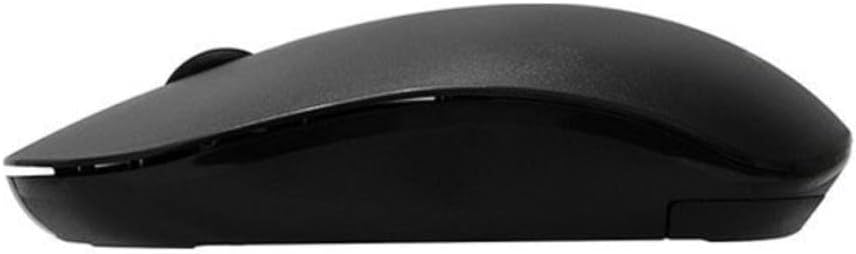
Image 3.3: Side profile of the Philips SPK7315 M315 Wireless Silent Mouse, illustrating its slim form factor.
The mouse features a left button, right button, and a scroll wheel. The design is ambidextrous, suitable for both left and right-handed users. It incorporates silent click technology for reduced noise during operation.
4. Setup
Follow these steps to set up your wireless mouse:
- Install the Battery: Open the battery compartment cover on the underside of the mouse. Insert the provided AA battery, ensuring correct polarity (+/-). Close the cover securely.
- Retrieve the USB Receiver: The USB receiver is typically stored in a small slot next to the battery compartment for safekeeping during transport. Remove it from this slot.
- Connect the USB Receiver: Plug the USB receiver into an available USB port on your computer. Your operating system should automatically detect and install the necessary drivers.
- Power On: If your mouse has an On/Off switch on the underside, slide it to the 'On' position. The mouse is now ready for use.

Image 4.1: The Philips wireless mouse in use, with its USB receiver plugged into a laptop's USB port, indicating wireless connectivity.
5. Operating Instructions
Your Philips SPK7315 M315 mouse is designed for intuitive use.
- Movement: Move the mouse across a flat surface to control the cursor on your screen.
- Clicking: Press the left button for primary actions (e.g., selecting items, opening links) and the right button for secondary actions (e.g., context menus).
- Scrolling: Use the scroll wheel to navigate vertically through documents and web pages.
- DPI Sensitivity: The mouse operates at a fixed sensitivity of 1600 DPI (Dots Per Inch), providing precise and responsive cursor control. There is no dedicated button for DPI adjustment.
- Silent Click: The mouse features silent click buttons, significantly reducing the audible click sound compared to standard mice.
- Auto Standby Mode: To conserve battery life, the mouse will automatically enter a standby mode after a period of inactivity. To reactivate, simply move the mouse or click any button.

Image 5.1: The Philips wireless mouse positioned near a laptop, emphasizing its silent click functionality, indicated by the text 'Silent Sessiz Tuşlar' (Silent Keys).
6. Maintenance
Proper care ensures the longevity of your mouse.
- Cleaning: Use a soft, dry cloth to clean the surface of the mouse. For stubborn dirt, a slightly damp cloth can be used, but ensure no moisture enters the device. Avoid harsh chemicals or abrasive cleaners.
- Sensor Cleaning: Occasionally, dust or debris may accumulate around the optical sensor on the underside. Use a soft brush or compressed air to gently clean the sensor area.
- Battery Replacement: When the mouse performance degrades or stops responding, replace the AA battery. Always dispose of used batteries responsibly according to local regulations.
- Storage: When not in use for extended periods, it is recommended to turn off the mouse (if it has a switch) and store the USB receiver inside the mouse's dedicated slot.
7. Troubleshooting
If you encounter issues, refer to the following common solutions:
- Mouse not responding:
- Ensure the battery is correctly installed and not depleted. Replace if necessary.
- Verify the USB receiver is securely plugged into a working USB port on your computer. Try a different USB port.
- If the mouse has an On/Off switch, ensure it is in the 'On' position.
- Cursor movement is erratic or lagging:
- Ensure the mouse is used on a clean, non-reflective, and opaque surface.
- Clean the optical sensor on the underside of the mouse.
- Reduce the distance between the mouse and the USB receiver. Avoid obstructions between them.
- Move away from other wireless devices that might cause interference.
- No silent click:
- While designed for silent operation, a very faint sound may still be perceptible in extremely quiet environments. This is normal.
8. Specifications
| Feature | Detail |
|---|---|
| Brand Name | Philips |
| Model | SPK7315 M315 |
| Connectivity Technology | 2.4GHz Wireless (via USB Receiver) |
| Movement Detection | Laser |
| DPI Sensitivity | 1600 DPI (Fixed) |
| Button Quantity | 3 (Left, Right, Scroll Wheel) |
| Special Features | Wireless, Silent Click, Auto Standby Mode |
| Hand Orientation | Ambidextrous |
| Color | Black |
| Batteries | 1 AA battery (included) |
| Item Weight | 0.1 Kilograms |
| Operating System Compatibility | Linux, Windows XP (and newer versions) |
| Package Dimensions | 13 x 8.6 x 4.9 cm |
9. Warranty and Support
Philips products are manufactured to the highest standards and are designed to deliver high-quality performance. This product is covered by a limited warranty. For detailed warranty information, please refer to the warranty card included with your purchase or visit the official Philips website.
For technical support, troubleshooting assistance, or service inquiries, please contact Philips customer support through their official channels. Contact information can typically be found on the Philips website or in your product packaging.


