
1. Introduction
The Xiaomi Pad 5 is a high-performance Android tablet designed for both productivity and entertainment. Featuring an impressive 11-inch display with a 120Hz refresh rate, powerful Snapdragon 860 processor, and immersive quad speakers with Dolby Atmos, it offers a premium user experience. This manual provides essential information for setting up, operating, maintaining, and troubleshooting your device.
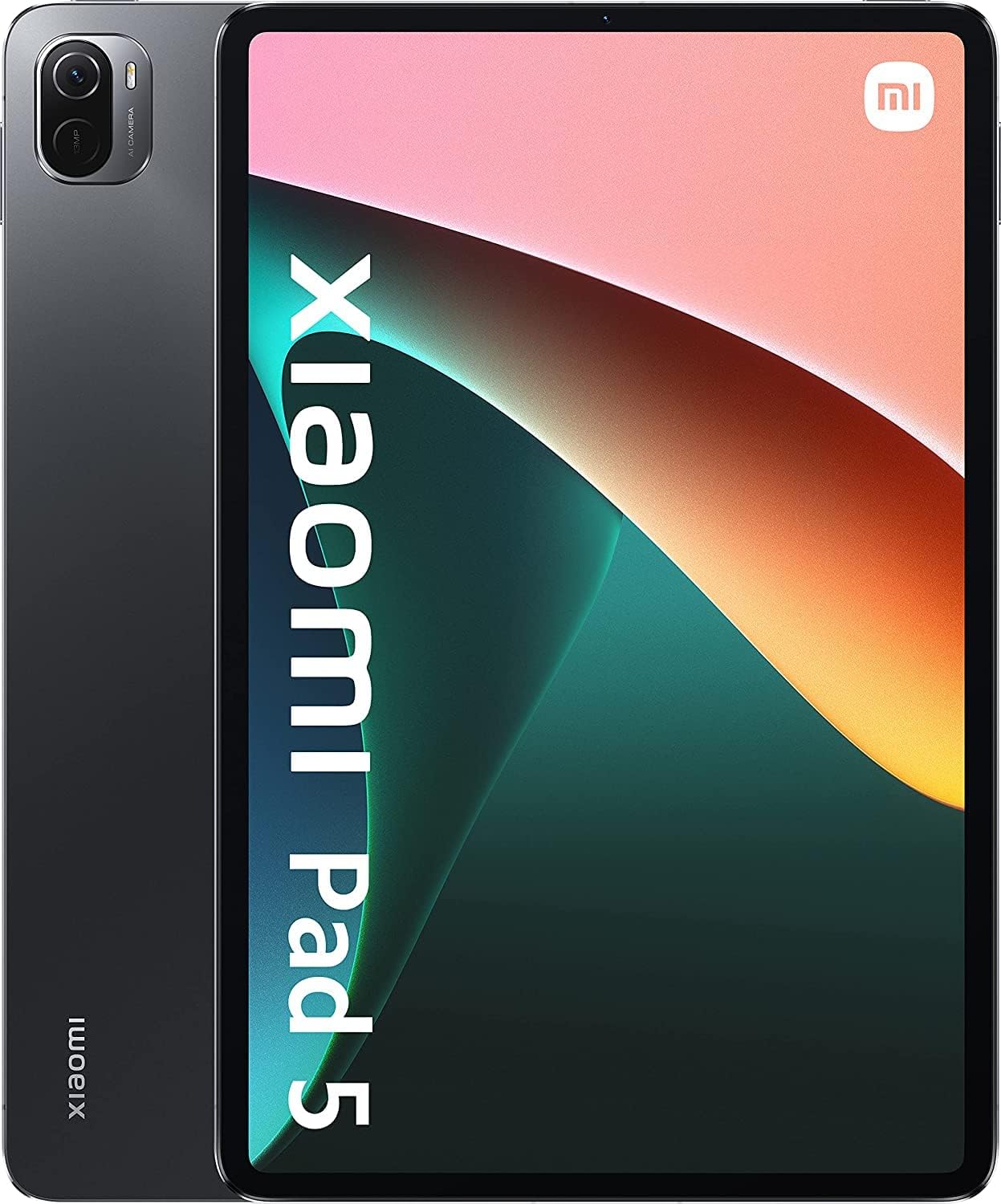
Figure 1.1: Front view of the Xiaomi Pad 5, showcasing its sleek design and vibrant display.
2. What's in the Box
Upon unboxing your Xiaomi Pad 5, you should find the following items:
- Xiaomi Pad 5 Tablet
- USB-C Charging Cable
- Power Adapter (Note: The included power adapter may be designed for European standards and might require an adapter for use in other regions.)
- Quick Start Guide and Warranty Information
3. Physical Overview
Familiarize yourself with the various components and ports of your Xiaomi Pad 5:
- Display: 11-inch IPS LCD with 120Hz refresh rate.
- Rear Camera: 13 MP camera located on the back, accompanied by an LED flash.
- Front Camera: 8 MP camera positioned on one of the shorter sides of the display.
- USB-C Port: Located on the side, used for charging and data transfer. This port supports various USB-C accessories.
- Speakers: Four speakers strategically placed for immersive audio, supporting Dolby Atmos.
- Power Button: Typically located on the top edge (when held horizontally).
- Volume Buttons: Located on the side, adjacent to the power button.
- Magnetic Connector: On the bottom edge, for connecting the official keyboard cover.
- Stylus Charging Area: A magnetic area on the top edge for charging the optional Xiaomi Smart Pen.

Figure 3.1: Rear view of the Xiaomi Pad 5, showing the camera module and Xiaomi branding.

Figure 3.2: Angled view highlighting the side profile and port locations.
4. Setup
4.1 Initial Power On
- Press and hold the Power Button until the Xiaomi logo appears on the screen.
- Follow the on-screen prompts to select your language, region, and connect to a Wi-Fi network.
- Sign in with your Google account or create a new one to access Google services, including the Google Play Store.
4.2 Google Play Store and Services
For global versions of the Xiaomi Pad 5, the Google Play Store and Google Play Services should be pre-installed. If you have an imported unit or encounter issues, you may need to manually install these services. Refer to Xiaomi's official support resources for detailed instructions on installing Google Play Services if necessary.
4.3 Charging the Device
Before first use, it is recommended to fully charge your Xiaomi Pad 5.
- Connect the USB-C cable to the tablet's USB-C port.
- Connect the other end of the cable to the power adapter.
- Plug the power adapter into a wall outlet.
- The battery indicator on the screen will show charging progress.
5. Operating Your Xiaomi Pad 5
5.1 Display Features
The 11-inch IPS display boasts a 2560 x 1600 pixel resolution and a 120Hz refresh rate for smooth visuals. It supports Widevine L1 for high-definition streaming on platforms like Netflix, and also features HDR10 and Dolby Vision for enhanced color and contrast.
5.2 Audio Experience
Equipped with four speakers and Dolby Atmos technology, the Xiaomi Pad 5 delivers a rich and immersive audio experience, ideal for movies, music, and gaming.
5.3 Performance
Powered by the Qualcomm Snapdragon 860 processor and 6GB of RAM, the Xiaomi Pad 5 offers robust performance for demanding applications and games. It can handle graphics-intensive games like PUBG Mobile and Fortnite with high settings, though some minor stuttering may occur in the most demanding scenarios.
5.4 Xiaomi Smart Pen (Optional Accessory)
The Xiaomi Smart Pen (sold separately) enhances productivity and creativity. It features 4096 levels of pressure sensitivity and can be magnetically attached to the tablet's top edge for charging. While highly precise, some users may notice a slight latency compared to premium stylus experiences on other high-refresh-rate tablets.

Figure 5.1: Xiaomi Pad 5 with the optional Smart Pen attached.
5.5 Keyboard Cover (Optional Accessory)
The official keyboard cover (sold separately) connects magnetically to the tablet, providing a comfortable typing experience. It offers a single viewing angle and does not include a touchpad. The keys offer good travel and are well-spaced for extended typing sessions.

Figure 5.2: Xiaomi Pad 5 with the optional Keyboard Cover.
5.6 Software and User Interface
The Xiaomi Pad 5 runs on Android 11 with Xiaomi's customized MIUI interface. MIUI offers a blend of standard Android features with elements reminiscent of iPadOS, including floating windows and enhanced multitasking capabilities. While generally smooth, some minor software bugs may be present, which could be addressed in future updates.
6. Camera
The Xiaomi Pad 5 features a 13 MP rear camera with an LED flash, capable of capturing good quality photos and videos. The 8 MP front camera is suitable for video calls and occasional selfies. It supports facial recognition for unlocking the device, though it is less secure than dedicated biometric solutions like fingerprint scanners (which this model lacks).
7. Battery Life and Charging
The Xiaomi Pad 5 is equipped with a large 8720mAh Lithium Polymer battery, providing excellent endurance. In standard tests, the tablet can achieve approximately 9 hours of continuous YouTube video playback at maximum screen brightness. It supports fast charging with the included 51W power adapter.
8. Specifications
| Feature | Specification |
|---|---|
| Brand | Xiaomi |
| Model Number | VHU4123EU |
| Display Size | 11 Inches |
| Screen Resolution | 2560 x 1600 pixels |
| Refresh Rate | 120Hz |
| Processor | 1.78 GHz Snapdragon 860 (Octa-core) |
| RAM | 6 GB DDR4 SDRAM |
| Internal Storage | 256 GB (also available in 128 GB) |
| Graphics Coprocessor | Qualcomm Adreno |
| Operating System | Android |
| Rear Webcam Resolution | 13 MP |
| Front Camera Resolution | 8 MP |
| Wireless Type | 802.11n, 802.11b, 802.11a, 802.11ac, 802.11g |
| Battery | 8720mAh Lithium Polymer |
| Item Weight | 1.1 pounds |
| Product Dimensions | 74.8 x 101.57 x 23.62 inches |
| Special Feature | Stereo Speakers (Dolby Atmos) |
9. Maintenance
- Software Updates: Regularly check for and install system updates to ensure optimal performance, security, and access to new features.
- Cleaning: Use a soft, lint-free cloth to clean the screen and body. Avoid harsh chemicals.
- Battery Care: To prolong battery life, avoid extreme temperatures and do not let the battery drain completely or remain at 100% for extended periods.
- Storage Management: Periodically clear cache, delete unnecessary files, and uninstall unused apps to free up storage space.
10. Troubleshooting
- Device Not Responding: Press and hold the Power Button for about 10-15 seconds to force a restart.
- Wi-Fi/Bluetooth Issues: Try toggling Wi-Fi/Bluetooth off and on. If the issue persists, restart the tablet or reset network settings.
- App Crashes/Freezes: Clear the app's cache and data in Settings > Apps. If the problem continues, reinstall the app.
- Slow Performance: Close background apps, clear cache, and ensure sufficient storage space. A factory reset can resolve persistent performance issues.
- Facial Recognition Issues: Ensure good lighting and that your face is clearly visible to the front camera. Remember that this method is less secure than other biometric options.
- Stylus Latency: While the Xiaomi Smart Pen is highly responsive, some users may perceive slight latency compared to other premium styluses. This is generally a characteristic of the hardware and software integration.
10.1 Factory Reset
A factory reset will erase all data from your tablet and restore it to its original factory settings. Back up important data before proceeding.
- Go to Settings > My device > Backup and restore > Factory reset.
- Confirm your decision and follow the on-screen instructions.
11. Warranty and Support
Your Xiaomi Pad 5 comes with a limited manufacturer's warranty. Please refer to the warranty card included in your product packaging for specific terms, conditions, and duration. For technical support, service, or additional information, please visit the official Xiaomi website or contact their customer service.
For the latest updates and support resources, visit: Xiaomi Global Support