
Muse M-195 BT
Muse M-195 BT Car Radio User Manual
Model: M-195 BT
Introduction
The Muse M-195 BT is a 1-DIN car radio featuring a front USB port and a multi-function MCD display. This car radio includes integrated Bluetooth and an SD/MMC card reader, allowing for audio streaming from compatible devices such as laptops, tablets, or smartphones. The integrated hands-free system enables easy call management. The output power is 4 x 40 W.
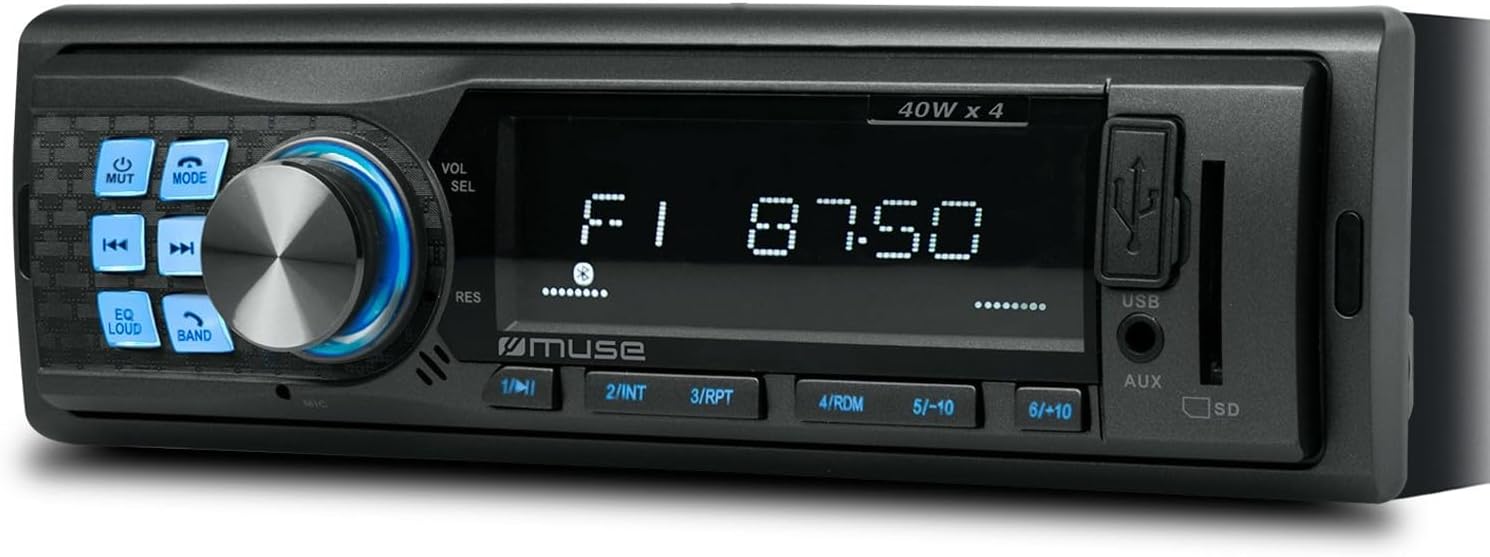
Figure 1: Front view of the Muse M-195 BT car radio. This image displays the main unit with its central display, a large rotary knob for volume and selection, various function buttons (Mute, Mode, EQ, Loud, Band, Skip), and front-facing USB and AUX inputs, along with an SD card slot.
Safety Information
- Read all instructions carefully before installation and operation.
- Ensure proper wiring to prevent short circuits or damage. Consult a professional if unsure.
- Do not operate the device in a way that distracts you from driving.
- Avoid exposing the unit to extreme temperatures, direct sunlight, or moisture.
- Do not attempt to disassemble or modify the unit. This may void the warranty and cause damage.
- Keep the volume at a level that allows you to hear outside sounds, such as emergency vehicles.
Package Contents
Please check that all items are present in the package:
- Muse M-195 BT Car Radio Unit
- Mounting Sleeve
- Wiring Harness (ISO connector)
- Removal Keys (2x)
- User Manual (this document)
Setup and Installation
1. Installation
The M-195 BT is designed for a standard 1-DIN dashboard opening (180x50mm). Ensure sufficient space behind the dashboard for wiring and ventilation.

Figure 2: Dimensions of the Muse M-195 BT car radio. The diagram illustrates the standard 1-DIN size, with a width of 185mm and a height of 58mm, crucial for proper fitment in a vehicle's dashboard.
- Prepare the Dashboard Opening: Remove the existing car radio or blanking plate from the 1-DIN slot.
- Install the Mounting Sleeve: Insert the supplied metal mounting sleeve into the dashboard opening. Bend the tabs on the sleeve outwards with a screwdriver to secure it firmly.
- Connect Wiring: Connect the car's wiring harness to the supplied ISO connector. Ensure correct connections for power (constant 12V, ignition 12V, ground), speaker outputs, and antenna.
- Yellow Wire: Constant 12V (Battery)
- Red Wire: Ignition 12V (ACC)
- Black Wire: Ground
- Blue Wire: Power Antenna / Amplifier Remote (Output)
- Speaker Wires: Connect to corresponding vehicle speakers (e.g., White/White-Black for Front Left, Grey/Grey-Black for Front Right, Green/Green-Black for Rear Left, Purple/Purple-Black for Rear Right).
- Slide in the Unit: Carefully slide the M-195 BT unit into the mounting sleeve until it clicks into place.
- Test Functionality: Turn on the car ignition and test all functions of the radio (power, radio, USB, Bluetooth, sound output).
2. Initial Power-On
After successful installation, press the POWER/MODE button to turn on the unit. The display will illuminate. The unit will typically start in the last used mode (e.g., FM radio).
Operating Instructions
1. Basic Controls
- POWER/MODE Button: Press to turn the unit ON/OFF. Short press to cycle through modes (FM, USB, SD, AUX, Bluetooth).
- Volume Knob (VOL/SEL): Rotate to adjust volume. Press to enter menu settings (e.g., Bass, Treble, Balance, Fader, EQ).
- MUTE Button: Mutes/unmutes audio output.
- EQ Button: Cycles through preset equalizer settings (e.g., Pop, Rock, Classic, Flat).
- LOUD Button: Activates/deactivates loudness compensation for enhanced bass and treble at low volumes.
- BAND Button: In FM mode, cycles through FM bands (FM1, FM2, FM3).
- SKIP Buttons (◀◀ / ►►): In radio mode, short press to seek previous/next station. Long press for manual tuning. In USB/SD/BT mode, short press for previous/next track.
- Numeric Buttons (1-6): In radio mode, short press to recall preset stations. Long press to save current station to a preset.
2. Radio Operation (FM)
- Press MODE until "FM" is displayed.
- Press BAND to select FM1, FM2, or FM3.
- Short press ◀◀ or ►► to automatically seek the next strong station.
- Long press ◀◀ or ►► to manually tune the frequency.
- To save a station: Tune to the desired station, then long press one of the numeric buttons (1-6) until the display confirms saving.
3. USB / SD Card Playback
- Insert a USB flash drive into the front USB port or an SD/MMC card into the SD card slot.
- The unit will automatically switch to USB/SD mode and begin playing compatible audio files (MP3). If not, press MODE to select.
- Use ◀◀ or ►► to skip tracks.
- Use numeric buttons for specific functions like 1/►►I (Play/Pause), 2/INT (Intro scan), 3/RPT (Repeat), 4/RDM (Random).
4. Bluetooth Operation
The M-195 BT supports Bluetooth for audio streaming and hands-free calling.
- Pairing:
- Ensure Bluetooth is enabled on your mobile device.
- Press MODE on the car radio until "BT" or "Bluetooth" is displayed. The unit will enter pairing mode.
- On your mobile device, search for available Bluetooth devices. Select "M-195 BT" from the list.
- If prompted for a PIN, enter "0000" (default).
- Once paired, the display will show "CONNECTED" or similar confirmation.
- Audio Streaming (A2DP):
- After pairing, play music on your mobile device. Audio will stream through the car speakers.
- Use ◀◀ or ►► on the car radio to skip tracks.
- Hands-Free Calling (HFP):
- When a call comes in, the radio display will show "CALL" or the caller ID.
- Press the Answer button (often the Play/Pause button or a dedicated call button if available) to answer.
- Press the End Call button to hang up.
- The built-in microphone will be used for conversations.
5. AUX Input
Connect an external audio device (e.g., MP3 player, smartphone) to the front 3.5mm AUX input using an audio cable.
- Connect the audio cable from your device to the AUX port on the car radio.
- Press MODE until "AUX" is displayed.
- Control playback from your external device.
Maintenance
- Cleaning: Use a soft, dry cloth to clean the unit's surface. For stubborn dirt, dampen the cloth slightly with water. Do not use abrasive cleaners or solvents.
- Avoid Liquids: Do not allow liquids to enter the unit, as this can cause damage.
- Temperature: Avoid exposing the unit to extreme temperatures, direct sunlight, or high humidity.
- USB/SD Slot Care: Keep the USB and SD card slots free of dust and debris.
Troubleshooting
| Problem | Possible Cause | Solution |
|---|---|---|
| No power | Incorrect wiring; Blown fuse; Loose connection. | Check power (yellow, red) and ground (black) wire connections. Check vehicle's fuse box and the unit's fuse. Ensure connections are secure. |
| No sound | Volume too low; Mute activated; Incorrect speaker wiring; Damaged speakers. | Increase volume. Press MUTE button. Check speaker wire connections. Test with different speakers if possible. |
| Poor radio reception | Antenna not connected; Weak signal; Damaged antenna. | Ensure antenna is properly connected. Try tuning to a stronger station. Check antenna for damage. |
| USB/SD not playing | Incompatible file format; USB/SD card corrupted; Incorrect mode selected. | Ensure files are MP3 format. Try a different USB/SD card. Press MODE to select USB/SD. |
| Bluetooth pairing failed | Bluetooth not enabled on device; Device too far; Incorrect PIN; Previous connection interference. | Ensure Bluetooth is ON on your device. Bring device closer. Re-enter PIN "0000". Delete previous pairings on your device and try again. |
Specifications
- Model: M-195 BT
- Power Output: 4 x 40 W
- Display: MCD Multi-function
- Connectivity: Bluetooth, USB, SD/MMC, AUX (3.5mm Jack)
- Supported Audio Formats: MP3
- Radio Tuner: FM (18 presets)
- Hands-Free Calling: Integrated Microphone
- Dimensions (L x W x H): 14 x 18.5 x 5.8 cm (approx. 1-DIN standard)
- Weight: 550 g
- Pre-amplified Outputs: 1 pair (RCA audio rear or sub)
Warranty and Support
This product comes with a standard manufacturer's warranty. For detailed warranty terms and conditions, please refer to the warranty card included with your purchase or visit the official Muse website. For technical support, troubleshooting assistance beyond this manual, or service inquiries, please contact your retailer or the Muse customer service department.
Please retain your proof of purchase for warranty claims.
Related documentsM-195 BT


Ask a question about this manual
Ask about setup, troubleshooting, compatibility, parts, safety, or missing instructions. Manuals+ will review the question and use this page’s manual context to help answer it.