
1. Introduction
This manual provides detailed instructions for the installation, operation, and maintenance of the Generic TP.V56.PB816 LED TV Mother Board. This mainboard is designed to be compatible with 32 to 40 inch LED TV panels. Please read this manual thoroughly before proceeding with installation or operation to ensure proper functionality and safety.
2. Safety Information
Warning: Electrical components can be dangerous. Ensure power is disconnected before handling the mainboard. Professional installation is recommended.
Power Supply Alignment: It is critical that all mainboard power supply connections are correctly aligned to the specified standard. Incorrect alignment can lead to severe damage to the screen or the mainboard itself.

Image: Close-up view of the TP.V56.PB816 mainboard highlighting critical power connection points. Ensure correct alignment to prevent damage.
3. Package Contents
Verify that all items listed below are present in your package:
- 1 x TP.V56.PB816 LED TV Mother Board
- 1 x Remote Control
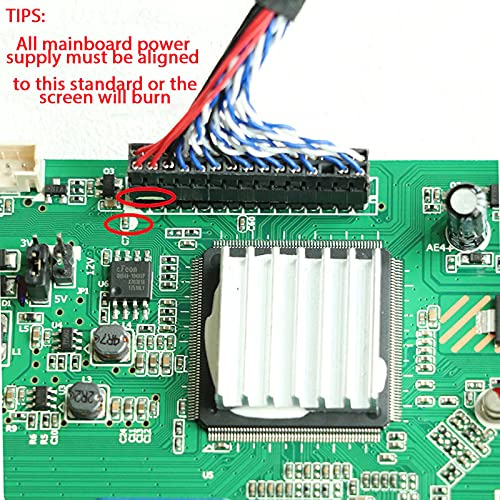
Image: The TP.V56.PB816 LED TV Mother Board shown with its accompanying remote control.
4. Specifications
| Feature | Description |
|---|---|
| Model Name | TP.V56.PB816 |
| Compatible Panel Size | 32 to 40 inches |
| Power Board Requirement | No external power board needed |
| USB Ports | 1 |
| Compatible Devices | Television |
| Manufacturer | WESTORN TRUE LIFE |
5. Setup and Firmware Update
This section details the process for updating the firmware on your TP.V56.PB816 mainboard. This procedure is crucial for initial setup and ensuring compatibility with your specific LED panel.
Firmware Writing Procedure:
- Step 1: Prepare USB Drive
Ensure your USB drive is completely empty. Format it if necessary. - Step 2: Copy Firmware Files
Copy the corresponding resolution program (*.Binfile) along with any associatedTXTfile to the root directory of your USB drive. Select the correct firmware based on your screen size. - Step 3: Connect USB Drive
Connect the prepared USB drive to the USB interface on the TV Mainboard. - Step 4: Connect Keyboard
Connect the keyboard to the TV Mainboard. - Step 5: Power On and Monitor
Connect the power supply to the mainboard. Observe the keyboard light. If the light is flashing, the firmware writing process is in progress. Wait for the light to turn solid green, indicating that the process is complete.
Important Note: During Step 5, the power supply must not be interrupted. Cutting off power during the firmware update can permanently damage the mainboard. The same firmware can only be burned once.
Troubleshooting Firmware Update:
If there is no flashing light after connecting the power supply in Step 5:
- Disconnect the power supply.
- Remove and re-insert the USB drive.
- Reconnect the power supply and observe the keyboard light again.
6. Operating Instructions
After successfully burning the firmware, the mainboard will typically be in standby mode.
- Turning On: Use the provided remote control to turn on the TV.
- Picture Adjustment: If the picture appears upside down, you can adjust its orientation using the remote control. Refer to the remote control's specific buttons for picture settings or orientation.
7. Maintenance
To ensure the longevity and optimal performance of your TP.V56.PB816 LED TV Mother Board, follow these general maintenance guidelines:
- Keep Dry: Avoid exposing the mainboard to moisture or liquids.
- Clean Gently: If cleaning is necessary, use a soft, dry cloth. Do not use harsh chemicals or abrasive materials.
- Ventilation: Ensure adequate ventilation around the mainboard to prevent overheating.
- Handle with Care: Avoid dropping or subjecting the mainboard to physical shock.
8. Troubleshooting
This section addresses common issues you might encounter:
- Issue: TV does not power on after installation.
Solution: Verify all power connections are secure and correctly aligned. Ensure the power supply is functional. If firmware was recently updated, confirm the update completed successfully (green keyboard light). Use the remote control to power on, as the board may be in standby. - Issue: Picture is upside down.
Solution: Use the remote control to access picture settings and adjust the display orientation. - Issue: Firmware update fails or keyboard light does not flash.
Solution: Refer to the "Troubleshooting Firmware Update" steps in Section 5. Ensure the USB drive is empty except for the correct firmware files and is properly inserted. - Issue: No display or distorted image.
Solution: Check the panel connection to the mainboard. Ensure the correct firmware for your panel size has been installed.
9. Warranty Information
Specific warranty details for the Generic TP.V56.PB816 LED TV Mother Board are not provided in the product information. Please refer to your purchase documentation or contact your retailer for warranty terms and conditions.
10. Support
For technical assistance or further inquiries regarding the Generic TP.V56.PB816 LED TV Mother Board, please contact the seller or the manufacturer, WESTORN TRUE LIFE, through the platform where the product was purchased. Please have your model number (TP.V56.PB816) and purchase details ready when contacting support.