
1. Introduction
The Qiumi Smart WiFi Thermostat (Model JMY-BHT-005-GCLW) is designed for individual gas and water boiler heating systems. It offers intelligent temperature control, remote access via a mobile application, and compatibility with popular voice assistants. This manual provides essential information for the proper installation, operation, and maintenance of your thermostat.
The thermostat is suitable for electric heating, water heating, wall-mounted boilers, and boiler temperature control systems. It can be utilized in smart control environments, commercial centers, and industrial settings.
2. Package Contents
Please verify that all items are present in the package:
- Thermostat (1 unit)
- Screws (for installation)
- External Sensor (optional, 1 unit)
- Installation/Programming Manual (1 unit)
3. Technical Specifications
| Feature | Specification |
|---|---|
| Power Supply | 95 ~ 240 VAC, 50 ~ 60Hz |
| Display | Negative LCD Display |
| Current Load | 5A (Water Heating / Water Boiler / Gas Boiler), 16A (Electric Heating) |
| Accuracy | ±0.5°C or ±1°F |
| Set Temperature Range | 5-35°C |
| Display Temperature Range | 5 ~ 99°C |
| Storage Temperature | -5 ~ 45°C |
| Shell Material | PC + ABS (Flame Retardant) |
| Installation Box | 86 * 86mm Square or European 60mm Round Box |
| Wire Terminals | 2 x 1.5 mm² or 1 x 2.5 mm² Wire |
| Protection Class | IP 20 |
| Buttons | Capacitive Touch Buttons |
| Product Dimensions (L x W x H) | 13.1 x 7.5 x 3.75 cm |
| Connectivity Technology | Wi-Fi |
| Compatibility | Google Home, Alexa, IFTTT |
4. Product Overview
The Qiumi Smart WiFi Thermostat features a sleek design with a negative LCD display for clear readability. It integrates various sensors and controls to provide a comprehensive heating management solution.

Image 4.1: Front view of the Qiumi Smart WiFi Thermostat, showcasing its minimalist design and digital display.
4.1. Home Screen Quick Reference
The thermostat's display provides various pieces of information and control options. Refer to the diagram below for a quick overview of the icons and their functions.

Image 4.2: Diagram illustrating the various indicators and buttons on the thermostat's home screen, including wind speed, WiFi status, weather, humidity, heating status, room temperature, set temperature, lock, heating period, week, and clock. Buttons for Mode, Clock, Power, Up, Down, and Manual control are also shown.
- Display: Shows humidity, weather, and outdoor ultraviolet index.
- Weather Data: Uploaded to the thermostat 3-4 minutes after connecting to the internet. Updates approximately every 30 minutes.
4.2. Dimensions
Understanding the physical dimensions is crucial for installation planning.
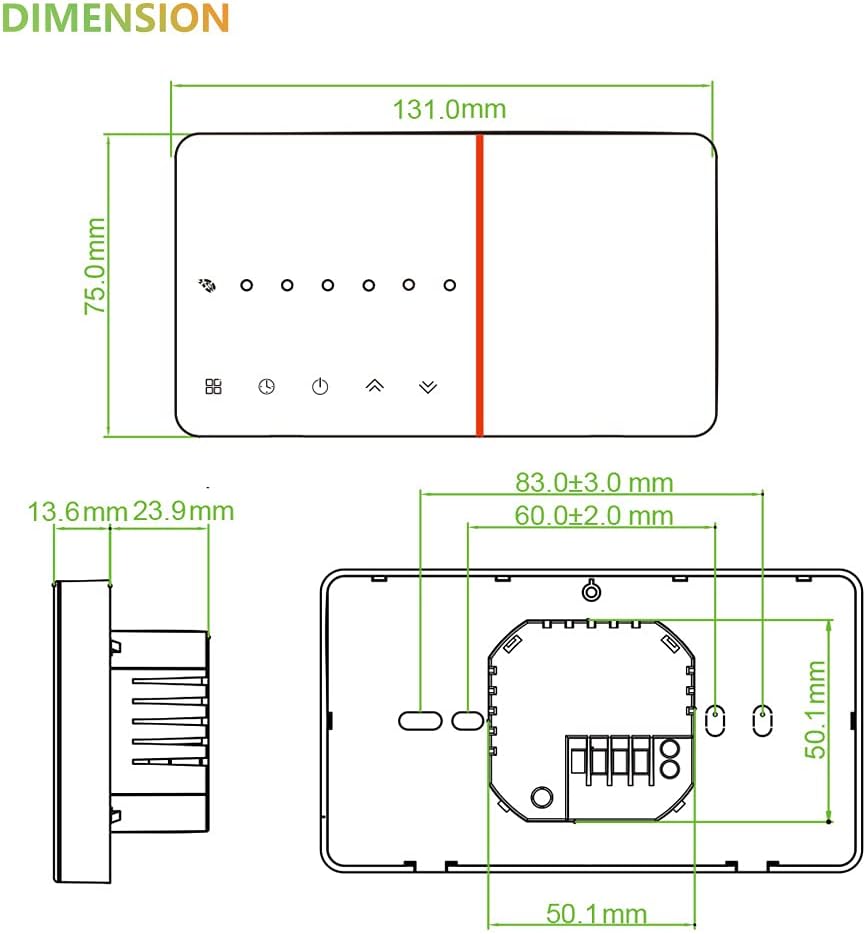
Image 4.3: Technical drawing showing the dimensions of the thermostat, including front panel measurements (131.0mm x 75.0mm) and mounting box dimensions (60.0±2.0mm width, 50.1mm height).
5. Setup and Installation
Proper installation is essential for the safe and efficient operation of your thermostat. If you are unsure about any steps, consult a qualified electrician.
5.1. Wiring Diagram (GC Model)
This diagram illustrates the wiring connections for the GC (Gas/Water Boiler) model. Ensure power is disconnected before performing any wiring.

Image 5.1: Wiring diagram for the Qiumi thermostat (GC model). Terminals 1 and 2 are for dry contact (gas boiler signal). Terminals 3 and 4 are for AC95-240V power (N and L). Terminals 5 and 6 are for an optional NTC external sensor. Do not connect anything else to terminals 5 and 6 if an external sensor is not used.
- Connect terminals 1 and 2 to your gas boiler's dry contact signal.
- Connect terminals 3 and 4 to AC95 ~ 240 V power supply (Neutral and Live).
- Terminals 5 and 6 are for an external sensor (optional). Do not connect anything else to these terminals.
5.2. System Operation Diagram (GC Model)
This diagram shows a typical setup for the thermostat controlling a boiler and radiators.

Image 5.2: Diagram illustrating the Qiumi thermostat connected to a boiler, which in turn supplies hot water to radiators and potentially a shower/wash basin. The thermostat controls the boiler's operation based on temperature settings.
5.3. App Installation and Pairing
The thermostat can be controlled remotely using the Smart Life app.
- Download the App:
- For iOS devices, search for "Smart Life" in the Apple App Store.
- For Android devices, search for "Smart Life" in Google Play.
- Register/Log In: Open the app and follow the instructions to create an account or log in if you already have one.
- Add Device: Follow the in-app instructions to add your new thermostat. This typically involves putting the thermostat into pairing mode (refer to the thermostat's display for pairing indicators) and connecting it to your home's 2.4GHz Wi-Fi network.

Image 5.3: The Qiumi thermostat shown alongside logos for WiFi, Amazon Alexa, Google Assistant, Android App on Google Play, and IFTTT, indicating its smart home compatibility.
6. Operating Instructions
The thermostat offers both manual and programmable operation modes, along with smart control features.
6.1. Basic Operation
- Power On/Off: Press the power button to turn the thermostat on or off.
- Adjust Temperature: Use the Up and Down arrow buttons to manually adjust the desired temperature.
- Mode Selection: Press the Mode button to cycle through available modes (e.g., Manual, Auto/Program).
- Clock Setting: Use the Clock button to access time and date settings.
6.2. Programmable Mode
The thermostat supports a 5+2 six-period programmable schedule, allowing you to set different temperatures for various times of the day across weekdays and weekends.
- Access the programming menu via the Mode or Clock button (refer to the detailed manual for specific button sequences).
- Set desired temperatures and times for each of the six periods for weekdays (Monday-Friday).
- Set desired temperatures and times for each of the six periods for weekends (Saturday-Sunday).
- Save your settings. The thermostat will now follow this schedule automatically.
6.3. Smart Control Features
- Mobile App Control: Use the "Smart Life" app to remotely monitor and adjust your thermostat settings from anywhere. This includes changing temperature, mode, and programming schedules.
- Voice Control: The thermostat is compatible with Amazon Alexa and Google Home. Link your thermostat through the respective voice assistant app to enable voice commands for temperature adjustments.
- Smart Scene Support: Integrate your thermostat into smart scenes within the Smart Life app to automate actions based on various conditions (e.g., turn on heating when you are 5 miles from home).
7. Maintenance
To ensure the longevity and optimal performance of your Qiumi Smart WiFi Thermostat, follow these simple maintenance guidelines:
- Cleaning: Gently wipe the thermostat's screen and casing with a soft, dry cloth. Avoid using abrasive cleaners, solvents, or chemical sprays, as these can damage the surface and internal components.
- Location: Ensure the thermostat is not exposed to direct sunlight, drafts, or heat sources, as this can affect temperature readings and efficiency.
- Firmware Updates: Periodically check the Smart Life app for any available firmware updates for your thermostat. Updates can improve performance, add new features, and enhance security.
- Power Cycle: If the thermostat becomes unresponsive, try turning off the power to your heating system at the circuit breaker for a few minutes, then restore power. This can often resolve minor electronic glitches.
8. Troubleshooting
If you encounter issues with your thermostat, refer to the following common problems and solutions:
| Problem | Possible Cause | Solution |
|---|---|---|
| Thermostat not powering on | No power supply; Incorrect wiring | Check circuit breaker; Verify wiring connections according to the diagram. |
| No heating/cooling | Incorrect mode; Boiler issue; Wiring error | Ensure thermostat is in heating mode; Check boiler status; Re-check wiring. |
| Wi-Fi connection unstable/disconnected | Weak Wi-Fi signal; Router issues; Incorrect password | Move router closer or use a Wi-Fi extender; Restart router; Re-enter Wi-Fi password in app. Ensure 2.4GHz network is used. |
| Inaccurate temperature reading | Thermostat location; External sensor issue | Ensure thermostat is not near heat sources/drafts; Check external sensor connection if used. |
| App control not working | No internet connection; App not updated; Thermostat not paired | Check internet connectivity; Update Smart Life app; Re-pair thermostat with the app. |
If the problem persists after attempting these solutions, please contact customer support.
9. Warranty and Support
Information regarding specific warranty terms and conditions is typically provided with your purchase documentation or on the manufacturer's official website. Please refer to those resources for details on warranty coverage and how to claim support.
For technical assistance, troubleshooting beyond this manual, or inquiries about your product, please contact Qiumi customer support through their official channels. Contact information can usually be found on the product packaging, the manufacturer's website, or within the Smart Life application.