
Yealink 1206622
Yealink A30 Meeting Bar User Manual
Model: 1206622
Product Overview
The Yealink A30 Meeting Bar is an all-in-one video collaboration solution designed for medium-sized meeting rooms. This bundle includes the A30 Meeting Bar, the CTP18 Touch Panel, and the VCH51 Sharing Box, providing a comprehensive system for seamless video conferencing and content sharing, especially optimized for Microsoft Teams environments.
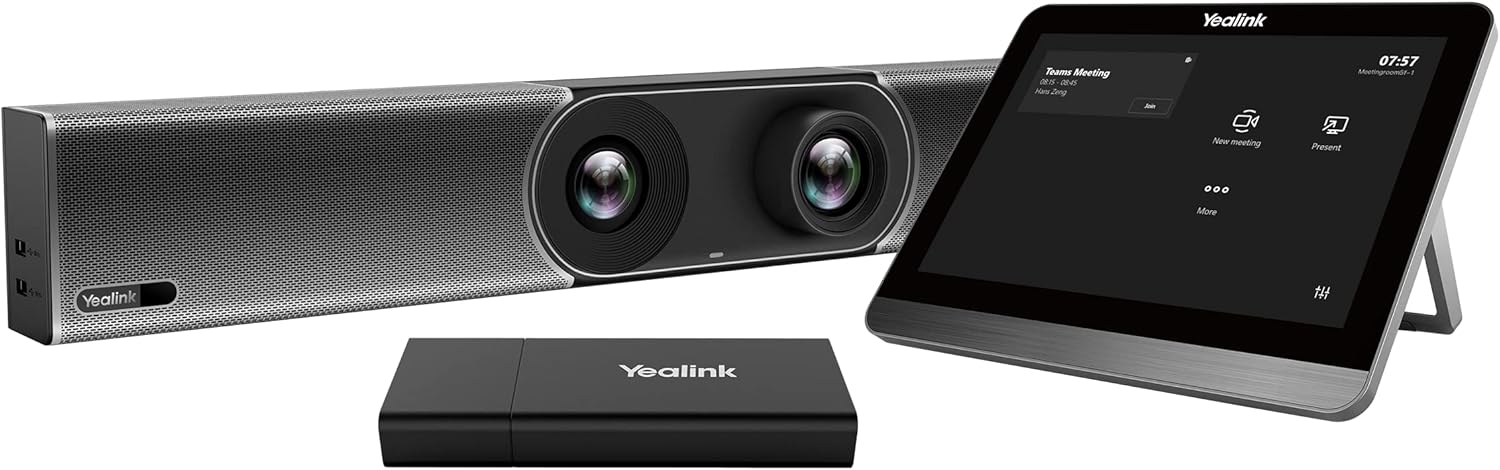
Figure 1: Complete Yealink A30 Meeting Bar Bundle. This image displays the Yealink A30 Meeting Bar, the CTP18 Touch Panel, and the VCH51 Sharing Box, which are the primary components of this video collaboration system.
Package Contents
Verify that all items are present in your package:
- Yealink A30 Meeting Bar
- Yealink CTP18 Touch Panel
- Yealink VCH51 Sharing Box
- Power Adapter
- Necessary Cables (HDMI, Ethernet, USB)
- Mounting Bracket and Screws (for A30 Meeting Bar)
Setup Guide
1. Mounting the A30 Meeting Bar
The A30 Meeting Bar can be placed on a table or mounted above/below a display. Use the provided mounting bracket for wall or display mounting.

Figure 2: Yealink A30 Meeting Bar. This image shows the front view of the A30 Meeting Bar, highlighting its dual cameras and speaker grille.
- Identify the optimal position for the A30 Meeting Bar, ensuring clear line of sight to participants and the display.
- Attach the mounting bracket to the wall or display using appropriate screws.
- Securely attach the A30 Meeting Bar to the mounted bracket.
2. Connecting Components
Follow these steps to connect the A30 Meeting Bar, CTP18 Touch Panel, and VCH51 Sharing Box.

Figure 3: Connection Diagram. This diagram illustrates the typical wiring setup for the Yealink A30 system, showing connections for HDMI, CAT5e, and power.
- Connect the A30 Meeting Bar to your display(s) using HDMI cables.
- Connect the A30 Meeting Bar to your network via an Ethernet cable.
- Connect the CTP18 Touch Panel to the A30 Meeting Bar using a single Ethernet cable (PoE supported).
- Connect the VCH51 Sharing Box to the A30 Meeting Bar via a USB cable. The VCH51 also requires an HDMI input from a PC for content sharing.
- Connect the power adapter to the A30 Meeting Bar and plug it into a power outlet.

Figure 4: Yealink CTP18 Touch Panel. This image displays the CTP18 Touch Panel, which serves as the primary control interface for the A30 Meeting Bar system.

Figure 5: Yealink VCH51 Sharing Box. This image shows the VCH51 Sharing Box, used for wired content sharing from a PC.
Operating Instructions
1. Initial Power On and Configuration
Upon first power-on, the system will guide you through initial setup, including network configuration, time zone, and Microsoft Teams account login.

Figure 6: CTP18 Touch Panel User Interface. This image illustrates various screens of the CTP18 Touch Panel, including meeting controls, dialing, and camera adjustments.
2. Joining a Meeting
From the CTP18 Touch Panel:
- On the home screen, scheduled meetings will appear. Tap Join next to the desired meeting.
- Alternatively, tap New meeting to start an ad-hoc meeting.
Figure 7: CTP18 Touch Panel Teams Interface. This image shows the CTP18 Touch Panel displaying the Microsoft Teams meeting interface, with options to join or start a new meeting.
3. Content Sharing
To share content using the VCH51 Sharing Box:
- Connect your PC to the VCH51 Sharing Box via an HDMI cable.
- On the CTP18 Touch Panel, tap Present.
- Select the connected source to begin sharing your screen.
4. Camera Control
The A30 Meeting Bar features intelligent camera framing. Manual adjustments can be made via the CTP18 Touch Panel:
- During a call, tap the camera icon on the CTP18.
- Adjust zoom, pan, and tilt as needed.
- Enable or disable auto-framing and speaker tracking features.
Maintenance
Regular maintenance ensures optimal performance and longevity of your Yealink A30 system.
- Cleaning: Use a soft, dry cloth to clean the surfaces of the A30 Meeting Bar, CTP18, and VCH51. For stubborn marks, a slightly damp cloth with mild, non-abrasive cleaner can be used, ensuring no liquid enters openings.
- Software Updates: Periodically check for firmware updates through the device's web interface or the CTP18 settings. Keeping the software updated ensures access to new features, performance improvements, and security patches.
- Ventilation: Ensure that the ventilation openings on the A30 Meeting Bar are not obstructed to prevent overheating.
Troubleshooting
Common issues and their solutions:
| Problem | Possible Cause | Solution |
|---|---|---|
| No video output on display. | Loose HDMI cable, incorrect display input, A30 not powered on. | Check HDMI connections. Ensure display is on correct input. Verify A30 power. |
| CTP18 Touch Panel unresponsive. | Loose Ethernet cable, power issue (if not PoE), software glitch. | Check Ethernet connection to A30. Restart CTP18 (unplug/replug). Restart A30. |
| Cannot share content via VCH51. | Loose USB or HDMI cable to VCH51, PC display settings. | Ensure VCH51 is properly connected to A30 and PC. Check PC's display output settings. |
| Poor audio quality. | Microphone/speaker obstruction, network issues, incorrect audio settings. | Ensure A30 is not obstructed. Check network stability. Adjust audio settings on CTP18. |
Specifications
Key technical specifications for the Yealink A30 Meeting Bar system:
- Model Number: 1206622
- Product Dimensions: 19.69 x 19.69 x 11.02 inches (A30 Meeting Bar)
- Item Weight: 11 pounds (Total package weight)
- Operating System: Android 9.0 (on A30 Meeting Bar)
- Display (CTP18): 8-inch multi-touch screen
- Camera: Dual cameras with AI features (Auto Framing, Speaker Tracking)
- Audio: Built-in speakers and microphones
- Connectivity: Ethernet, Wi-Fi, Bluetooth, HDMI, USB
- Optimized for: Microsoft Teams
Warranty and Support
This product comes with a 2-year AMS (Advanced Maintenance Service) warranty, as indicated in the product description. For technical support, warranty claims, or further assistance, please contact Yealink customer service or visit the official Yealink support website.
Note: Keep your purchase receipt and product serial number handy when contacting support.
Ask a question about this manual
Ask about setup, troubleshooting, compatibility, parts, safety, or missing instructions. Manuals+ will review the question and use this page’s manual context to help answer it.