
1. Product Overview
The Glückluz 10W Cozylife Smart WiFi & Bluetooth Light Bulb is an advanced LED lighting solution designed to enhance your home's ambiance and convenience. This smart bulb offers 16 million customizable colors, adjustable brightness, and various scene modes. It can be controlled remotely via the Cozylife app and integrates seamlessly with voice assistants like Amazon Alexa and Google Home, providing a hands-free lighting experience. Its energy-efficient design ensures long-lasting performance and significant energy savings compared to traditional incandescent bulbs.

Image: Two Glückluz 10W Cozylife Smart WiFi & Bluetooth Light Bulbs.
2. Safety Information
Please read and understand all safety instructions before installing and using the smart bulb. Failure to follow these instructions may result in electric shock, fire, or other hazards.
- Ensure the power is turned off at the switch before installation or removal.
- Do not use the bulb in fully enclosed fixtures as this may shorten its lifespan.
- This bulb is designed for indoor use only. Avoid exposure to water or high humidity.
- Do not disassemble or modify the bulb.
- Keep out of reach of children.
- If the bulb is damaged, discontinue use immediately.
3. Package Contents
Verify that all components are present in your package:
- Glückluz 10W Cozylife Smart WiFi & Bluetooth Light Bulb(s) (Quantity as purchased)
- User Manual (this document)
4. Setup and Installation
4.1 Physical Installation
- Turn off the power to the light fixture at the wall switch or circuit breaker.
- Carefully screw the Glückluz smart bulb into a standard E27 light socket.
- Turn on the power to the light fixture. The bulb should flash, indicating it is in pairing mode. If it does not flash, turn it off and on three times rapidly until it flashes.
4.2 App Download and Pairing
The Glückluz smart bulb uses the Cozylife app for control. Ensure your Wi-Fi network is 2.4GHz, as 5GHz networks are not supported for initial pairing.
- Download the Cozylife app from the App Store (iOS) or Google Play Store (Android).
- Register or log in to your Cozylife account.
- In the app, tap the "+" icon in the top right corner to add a device.
- Select "Lighting" or "Light Source (Wi-Fi)" from the device list.
- Confirm that the bulb is flashing rapidly. If not, reset it by turning it off and on three times.
- Enter your 2.4GHz Wi-Fi network name and password.
- Follow the on-screen instructions to complete the pairing process. The bulb will stop flashing once successfully connected.

Image: Cozylife App interface for controlling the smart bulb.
4.3 Connecting to Voice Assistants (Alexa/Google Home)
Once the bulb is paired with the Cozylife app, you can link it to your voice assistant.
- Open the Amazon Alexa app or Google Home app.
- Navigate to the "Skills & Games" section (Alexa) or "Works with Google" section (Google Home).
- Search for the "Cozylife" skill/service and enable it.
- Log in with your Cozylife account credentials when prompted.
- Discover devices. Your Glückluz smart bulb should now appear and be controllable via voice commands.

Image: Hands-free voice control with Alexa and Google Assistant.
5. Operating Instructions
5.1 Cozylife App Control
The Cozylife app provides full control over your smart bulb's features:
- On/Off: Toggle the bulb's power.
- Brightness Adjustment: Dim or brighten the light from 1% to 100%.
- Color Selection: Choose from 16 million colors to create any desired atmosphere.
- White Light Adjustment: Adjust color temperature from warm white to cool white (2700K-6500K).
- Scene Modes: Select from pre-defined scenes (e.g., Reading, Party, Relax) or create custom scenes.
- Group Control: Group multiple Glückluz bulbs together to control them simultaneously.
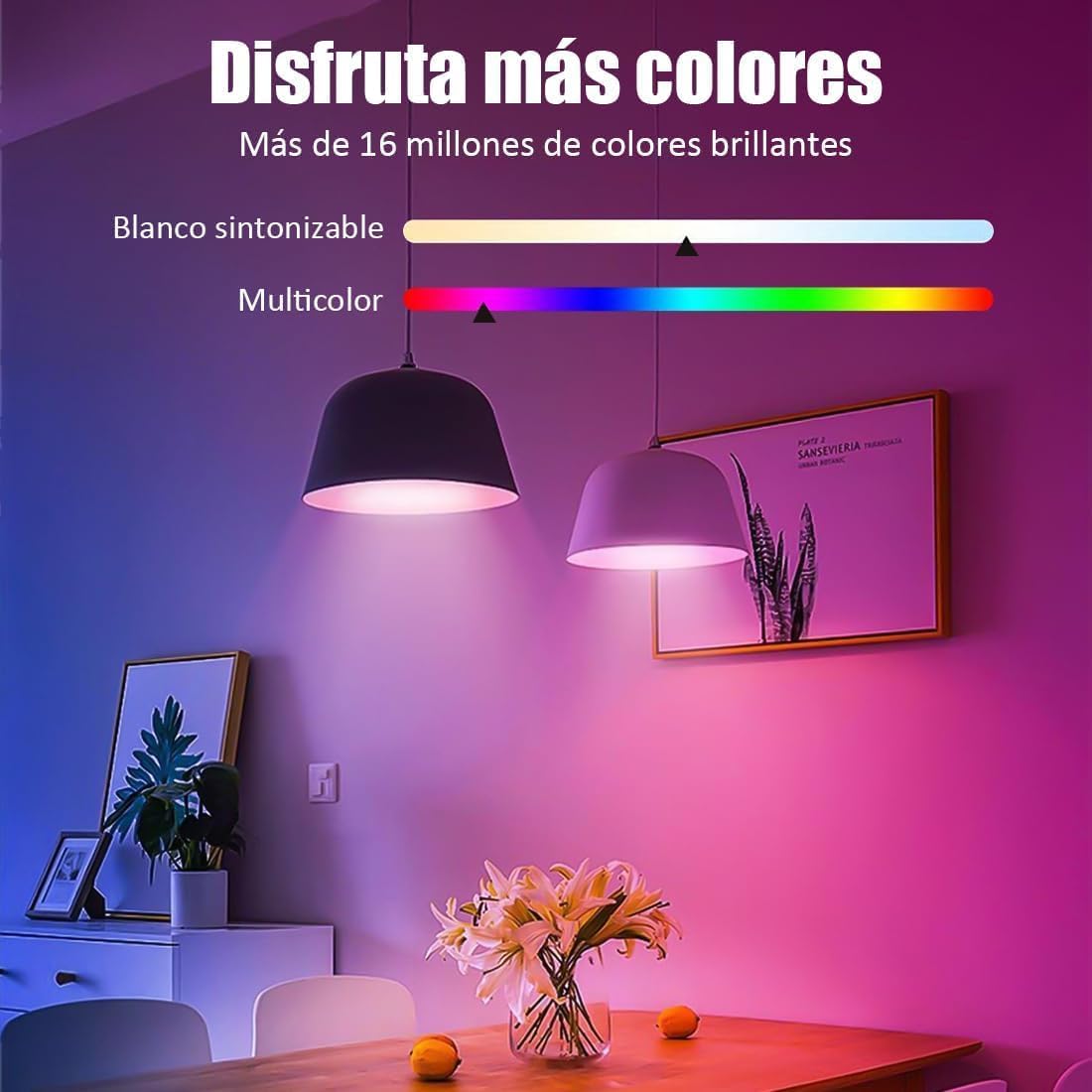
Image: Enjoying more than 16 million brilliant colors.

Image: Examples of preset and DIY scene modes.
5.2 Voice Control
Use simple voice commands with Alexa or Google Home to control your bulb:
- "Alexa, turn on the living room light."
- "Hey Google, set the bedroom light to blue."
- "Alexa, dim the kitchen light to 50%."
- "Hey Google, change the light to warm white."

Image: Voice control for hands-free operation.
5.3 Intelligent Timing
Set schedules for your bulb to turn on or off automatically:
- Open the Cozylife app and navigate to the bulb's settings.
- Select the "Timer" or "Schedule" function.
- Set desired times for the bulb to turn on or off.
- You can also set countdown timers for specific events.
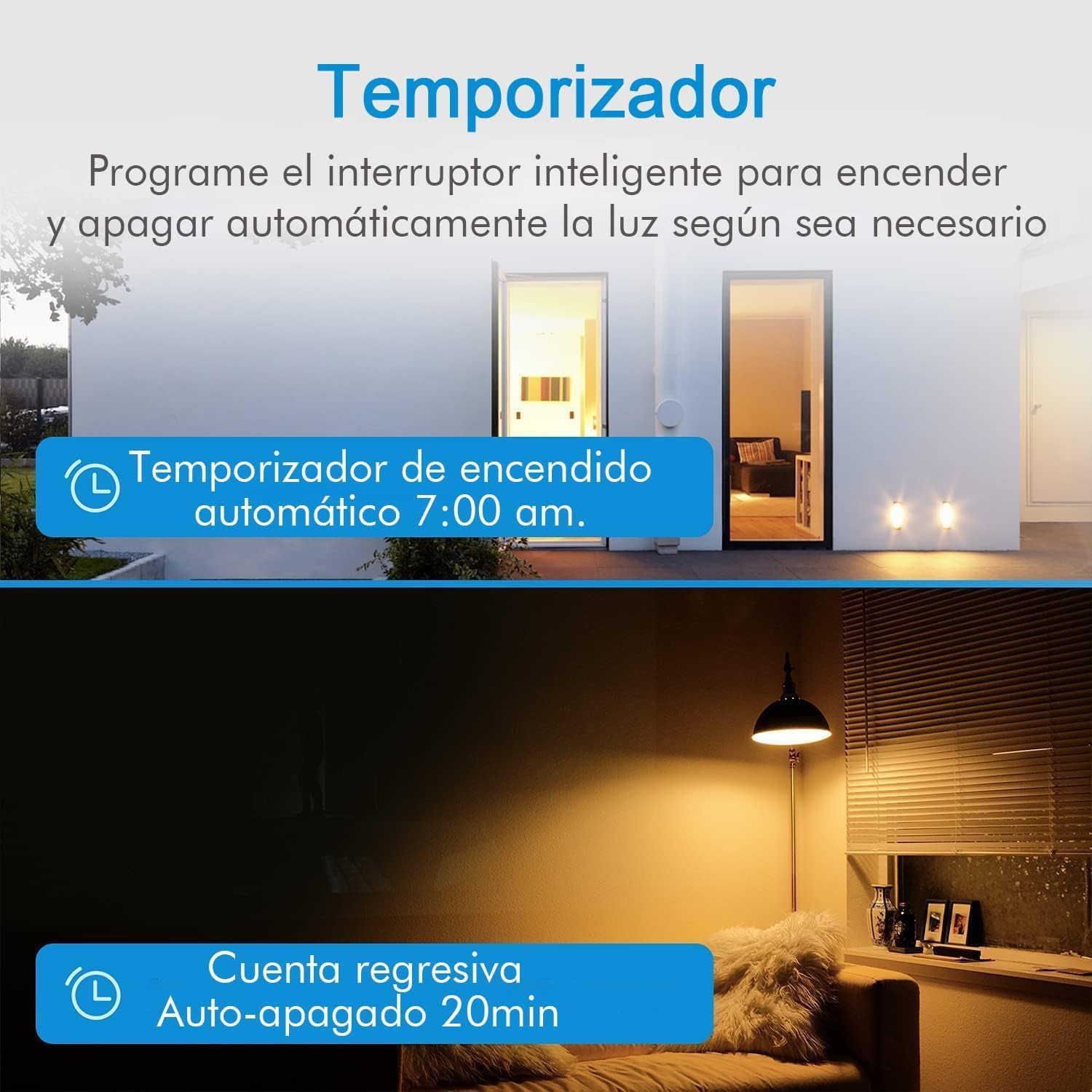
Image: Timer function for automatic light control.

Image: Mobile phone remote control and timing schedules.
6. Troubleshooting
If you encounter issues with your Glückluz smart bulb, refer to the following common problems and solutions:
| Problem | Possible Cause | Solution |
|---|---|---|
| Bulb not flashing for pairing | Not in pairing mode. | Turn the bulb off and on three times rapidly (on-off-on-off-on) until it begins to flash. |
| Cannot connect to Wi-Fi | Incorrect Wi-Fi band (5GHz), weak signal, incorrect password. | Ensure your router is broadcasting a 2.4GHz network. Move the bulb closer to the router. Double-check your Wi-Fi password. |
| Bulb frequently disconnects | Weak Wi-Fi signal, network interference. | Improve Wi-Fi signal strength (e.g., use a Wi-Fi extender). Reduce interference from other devices. |
| Voice control not working | Cozylife skill not enabled, incorrect device name. | Ensure the Cozylife skill is enabled in your Alexa/Google Home app and linked to your account. Try renaming the bulb in the Cozylife app and rediscovering devices in the voice assistant app. |
| App not responding | App glitch, network issue. | Close and reopen the Cozylife app. Check your phone's internet connection. Restart your router. |
7. Product Specifications
| Feature | Specification |
|---|---|
| Model Number | Bulb-Cozylife |
| Wattage | 10W |
| Luminous Flux | 1000 lm |
| Voltage | 220V (AC90-250V) |
| Color Temperature | 6500 Kelvin (Adjustable White) |
| Color Options | 16 Million RGBCW Colors |
| Base Type | E27 |
| Connectivity | Wi-Fi 2.4GHz, Bluetooth |
| Material | Acrylonitrile Butadiene Styrene (ABS) |
| Average Lifespan | 30,000 Hours |
| Dimensions | 12.8 x 12.6 x 6.7 cm |

Image: Comparison of different smart bulb models and their features.

Image: Energy saving comparison of the 10W smart bulb against traditional bulbs.
8. Maintenance
To ensure optimal performance and longevity of your Glückluz smart bulb, follow these simple maintenance guidelines:
- Cleaning: Gently wipe the bulb with a soft, dry cloth. Do not use liquid cleaners or abrasive materials.
- Handling: Handle the bulb by its base, not the glass or plastic dome, to avoid damage.
- Storage: If storing the bulb for an extended period, keep it in a cool, dry place away from direct sunlight.
9. Warranty and Support
Glückluz offers a return policy for this product. Please refer to your purchase platform for specific return window details. For any technical support, troubleshooting assistance, or warranty inquiries beyond the return period, please contact Glückluz customer service directly through the contact information provided on your purchase receipt or the official Glückluz website.
Please have your product model number (Bulb-Cozylife) and purchase date ready when contacting support.