
1. Product Overview
The A-ZONE AZB4 Wireless Outdoor Security Camera System provides comprehensive surveillance with its 13.3-inch IPS monitor and four 3MP cameras. Designed for easy installation without complex wiring, this system features advanced functionalities such as audio recording, multiple recording modes, motion detection, and remote viewing capabilities. The IP66 waterproof and dustproof rating ensures reliable performance in various outdoor conditions.

Figure 1: Overview of the A-ZONE Wireless Outdoor Security Camera System, showing the 13.3-inch monitor and four cameras.
Key Features:
- Easy Setup: Wireless connection between cameras and NVR. Pre-paired for plug-and-play functionality. No internet required for local viewing.
- High-Resolution: 3MP (2048x1536) cameras with a 13.3-inch IPS monitor for clear, detailed images.
- Night Vision: 24 infrared LEDs and IR-CUT for clear night vision up to 20 meters.
- Audio Recording: Built-in microphone for simultaneous video and audio recording.
- Multiple Recording Modes: Continuous, motion detection, schedule, manual, and infrared recording options.
- Expandable System: 8-channel NVR supports up to 8 cameras (4 included, 4 expandable).
- Repeater Function: Extends Wi-Fi range for cameras, doubling communication distance.
- Weatherproof: IP66 waterproof and dustproof rating for outdoor use.
- Remote Monitoring: View live footage and playback via mobile app.
2. Package Contents
Verify that all items listed below are included in your package. If any items are missing or damaged, please contact customer support.
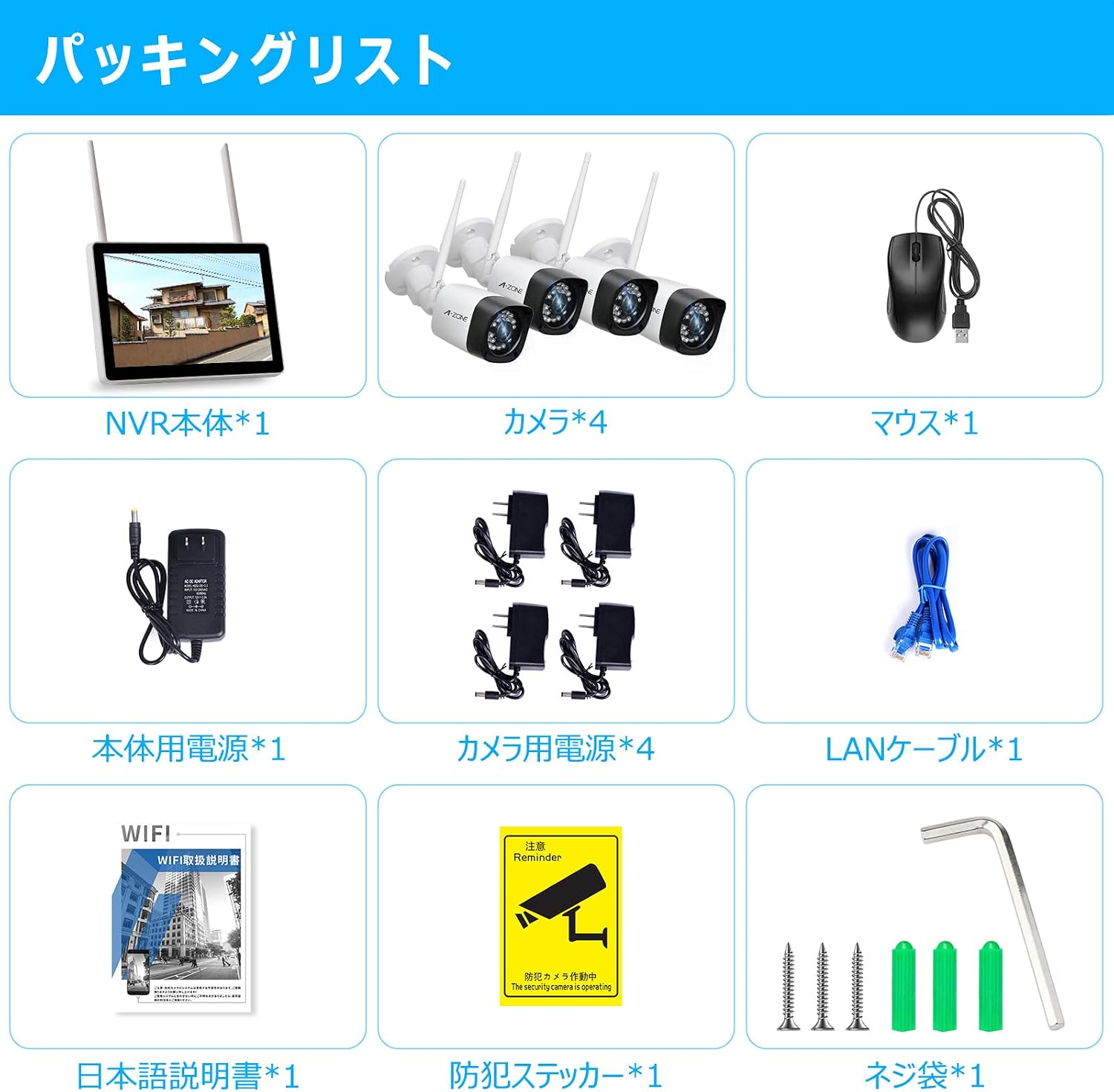
Figure 2: Visual representation of the package contents.
Items Included:
- 1x 13.3-inch IPS NVR Monitor
- 4x 3MP Wireless Cameras
- 1x NVR Power Adapter
- 4x Camera Power Adapters
- 1x USB Mouse
- 1x LAN Cable
- 1x Instruction Manual (Japanese)
- 1x Security Sticker
- Mounting Screws and Accessories
Video: Introduction of Accessories
Video 1: This video provides a detailed introduction to the accessories included in the 10-inch monitor wireless security camera set. It demonstrates each component and its purpose, helping users identify all parts before installation.
3. Setup Instructions
The A-ZONE security camera system is designed for easy installation. Follow these steps to set up your system.
3.1 Camera Installation
Cameras can be mounted on walls or ceilings using the provided screws. Ensure the mounting location provides a clear view and stable Wi-Fi signal.

Figure 3: Illustration of camera installation and connection points on the NVR.
Video: Wireless Security Camera Installation Demo
Video 2: This video demonstrates the step-by-step process of installing a wireless security camera, including marking drill points, drilling, inserting anchors, and securing the camera with screws.
3.2 System Connection
Connect the cameras to the NVR and power outlets. The system is pre-paired, so cameras should automatically connect to the NVR once powered on.

Figure 4: Close-up of the NVR monitor's ports, including HDMI, LAN, USB, and power input.
Video: Initial Operation Procedure
Video 3: This video guides users through the initial setup and connection of the security camera system, including connecting power, LAN cables, and the mouse, followed by language selection and camera detection on the monitor.
4. Operating Instructions
Learn how to use the various features of your A-ZONE security camera system.
4.1 Recording Modes
The system offers five recording modes to suit your surveillance needs:
- Continuous Recording: Records 24/7.
- Motion Detection Recording: Records automatically when motion is detected. Customize sensitivity and detection areas to reduce false alarms.
- Schedule Recording: Set specific time periods for recording.
- Manual Recording: Start recording manually via the monitor.
- Infrared Recording: Records clear images in complete darkness using infrared.

Figure 5: Visual representation of the various recording modes available.
4.2 Remote Viewing
Monitor your property remotely using the dedicated mobile application on your smartphone or tablet, or via PC.

Figure 6: Screenshot showing remote viewing of camera feeds on a smartphone.
Video: Product Function Introduction
Video 4: This video highlights the key functions of the product, including motion detection, remote viewing, and night vision capabilities.
4.3 Night Vision
The cameras are equipped with 24 infrared LEDs and IR-CUT technology, automatically switching between day and night modes to provide clear images even in complete darkness up to 20 meters.

Figure 7: Comparison of day and night vision footage from the camera, demonstrating clarity in low-light conditions.
5. Maintenance
Regular maintenance ensures optimal performance and longevity of your security camera system.
- Clean Lenses: Periodically wipe camera lenses with a soft, damp cloth to remove dust and smudges.
- Check Connections: Ensure all power and network cables are securely connected and free from damage.
- Software Updates: Check for and install any available firmware updates for the NVR and cameras to enhance security and features.
- Storage Management: Regularly review recorded footage and manage storage space on the 1TB HDD. Back up important recordings as needed.
- Power Supply: Ensure cameras and NVR receive stable power. Avoid exposing power adapters to extreme weather.
6. Troubleshooting
If you encounter issues with your A-ZONE security camera system, refer to the following common troubleshooting steps:
- No Image on Monitor:
- Check if the NVR monitor is powered on.
- Ensure all cameras are powered on and within range of the NVR.
- Verify camera-NVR pairing. If necessary, re-pair cameras according to the full manual.
- Poor Image Quality:
- Clean camera lenses.
- Check for obstructions in the camera's field of view.
- Ensure cameras are receiving sufficient power.
- No Motion Detection Alerts:
- Verify motion detection settings in the NVR menu or mobile app.
- Adjust sensitivity and detection areas.
- Ensure the mobile app has notification permissions enabled.
- Remote Viewing Issues:
- Ensure the NVR is connected to the internet via the LAN port.
- Check your home internet connection.
- Update the mobile app to the latest version.
- Wi-Fi Signal Weakness:
- Utilize the repeater function of the cameras to extend signal range.
- Relocate cameras or NVR to minimize obstacles.
For more detailed troubleshooting or persistent issues, please refer to the full instruction manual or contact customer support.
7. Specifications
| Feature | Description |
|---|---|
| Brand | A-ZONE |
| Model Number | AZB4 |
| Connectivity Technology | Wireless |
| Video Capture Resolution | 1536p (3MP) |
| Special Feature | Waterproof (IP66) |
| Product Dimensions (LxWxH) | 30 x 20 x 30 cm |
| Communication Interface | Wireless |
| Video Pixels | 1536p |
| Camera Description | Front, Rear |
| Night Vision | Yes |
| Recording Modes | Schedule, Manual |
| Included Components | 1/2-Inch Collet (Note: This seems like a generic item, actual components are listed in Package Contents) |
| Lens Type | Wide Angle Lens |
8. Warranty & Support
A-ZONE is committed to providing high-quality products and excellent customer service.
8.1 Product Warranty
This product comes with a 2-year quality guarantee. Our security cameras are PSE and technical compliance certified, and undergo approximately 48 hours of operation testing before shipment to ensure reliability.
8.2 Customer Support
If you have any questions or concerns during your purchase or use of the product, please do not hesitate to contact us. We recommend reviewing the instruction manual before using the product for quick and correct operation.
Contact Methods:
- Contact the seller directly through your order history.
- Use the email address or LINE contact information provided in the instruction manual.