
podofo B09CP6R2TT
Podofo Double Din Car Stereo User Manual
Model: B09CP6R2TT
Introduction
This manual provides comprehensive instructions for the installation, operation, and maintenance of your Podofo Double Din Car Stereo. This unit features a 9.7-inch vertical touchscreen, runs on Android 9.1, and supports a wide range of functions including WiFi, GPS Navigation, Bluetooth, FM/RDS Radio, Mirror Link, and a backup camera. Please read this manual thoroughly before using the product to ensure proper operation and to prevent damage.
Safety Information
- Ensure the vehicle's engine is off and the parking brake is engaged before installation.
- Incorrect wiring can cause damage to the unit or the vehicle's electrical system. If unsure, consult a professional installer.
- Do not operate the unit in a manner that distracts you from driving. Always prioritize road safety.
- Avoid exposing the unit to extreme temperatures, direct sunlight for prolonged periods, or excessive moisture.
- Use only specified power cables and accessories.
- Keep the unit away from small children.
What's in the Box
Verify that all components are present before beginning installation:
- Podofo Double Din Car Stereo Unit
- Backup Camera
- Power Cable
- GPS Antenna
- Camera Input Cable
- RCA Input and Output Cables
- USB Cables (2)
- Mounting Stents
- User Manual (this document)

Image: Overview of the components included with the Podofo Double Din Car Stereo, showing the main unit, rear camera, power cable, RCA cables, camera input, USB cables, GPS antenna, user manual, and mounting stents.
Product Overview
The Podofo Double Din Car Stereo features a large 9.7-inch IPS touchscreen display with a vertical orientation, designed for intuitive interaction and clear visibility. It integrates advanced Android 9.1 system capabilities for a smart car experience.

Image: The main unit of the Podofo Car Stereo, highlighting its 9.7-inch vertical touchscreen running Android 9.1, along with a separate image of the included backup camera.
Dimensions and Connections
Understanding the unit's dimensions and connection points is crucial for proper installation and integration into your vehicle's dashboard.

Image: Detailed diagram illustrating the physical dimensions of the car stereo unit (e.g., 17.2cm width, 22.2cm height for the screen, 70mm depth for the main body) and the layout of its various ports and buttons.
Setup and Installation
This section provides general guidelines for installing your car stereo. Specific vehicle models may require additional adapters or modifications. It is recommended to consult a professional if you are unsure about any steps.
Wiring Diagram
Refer to the following diagram for correct wiring connections. Ensure all connections are secure to prevent electrical issues.

Image: A detailed wiring diagram illustrating the various connections for the car stereo, including power, speaker outputs, antenna, and auxiliary inputs/outputs.
- Disconnect Battery: Before starting, disconnect the negative terminal of your vehicle's battery to prevent short circuits.
- Remove Old Unit: Carefully remove your existing car stereo from the dashboard.
- Connect Power and Speaker Wires: Use the provided power cable to connect the stereo to your vehicle's power supply. Match the wires according to the wiring diagram (e.g., ACC, B+, GND). Connect speaker wires to the corresponding vehicle speaker wires.
- Connect GPS Antenna: Mount the GPS antenna in a location with a clear view of the sky (e.g., on the dashboard) and connect it to the GPS input on the stereo.
- Connect Backup Camera (Optional): If installing the backup camera, route the camera cable from the rear of the vehicle to the stereo. Connect the camera's video output to the "Camera Input" on the stereo and its power to the vehicle's reverse light circuit.
- Connect RCA Cables (Optional): For external amplifiers or additional video inputs/outputs, connect the RCA cables as needed.
- Test Connections: Before fully reassembling the dashboard, reconnect the battery and briefly test the stereo's basic functions (power on, radio, sound).
- Secure Unit: Use the provided mounting stents to secure the stereo firmly in the dashboard opening.
- Reassemble Dashboard: Carefully reassemble the dashboard trim and panels.
Operating Instructions
This section details the primary functions and how to operate them.
Android System Interface
The unit runs on a stable Android 9.1 system, providing a familiar smartphone-like interface. Navigate through apps and settings using the touchscreen.

Image: A collage of screenshots demonstrating the diverse user interface options and application layouts available on the Podofo car stereo's Android system.
GPS Navigation
The built-in GPS navigation app allows for both online and offline navigation. Download maps for offline use to navigate without an internet connection.
- Tap the "Navigation" icon on the home screen to launch the GPS application.
- Ensure the GPS antenna is properly connected and positioned for optimal signal reception.
- To download offline maps, connect to WiFi and access the map app's settings.
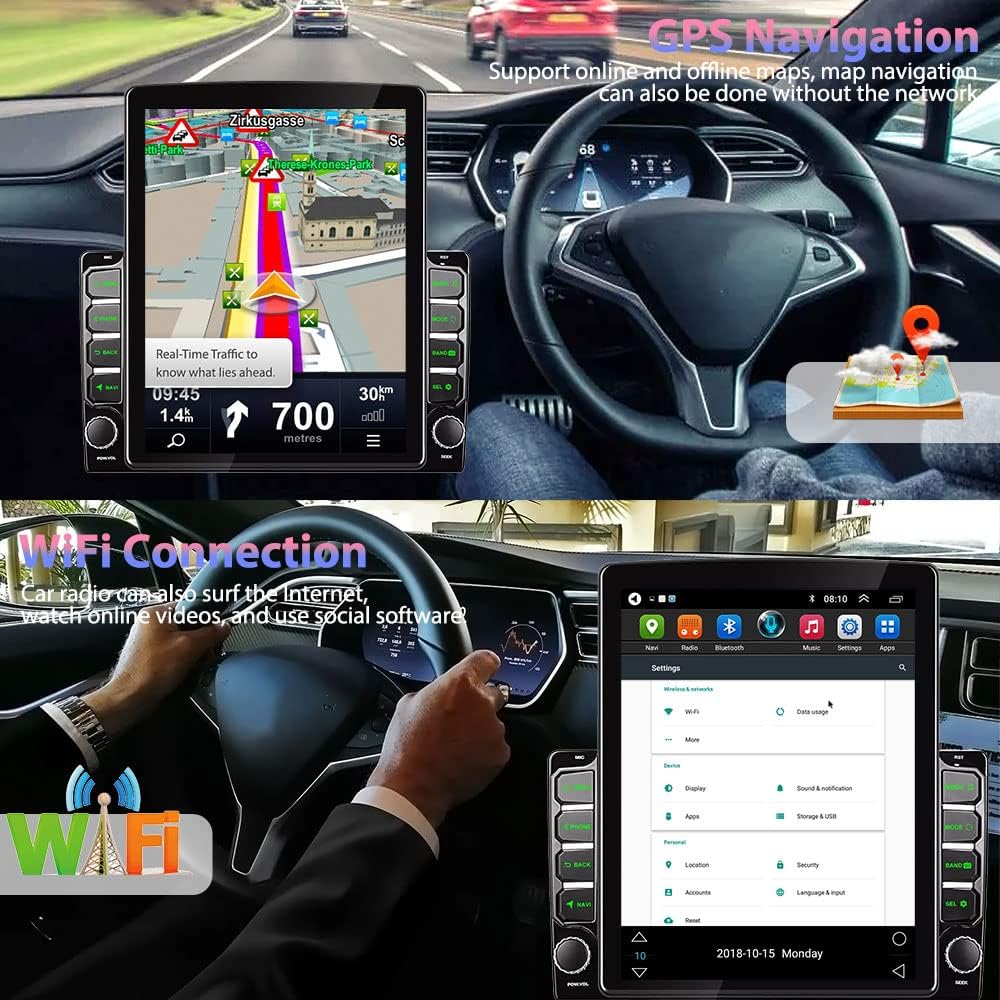
Image: The car stereo screen displaying a GPS navigation route with real-time traffic information, and a separate view of the WiFi connection settings, indicating internet access capabilities.
WiFi Connectivity
Connect to a WiFi hotspot (e.g., from your smartphone) to access online features, browse the internet, stream videos, and use social media platforms directly on the car radio.
- Go to "Settings" > "Network & Internet" > "Wi-Fi".
- Select your desired WiFi network and enter the password if required.
Bluetooth Functionality
The unit supports Bluetooth A2DP for hands-free calls and music playback. It can automatically load your phone book for easy access.
- Pairing:
- Enable Bluetooth on your mobile phone.
- On the car stereo, go to the "Bluetooth" app.
- Search for available devices on your phone and select "Podofo" or a similar name.
- Confirm the pairing code on both devices.
- Hands-free Calling: Once paired, you can make and receive calls directly through the stereo.
- Music Playback: Stream audio from your phone to the car stereo via Bluetooth.
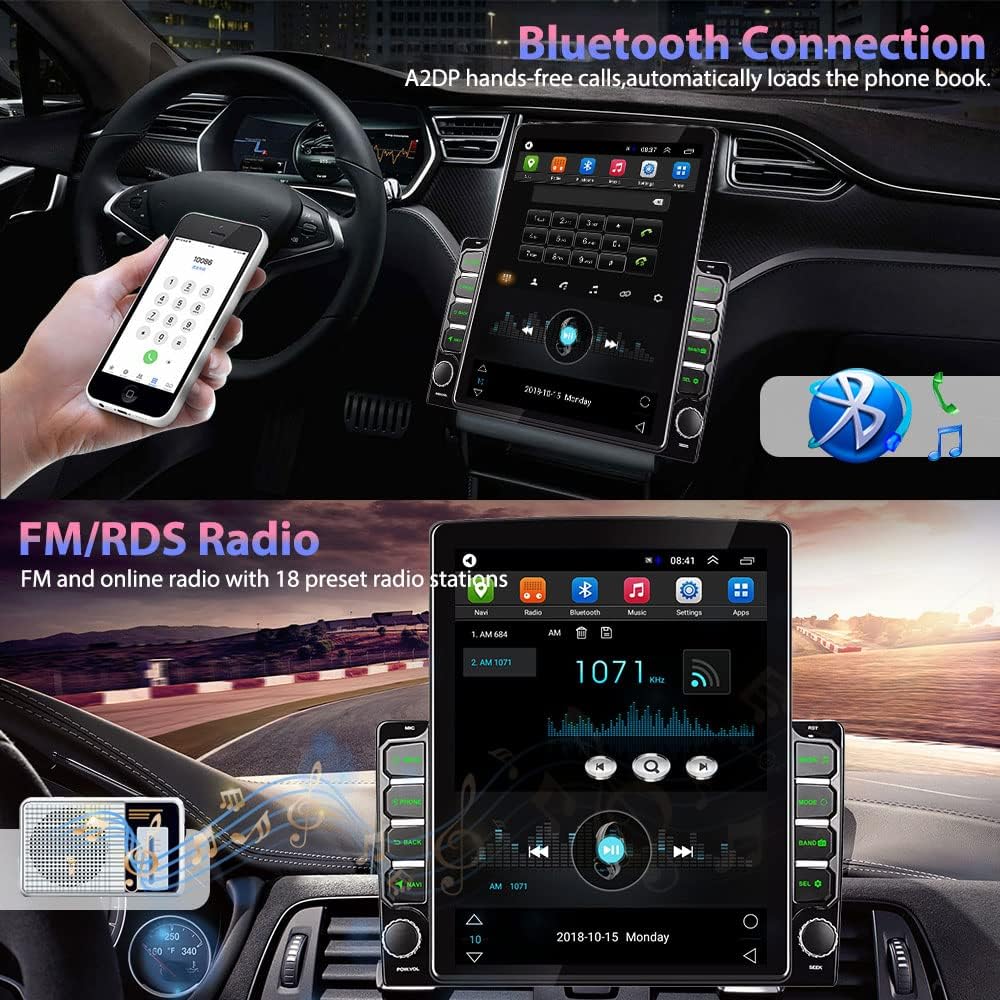
Image: The car stereo displaying the Bluetooth connection interface, showing a phone connected for hands-free calls and music streaming. Below, the FM/RDS radio interface is shown with station tuning options.
FM/RDS Radio
Enjoy your favorite radio stations with FM/RDS functionality. The unit supports automatic station search and can display RDS information where available.
- Tap the "Radio" icon to enter the radio interface.
- Use the "Search" function to automatically scan and save available stations.
- Manually tune by adjusting the frequency.
Mirror Link
Mirror Link allows you to cast your iOS or Android smartphone screen onto the car stereo display, enabling you to use phone apps on the larger screen.
- Connect your smartphone to the stereo using a USB cable (for Android) or via WiFi (for iOS).
- Open the "Phone Link" or "Mirror Link" app on the stereo.
- Follow the on-screen instructions to establish the connection.

Image: A smartphone connected to the Podofo car stereo, demonstrating the Mirror Link feature where the phone's display is mirrored onto the larger car stereo screen.
Steering Wheel Control (SWC)
The unit supports learning original steering wheel controls, allowing you to manage functions like volume, track changes, and calls without taking your hands off the wheel.
- Go to "Settings" > "Steering Wheel Learning" or "SWC".
- Follow the on-screen prompts to assign functions to your vehicle's steering wheel buttons.

Image: The car stereo screen showing the Steering Wheel Control learning interface, allowing users to program their vehicle's steering wheel buttons. Below, the backup camera view is displayed on the stereo screen, showing parking guidelines.
Backup Camera
When the vehicle is shifted into reverse, the stereo automatically displays the view from the connected backup camera, assisting with safe parking and maneuvering.
- Ensure the backup camera is correctly installed and wired to the reverse light trigger.
- The display will automatically switch to the camera view when reverse gear is engaged.
Other Functions
- 7 Colors Button Selection: Customize the backlight color of the physical buttons.
- External Microphone Support: Connect an external microphone for improved call quality.
- Car Logo Replacement: Personalize the boot-up screen with your preferred car logo.
- Language Switching: Change the system language in settings.
- Dual USB Adapter Input: Use the two USB ports for media playback or charging (one supports fast charging).
- Audio and Video Playback: Play various audio and video formats from USB drives or internal storage.
- Time Setting: Adjust the system time and date.
- Interface Theme & Wallpaper Switching: Customize the look and feel of the user interface.
Maintenance
- Cleaning the Screen: Use a soft, lint-free cloth to gently wipe the touchscreen. For stubborn smudges, slightly dampen the cloth with water or a screen-safe cleaner. Avoid harsh chemicals or abrasive materials.
- Software Updates: Periodically check for software updates through the system settings (if available) to ensure optimal performance and access to new features.
- Cable Connections: Occasionally check all cable connections to ensure they are secure and free from corrosion.
- Avoid Extreme Temperatures: While designed for automotive use, prolonged exposure to extreme heat or cold can affect the unit's lifespan.
Troubleshooting
| Problem | Possible Cause | Solution |
|---|---|---|
| Unit does not power on. | Incorrect wiring; Blown fuse; Loose power connection. | Check power cable connections (ACC, B+, GND). Verify vehicle fuses and the unit's fuse. Ensure battery is connected. |
| No sound from speakers. | Speaker wires incorrectly connected; Volume too low; Mute function active; Amplifier issue. | Check speaker wiring. Increase volume. Disable mute. If using an external amplifier, check its power and connections. |
| GPS signal weak or not found. | GPS antenna not properly connected or positioned; Obstruction. | Ensure GPS antenna is securely connected and placed in an open area with a clear view of the sky. |
| Bluetooth connection issues. | Device not in pairing mode; Interference; Incorrect pairing process. | Ensure both devices are in pairing mode. Delete previous pairings and try again. Move closer to the unit. |
| Backup camera not displaying. | Camera not powered; Video cable loose; Reverse trigger wire not connected. | Check camera power supply. Ensure video cable is securely connected to the camera input. Verify the reverse trigger wire is connected to the vehicle's reverse light. |
Specifications
| Operating System | Android 9.1 |
| Display Size | 9.7 Inches |
| Resolution | 1024 x 600 |
| Connectivity Technology | Bluetooth, Mirror Link, Wi-Fi |
| Special Features | Bluetooth, Touchscreen, GPS Navigation, FM/RDS Radio, Steering Wheel Control, Backup Camera Support |
| Audio Output Mode | Stereo |
| Product Dimensions | Approx. 11.22 x 4.13 x 11.02 inches (28.5 x 10.5 x 28 cm) |
| Item Weight | Approx. 3.43 pounds (1.56 kg) |
| Manufacturer | podofo |
| ASIN | B09CP6R2TT |
Warranty and Support
For warranty information and technical support, please refer to the official Podofo website or contact their customer service directly. Keep your purchase receipt as proof of purchase for warranty claims.
Online Resources:
- Official Podofo Store on Amazon: Visit Store
- User Guide (PDF): Download PDF
- User Manual (PDF): Download PDF
For further assistance, please contact Podofo customer support.