UNIDEEPLY 1D CCD 2.4G Wireless Bar Code Scanner
Model: MJ2840 | Brand: UNIDEEPLY
Introduction
This manual provides comprehensive instructions for the UNIDEEPLY 1D CCD 2.4G Wireless Bar Code Scanner, Model MJ2840. This versatile device offers both wireless and USB wired connectivity, designed for efficient barcode scanning in various environments. It is compatible with a wide range of operating systems and devices, making it an ideal solution for PC and laptop users.

Image: The UNIDEEPLY barcode scanner, showcasing its main unit, USB cable, and 2.4G wireless receiver for dual connectivity options.
Key Features
- 2-in-1 Wireless & Wired Connection: Supports both 2.4G Wireless connection via receiver and direct USB wired connection. Compatible with Windows XP/7/8/10, Linux, Mac OS, Google, Android OS, and iOS.
- Offline Storage Capability: Internal memory allows storage of up to 100,000 barcodes in offline mode, enabling scanning away from the receiver and later data upload.
- Long Distance Wireless Transmission: Achieves up to 328 ft (100m) transmission in open air and 196 ft (60m) in obstructed environments.
- Strong 1D Decoding Capability: Equipped with an ARM-32bit Cortex High Speed Processor, capable of 200 scans/sec. Decodes various 1D barcodes including EAN13, EAN8, UPC-A, UPC-E0, UPC-E1, Code128, Code39, Code93, CodaBar, Interleaved 2 of 5, Industrial 2 of 5, Matrix 2 of 5, Code11, MSI-Plessey, Standard 2 of 5, Plessey, China Post, GS1 Databar. Note: Does not read 2D barcodes like QR codes or PDF417.
- 2000mAh Large Battery: Provides extended usage and standby time, enhancing work efficiency.

Image: Illustration of the scanner's dual connectivity modes: wireless via 2.4G receiver and wired via USB cable.
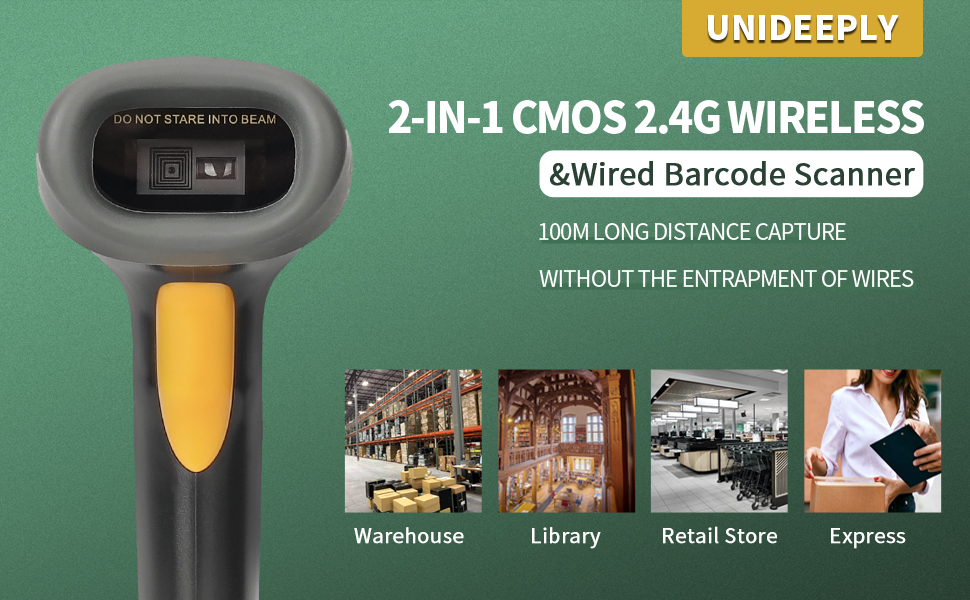
Image: Diagram explaining the two upload modes: Storage Upload Mode (up to 100,000 barcodes) and Instant Upload Mode.
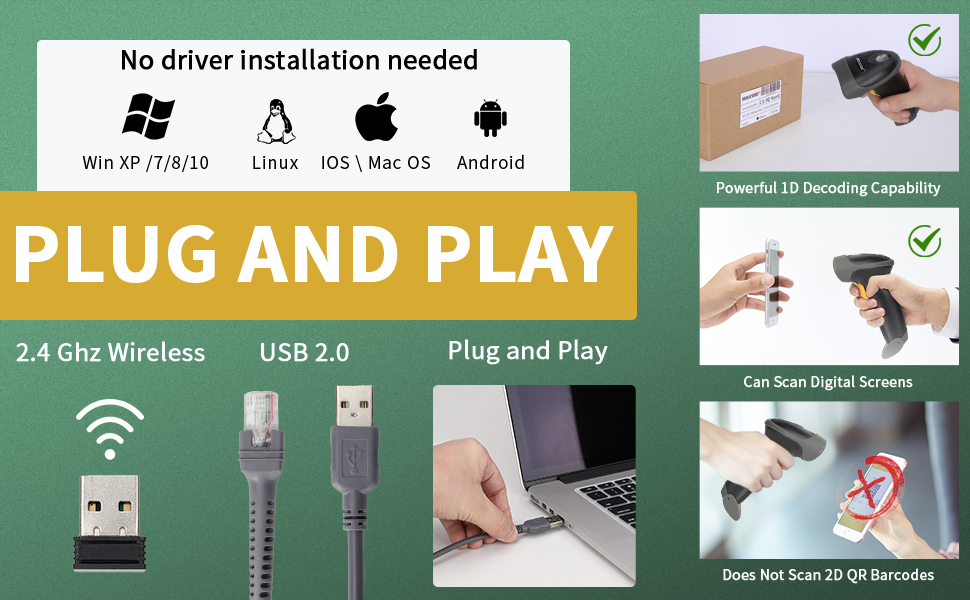
Image: Visual representation of the scanner's ability to read various 1D barcode types, including those on colored backgrounds, with supplements, and damaged barcodes.
Setup Guide
The UNIDEEPLY barcode scanner offers flexible connectivity options. Please follow the instructions below for your preferred setup.
Wireless Connection (2.4G)
- Locate the 2.4G wireless receiver included in the package.
- Insert the 2.4G wireless receiver into an available USB-A port on your PC, laptop, or POS system.
- Turn on the barcode scanner. It should automatically pair with the receiver. A successful connection is usually indicated by a specific sound or light on the scanner.
- Open a text editor or application where you wish to input scanned data (e.g., Notepad, Word, Excel).
- Scan a test barcode to confirm the connection.
Note: This scanner is designed for devices with USB-A ports and does not support Bluetooth connections for mobile phones or iPads.

Image: The barcode scanner shown in wireless operation, with the 2.4G receiver plugged into a laptop.
Wired Connection (USB)
- Connect the USB cable to the scanner's USB port.
- Plug the other end of the USB cable into an available USB-A port on your PC, laptop, or POS system.
- The scanner will be recognized as a keyboard device. No driver installation is typically required (Plug and Play).
- Open a text editor or application and scan a test barcode to verify functionality.

Image: The barcode scanner connected directly to a laptop via its USB cable, illustrating wired operation.
Operating Instructions
Scanning Barcodes
To scan a barcode, aim the scanner's light beam at the center of the barcode and press the trigger button. A successful scan is typically indicated by a beep and/or a green light. Ensure the barcode is within the scanner's optimal reading range.
The scanner supports reading linear/1D barcodes directly from computer screens and mobile phones, as well as printed barcodes. It can also read some wide and dense 1D barcodes.
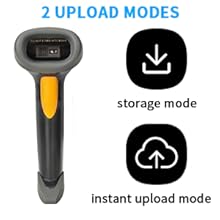
Image: The scanner in action, reading a barcode from a physical package.
Image: The scanner demonstrating its capability to read barcodes displayed on a smartphone screen.
Data Upload Modes
- Instant Upload Mode: In this mode, scanned barcode data is immediately transmitted to your connected device. This is the default mode when connected wirelessly or via USB.
- Storage Upload Mode: When out of wireless range or not connected, the scanner can store up to 100,000 barcodes in its internal memory. To upload stored data, reconnect the scanner to your device (wirelessly or wired) and follow the specific instructions in the full user manual (not provided here, but implied by the feature).
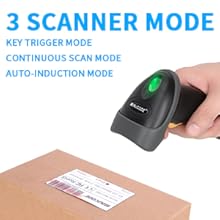
Image: Icons representing the two data upload modes: storage mode (download icon) and instant upload mode (cloud upload icon).
Supported Barcode Symbologies
The scanner supports the following 1D barcode types:
- EAN13
- EAN8
- UPC-A
- UPC-E0
- UPC-E1
- Code128
- Code39
- Code93
- CodaBar
- Interleaved 2 of 5
- Industrial 2 of 5
- Matrix 2 of 5
- Code11
- MSI-Plessey
- Standard 2 of 5
- Plessey
- China Post
- GS1 Databar (RSS-Expand, RSS-Limited, RSS-14)
Maintenance
Battery Charging
The scanner is equipped with a 2000mAh rechargeable battery. To charge the scanner, connect it to a USB power source (e.g., computer USB port, USB wall adapter) using the provided USB cable. The indicator light will show charging status. A full charge typically takes approximately 6 hours and provides up to 18 hours of continuous scanning or 1 year of standby time.

Image: Visual representation of the 2000mAh battery, indicating 18 hours continuous scanning, 6 hours charging time, and 1 year standby time.
Cleaning
To clean the scanner, use a soft, dry cloth. For stubborn dirt, a slightly damp cloth can be used. Do not use abrasive cleaners or solvents, as these may damage the device. Ensure the scanning window is kept clean for optimal performance.
Durability
The scanner is designed to sustain drops from up to 1.5 meters (5 feet) from the ground, thanks to its robust construction and anti-drop silicone components.

Image: Diagram illustrating the scanner's ability to withstand drops from a height of 1.5 meters (5 feet).
Troubleshooting
If you encounter issues with your UNIDEEPLY barcode scanner, please refer to the following common problems and their solutions:
| Problem | Possible Cause / Solution |
|---|---|
| Scanner does not connect wirelessly. |
|
| Scanner does not scan barcodes. |
|
| Scanned data does not appear on screen. |
|
| Battery life is shorter than expected. |
|
| Scanner beeps excessively or unexpectedly. |
|
Specifications
| Feature | Detail |
|---|---|
| Model Number | MJ2840 |
| Product Dimensions | 6.5 x 2.4 x 3.6 inches |
| Item Weight | 10.9 ounces |
| Connectivity Technology | 2.4G Wireless, USB Wired |
| Compatible Devices | Desktop, Laptop, POS systems |
| Supported Operating Systems | Windows XP/7/8/10, Linux, Mac OS, Google, Android OS, iOS |
| Power Source | Battery & USB cable |
| Battery Capacity | 2000mAh (1 Product Specific battery included) |
| Wireless Transmission Distance | Up to 328 ft (100m) in open air, 196 ft (60m) indoors |
| Decoding Speed | Up to 200 scans/sec |
| Decoding Capabilities | EAN13, EAN8, UPC-A, UPC-E0, UPC-E1, Code128, Code39, Code93, CodaBar, Interleaved 2 of 5, Industrial 2 of 5, Matrix 2 of 5, Code11, MSI-Plessey, Standard 2 of 5, Plessey, China Post, GS1 Databar |
| Drop Resistance | Up to 1.5m (5ft) |
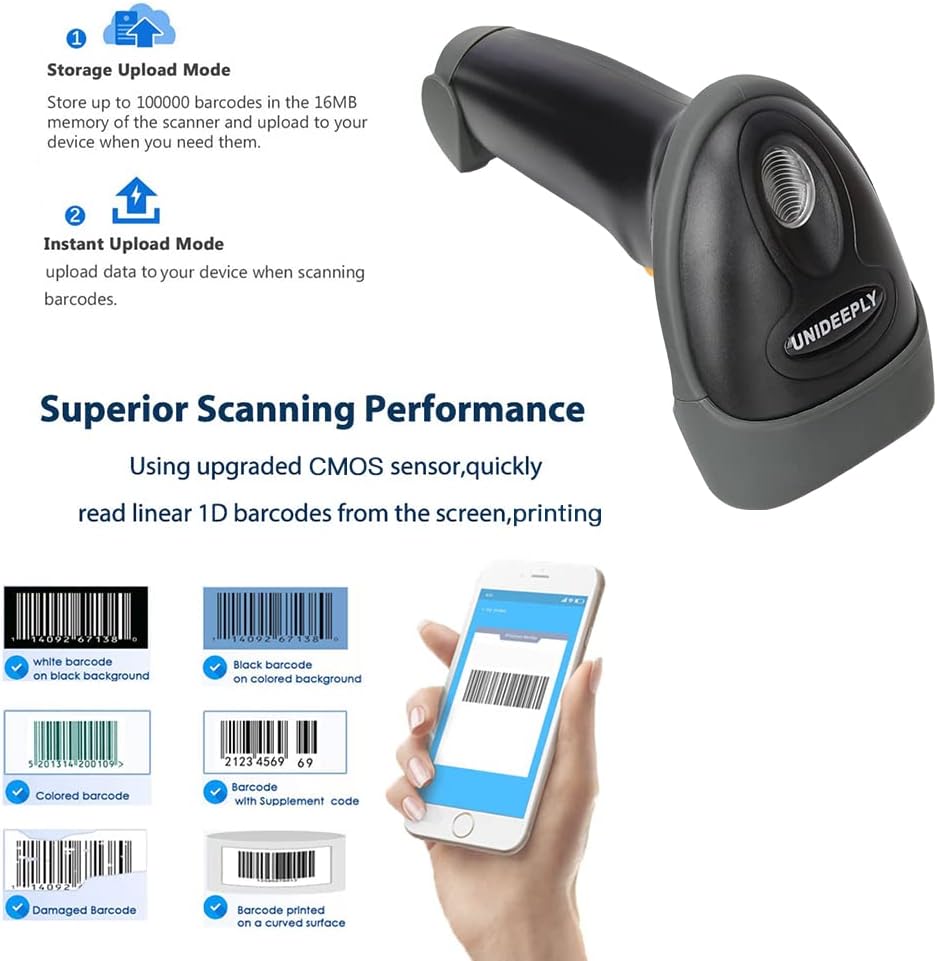
Image: Detailed dimensions of the barcode scanner, showing its length, width, and height.
Warranty and Support
For warranty information and technical support, please refer to the documentation included with your product or visit the official UNIDEEPLY website. Contact details for customer service are typically provided on the manufacturer's website or product packaging.
For additional resources and product information, you may visit the UNIDEEPLY Store on Amazon.
