
WiMiUS Top K8
WiMiUS K8 WiFi Bluetooth Projector User Manual
Model: Top K8
Introduction
Thank you for choosing the WiMiUS K8 WiFi Bluetooth Projector. This manual provides comprehensive instructions for setting up, operating, and maintaining your projector to ensure optimal performance and longevity. The K8 projector is designed to deliver a superior viewing experience with its native 1080P resolution, 5G WiFi connectivity, and advanced keystone correction features, making it ideal for home theater, outdoor movies, and professional presentations.

Figure 1: WiMiUS K8 Projector. This image shows the main unit of the WiMiUS K8 projector, highlighting its compact design and lens.
What's in the Box
Please check the contents of your package to ensure all items are present:
- WiMiUS K8 Projector
- Remote Control
- HDMI Cable
- AV Cable
- Power Cable
- Cleaning Kit
- User Manual (this document)
- Projector Carry Case

Figure 2: Projector and Carry Case. The image displays the WiMiUS K8 projector alongside its dedicated carry case, emphasizing its portability.
Product Features
The WiMiUS K8 projector boasts a range of features designed for an immersive and convenient viewing experience:
- Native 1080P Resolution with 4K Support: Experience crystal-clear images with true 1920x1080P resolution, capable of supporting 4K video input for stunning detail.
- Dual-Band 2.4G+5G WiFi: Enjoy faster and more stable wireless connections for seamless streaming and screen mirroring from your devices.
- Bluetooth 5.1 Connectivity: Easily connect to external Bluetooth speakers, soundbars, or headphones for enhanced audio.
- Advanced 4-Point/4D Keystone Correction: Correct distorted images horizontally and vertically by up to ±50 degrees, allowing for flexible placement.
- Zoom Function (50%-100%): Adjust the screen size without moving the projector, providing flexibility for various room sizes.
- Large Adjustable Screen Size: Project images from 50 inches up to an impressive 500 inches.
- High Brightness and 20000:1 Contrast Ratio: Delivers vibrant and sharp images even in moderately lit environments.
- Durable 6-Layer Glass Lens: Designed for longevity, providing up to 100,000 hours of lamp life.
- Multiple Connectivity Options: Equipped with HDMI, USB, and AV ports for connecting a wide array of multimedia devices.

Figure 3: Brightness and 4K Support. This image illustrates the superior brightness and 4K support of the WiMiUS K8 compared to other projectors.
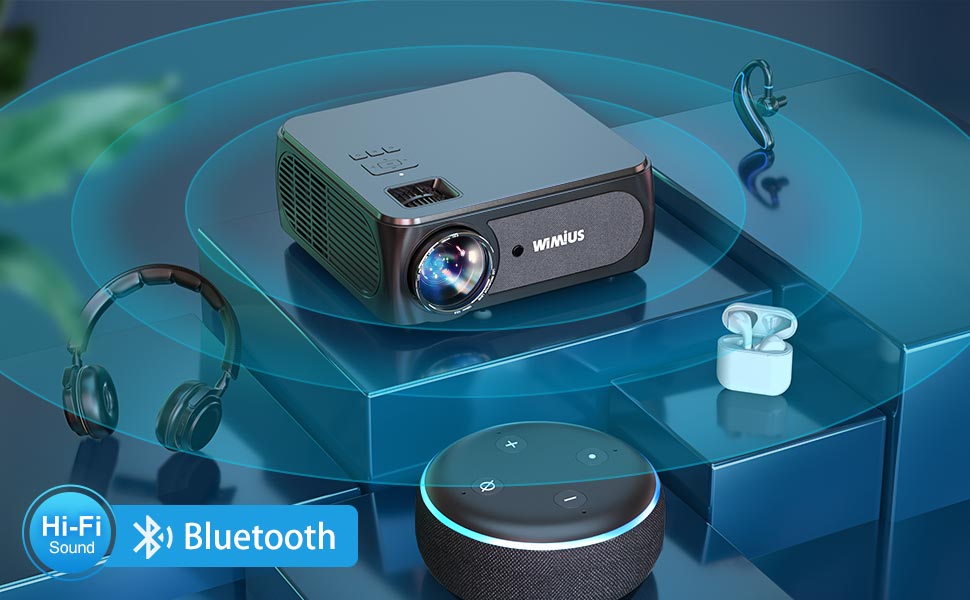
Figure 4: Lens and Display Features. This image highlights the 6-layer glass lens, native 1080P resolution, high brightness, and 20000:1 contrast ratio of the projector.
Setup
1. Unpacking and Placement
Carefully remove the projector and all accessories from the packaging. Place the projector on a stable, flat surface. Ensure there is adequate ventilation around the projector to prevent overheating.
2. Power Connection
- Connect the power cable to the projector's power input port.
- Plug the other end of the power cable into a grounded electrical outlet.
3. Initial Power On
Press the power button on the projector or the remote control to turn on the device. The indicator light will illuminate.
Operating Instructions
1. Remote Control Overview
Familiarize yourself with the remote control. It allows you to navigate menus, adjust settings, and control playback. Insert two AAA batteries (not included) into the remote control.
2. Menu Navigation
Use the arrow keys on the remote control to navigate through the on-screen menus. Press the "OK" or "Enter" button to confirm selections. Use the "Back" or "Exit" button to return to the previous menu.
3. Focus Adjustment
Rotate the focus ring on the projector lens until the projected image appears sharp and clear on the screen.
4. Keystone Correction (4-Point/4D)
If the projected image appears trapezoidal, use the keystone correction feature to square it. Navigate to the "Keystone Correction" setting in the menu. You can adjust each corner individually (4-Point) or use the 4D correction for quick adjustments.

Figure 5: Four Point Keystone Correction. This image demonstrates how the 4-point keystone correction feature can adjust the image shape for a perfectly rectangular display.
5. Zoom Function
To adjust the screen size without moving the projector, use the digital zoom function. Access the "Zoom" setting in the menu and adjust the size from 50% to 100%.

Figure 6: Adjustable Screen Size. This image illustrates the projector's capability to adjust screen size from 50 inches to 500 inches.
Connectivity
1. WiFi Connection (2.4G/5G Dual-Band)
The K8 projector supports both 2.4GHz and 5GHz WiFi networks for stable and fast wireless connectivity.
- Navigate to the "WiFi Settings" menu.
- Select your desired WiFi network from the list.
- Enter the password using the on-screen keyboard and confirm.
- Once connected, you can use screen mirroring features for iOS and Android devices.

Figure 7: Dual-Band WiFi. This image demonstrates the projector's 2.4G+5G dual-band WiFi capability for faster wireless connections.
2. Bluetooth Connection
Connect your projector to external Bluetooth speakers or headphones for an enhanced audio experience.
- Ensure your Bluetooth audio device is in pairing mode.
- On the projector, navigate to the "Bluetooth Settings" menu.
- Select your device from the list of available devices to pair.

Figure 8: Bluetooth 5.1 Connectivity. This image shows the projector's built-in Bluetooth 5.1 feature, allowing connection to various audio devices like headphones and smart speakers.
3. HDMI/USB/AV Input
The projector supports various wired connections for multimedia devices.
- HDMI: Connect laptops, PCs, TV boxes, gaming consoles (Xbox, PS3/PS4), or TV sticks using an HDMI cable. Select the corresponding HDMI input source from the projector's menu.
- USB: Insert a USB drive to play media files (videos, photos, documents). Select the USB input source.
- AV: Use the AV cable to connect older devices with AV output. Select the AV input source.

Figure 9: Multimedia Device Compatibility. This image illustrates the various input ports (HDMI, USB, AV) and compatible devices such as laptops, TV boxes, gaming consoles, and USB drives.
Maintenance
Proper maintenance ensures the longevity and optimal performance of your projector.
- Cleaning the Lens: Use the provided cleaning cloth or a soft, lint-free cloth specifically designed for optical lenses. Gently wipe the lens in a circular motion. Do not use abrasive cleaners or solvents.
- Cleaning Air Vents: Regularly check and clean the air vents to prevent dust buildup, which can impede airflow and cause overheating. Use a soft brush or compressed air to remove dust.
- Storage: When not in use, store the projector in a cool, dry place, away from direct sunlight and extreme temperatures. Use the provided carry case for protection during storage and transport.
Troubleshooting
If you encounter issues with your projector, refer to the following common problems and solutions:
| Problem | Possible Cause | Solution |
|---|---|---|
| No Picture | Power cable loose; Incorrect input source; Device not connected properly. | Check power connection; Select correct input source (HDMI, USB, AV); Ensure devices are securely connected. |
| Blurry Image | Out of focus; Incorrect keystone correction; Projector too far/close. | Adjust focus ring; Perform keystone correction; Adjust projection distance. |
| No Sound | Volume too low; Muted; Incorrect audio output; Bluetooth not paired. | Increase volume; Unmute; Check audio settings on source device; Re-pair Bluetooth device. |
| WiFi Connection Issues | Incorrect password; Out of range; Router issues. | Verify WiFi password; Move projector closer to router; Restart router and projector. |
If the problem persists, please contact WiMiUS customer support for assistance.
Specifications
| Feature | Detail |
|---|---|
| Product Dimensions | 10.31 x 4.33 x 10 inches |
| Item Weight | 7.67 pounds |
| Item Model Number | Top K8 |
| Manufacturer | WiMiUS |
| Brand | WiMiUS |
| Recommended Uses | Home Theater |
| Special Features | Wireless, Portable, Built-In Wi-Fi |
| Connectivity Technology | Bluetooth, USB, HDMI, AV |
| Display Resolution | Native 1920 x 1080P (Supports 4K) |
| Keystone Correction | ±50° 4P/4D Keystone |
| Zoom Function | 50%-100% |
Warranty and Support
WiMiUS products come with a standard manufacturer's warranty. For detailed warranty information, product registration, or technical support, please visit the official WiMiUS website or contact their customer service team. Keep your purchase receipt as proof of purchase for warranty claims.
Official WiMiUS Store: WiMiUS Amazon Store
Related documentsTop K8


Ask a question about this manual
Ask about setup, troubleshooting, compatibility, parts, safety, or missing instructions. Manuals+ will review the question and use this page’s manual context to help answer it.