
1. Introduction
The Orbit Pocket Star Ultimate 6-Station Indoor Irrigation Programmer (Model 94886) is designed to provide efficient and reliable control over your automatic sprinkler system. Featuring Easy-Set Logic programming and a large LCD display, this programmer simplifies the management of up to six independent watering zones. It offers flexible scheduling options, including multiple start times, adjustable watering durations, and rain delay functionality. This manual will guide you through the setup, programming, and operation of your new irrigation programmer.

Figure 1.1: Front view of the Orbit Pocket Star Ultimate 6-station indoor irrigation programmer. This image displays the unit's LCD screen, the central control panel with directional buttons and 'Enter', 'Manual', 'Clear', 'Rain Delay', and 'Program A-B' buttons, and the rotary dial for selecting various programming modes.
2. What's in the Box
Upon opening the package, verify that all components are present:
- Orbit Pocket Star Ultimate 6-Station Indoor Irrigation Programmer
- External Transformer (for power supply)
- CR2032 Lithium Battery (pre-installed for program memory backup)
- Instruction Manual (this document)

Figure 2.1: Retail packaging of the Orbit Pocket Star Ultimate programmer. The box displays the product name, key features, and an image of the programmer, indicating its indoor use and 6-station capability.
3. Safety Information
Please read and understand all safety instructions before installing and operating this device. Failure to do so may result in injury or property damage.
- This programmer is designed for indoor use only. Do not install it outdoors or in areas exposed to direct moisture.
- Use only the provided external transformer. Using an incorrect power supply may damage the unit and void the warranty.
- Ensure all wiring connections are secure and properly insulated to prevent electrical hazards.
- Disconnect power before performing any maintenance or wiring adjustments.
- Keep the unit out of reach of children.
4. Installation
4.1 Mounting the Programmer
- Choose a suitable indoor location near a standard electrical outlet and away from direct sunlight or extreme temperatures.
- Mark the desired mounting screw locations on the wall.
- Install mounting screws (not included) into the wall, leaving a small gap between the screw head and the wall.
- Hang the programmer onto the screws using the keyhole slots on the back of the unit.
- Secure the programmer by tightening the screws.

Figure 4.1: Diagram showing the recommended indoor installation of the Orbit programmer. The unit is mounted on a wall, with wiring extending to an outdoor valve box, emphasizing its indoor-only placement.
4.2 Connecting the Power
Connect the external transformer to the 24VAC terminals on the programmer. Then, plug the transformer into a standard electrical outlet. The programmer's display should illuminate.
5. Wiring
The Orbit Pocket Star Ultimate features tool-free wire connection terminals for easy installation.
5.1 Connecting Valve Wires
- Identify the common wire from your irrigation valves. Insert it into the terminal labeled "COM".
- Connect each individual valve wire to its corresponding station terminal (1 through 6). For example, connect the wire for Zone 1 to terminal 1, Zone 2 to terminal 2, and so on.
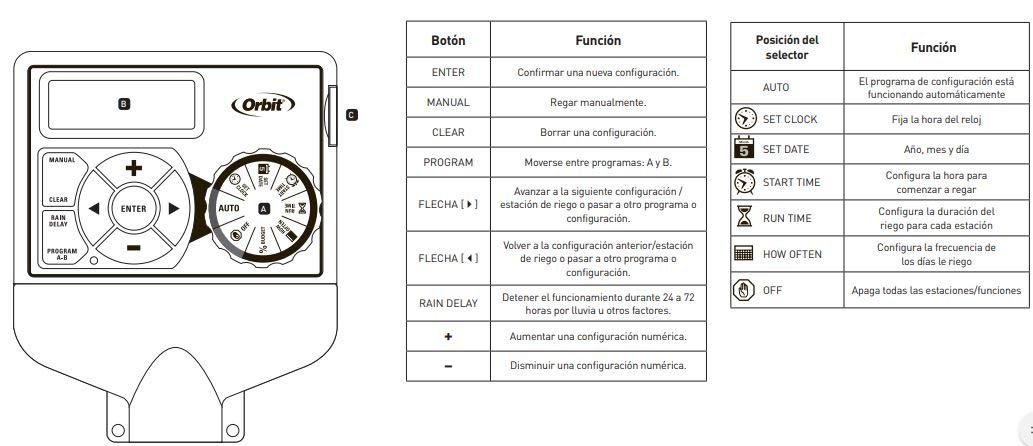
Figure 5.1: Close-up of the wiring terminal block. This image clearly shows the labeled terminals for 24VAC (power), SENSOR, COM (common), stations 1 through 6, and PUMP, along with the push-in connectors for tool-free wiring.
5.2 Connecting a Rain Sensor (Optional)
If you are installing a rain sensor (sold separately), connect its wires to the terminals labeled "SENSOR". Refer to your rain sensor's manual for specific wiring instructions. Ensure the rain sensor bypass switch on the programmer is set correctly.
5.3 Connecting a Pump Start Relay (Optional)
If your system requires a pump start relay (sold separately), connect its control wires to the terminal labeled "PUMP" and the common terminal. Consult the pump start relay's manual for detailed wiring instructions.

Figure 5.2: Example irrigation zone layout. This diagram illustrates how a property can be divided into six distinct watering zones, each controlled by a separate station on the programmer, optimizing water distribution.
6. Programming
The programmer uses Easy-Set Logic for straightforward programming. Use the rotary dial to select a programming mode and the directional buttons (+, -, arrows, ENTER) to adjust settings.

Figure 6.1: Control panel overview with button and dial functions. This diagram labels each button and rotary dial position, explaining its specific function for programming and manual operation.
6.1 Button Functions
| Button | Function |
|---|---|
| ENTER | Confirm a new setting. |
| MANUAL | Water manually. |
| CLEAR | Clear a setting. |
| PROGRAM A-B | Move between programs A and B. |
| Arrows (Left/Right) | Advance to the next setting/watering station or move to another program/setting. |
| Arrows (Up/Down) | Return to the previous setting/watering station or move to another program/setting. |
| RAIN DELAY | Stop operation for 24 to 72 hours due to rain or other factors. |
| + | Increase a numeric setting. |
| - | Decrease a numeric setting. |
6.2 Rotary Dial Positions
| Selector Position | Function |
|---|---|
| AUTO | The configured program is running automatically. |
| SET CLOCK | Sets the clock time. |
| SET DATE | Sets the year, month, and day. |
| START TIME | Sets the start time for watering. Up to 8 daily starts are available. |
| RUN TIME | Sets the watering duration for each station (1 to 240 minutes). |
| HOW OFTEN | Sets the frequency of watering days (e.g., specific days of the week, intervals of 1 to 28 days, or even/odd days). |
| OFF | Turns off all stations/functions. |
6.3 Basic Programming Steps
- Set Clock: Turn the dial to SET CLOCK. Use the + and - buttons to adjust the time, then ENTER to confirm.
- Set Date: Turn the dial to SET DATE. Use the + and - buttons to adjust the year, month, and day, then ENTER to confirm each.
- Set Start Times: Turn the dial to START TIME. Use the + and - buttons to set the desired start time(s) for watering. Press ENTER to confirm each start time. You can set up to 8 start times per program.
- Set Run Times: Turn the dial to RUN TIME. Use the arrow buttons to select the station (1-6). Use the + and - buttons to set the watering duration for that station (1 to 240 minutes). Press ENTER to confirm. Repeat for all active stations.
- Set How Often: Turn the dial to HOW OFTEN. Select your desired watering frequency: specific days of the week, interval days (1-28 days), or even/odd days. Use the + and - buttons and arrow buttons to make your selections, then ENTER to confirm.
- Activate Program: Turn the dial to AUTO. Your programmer will now operate according to your set schedule.
The programmer supports two independent programs (A and B). Use the PROGRAM A-B button to switch between and configure them separately.
7. Operation
7.1 Automatic Operation
Once programmed and the dial is set to AUTO, the programmer will automatically execute the watering schedules at the specified start times and durations.
7.2 Manual Watering
To manually water a station or all stations:
- Press the MANUAL button.
- Use the arrow buttons to select the desired station or 'ALL' for all stations.
- Use the + and - buttons to set the manual watering duration.
- Press ENTER to start manual watering. The programmer will return to AUTO mode after the manual cycle is complete.
7.3 Rain Delay
If rain is expected or has occurred, you can temporarily suspend watering:
- Press the RAIN DELAY button.
- Use the + or - buttons to select a delay of 24, 48, or 72 hours.
- Press ENTER to activate the rain delay. The programmer will resume its schedule automatically after the delay period.
7.4 Turning Off the System
To completely stop all watering and programming, turn the rotary dial to the OFF position.
8. Maintenance
8.1 Battery Replacement
The programmer uses a CR2032 lithium battery to maintain program memory during power outages. It is recommended to replace this battery annually.
- Locate the battery compartment on the back of the programmer.
- Open the compartment and remove the old CR2032 battery.
- Insert a new CR2032 battery, ensuring correct polarity.
- Close the battery compartment.
8.2 Cleaning
Wipe the programmer's exterior with a soft, damp cloth. Do not use abrasive cleaners or immerse the unit in water.
9. Troubleshooting
| Problem | Possible Cause | Solution |
|---|---|---|
| Display is blank. | No power to the unit. | Check if the transformer is plugged into a live outlet. Ensure the transformer is properly connected to the programmer's 24VAC terminals. |
| Stations do not water. | Program not set or dial is in OFF position. Wiring issue. Rain sensor activated. | Ensure the dial is set to AUTO. Verify programming (start times, run times, how often). Check all wiring connections, especially common and station wires. Check if the rain sensor is wet or activated; bypass it if necessary. |
| Only some stations water. | Faulty valve or wiring to specific station. | Check wiring for the non-watering stations. Test the solenoid valve for the affected station. |
| Program lost after power outage. | CR2032 backup battery is dead or missing. | Replace the CR2032 lithium battery. |
| Watering runs continuously. | Stuck valve or electrical short. | Turn the dial to OFF. Inspect the valve for debris or damage. Check for shorts in the wiring. |
10. Specifications
- Model Number: 94886
- Brand: Orbit
- Type: Indoor Irrigation Programmer
- Number of Stations: 6
- Power Input: 120V AC, 60Hz (via external transformer)
- Power Output to Valves: 24V AC
- Backup Battery: 1 x CR2032 Lithium (included)
- Watering Duration: 1 to 240 minutes per station
- Start Times: Up to 8 per day, per program
- Watering Frequency: Specific days of the week, 1-28 day intervals, even/odd days
- Rain Delay: 24, 48, or 72 hours
- Material: Plastic
- Color: Grey
- Product Dimensions: Approximately 5.75" L x 2.44" W x 9.25" H (14.6 cm L x 6.2 cm W x 23.5 cm H)
- Weight: Approximately 1.54 Pounds (0.7 kg)
- Features: Easy-Set Logic, Large LCD Display, Automatic Circuit Breaker (no fuse), Tool-free wire terminals, Connection for rain sensor and pump start relay (accessories sold separately).
11. Warranty and Support
For warranty information and technical support, please refer to the official Orbit website or contact Orbit customer service directly. Keep your purchase receipt as proof of purchase for any warranty claims.
Orbit Customer Service: Please visit www.orbitonline.com/support for contact details and further assistance.


