1. Introduction
The Yealink RoomPanel is a dedicated Microsoft Teams device designed for efficient room scheduling and management. This compact touchscreen device is typically mounted outside meeting spaces to display meeting details scheduled via Microsoft Teams or Outlook 365 calendaring applications. It also allows for on-the-spot room reservations and indicates the current room status, streamlining meeting room utilization.
2. Setup and Installation
Follow these steps to properly set up and install your Yealink RoomPanel:
- Unpack the Device: Carefully remove the RoomPanel and all accessories from the packaging. Verify that the USB cable is included.
- Choose a Mounting Location: Select a suitable location outside your meeting room. The device supports various mounting options for different surfaces.
- Mounting Options: The RoomPanel can be installed using either a Parallel Mount Kit or an Angled Mount Kit, depending on your preference and visibility requirements. It is compatible with glass, wood, and concrete walls.
- Power Connection (PoE): The device supports Power over Ethernet (PoE). Connect an Ethernet cable from a PoE-enabled switch or injector to the RoomPanel's Ethernet port. This single cable provides both power and network connectivity.
- Initial Configuration: Once powered on, the device will boot up. Follow the on-screen prompts to connect to your network and configure it with your Microsoft Teams or Outlook 365 account.
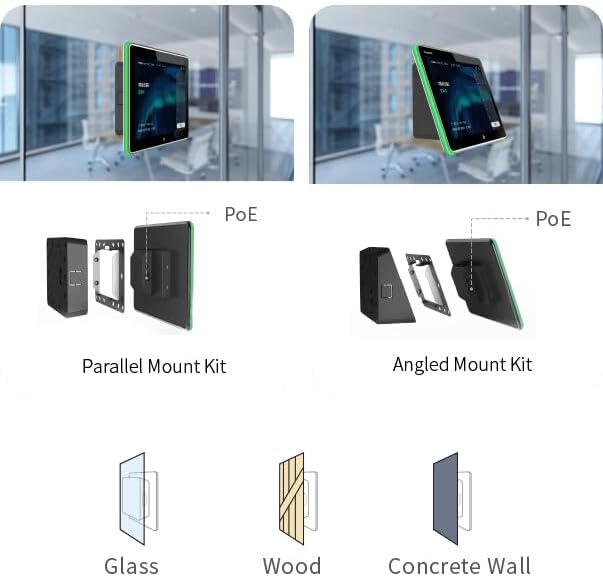
Figure 2.1: Mounting options for the Yealink RoomPanel, illustrating parallel and angled kits suitable for various wall materials like glass, wood, and concrete, with Power over Ethernet (PoE) connectivity.
3. Operating the RoomPanel
The Yealink RoomPanel provides an intuitive touch interface for managing your meeting spaces.
3.1 Displaying Meeting Information
The main screen displays the current room status and upcoming meeting schedules. This information is synchronized with your Microsoft Teams or Outlook 365 calendar.

Figure 3.1: The RoomPanel screen showing a meeting schedule for "Zoom Room1" with current time and upcoming meeting entries.
3.2 Reserving a Room
If a room is available, you can reserve it directly from the RoomPanel. Tap the "Reserve" button on the screen to book the room for an immediate meeting or schedule a future one.

Figure 3.2: The RoomPanel indicating "Conference Room 1026" is occupied, with options to extend or end the current meeting.
3.3 Room Status Indicators
The RoomPanel clearly indicates the room's current status using visual cues and text:
- Available: The room is free and can be reserved.
- In Meeting: The room is currently occupied.
- Meeting Soon: A meeting is scheduled to start shortly.

Figure 3.3: Visual representation of room statuses: Available (green), In Meeting (red), and Meeting Soon (orange) on multiple RoomPanels.
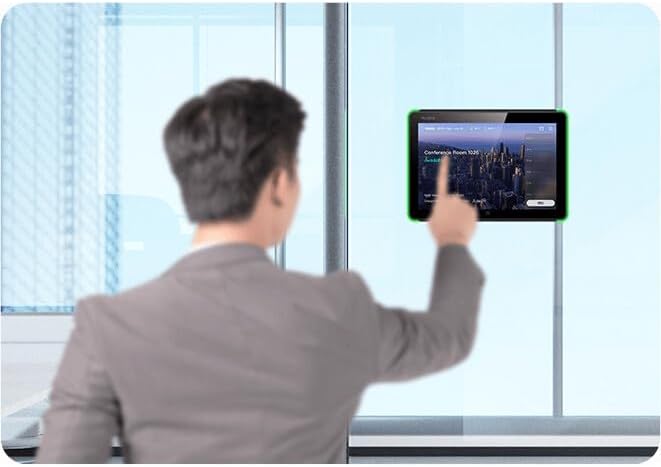
Figure 3.4: User interacting with the RoomPanel's touch screen interface.
4. Maintenance
To ensure optimal performance and longevity of your Yealink RoomPanel, consider the following maintenance guidelines:
- Cleaning: Gently wipe the touchscreen with a soft, lint-free cloth. For stubborn smudges, use a screen-safe cleaning solution applied to the cloth, not directly to the screen. Avoid abrasive materials or harsh chemicals.
- Software Updates: Regularly check for and install firmware updates provided by Yealink. These updates often include performance improvements, new features, and security enhancements. Refer to the device's settings or your IT administrator for update procedures.
- Environmental Conditions: Ensure the device is operated within its specified temperature and humidity ranges to prevent damage. Avoid direct sunlight or extreme temperatures.
5. Troubleshooting
If you encounter issues with your Yealink RoomPanel, try the following troubleshooting steps:
- Device Not Powering On:
- Verify the Ethernet cable is securely connected to both the RoomPanel and the PoE switch/injector.
- Ensure the PoE switch/injector is powered on and functioning correctly.
- No Network Connectivity:
- Check the Ethernet cable for damage.
- Confirm network settings on the device are correct (IP address, DNS).
- Restart the RoomPanel and the network switch.
- Screen Unresponsive:
- Perform a soft reboot by disconnecting and reconnecting the power (Ethernet cable).
- If the issue persists, contact technical support.
- Meeting Information Not Syncing:
- Verify the device has active network connectivity.
- Check the configured Microsoft Teams or Outlook 365 account credentials.
- Ensure the calendar service is operational.
6. Specifications
| Brand | Yealink |
| Model Number | 1303110 |
| Item Weight | 1.19 pounds |
| Product Dimensions | 5.91 x 8.27 x 0.79 inches |
| Color | Black |
| Screen Size | 8 Inches |
| Video Capture Resolution | 1080p |
| Connectivity Technology | Bluetooth, Fast Ethernet (PoE) |
| Special Features | Low Light |
| Photo Sensor Technology | BSI MOS or BSI CMOS |
| Maximum Focal Length | 1 |
| Maximum Aperture | 2.8 Millimeters |
| Flash Memory Type | SD |
| Video Capture Format | MP4 |
| Supported Audio Format | [At least MP4] |
| ASIN | B09CDVY9Q |
| Date First Available | April 19, 2022 |
Note: Some specifications related to camera features (e.g., Photo Sensor Technology, Video Capture Resolution, Focal Length, Aperture, Flash Memory Type, Video Capture Format, Supported Audio Format, Special Features: Low Light) are listed in the product data. While the RoomPanel is primarily a scheduling device, these may refer to integrated components or general platform capabilities.
7. Warranty Information
For detailed warranty information regarding your Yealink RoomPanel (Model: 1303110), please refer to the official Yealink website or the warranty card included with your product. Warranty terms and conditions may vary by region and retailer.
8. Technical Support
If you require technical assistance or have questions not covered in this manual, please contact Yealink customer support through their official website. You may need your product model number (1303110) and serial number for support inquiries.
Visit the official Yealink website for support resources: Yealink Support