
1. Introduction
Thank you for choosing the PINKCAT Wireless Keyboard and Mouse Combo, Model KF002. This product provides a reliable 2.4G wireless connection, offering a full-size, compact keyboard and a quiet, ergonomic mouse. This manual will guide you through the setup, operation, maintenance, and troubleshooting of your new device.

Image 1.1: The PINKCAT Wireless Keyboard and Mouse Combo, featuring the full-size keyboard, ergonomic mouse, and the compact USB receiver.
2. Package Contents
- Wireless Keyboard (Model KF002)
- Wireless Mouse
- USB 2.4G Receiver (typically stored in the mouse or keyboard battery compartment)
- User Manual (this document)
Note: 2x AAA batteries for the keyboard and 1x AA battery for the mouse are required and not included in the package.
3. Setup Instructions
3.1 Battery Installation
- For the Keyboard: Locate the battery compartment on the underside of the keyboard. Open the cover and insert two (2) AAA batteries, ensuring correct polarity (+/-). Close the cover.
- For the Mouse: Locate the battery compartment on the underside of the mouse. Open the cover and insert one (1) AA battery, ensuring correct polarity (+/-). Close the cover.
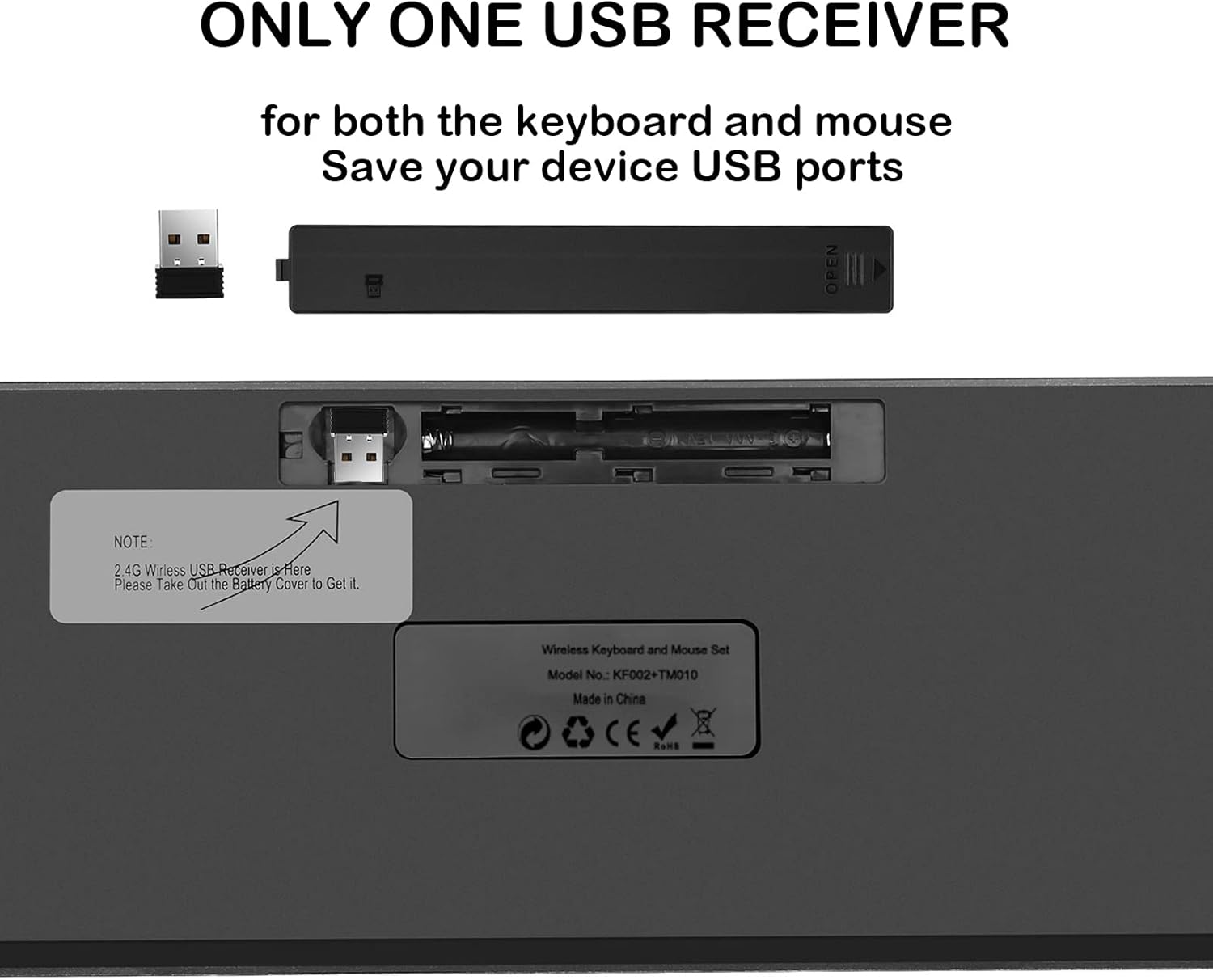
Image 3.1: The underside of the keyboard showing the battery compartment and the storage slot for the USB receiver.
3.2 Connecting the USB Receiver
- The 2.4G USB receiver is typically stored in the battery compartment of the keyboard or mouse for safe transport. Gently remove it.
- Insert the USB receiver into an available USB port on your computer, laptop, or compatible device.
- Turn on the keyboard and mouse using their respective power switches. The power switch for the keyboard is located on the top right edge. The mouse typically has a switch on its underside.
- Your operating system should automatically detect and install the necessary drivers. The keyboard and mouse are designed for plug-and-play functionality.
The mouse and keyboard share a single USB receiver, conserving USB ports on your device.
4. Operating Instructions
4.1 Keyboard Functions
- Full-Size Layout: The keyboard features a 99-key US QWERTY layout, including a numeric keypad for efficient data entry.
- Scissor-Switch Keys: Designed for a softer, quieter, and more responsive typing experience.
- Indicator Lights: The keyboard includes indicators for NUM Lock, CAPS Lock, and Power status, located above the numeric keypad.
- Multimedia Shortcuts: Access various functions quickly using the Fn key in combination with the F1-F12 keys.

Image 4.1: Illustration of the keyboard's multimedia shortcut keys (Fn + F1-F12) for quick access to functions like volume control, media playback, and email.
| Key Combination | Function |
|---|---|
| Fn + F1 | Mute |
| Fn + F2 | Volume Down |
| Fn + F3 | Volume Up |
| Fn + F4 | Previous Track |
| Fn + F5 | Play/Pause |
| Fn + F6 | Next Track |
| Fn + F7 | Home Page |
| Fn + F8 | Search |
| Fn + F9 | |
| Fn + F10 | My Computer |
| Fn + F11 | Lock Screen |
| Fn + F12 | Calculator |
4.2 Mouse Functions
- Silent Clicks: The mouse is designed to produce minimal click noise, suitable for quiet environments.
- Adjustable DPI: Cycle through three DPI levels (800/1200/1600) by pressing the DPI button, usually located behind the scroll wheel. This allows you to adjust cursor sensitivity to your preference.
- Ergonomic Design: The mouse features a contoured shape for comfortable use over extended periods.

Image 4.2: Close-up view highlighting the scissor-switch mechanism of the keyboard keys and the silent click feature of the mouse.
4.3 Smart Sleep Mode
To conserve battery life, both the keyboard and mouse will automatically enter a sleep mode after 10-15 minutes of inactivity. To reactivate the devices, simply press any key on the keyboard or move/click the mouse. They will wake up within 3 seconds.
4.4 Compatibility
The PINKCAT Wireless Keyboard and Mouse Combo is compatible with a wide range of operating systems, including:
- Windows (PC, Desktop, Laptop)
- macOS (Mac, Notebook)
- Linux
- iOS
- Android
5. Maintenance
5.1 Cleaning
- Ensure both devices are powered off before cleaning.
- Use a soft, lint-free cloth slightly dampened with water or a mild, non-abrasive cleaning solution.
- Avoid spraying liquids directly onto the devices.
- For keyboard keys, use compressed air to remove dust and debris from between the keys.
5.2 Battery Replacement
When the devices become unresponsive or the power indicator light (on the keyboard) flashes, it is time to replace the batteries. Follow the battery installation steps in Section 3.1. Always use fresh, high-quality batteries for optimal performance.
5.3 Storage
When not in use for extended periods, turn off both the keyboard and mouse to conserve battery life. Store the USB receiver in its designated slot within the battery compartment to prevent loss. Store the devices in a cool, dry place away from direct sunlight and extreme temperatures.
6. Troubleshooting
If you encounter issues with your PINKCAT Wireless Keyboard and Mouse Combo, please refer to the following common solutions:
- Devices Not Responding:
- Ensure both the keyboard and mouse are powered on.
- Check if the batteries are correctly installed and have sufficient charge. Replace them if necessary.
- Verify that the USB receiver is securely plugged into a working USB port on your computer. Try a different USB port.
- Move the keyboard and mouse closer to the USB receiver to rule out range issues (maximum range is 10 meters / 33 feet).
- Restart your computer.
- Mouse Lags or Jumps:
- Ensure the mouse is on a clean, non-reflective surface.
- Adjust the DPI setting of the mouse (see Section 4.2).
- Check for interference from other wireless devices.
- Replace the mouse battery.
- Specific Keys Not Working:
- Clean around the affected keys to remove any debris.
- Ensure the keyboard battery has sufficient charge.
- If the issue persists, try reconnecting the USB receiver.
If these steps do not resolve the issue, please contact PINKCAT customer service for further assistance.
7. Specifications
| Feature | Detail |
|---|---|
| Model Number | KF002 |
| Connectivity | 2.4G Wireless (USB Receiver) |
| Wireless Range | Up to 10 meters (33 feet) |
| Keyboard Layout | 99-key US QWERTY Full Size |
| Keyboard Dimensions | 14.5 x 5.8 x 0.2 inches (thinnest part) / 17.3 x 5.3 x 0.98 inches (overall) |
| Keyboard Battery | 2 x AAA (not included) |
| Mouse DPI Levels | 800 / 1200 / 1600 |
| Mouse Dimensions | 4.3 x 2.4 x 1 inches |
| Mouse Battery | 1 x AA (not included) |
| Item Weight | 1.36 pounds (total combo) |
| Special Features | Ergonomic design, Silent clicks, Smart sleep mode, Multimedia shortcuts |
| Compatibility | Windows, MacOS, Linux, iOS, Android |

Image 7.1: Detailed dimensions of the PINKCAT KF002 keyboard and mouse.
8. Warranty and Support
PINKCAT provides professional customer service. If you encounter any problems during the use of your Wireless Keyboard and Mouse Combo, please contact us directly via Amazon email. Our support team is available to provide a satisfactory solution.
Please refer to your purchase documentation for specific warranty terms and conditions.