Introduction
This manual provides instructions for the setup, operation, maintenance, and troubleshooting of your Xerox C235DNI Color All-In-One Laser Printer. Please read this manual thoroughly before using the device to ensure proper functionality and to prevent damage.

Figure 1: Front view of the Xerox C235DNI Color All-In-One Laser Printer.
1. Setup
1.1 Unpacking and Initial Placement
Carefully remove the printer from its packaging. Ensure all packing materials and protective tapes are removed. The package includes the printer, starter toner cartridges, a power cord, and instructions.

Figure 2: Dimensions of the Xerox C235DNI printer (15.5"D x 16.2"W x 13.6"H, 35 lbs).
For optimal placement, consider using the augmented reality tool to visualize the printer in your space:
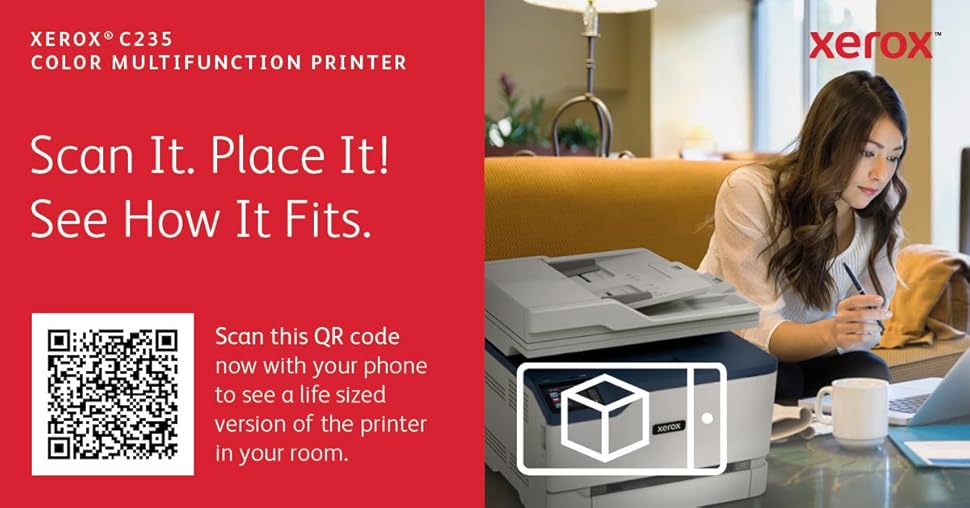
Figure 3: Scan the QR code to access the augmented reality tool for printer placement. Access the AR tool here.
1.2 Software Installation
The Xerox C235DNI features easy setup with Xerox Smart Start Software. This software simplifies the installation process, often without requiring local IT support.
- Connect the printer to a power source and turn it on.
- Follow the on-screen instructions on the printer's 2.4-inch color touchscreen user interface.
- Download the Xerox Smart Start Software from the official Xerox support website to your computer.
- Run the installer and follow the prompts to connect your printer to your network (wired or wireless).

Figure 4: The printer supports standard Wi-Fi connectivity for flexible placement.
The printer supports built-in Wi-Fi, Apple AirPrint, Mopria Print Service, and Chromebook compatibility for convenient mobile printing.

Figure 5: Print from various devices using Apple AirPrint, Mopria, and Wi-Fi Direct.
2. Operating the Printer
2.1 Control Panel Overview
The printer features a 2.4-inch color touchscreen user interface for easy navigation and control of functions such as copying, scanning, and emailing.

Figure 6: The 2.4-inch color touchscreen control panel.
2.2 Printing Documents
The Xerox C235DNI offers print speeds up to 24 Letter pages per minute (22 A4 pages per minute) and supports automatic two-sided printing on letter and legal size paper. The standard paper capacity is 250 sheets.
- Loading Paper: Open the paper tray and load paper, adjusting the guides to fit the paper size.
- Sending Print Jobs: From your computer or mobile device, select the Xerox C235DNI as your printer. Adjust print settings as needed (e.g., color, duplex, paper type) and send the print job.

Figure 7: The Xerox C235DNI delivers spectacular image quality for all your printing needs.
Utilize Xerox Print Drivers for simplified printing from laptop and desktop devices.

Figure 8: Xerox Print Drivers simplify the printing experience.
2.3 Scanning and Copying
The printer includes a 50-sheet automatic document feeder (ADF) for efficient scanning and copying of multiple pages. The Xerox Print & Scan Experience software (for Windows 10) streamlines scanning tasks, including features like auto-straighten, receipt scanning, and auto-cropping images.
- Scanning: Place documents in the ADF or on the flatbed scanner. Select the scan function from the control panel or your computer software. Choose scan settings (e.g., destination, file type, resolution) and initiate the scan.
- Copying: Place documents in the ADF or on the flatbed scanner. Select the copy function from the control panel. Adjust copy settings (e.g., number of copies, color/mono, duplex) and start copying.

Figure 9: The Xerox Print & Scan Experience enhances scanning functionality.
Optional Xerox Workflow Central services can further enhance document processing, allowing for translation, summarization, redaction, and conversion of documents into various formats.

Figure 10: Xerox Workflow Central offers advanced document processing capabilities.
3. Maintenance
3.1 Toner Cartridge Replacement
The Xerox C235DNI uses four toner cartridges: black, cyan, magenta, and yellow. The printer ships with starter toners rated for approximately 500 pages. Standard capacity toners are typically rated for 1500 pages, and high-capacity toners for 2500-3000 pages.
- When a toner cartridge is low, a message will appear on the control panel.
- Open the front cover of the printer.
- Carefully remove the empty toner cartridge by pulling it out.
- Unpack the new genuine Xerox toner cartridge and shake it gently to distribute the toner.
- Insert the new cartridge into the corresponding slot until it clicks into place.
- Close the front cover.

Figure 11: For optimal performance and vibrant results, use genuine Xerox toner cartridges.
3.2 Environmental Responsibility
Xerox is committed to environmental sustainability. The C235DNI meets EPEAT certification criteria for design, production, energy use, and recycling. The Green World Alliance program facilitates hassle-free recycling of used toner cartridges.

Figure 12: Participate in the Green World Alliance program for easy toner cartridge recycling.
4. Security Features
The Xerox C235DNI incorporates comprehensive security features designed to protect against cyber threats. These features safeguard access to the device and protect sensitive data and documents processed through the printer.

Figure 13: Comprehensive security features protect your data and network.
Regularly update printer firmware and use strong network passwords to maintain optimal security.
5. Troubleshooting
This section provides general guidance for common issues. For detailed troubleshooting steps, refer to the official Xerox support website or contact customer service.
- Printer Not Responding:
- Check power connections and ensure the printer is turned on.
- Verify network connectivity (Wi-Fi or Ethernet).
- Restart the printer and your computer.
- Ensure printer drivers are correctly installed and updated.
- Print Quality Issues:
- Check toner levels and replace any low cartridges.
- Perform a print head cleaning or calibration from the printer's control panel or software.
- Ensure you are using genuine Xerox toner.
- Paper Jams:
- Follow the on-screen instructions to locate and clear the paper jam.
- Ensure paper is loaded correctly and not overfilled.
- Use appropriate paper types and sizes.
- Scanning Problems:
- Ensure the scanner lid or ADF is properly closed.
- Verify that the scanning software is correctly configured and connected to the printer.
- Clean the scanner glass and ADF rollers if scans appear dirty or streaky.
6. Specifications
| Feature | Detail |
|---|---|
| Product Dimensions | 15.5"D x 16.2"W x 13.6"H |
| Item Weight | 35 pounds (15.88 kg) |
| Connectivity Technology | Ethernet, USB, Wi-Fi, Wi-Fi Direct |
| Printing Technology | Laser (Color) |
| Functions | Print, Scan, Copy, Fax |
| Maximum Print Speed (Color) | 22 ppm (A4), 24 ppm (Letter) |
| Maximum Print Speed (Monochrome) | 22 ppm (A4), 24 ppm (Letter) |
| Duplex Printing | Automatic |
| Max Input Sheet Capacity | 250 sheets (standard tray) |
| Automatic Document Feeder (ADF) | 50 sheets |
| Scanner Type | Sheetfed |
| Max Copy Speed (Black & White) | 22 ppm |
| Control Method | Touch (2.4-inch color touchscreen) |
| Memory Storage Capacity | 512 MB |
| Recommended Monthly Print Volume | Up to 1,500 pages |
| Included Components | Printer, Starter Toners (500 sheets), Power Cord, Instructions |
| Model Number | C235DNI |
| UPC | 095205069334 |
7. Warranty and Support
7.1 Warranty Information
The Xerox C235DNI Color All-In-One Laser Printer comes with a one-year limited warranty. For specific terms and conditions, please refer to the warranty documentation included with your product or visit the official Xerox website.
7.2 Customer Support
For technical assistance, driver downloads, or further information, please visit the official Xerox support website or contact Xerox customer service. Keep your printer's model number (C235DNI) and serial number ready when contacting support.