
1. Introduction
The TAPWITHUS Tap Strap 2 is a wearable device that functions as a keyboard, mouse, and air gesture controller. It allows for intuitive input across various devices and operating systems through finger taps and hand movements. This manual provides instructions for setup, operation, maintenance, and troubleshooting to ensure optimal use of your Tap Strap 2.

Image: The Tap Strap 2 device comfortably worn on a user's hand, demonstrating its compact and ergonomic design.
2. Setup
2.1. Package Contents
Verify that your package contains the following items:
- Tap Strap 2 Wearable Controller
- USB-C Charging Cable
- Quick Start Guide (if included)
2.2. Charging the Device
Before initial use, fully charge your Tap Strap 2. Connect the provided USB-C charging cable to the charging port on the device and to a standard USB power source. A full charge takes approximately 2 hours.
2.3. Sizing and Wearing
Ensure the Tap Strap 2 fits correctly for optimal performance. The device is designed to be worn on either the right or left hand. Refer to the sizing guide to confirm the appropriate fit.

Image: A visual sizing guide illustrating how to measure finger width to determine the correct Tap Strap 2 size. The table shows measurements in millimeters and inches for Large, Small, and Too Small categories.
The Tap Strap 2 is ambidextrous, meaning it functions identically whether worn on the right or left hand.
2.4. Pairing via Bluetooth
The Tap Strap 2 connects wirelessly via Bluetooth 4.0 or higher. To pair your device:
- Ensure the Tap Strap 2 is charged and powered on.
- Activate Bluetooth on your host device (e.g., smartphone, tablet, PC, SmartTV, VR/AR/XR device).
- Search for available Bluetooth devices.
- Select "Tap Strap 2" from the list of discovered devices to initiate pairing.
- Follow any on-screen prompts to complete the pairing process.

Image: An illustration showing the broad compatibility of the Tap Strap 2 with various devices such as Laptops, Smart TVs, Smartphones, Tablets, VR headsets, and Projectors, across operating systems including Apple, Android, Windows, and Linux.
3. Operation
The Tap Strap 2 operates as a keyboard, mouse, and gesture controller. Its functionality relies on specific finger taps and hand movements.
3.1. Keyboard Mode
In keyboard mode, characters are input by tapping combinations of fingers on a surface. The device translates these taps into letters, numbers, and symbols. Learning the tap combinations is essential for efficient typing.
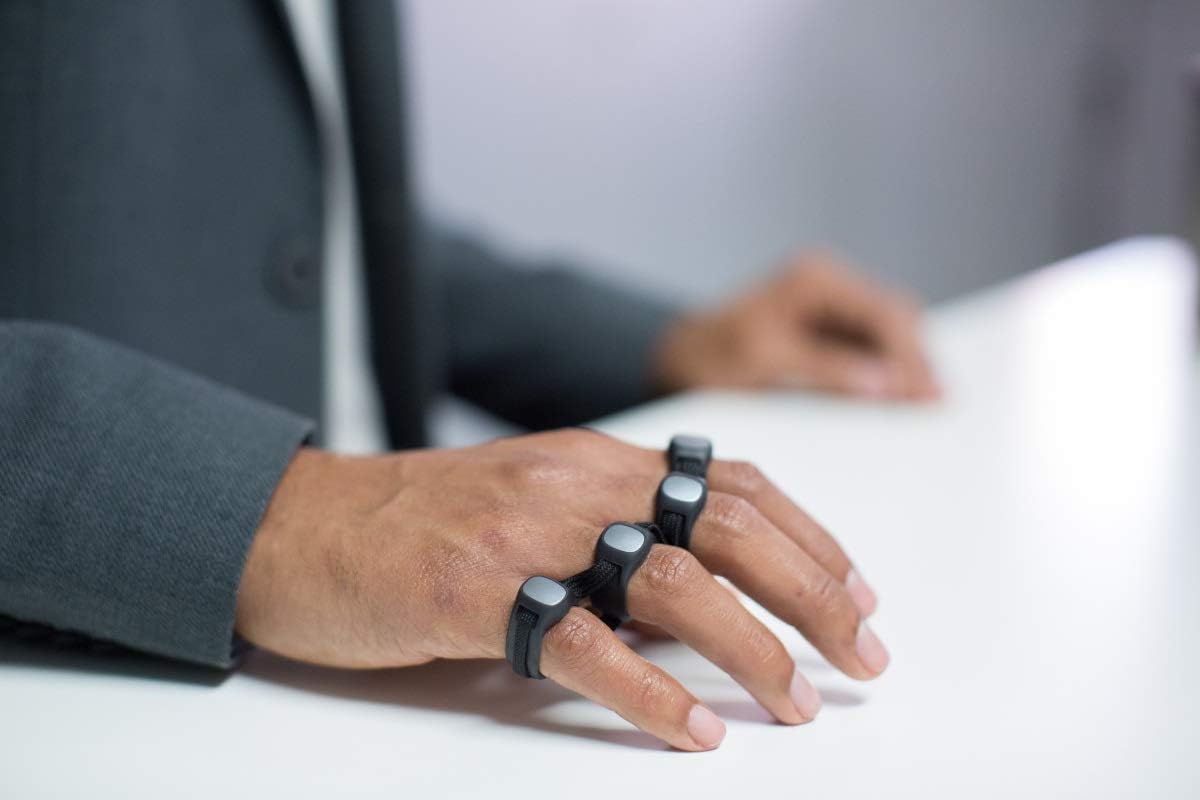
Image: A user's hand wearing the Tap Strap 2, resting on a white desk surface, demonstrating the typical posture for using the device as a keyboard or surface mouse.
3.2. Mouse Mode
The Tap Strap 2 features an optical mouse function. To activate mouse mode, perform the designated gesture (refer to the TapGenius app for specific gestures). Mouse movement is controlled by moving your hand on a flat surface, while clicks are performed by tapping fingers.
The device is equipped with 2 physical buttons, which may be used for specific functions or mode switching depending on customization.
3.3. Air Gesture Control
Beyond typing and surface mouse control, the Tap Strap 2 supports air gestures for navigation and interaction. These gestures allow for control without a physical surface, useful in environments like VR/AR/XR.

Image: A user wearing the Tap Strap 2, with their hand resting on their lap, illustrating a relaxed posture where air gestures could be utilized.
4. Customization and Learning
The Tap Strap 2 is highly customizable through dedicated applications. These tools enhance the user experience and facilitate learning.
4.1. TapMapper Tool
The TapMapper tool allows users to personalize their Tap Strap 2. You can customize tap combinations, create new TapMaps for different languages, games, or editing functions, and adjust settings to suit individual preferences.


Image: Icons for the TapMapper and Tap applications, which provide customization and control over the Tap Strap 2.
4.2. TapGenius and Tap Academy
To master typing and gesture control, utilize the TapGenius and Tap Academy applications. TapGenius offers interactive tutorials and exercises to help users learn tap combinations quickly. Tap Academy provides structured lessons and practice modules to improve speed and accuracy.


Image: Icons for the TapGenius and Tap Academy applications, designed to assist users in learning and mastering the Tap Strap 2's input methods.
5. Maintenance
5.1. Cleaning
To clean your Tap Strap 2, gently wipe it with a soft, damp cloth. Avoid using harsh chemicals or abrasive materials, as these can damage the device's thermoplastic polyurethane (TPU) material.
5.2. Storage
Store the Tap Strap 2 in a cool, dry place away from direct sunlight and extreme temperatures. When not in use for extended periods, ensure the device is fully charged before storage to preserve battery health.
6. Troubleshooting
- Device Not Powering On: Ensure the device is fully charged. Connect it to the USB-C charger for at least 30 minutes.
- Cannot Pair via Bluetooth:
- Verify Bluetooth is enabled on your host device.
- Ensure the Tap Strap 2 is in pairing mode (refer to the quick start guide for specific instructions).
- Move the Tap Strap 2 closer to the host device.
- Try restarting both the Tap Strap 2 and the host device.
- Inaccurate Typing/Mouse Control:
- Ensure the Tap Strap 2 is worn correctly and fits snugly.
- Practice with the TapGenius app to improve accuracy and learn tap combinations.
- For mouse control, ensure you are using a flat, consistent surface.
- Calibrate the device if an option is available in the companion app.
- App Connectivity Issues: If the companion app (TapMapper, TapGenius) frequently disconnects, try clearing the app's data or reinstalling it on your device. Ensure the app is updated to the latest version.
7. Specifications
| Feature | Detail |
|---|---|
| Model Number | 1 |
| Brand | TAPWITHUS |
| Connectivity | Bluetooth 4.0+ |
| Power Source | Battery Powered (1 Lithium Ion battery included) |
| Charging Port | USB-C |
| Charging Time | Approximately 2 hours for full charge |
| Hand Orientation | Ambidextrous |
| Material | Thermoplastic Polyurethane (TPU) |
| Color | Black |
| Item Weight | 10.2 ounces |
| Compatible Devices | Gaming Console, Laptop, Projector, Tablet, Television |
8. Warranty Information
For warranty details and terms of service, please refer to the official TAPWITHUS website or contact customer support. Keep your proof of purchase for warranty claims.
9. Customer Support
If you encounter any issues or have questions regarding your Tap Strap 2, please visit the TAPWITHUS support page or contact their customer service team for assistance. Support resources often include FAQs, troubleshooting guides, and contact information.
Official Brand Store: TAPWITHUS Store on Amazon


