1. Introduction
Thank you for choosing the HP M22f 21.5-inch Full HD IPS Monitor. This manual provides essential information for the safe and efficient use of your new display. Please read this manual thoroughly before operating the monitor and retain it for future reference.
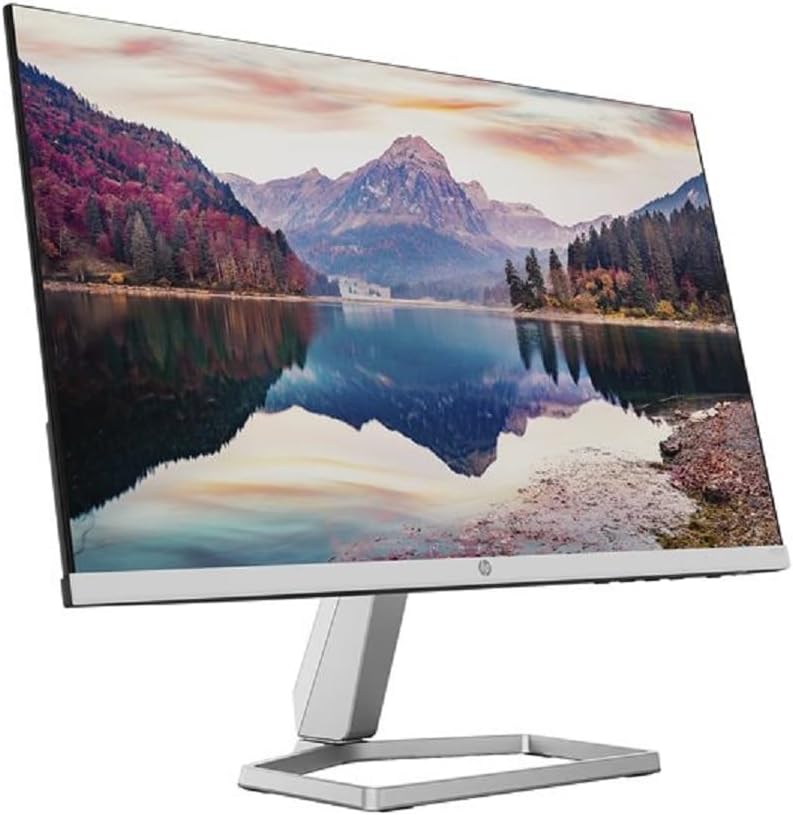
The HP M22f monitor is designed to deliver a vibrant visual experience with its Full HD (1920 x 1080) resolution and IPS technology, ensuring wide viewing angles and consistent color accuracy. With a 75 Hz refresh rate and 5 ms response time, it provides smooth visuals for everyday computing and entertainment.
Key features include:
- 21.5-inch Full HD (1920 x 1080) IPS display for crisp, clear images.
- 75 Hz refresh rate and 5 ms response time for smooth performance.
- VGA and HDMI 1.4 connectivity for versatile connections.
- Eyesafe technology for reduced blue light emission without compromising color quality.
- Micro-edge design for an expansive viewing area.
2. Safety Information
Always observe the following safety precautions to prevent injury or damage to your monitor.
2.1 General Safety
- Do not block ventilation openings.
- Do not use near water or moisture.
- Do not place on an unstable cart, stand, tripod, bracket, or table.
- Refer all servicing to qualified service personnel.
2.2 Electrical Safety
- Use only the power cord and adapter supplied with the monitor.
- Ensure the power outlet is properly grounded.
- Do not overload power strips or extension cords.
- Unplug the monitor during lightning storms or when unused for long periods.
2.3 Placement and Environment
- Place the monitor on a stable, flat surface.
- Avoid direct sunlight, heat sources, or extreme temperatures.
- Keep away from strong magnetic fields.
- Ensure adequate ventilation around the monitor.
3. Package Contents
Verify that all items are present in the package before proceeding with the setup.
- HP M22f 21.5-inch Monitor
- Monitor Stand (Base and Neck)
- Power Adapter and Power Cord
- HDMI Cable
- Documentation (Quick Setup Guide, Warranty Information)

4. Setup
4.1 Unpacking
Carefully remove all components from the packaging. Retain the packaging materials for future transport or storage.
4.2 Assembly
- Place the monitor screen face down on a soft, clean cloth to prevent scratches.
- Attach the stand neck to the back of the monitor by aligning the tabs and pushing until it clicks into place.
- Attach the stand base to the bottom of the stand neck. Secure it with the captive screw, if present, by turning it clockwise until tight.
4.3 Connecting the Monitor
Connect the monitor to your computer and power source.
- Connect one end of the HDMI cable (or VGA cable, if preferred) to the corresponding port on your computer's graphics card.
- Connect the other end of the HDMI cable (or VGA cable) to the HDMI IN (or VGA IN) port on the back of the HP M22f monitor.
- Connect the power adapter to the DC IN port on the monitor.
- Plug the power cord into the power adapter, and then plug the other end of the power cord into a grounded electrical outlet.
5. Operating Instructions
5.1 Powering On/Off
Press the power button located on the bottom right side of the monitor to turn it on or off. The power indicator light will illuminate when the monitor is on.
5.2 On-Screen Display (OSD) Menu
The OSD menu allows you to adjust various display settings. Use the buttons on the bottom right bezel of the monitor to navigate the menu.
- Menu Button: Opens the OSD menu.
- Navigation Buttons: Use to move through menu options and adjust values.
- OK/Select Button: Confirms a selection.
- Exit Button: Exits the current menu or OSD.
5.3 Adjusting Display Settings
Common OSD menu options include:
- Brightness/Contrast: Adjust the overall luminance and contrast ratio.
- Color Control: Modify color temperature, RGB levels, or select preset color modes.
- Input Control: Manually select the input source (HDMI, VGA).
- Image Control: Adjust sharpness, aspect ratio, and overscan.
- Management: Access information about the monitor, reset settings, or enable/disable DDC/CI.
- Language: Change the OSD menu language.
6. Maintenance
6.1 Cleaning the Monitor
To clean the monitor, follow these guidelines:
- Always unplug the monitor from the power outlet before cleaning.
- Use a soft, lint-free cloth lightly dampened with water or a non-abrasive screen cleaner.
- Do not spray cleaner directly onto the screen.
- Avoid using harsh chemicals, abrasive pads, or solvents.
6.2 Storage
If you need to store the monitor for an extended period:
- Disconnect all cables and the power cord.
- Pack the monitor in its original packaging if possible, or use suitable protective materials.
- Store in a cool, dry place away from direct sunlight and extreme temperatures.
7. Troubleshooting
This section addresses common issues you might encounter with your HP M22f monitor. If the problem persists after trying these solutions, contact HP customer support.
| Problem | Possible Cause | Solution |
|---|---|---|
| No image on screen | Monitor is not powered on. | Press the power button. Check if the power indicator light is on. |
| No image on screen | Video cable (HDMI/VGA) is not connected properly or is faulty. | Ensure the video cable is securely connected to both the monitor and the computer. Try a different cable if available. |
| No image on screen | Incorrect input source selected. | Use the OSD menu to select the correct input source (HDMI or VGA). |
| Image is blurry or distorted | Incorrect display resolution or refresh rate. | Set the computer's display resolution to 1920 x 1080 and refresh rate to 75 Hz. |
| Screen flickering | Interference or incorrect refresh rate. | Check for nearby electronic devices causing interference. Ensure refresh rate is set to 75 Hz. |
| Colors appear incorrect | Color settings are misconfigured. | Adjust color settings in the OSD menu or reset to factory defaults. |
8. Specifications
The following are the technical specifications for the HP M22f Monitor (Model: 2D9J9E9#ABB):
- Model Number: 2D9J9E9#ABB
- Display Size: 21.5 inches (54.6 cm)
- Panel Type: IPS
- Resolution: Full HD (1920 x 1080 pixels)
- Aspect Ratio: 16:9
- Refresh Rate: 75 Hz
- Response Time: 5 ms (GtG with Overdrive)
- Contrast Ratio: 1000:1 (Static)
- Connectivity: 1 x HDMI 1.4, 1 x VGA
- Special Features: Eyesafe Certified, Micro-edge bezel, Anti-glare
- Color: Silver/Black
- Manufacturer: HP
9. Warranty and Support
Your HP M22f monitor comes with a standard manufacturer's warranty. Please refer to the warranty card included in your package for specific terms and conditions, including the warranty period and coverage details.
For technical support, product inquiries, or warranty claims, please visit the official HP support website or contact HP customer service through the channels provided in your product documentation.
You can typically find support resources, drivers, and troubleshooting guides on the official HP support website: support.hp.com