
Introduction
Thank you for purchasing the AKATUO HI-04 Bluetooth Projector. This mini projector supports 1080P Full HD resolution and offers 7000 lumens of brightness, making it suitable for home cinema and outdoor movie experiences. This manual provides detailed instructions on setting up, operating, and maintaining your projector to ensure optimal performance and longevity.

Image: The AKATUO HI-04 projector, a compact white device, is shown alongside a projected image displaying logos of popular streaming services like Netflix, YouTube, Hulu, Prime Video, BBC iPlayer, and Twitch, indicating its multimedia capabilities. A "thumbs up" icon with a cable is also visible.
Safety Information
Please read all safety warnings and instructions before using this projector to prevent injury or damage. Keep this manual for future reference.
- Do not look directly into the projector lens when the lamp is on. The intense light can cause eye damage.
- Ensure proper ventilation. Do not block the ventilation openings on the projector.
- Do not place the projector on unstable surfaces.
- Protect the power cord from being walked on or pinched.
- Unplug the projector during lightning storms or when unused for long periods.
- Do not attempt to repair this product yourself. Refer all servicing to qualified service personnel.
- Avoid exposing the projector to rain, moisture, or extreme temperatures.
Package Contents
Verify that all items listed below are included in your package:
- AKATUO HI-04 Projector
- Remote Control (batteries not included)
- Power Cable
- HDMI Cable
- AV Cable (RCA)
- User Manual
Product Overview
Familiarize yourself with the projector's components and connection ports.

Image: A close-up view of the rear panel of the AKATUO HI-04 projector, highlighting its various input ports including HDMI, USB, and VGA, indicating its versatile connectivity options.
Input/Output Ports:
- HDMI: Connect to laptops, gaming consoles, Blu-ray players, TV sticks, etc.
- USB: Connect USB flash drives for media playback.
- VGA: Connect to computers or older devices.
- AV: Connect to older video devices using the included RCA cable.
- TF Card Slot: Insert a TF (MicroSD) card for media playback.
- Audio Out (3.5mm Jack): Connect external speakers or headphones.
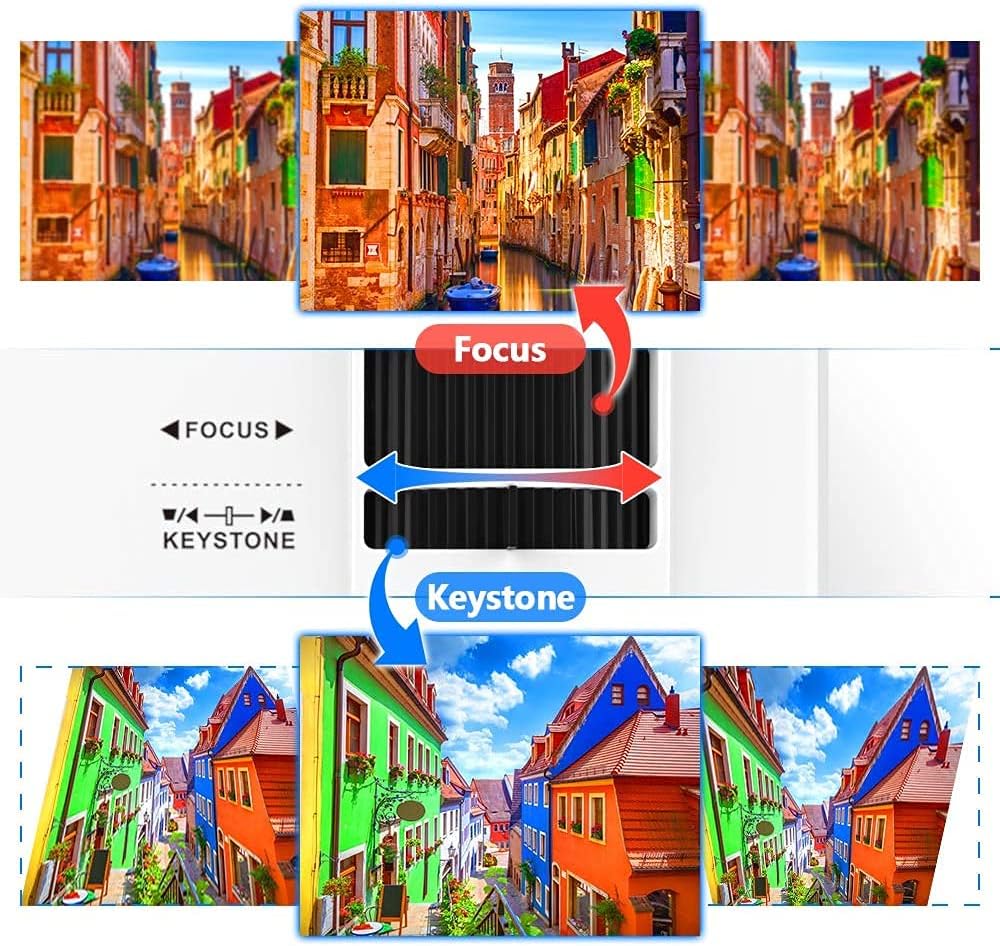
Image: A comprehensive diagram illustrating the multi-media connection capabilities of the AKATUO HI-04 projector. It shows the projector connecting to various devices such as USB flash drives, TF cards, external speakers, gaming consoles (PS4/Xbox), laptops, desktop PCs, and smartphones, emphasizing its broad compatibility.
Setup
1. Placement
Place the projector on a stable, flat surface. For optimal viewing, position the projector directly in front of the projection screen or a plain white wall. Ensure there is sufficient space around the projector for ventilation.
2. Power Connection
- Connect the power cable to the projector's power input port.
- Plug the other end of the power cable into a power outlet.
- The power indicator light on the projector will illuminate.
3. Focus and Keystone Adjustment
After powering on, adjust the image clarity and shape using the focus and keystone correction rings on the projector.

Image: A detailed view of the projector's top panel, highlighting the "Focus" and "Keystone" adjustment sliders. The image demonstrates how adjusting these controls can correct image blurriness and trapezoidal distortion, ensuring a clear and rectangular projection.
- Focus: Rotate the focus ring until the projected image appears sharp and clear.
- Keystone: If the projected image appears trapezoidal (wider at the top or bottom), adjust the keystone correction ring until the image is rectangular.
4. Connecting Devices
The AKATUO HI-04 projector offers multiple connectivity options:
- HDMI: Connect your device (e.g., laptop, game console, TV stick) to the projector's HDMI port using an HDMI cable.
- USB: Insert a USB flash drive into the USB port for direct media playback.
- VGA: Connect your computer to the VGA port using a VGA cable.
- AV: Use the provided AV cable to connect to devices with AV output.
- TF Card: Insert a TF (MicroSD) card into the designated slot.
- Bluetooth (for Audio Output): The projector supports Bluetooth for connecting to external Bluetooth speakers or headphones. Navigate to the Bluetooth settings in the projector's menu to pair your device.

Image: A diagram illustrating how to connect smartphones and tablets (both iOS and Android) to the AKATUO HI-04 projector using various adapters (HDMI, Lightning/Type-C/Micro USB to HDMI), emphasizing its compatibility with mobile devices.
Operating Instructions
1. Power On/Off
- Power On: Press the power button on the projector or the remote control.
- Power Off: Press the power button again. The projector will go into standby mode. Unplug the power cable for complete shutdown.
2. Menu Navigation
Use the navigation buttons on the projector or the remote control to browse the on-screen menu. The "OK" or "Enter" button confirms selections, and the "Return" or "Back" button goes back to the previous screen.
3. Input Source Selection
After connecting your device, select the correct input source from the projector's menu. Press the "Source" button on the remote control or navigate to the input selection option in the main menu.

Image: A scene depicting a group of people enthusiastically watching a football game projected onto a large screen, showcasing the immersive home entertainment experience provided by the AKATUO HI-04 projector.
4. Audio Output
The projector has built-in speakers. For enhanced audio, connect external speakers or headphones via the 3.5mm audio jack or pair Bluetooth speakers through the projector's Bluetooth settings.
Maintenance
Regular maintenance ensures the longevity and optimal performance of your projector.
1. Cleaning the Lens
- Use a soft, lint-free cloth specifically designed for optical lenses.
- Gently wipe the lens in a circular motion. Do not use abrasive cleaners or excessive force.
2. Dust Filter Cleaning
Check and clean the dust filter periodically to prevent overheating and maintain image quality. Refer to the projector's specific design for filter location and removal instructions.
3. Storage
When not in use, store the projector in a cool, dry place, away from direct sunlight and extreme temperatures. Use the original packaging or a protective case to prevent dust accumulation and physical damage.
Troubleshooting
| Problem | Possible Cause | Solution |
|---|---|---|
| No image projected | Power cable loose; Incorrect input source; Device not connected properly. | Check power connection; Select correct input source; Reconnect device cables. |
| Image is blurry | Focus not adjusted; Projector too far/close. | Adjust the focus ring; Adjust projection distance. |
| Image is trapezoidal | Keystone not adjusted; Projector not level. | Adjust the keystone correction; Ensure projector is on a level surface. |
| No sound | Volume too low; Incorrect audio output selected; External speakers not connected. | Increase volume; Check audio settings; Connect external speakers or headphones. |
| Remote control not working | Batteries dead/incorrectly inserted; Obstruction between remote and projector. | Replace batteries; Ensure clear line of sight to IR receiver. |
Specifications
Technical specifications for the AKATUO HI-04 Projector:
| Feature | Detail |
|---|---|
| Brand | AKATUO |
| Model Name | HI-04 |
| Brightness | 7000 Lumens |
| Display Technology | LCD |
| Native Resolution | 1920 x 1080 (Supports 1080P Full HD) |
| Connectivity Technology | HDMI, USB, VGA, AV, TF Card, Bluetooth (Audio Out) |
| Compatible Devices | Game Console, Laptop, Blu-ray Player, Media Player, Smartphone |
| Product Dimensions | 25.8 x 25 x 17.2 cm |
| Product Weight | 2.05 kg |
| Recommended Uses | Home Cinema, Video Games |

Image: A visual comparison highlighting the superior specifications of the AKATUO HI-04 projector (7000 Lux, 1080P Full HD, 5000:1 Contrast) against a generic "Other" projector (6500 Lux, 720P Native, 4000:1 Contrast), emphasizing its enhanced brightness and resolution.
Warranty and Support
AKATUO provides a standard warranty for this product. Please refer to the warranty card included in your package for specific terms and conditions. For technical support, troubleshooting assistance, or warranty claims, please contact AKATUO customer service through the contact information provided on the product packaging or our official website.
We are committed to providing high-quality products and excellent customer service. Your satisfaction is our priority.