
Introduction
This manual provides comprehensive instructions for the Xiaochen 1080P HD Webcam. It covers essential information regarding setup, operation, maintenance, and troubleshooting to ensure optimal performance and user experience.
The Xiaochen 1080P HD Webcam is designed to deliver high-definition video quality with a built-in microphone, making it suitable for various applications such as video calls, online teaching, live broadcasts, and conferences. Its rotatable design offers flexibility in positioning.

Image: Front view of the Xiaochen 1080P HD Webcam, showcasing its sleek black design and lens.
Setup Instructions
Package Contents
- 1 x Xiaochen 1080P HD Webcam
- 1 x English User Manual
Connecting the Webcam
The Xiaochen 1080P HD Webcam features a driverless, plug-and-play design, simplifying the installation process.
- Position the Webcam: Place the webcam securely on top of your monitor, laptop screen, or any flat surface. The integrated rotatable clip allows for stable and adjustable placement.
- Connect the USB Cable: Insert the USB 2.0 connector from the webcam into an available USB port on your computer (desktop or laptop).
- System Recognition: Your operating system (e.g., Windows, macOS, Linux, Android) should automatically detect and install the necessary drivers. Manual driver installation is typically not required.

Image: The webcam mounted on a laptop screen, illustrating its plug-and-play functionality.
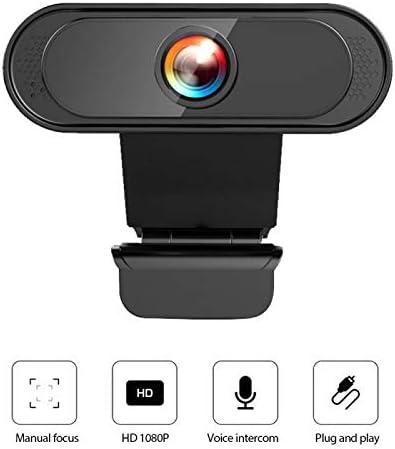
Image: Icons representing key features: manual focus, HD 1080P resolution, voice intercom (built-in microphone), and plug-and-play connectivity.
Operating the Webcam
Adjusting the Webcam Angle
The webcam features a 30-degree vertical rotation capability. You can manually adjust the camera head up or down to achieve the desired viewing angle for your video calls or recordings.
Using the Built-in Microphone
The integrated HD microphone provides clear audio capture. To ensure proper functionality, verify that your communication or recording software is configured to select the webcam's microphone as the primary audio input device.

Image: A diagram illustrating the webcam's external high-sensitivity noise reduction microphone feature, shown in a video conference setting.
Software Compatibility
The Xiaochen 1080P HD Webcam is compatible with a wide range of video conferencing, streaming, and recording applications. It supports mainstream computer operating systems and platforms.
- Operating Systems: Windows (XP, Vista, 7, 8, 10), macOS, Linux, Android
- Applications: Zoom, Skype, YouTube, Twitch, Facebook Live, OBS, and more.
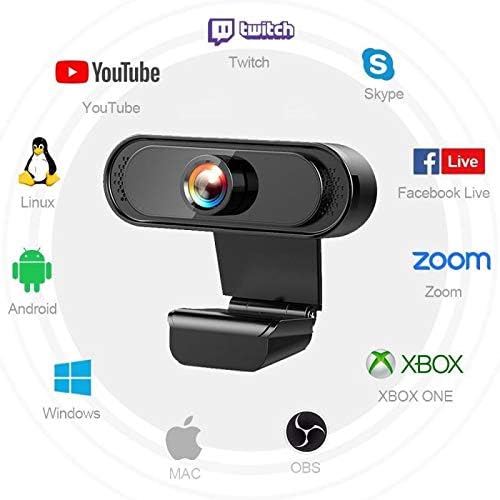
Image: A visual representation of the webcam's compatibility with popular platforms and operating systems, including Twitch, YouTube, Skype, Facebook Live, Zoom, Xbox, Linux, Android, Windows, Mac, and OBS.

Image: A collage depicting various scenarios where the webcam can be used, such as multi-person meetings, classroom teaching, video chats, and hotel check-ins.
Maintenance
Proper care and maintenance will help extend the lifespan and maintain the performance of your Xiaochen 1080P HD Webcam.
- Clean the Lens: Gently wipe the camera lens with a soft, lint-free cloth. Avoid using abrasive materials, harsh chemicals, or excessive pressure, which can scratch or damage the lens.
- Storage: When not in use, store the webcam in a clean, dry environment, away from direct sunlight, extreme temperatures, and high humidity.
- Handle with Care: Avoid dropping the webcam or subjecting it to strong impacts, as this can cause internal or external damage.
- Disconnect Safely: Always disconnect the USB cable by grasping the plug, not by pulling the cable itself, to prevent damage to the cable or port.
Troubleshooting
Webcam Not Detected
- Ensure the USB cable is securely connected to both the webcam and an active USB port on your computer.
- Try plugging the webcam into a different USB port on your computer.
- Restart your computer to refresh the system's device recognition.
- Check your operating system's Device Manager (Windows) or System Information (macOS) to confirm if the webcam is listed and recognized.
No Video Output
- Verify that the correct webcam device is selected within the settings of your video conferencing or recording software.
- Ensure no other application is currently accessing or using the webcam, which might prevent other programs from utilizing it.
- Check your operating system's privacy settings to ensure camera access is enabled for the applications you are using.
Poor Image Quality
- Clean the webcam lens as described in the Maintenance section.
- Ensure adequate lighting in your environment. The webcam performs optimally in well-lit conditions.
- If your software allows, confirm that the video resolution is set to 1080P for the highest quality output.
No Audio from Microphone
- Confirm that the webcam's microphone is selected as the audio input device in your software settings.
- Check your computer's sound settings to ensure the microphone is not muted and its input volume is set to an appropriate level.
Technical Specifications
| Feature | Detail |
|---|---|
| Model | 1080P |
| Image Sensor | CMOS |
| Video Resolution | 1080P (1920 x 1080) |
| Frame Rate | 30fps |
| Lens Type | Superior quality glass lens |
| Focus | Manual focus |
| Microphone | Built-in HD Microphone (External high sensitivity noise reduction MIC) |
| Connectivity | USB 2.0 |
| Driver | Driverless, Plug and Play |
| Rotation | Up & down 30 degrees |
| Auto Features | Auto white balance, Auto color correction |
| Cable Length | 150 cm |
| Item Weight | 1 Grams (approx. 0.035 ounces) |
| Manufacturer | Xiaochen |

Image: A visual comparison demonstrating the clarity of 1080P Full HD resolution versus 720P, highlighting the enhanced detail provided by 1080P.
Warranty and Support
Specific warranty information for the Xiaochen 1080P HD Webcam is not detailed within the provided product specifications. For warranty claims, technical assistance, or product support, please contact the retailer from whom you purchased the product or refer to the manufacturer's official support channels.
Please note that additional protection plans may be available for purchase separately from third-party providers, which are distinct from any manufacturer's warranty.