
Turonic PH950
Turonic PH950 Air Purifier and Humidifier Combo User Manual
Model: PH950
Introduction
This user manual provides detailed instructions for the safe and efficient operation, maintenance, and troubleshooting of your Turonic PH950 Air Purifier and Humidifier Combo. Please read this manual thoroughly before using the appliance and retain it for future reference.
The Turonic PH950 is designed to improve indoor air quality by combining advanced 8-stage air purification with humidification, suitable for large rooms up to 4200 sq ft. It features a True HEPA 13 filter, UV light, ionizer, smart auto mode, and Wi-Fi control for convenient operation.
Important Safety Instructions
- Always place the unit on a firm, level surface.
- Do not block air inlets or outlets.
- Unplug the appliance before cleaning or performing any maintenance.
- Keep out of reach of children and pets. The unit features a child safety lock.
- Do not operate with a damaged cord or plug.
- Refer to the full user guide for comprehensive safety information.
Setup
Unpacking and Initial Placement
Carefully remove the Turonic PH950 from its packaging. Ensure all packing materials are removed from the unit, especially around the filters and air vents. Place the unit on a stable, flat surface in the desired room, ensuring adequate space around it for optimal air circulation.

Figure 1: Turonic PH950 Air Purifier and Humidifier Combo. The unit is white with a grey top panel and a circular control display.
Filter Installation
Before first use, remove all protective packaging from the filters. The PH950 utilizes an 8-stage purification system. Open the filter compartment, typically located on the side or back of the unit, and insert the filters according to the markings. Ensure they are securely in place before closing the compartment.
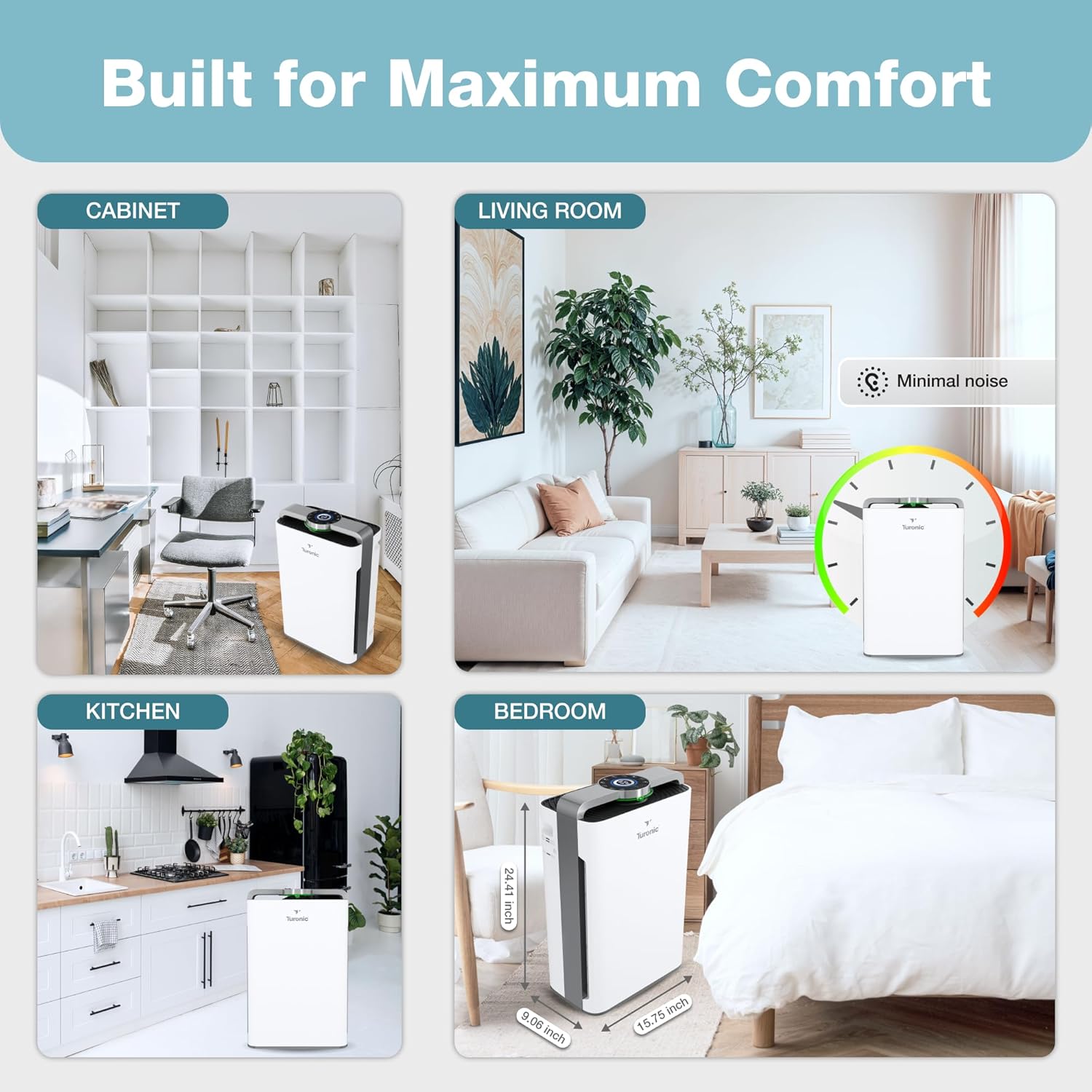
Figure 2: Diagram illustrating the 8-stage purification system, including Ionizer, HEPA 13, Cotton Filter, Activated Carbon, Cold Catalyst, Humidifying Filter, UV Light, and Water Cleaning Balls.
Filling the Water Tank (Humidifier Function)
Locate the water tank, usually at the bottom or side of the unit. Remove the tank, fill it with clean, cool tap water, and securely replace the cap. Insert the filled water tank back into the unit until it clicks into place. Do not overfill.
Operating Instructions
Control Panel and Remote Control
The Turonic PH950 can be operated via its intuitive touch control panel located on the top of the unit or using the included remote control. Both offer access to all functions.
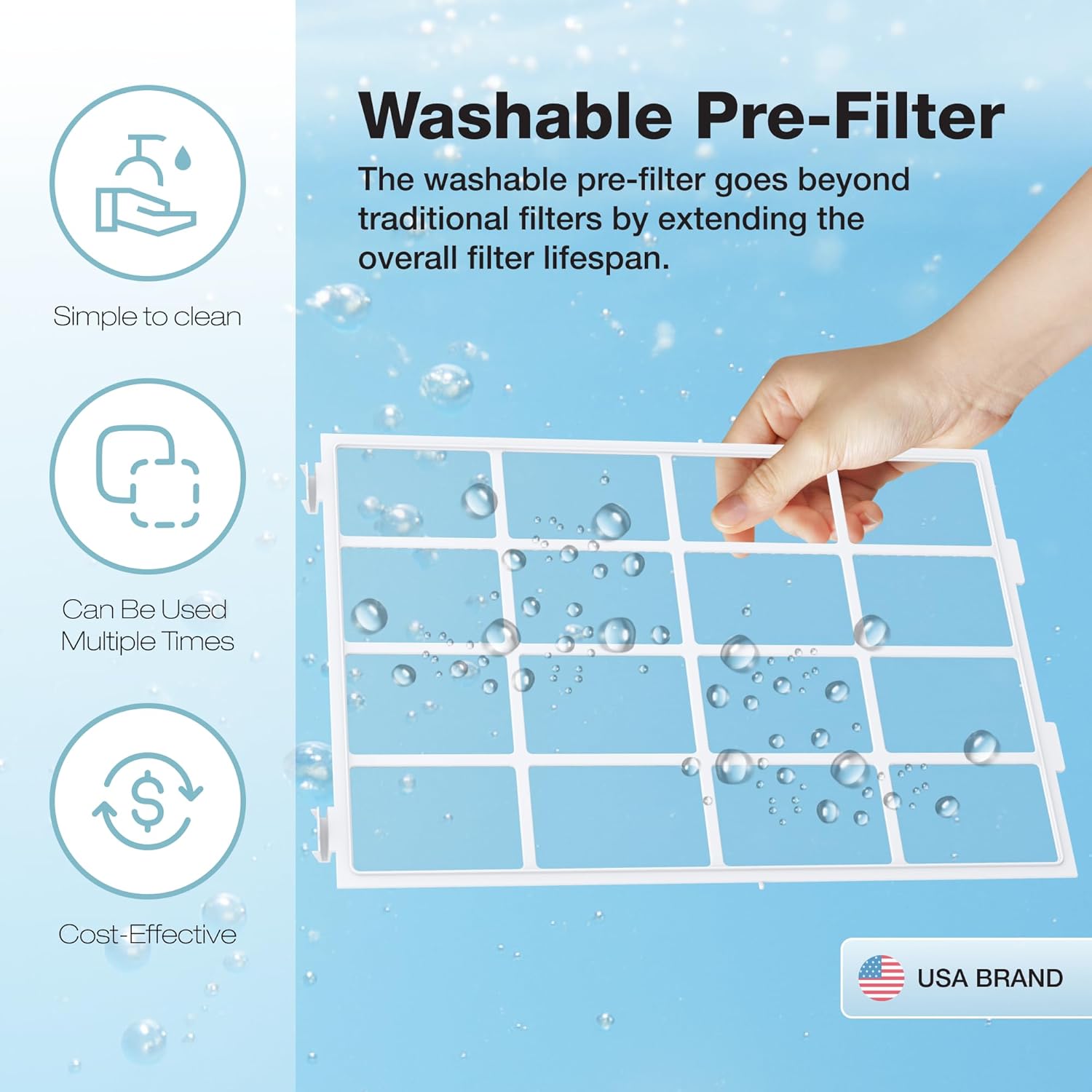
Figure 3: Detailed view of the control panel with touch buttons for UV, Ionizer, Timer, Auto, On/Off, Water Tank, Change Filter, Child Lock, Sleep, and Reset. A remote control is also shown.
Power On/Off
Press the On/Off button on the control panel or remote to power the unit on or off. The unit will typically start in Auto Mode.
Mode Selection
- Auto Mode: The unit automatically adjusts fan speed based on detected air quality. Air quality is indicated by a color-changing light (Green: Excellent, Blue: Good, Orange: Medium, Red: Poor).
- Sleep Mode: Reduces fan speed to the lowest setting (36 dB) and dims display lights for quiet operation during sleep. An ambient light sensor can automatically activate this mode in dark conditions.
- Manual Speed Control: Adjust fan speed from 1 to 8 levels using the speed control buttons.

Figure 4: The PH950 operates quietly in Sleep Mode, with noise levels as low as 36 dB, suitable for bedrooms.
Special Functions
- UV Light: Activates the UV-C lamp for enhanced sterilization.
- Ionizer: Releases negative ions to help capture airborne particles.
- Timer: Set the unit to operate for a specific duration (e.g., 1-12 hours) before automatically turning off.
- Child Lock: Press and hold the Child Lock button to disable the control panel, preventing accidental changes by children or pets. Repeat to unlock.

Figure 5: The Child Safety Lock feature prevents unintended operation by children or pets, ensuring safe use in family environments.
Wi-Fi Control
The Turonic PH950 supports Wi-Fi connectivity for remote control via a dedicated mobile application. Refer to the separate "User Guide (PDF)" document for detailed instructions on connecting your device to Wi-Fi and using the app features.
Maintenance
Regular maintenance ensures optimal performance and extends the lifespan of your air purifier and humidifier.
Filter Replacement and Cleaning
The unit features a filter health indicator. When the "Change Filter" light illuminates, it's time to inspect or replace the filters. The washable pre-filter can be cleaned with water and reused, extending the overall filter lifespan.
Figure 6: The control panel includes a "Change Filter" indicator to alert users when filter maintenance is required.

Figure 7: The washable pre-filter is designed for easy cleaning and multiple uses, contributing to cost-effectiveness and extended filter life.
Water Tank Cleaning
Regularly clean the water tank to prevent mineral buildup and maintain hygienic humidification. Use a soft brush and mild detergent, then rinse thoroughly. Ensure the tank is completely dry before refilling.
Exterior Cleaning
Wipe the exterior of the unit with a soft, damp cloth. Do not use abrasive cleaners or solvents.
Troubleshooting
| Problem | Possible Cause | Solution |
|---|---|---|
| Unit does not turn on. | Not plugged in; power outage; main power switch off. | Ensure the power cord is securely plugged into a working outlet. Check the main power switch. |
| No mist/humidification. | Water tank empty; water tank not properly installed; humidifying filter clogged. | Refill water tank. Reinstall water tank correctly. Clean or replace humidifying filter. |
| Weak airflow or poor purification. | Filters are dirty or clogged; air inlets/outlets blocked. | Clean or replace filters. Ensure no obstructions are blocking air vents. |
| Unusual noise. | Unit not on a level surface; foreign object in fan; filter not installed correctly. | Place unit on a flat, stable surface. Check for and remove any foreign objects. Reinstall filters properly. |
| Wi-Fi connection issues. | Incorrect Wi-Fi password; unit too far from router; app not updated. | Verify Wi-Fi password. Move unit closer to router. Update the mobile application. Refer to the separate User Guide for detailed Wi-Fi setup. |
If the problem persists after attempting these solutions, please contact Turonic Customer Support.
Specifications
| Feature | Detail |
|---|---|
| Model Number | PH950 |
| Brand | Turonic |
| Product Dimensions | 9.06"D x 15.75"W x 24.41"H |
| Weight | 23.6 Pounds |
| Coverage Area | Up to 4200 Sq Ft (in 2 hours) / 2100 Sq Ft (in 1 hour) |
| Noise Level | As low as 36 dB |
| Purification Stages | 8-Stage (True HEPA 13 Filter, UV Light, Ionizer, Cotton Filter, Activated Carbon, Cold Catalyst, Humidifying Filter, Water Cleaning Balls) |
| Power Consumption | 95 watts |
| Color | White |
| Control Options | Touch Panel, Wi-Fi App, Remote Control |
Warranty & Support
For warranty information, product registration, or technical support, please visit the official Turonic website or contact their customer service. You can also refer to the "User Manual (PDF)" or "User Guide (PDF)" available on the product page for more detailed information.
- Official Turonic Store: Visit the Turonic Store on Amazon
- User Manual (PDF): Download PDF
- User Guide (PDF): Download PDF
Statements regarding dietary supplements have not been evaluated by the FDA and are not intended to diagnose, treat, cure, or prevent any disease or health condition. This product is from a small business brand. Support small.
Product Videos
No official product videos from the seller are available for embedding in this manual.