1. Introduction
The JUWEIAT AT2630 is a versatile AC Ammeter Voltmeter Digital Wattmeter designed for comprehensive electrical parameter measurement. This intelligent device integrates multiple functions, including voltage, current, power, frequency, power factor, and energy consumption measurement, into a single unit. It supports wireless Bluetooth data transmission, allowing for convenient monitoring and analysis via dedicated applications on Apple iOS, Android, and PC computer systems. The AT2630 is engineered for high precision and is suitable for a wide range of applications, from production lines and laboratories to household electrical testing.

Figure 1: Front view of the JUWEIAT AT2630 device, showing the display screen, power switch, and universal test/output socket.
2. Product Features
- Multi-functional Measurement: Acts as a voltmeter, ammeter, power meter, frequency meter, power factor meter, electricity meter, carbon dioxide meter, and thermometer.
- Wide Measurement Range: Compatible with AC voltages from 50V to 300V and currents from 0 to 35A, supporting power measurements up to 10500W.
- Wireless Bluetooth Connectivity: Supports data transmission to iOS, Android, and PC applications for real-time monitoring, data logging, and analysis.
- 2.4-inch High-Definition Color Screen: Provides clear and comprehensive display of 12 major parameters simultaneously.
- Automatic Safety Monitoring: Features over-voltage, over-current, over-power, and low-voltage safety alarm prompts to protect connected electrical appliances.
- High Precision Technology: Utilizes advanced technology for accurate and reliable measurements.
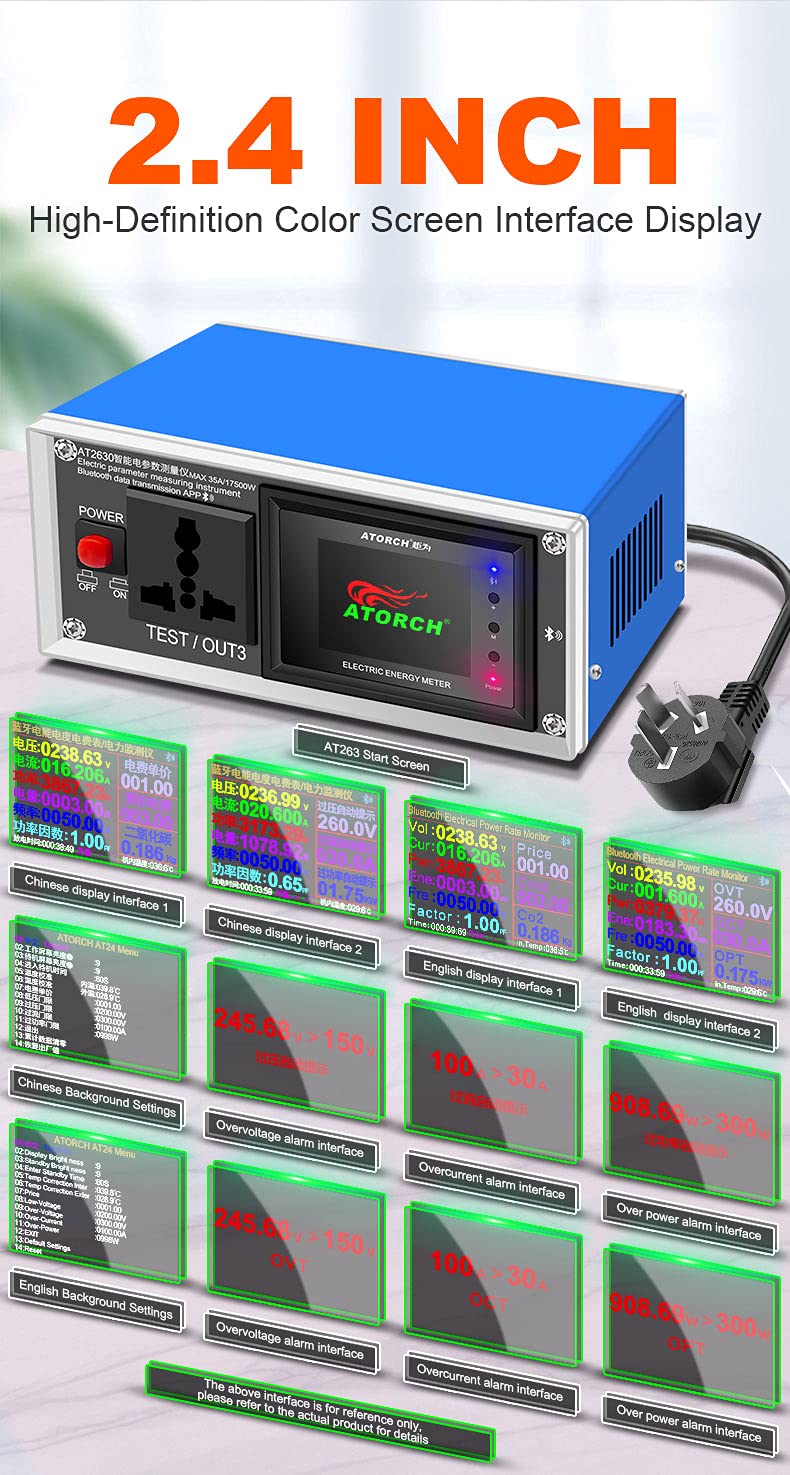
Figure 2: The 2.4-inch high-definition color screen displaying various measurement parameters and interface options.

Figure 3: Visual representation of the overvoltage, overcurrent, low voltage, and over power protection reminders.
3. Specifications
| Parameter | Value |
|---|---|
| Model Number | AT2630 |
| Product Dimensions (L x W x H) | 6.69 x 5.12 x 3.15 inches (170 x 130 x 80 mm) |
| Voltage Range | AC 50V - 300V |
| Current Range | 0 - 35A |
| Power Range | 0 - 10500W |
| Measurement Type | Ammeter, Multimeter, Voltmeter, Wattmeter, Frequency Meter, Power Factor Meter, Energy Meter, CO2 Meter, Thermometer |
| Power Source | Corded Electric |
| Connectivity | Wireless Bluetooth (iOS, Android, PC APP support) |
| Display | 2.4-inch High-Definition Color Screen |
| Timing Range | 999.99H |
| KWH Range | 9999.99KWH |
| Power Factor | 0.00-1.00PF |
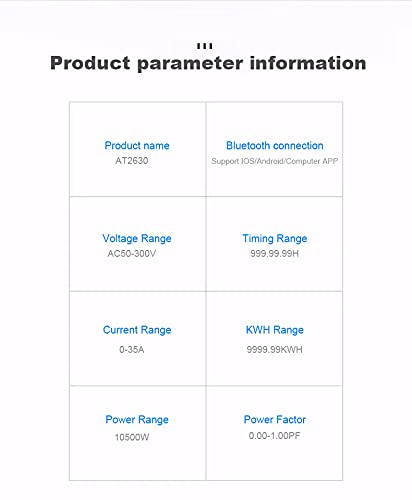
Figure 4: Detailed table of product parameters and ranges.

Figure 5: Diagram illustrating the physical dimensions of the AT2630 device.
4. Setup
4.1 Device Overview
Familiarize yourself with the various ports and controls on the AT2630. The device features a main power switch, a universal test/output socket on the front, and multiple input/output terminals on the rear for different connection scenarios.
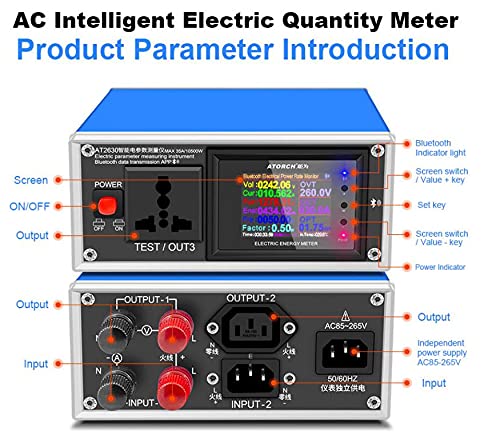
Figure 6: Labeled diagram showing the various components and ports of the AT2630, including the screen, buttons, and input/output terminals.
4.2 Power Connection
Connect the AT2630 to a standard AC power outlet using the provided power cord. Ensure the power switch on the front panel is in the "OFF" position before connecting any loads.
4.3 Connecting Devices for Measurement
The AT2630 supports various wiring configurations for testing. For direct plug-in appliances, use the front "TEST / OUT3" socket. For more complex setups or higher power devices, utilize the rear input/output terminals (INPUT-1, INPUT-2, OUTPUT-1, OUTPUT-2) as per the schematic diagram. Always ensure correct polarity and secure connections.

Figure 7: Schematic diagram illustrating various electrical wiring configurations for testing different types of appliances and circuits.
5. Operating Instructions
5.1 Powering On and Basic Measurement
- Connect the AT2630 to power and the device to be tested.
- Flip the "POWER" switch on the front panel to the "ON" position. The display screen will illuminate.
- The screen will automatically display real-time measurements for voltage, current, power, frequency, power factor, and other parameters.
5.2 Navigating the Display
Use the "Screen switch / Value + key" and "Screen switch / Value - key" buttons next to the display to cycle through different display interfaces or adjust settings. The 2.4-inch color screen can show various data views, including detailed parameter lists and alarm indicators.
5.3 Bluetooth Connectivity and APP Usage
The AT2630 supports wireless Bluetooth connection to dedicated applications on iOS, Android, and PC. This allows for advanced data monitoring, logging, and analysis.
- Download the APP: Search for the official JUWEIAT or ATORCH application on your device's app store (Apple App Store, Google Play Store) or the manufacturer's website for the PC software.
- Enable Bluetooth: Ensure Bluetooth is enabled on your smartphone or computer.
- Pairing: Open the AT2630 APP and follow the on-screen instructions to search for and connect to your AT2630 device via Bluetooth. The Bluetooth indicator light on the AT2630 will confirm connection.
- Data Monitoring: Once connected, you can view real-time data, historical curves, set alarm thresholds, and export data directly from the application.
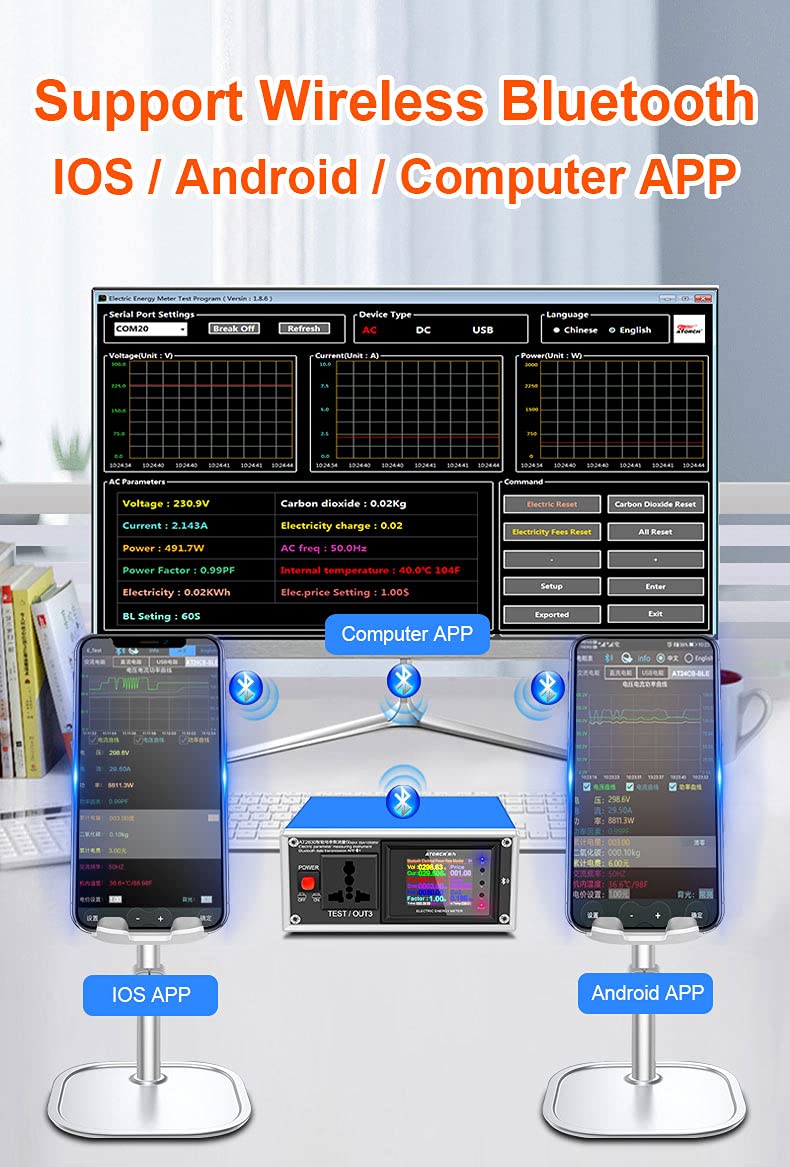
Figure 8: Illustration of the AT2630 connecting wirelessly to iOS, Android, and PC applications for data monitoring.
5.4 Practical Applications
The AT2630 can be used to test various household appliances and industrial equipment. Examples include monitoring the power consumption of water dispensers, microwave ovens, electric kettles, and other devices to understand their electrical characteristics and energy usage.

Figure 9: Examples of the AT2630 being used to measure the electrical parameters of common household appliances like a water dispenser, microwave oven, and electric kettle.
6. Safety Information
Always adhere to the following safety guidelines when operating the AT2630:
- Do not exceed the maximum specified voltage (AC 300V) or current (35A) ratings.
- Ensure all connections are secure before applying power. Loose connections can cause arcing or damage.
- Do not operate the device in wet or damp conditions.
- Avoid disassembling the device. Refer servicing to qualified personnel.
- The AT2630 features built-in over-voltage, over-current, over-power, and low-voltage protection alarms. Pay attention to these alerts and disconnect the load if an alarm is triggered to prevent damage to the appliance or the meter.
- Keep the device away from children.
7. Maintenance
To ensure the longevity and accurate performance of your AT2630:
- Clean the device regularly with a soft, dry cloth. Do not use abrasive cleaners or solvents.
- Store the device in a cool, dry place away from direct sunlight and extreme temperatures.
- Inspect the power cord and connection terminals periodically for any signs of damage.
8. Troubleshooting
If you encounter issues with your AT2630, refer to the following common problems and solutions:
| Problem | Possible Cause | Solution |
|---|---|---|
| Device does not power on. | No power supply; Power switch is OFF; Faulty power cord. | Ensure power cord is securely plugged into a live outlet. Turn the power switch to "ON". Check power cord for damage. |
| No readings on display. | No load connected; Incorrect wiring; Device malfunction. | Connect an appliance to the test socket or terminals. Verify wiring according to the schematic. If problem persists, contact support. |
| Bluetooth connection fails. | Bluetooth not enabled on device; APP not installed; Device too far from meter. | Ensure Bluetooth is active on your phone/PC. Download and install the correct APP. Move closer to the AT2630. Restart both devices. |
| Alarm triggered (e.g., Over-voltage). | Connected appliance exceeds safe limits. | Immediately disconnect the appliance. Check the appliance's specifications. Do not connect devices that exceed the AT2630's rated limits. |
9. Warranty and Support
Specific warranty details for the JUWEIAT AT2630 are typically provided at the point of purchase or within the product packaging. Please refer to your purchase documentation for warranty period and terms.
For technical support, troubleshooting assistance beyond this manual, or warranty claims, please contact JUWEIAT customer service through their official website or the retailer from whom the product was purchased. Keep your purchase receipt as proof of purchase.
Manufacturer: JUWEIAT
Model: AT2630
