
1. Product Overview
The Xshion SJRC F7 PRO Drone is a high-performance quadcopter designed for aerial photography and videography. It features a 4K camera with a 3-axis mechanical gimbal and Electronic Image Stabilization (EIS) for stable and clear footage. Equipped with GPS and 5G WiFi, it offers advanced flight modes and a control range of up to 3KM. The drone utilizes efficient brushless motors for enhanced aerodynamic efficiency and wind resistance, ensuring a stable flight experience.

Figure 1.1: The Xshion SJRC F7 PRO Drone, showcasing its sleek design, accompanied by the remote controller, battery, and a portable carrying case, highlighting the complete package.
Key features include:
- 4K HD Camera with 3-axis Mechanical Gimbal and EIS.
- GPS Positioning System for stable flight and intelligent functions.
- 5G WiFi Image Transmission for real-time FPV.
- Brushless Motors for powerful and efficient performance.
- Multiple Intelligent Flight Modes: Follow Me, Surround Flight, Waypoint Flight, Gesture Control.
- Long Flight Time: Up to 25 minutes per battery.
- Foldable design for portability.
2. Package Contents
Upon opening the package, verify that all components listed below are present and in good condition:

Figure 2.1: A comprehensive view of all items included in the Xshion SJRC F7 PRO Drone package, including the drone, remote control, battery, propellers, charging cable, and tools.
- 1 x SJRC F7 PRO Drone
- 1 x Remote Controller
- 1 x Mobile Phone Holder
- 1 x User Manual
- 1 x Screwdriver
- 6 x Screws
- 1 x Wind Wing Buckle
- 1 x Drone Battery (11.1V 2600mAh)
- 1 x USB Type-C Charging Cable
- 4 x Spare Propeller Blades
- 1 x Portable Bag
3. Setup Guide
3.1. Battery Charging and Installation
Ensure both the drone battery and remote control battery are fully charged before first use.
- Drone Battery: Connect the USB Type-C charging cable to the drone battery and a suitable USB power adapter (not included). The charging time is approximately 7 hours. Once charged, slide the battery into the designated compartment on the drone until it clicks securely into place. The modular design allows for easy installation and removal.
- Remote Control Battery: The remote control has a built-in 3.7V 1500mAh battery. Connect the USB Type-C charging cable to the remote control's charging port. Charging time is not specified but typically shorter than the drone battery. The battery life is approximately 2.5 hours.
3.2. Propeller Installation
The drone comes with propellers pre-installed. If replacement is needed:
- Identify the correct propeller for each motor arm (marked A or B).
- Align the propeller with the motor shaft and press down firmly, then twist to lock it into place. Ensure they are securely attached.
3.3. Remote Control and Phone Holder Setup
- Unfold the remote control arms.
- Attach the mobile phone holder to the remote control.
- Place your smartphone securely into the holder.
3.4. App Download and Connection
Download the official SJRC F7 PRO app from your smartphone's app store (iOS/Android). Follow the in-app instructions to connect your drone via 5G WiFi for real-time video transmission and advanced flight features.
4. Operating Instructions
4.1. Pre-Flight Checklist
- Ensure drone and remote control batteries are fully charged.
- Check that propellers are correctly installed and free from damage.
- Select an open, clear area for flight, away from obstacles, people, and restricted airspace.
- Power on the drone first, then the remote control.
- Connect your smartphone to the drone's 5G WiFi network and open the app.
- Calibrate the drone's compass and gyroscope as prompted by the app.
- Wait for GPS signal acquisition (indicated by solid green lights on the drone).
4.2. Basic Flight Controls
Familiarize yourself with the remote control sticks and buttons. The drone supports basic movements:
- Take-off/Landing: Use the one-key take-off/landing button or manually push both joysticks outwards and downwards to arm motors, then push the left joystick up to ascend.
- Ascend/Descend: Left joystick up/down.
- Forward/Backward: Right joystick up/down.
- Left/Right Sideways Flight: Right joystick left/right.
- Turn Left/Right (Yaw): Left joystick left/right.

Figure 4.1: The SJRC F7 PRO Drone in flight above a lush forest, demonstrating its aerial capabilities and stable hovering.
4.3. Camera Operation
The drone is equipped with a 4K camera featuring a 3-axis mechanical gimbal and EIS for superior image stability.

Figure 4.2: A detailed view of the drone's 3-axis mechanical gimbal and Electronic Image Stabilization (EIS) system, highlighting its advanced camera technology for stable and clear footage.
- Photo Capture: Press the dedicated photo button on the remote control or within the app. Mobile phone resolution for photos is 3840 x 2160p.
- Video Recording: Press the dedicated video button on the remote control or within the app to start/stop recording. Mobile phone resolution for video is 1280 x 720p. SD card recording supports 3840 x 2160p.
- Gimbal Control: Use the gimbal pitch adjustment dial on the remote control to tilt the camera up or down. The lens angle is 70°.
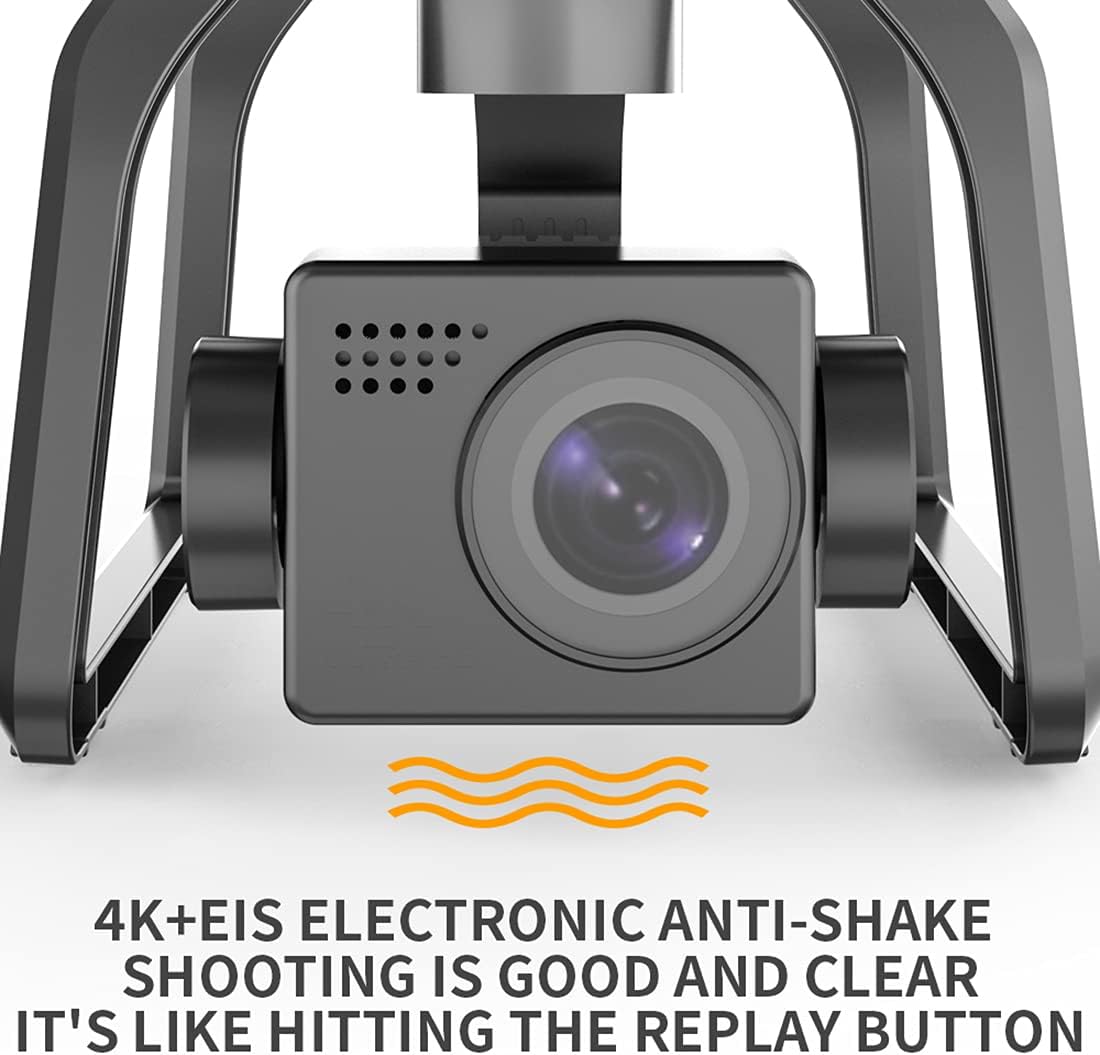
Figure 4.3: Visual representation of the 4K+EIS Electronic Anti-Shake technology, ensuring smooth and clear video recording even during dynamic flight.
4.4. Intelligent Flight Modes (via App)
Leverage the drone's GPS capabilities for advanced flight functions:
- GPS Positioning: Ensures stable hovering and precise positioning. The GPS distance for accurate positioning is 10-50m.
- Return to Home (RTH): Automatically brings the drone back to its take-off point when activated or when battery is low/signal is lost.
- Follow Me: The drone will automatically follow the subject (user with smartphone) at a set distance.
- Surround Flight (Point of Interest): The drone will circle a designated point of interest.
- Waypoint Flight: Draw a path on the map within the app, and the drone will fly along the specified route.
- Gesture Control: Perform specific hand gestures to trigger photo or video capture. Gesture detection distance is 1-3m.

Figure 4.4: An illustration depicting the drone's GPS positioning system, which ensures stable and precise flight, making it as steady as a mountain.

Figure 4.5: The drone in flight, with a smartphone displaying its impressive 3000m control distance and clear 4K video feed, powered by a repeater and 5G system for strong signal.
4.5. VR Experience
Through the mobile application, activate the 3D VR function. When paired with VR goggles (not included), this feature provides an immersive first-person view of your flight, enhancing the aerial experience.
5. Maintenance
5.1. Cleaning
- Regularly wipe the drone body and camera lens with a soft, dry cloth.
- Remove any dust or debris from the motors and propeller shafts.
- Avoid using liquid cleaners directly on electronic components.
5.2. Propeller Replacement
Inspect propellers for cracks, bends, or chips before each flight. Replace damaged propellers immediately using the provided spare blades and screwdriver. Refer to section 3.2 for installation instructions.
5.3. Battery Care and Storage
- Do not overcharge or over-discharge batteries.
- Store batteries in a cool, dry place, away from direct sunlight and extreme temperatures.
- For long-term storage, charge batteries to approximately 50-60% capacity.
5.4. General Storage
When not in use, fold the drone and store it in its portable bag to protect it from dust and physical damage.
6. Troubleshooting
| Problem | Possible Cause | Solution |
|---|---|---|
| Drone does not power on. | Low or uncharged battery; Battery not properly installed. | Charge the drone battery fully; Reinstall the battery securely. |
| Remote control does not connect. | Low remote control battery; Incorrect pairing procedure. | Charge the remote control battery; Follow pairing instructions in the app/manual. |
| Poor image transmission/lag. | Weak 5G WiFi signal; Interference from other devices. | Ensure strong 5G WiFi connection; Fly in an area with less interference. |
| Drone drifts during flight. | Improper calibration; Strong wind conditions. | Recalibrate the gyroscope and compass; Avoid flying in strong winds (wind resistance level 5). |
| Camera footage is shaky. | Gimbal obstruction; EIS not active. | Check for any obstructions around the gimbal; Ensure EIS is enabled in the app. |

Figure 6.1: The drone showcasing its robust wind resistance (level 5) and the power of its four brushless motors, enabling stable flight in various environments.
7. Specifications
| Feature | Detail |
|---|---|
| Model | SJRC F7 PRO |
| Color | Silver Gray |
| Material | ABS + Electronic Components |
| Unfolded Dimensions (L x W x H) | 33 x 32.5 x 13.5 cm |
| Folded Dimensions (L x W x H) | 11.8 x 16.1 x 13.5 cm |
| Product Weight | 1881 g (1.88 kg) |
| Receiving Frequency | 5.15-5.35 GHz; 5.725-5.825 GHz |
| Number of Channels | 4 |
| Recommended Age | 14+ |
| Drone Battery | 11.1V 2600mAh |
| Motor Model | 1806 (Brushless) |
| Charging Time | Approx. 7 hours |
| Charging Type | USB Type-C |
| Flight Time | Approx. 25 minutes |
| Control Distance | 3 KM |
| Remote Control Battery | 3.7V 1500mAh |
| Remote Control Battery Life | Approx. 2.5 hours |
| Mobile Phone Photo Resolution | 3840 x 2160 p |
| Mobile Phone Video Resolution | 1280 x 720 p |
| SD Card Photo/Video Resolution | 3840 x 2160 p |
| Lens Angle | 70° |
| Image Return Distance | 3 KM |
| Image Transmission Signal | 2.4G + 5G Bridge |
| Video Transmission Rate | 30 fps |
| GPS Positioning Distance | 10-50 m |
| Gesture Detection Distance | 1-3 m |
8. Warranty and Support
For warranty information and technical support, please refer to the documentation provided with your purchase or contact Xshion customer service directly. Specific warranty terms may vary by region and retailer.
For further assistance, please visit the official Xshion website or contact their support team through the contact information provided in your product packaging.