
1. Product Overview
The Cecotec Conga 8090 Ultra is an advanced 4-in-1 robot vacuum cleaner designed for comprehensive floor care. It simultaneously brushes, vacuums, and performs wet or dry wiping, offering a complete cleaning solution for your home. Equipped with a powerful 12000 Pa suction, it effectively removes various types of dirt, including pet hair, thanks to its specialized BestFriend Care brush and Jalisco brush.
This robot features intelligent laser navigation for precise mapping and efficient cleaning routes, along with RoomPlan 3.0 technology for customized room-specific cleaning. It can be controlled via a smartphone app and integrates with virtual voice assistants like Alexa and Google Assistant for convenient operation.

Figure 1.1: The Conga 8090 Ultra robot vacuum cleaner, showcasing its main unit, interchangeable brushes, remote control, and the accompanying smartphone application interface.
2. Setup and Initial Use
2.1 Unboxing and Component Check
Carefully remove all components from the packaging. Verify that all items are present:
- Conga 8090 Ultra Robot Vacuum Cleaner
- Charging Base
- Power Adapter
- Jalisco Brush (pre-installed or separate)
- BestFriend Care Brush (for pet hair)
- Wet and Dry Tank (Twerking Tank)
- Mop Cloths
- Side Brushes
- Cleaning Tool
- Remote Control (with batteries)
- Instruction Manual
2.2 Charging the Robot
Place the charging base against a wall in an open area, ensuring there are no obstacles within 1 meter to each side and 2 meters in front of the base. Connect the power adapter to the charging base and plug it into a power outlet. Place the robot onto the charging base, ensuring the charging contacts align. The robot will indicate charging status. For first use, fully charge the robot before operation.

Figure 2.1: The robot vacuum cleaner docked at its charging station, ready for or undergoing charging.
2.3 App Installation and Pairing
Download the "Conga" app from your smartphone's app store (available for iOS and Android). Open the app and follow the on-screen instructions to create an account and add your Conga 8090 Ultra robot. Ensure your robot is powered on and your smartphone is connected to a 2.4 GHz Wi-Fi network during the pairing process.
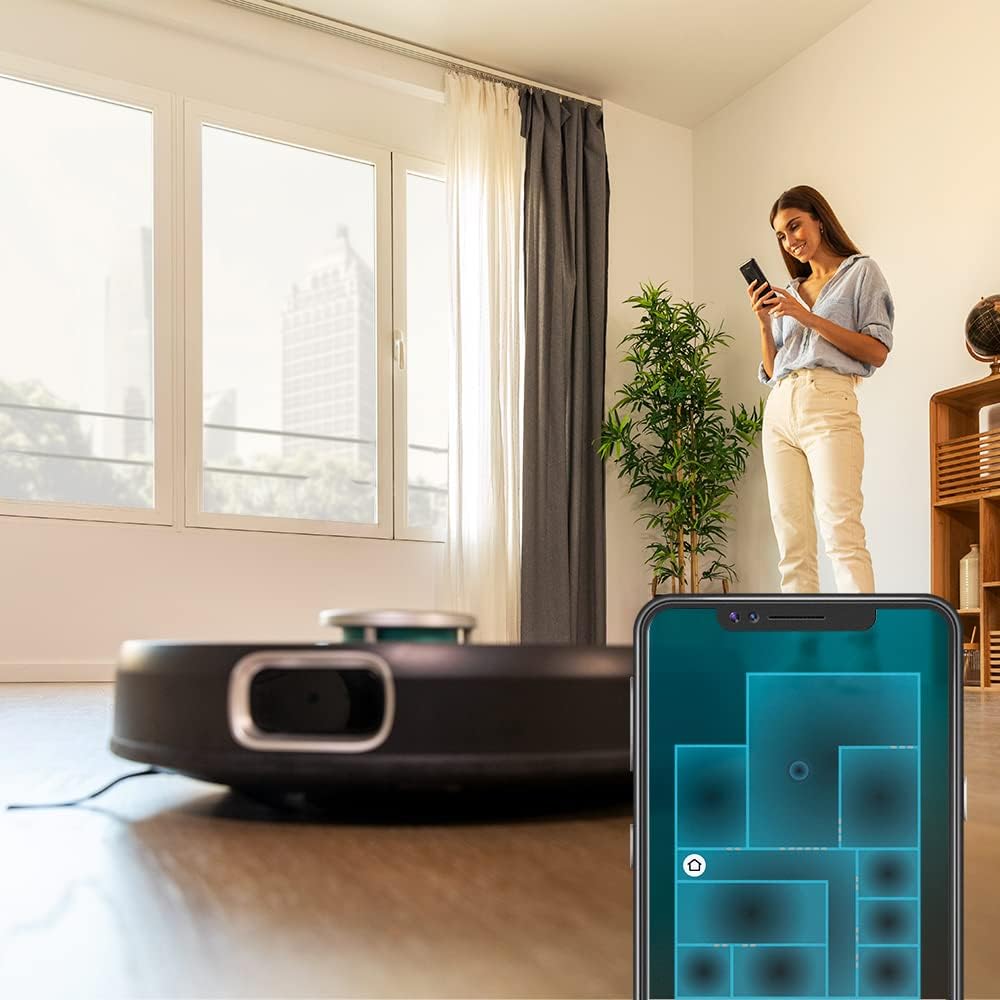
Figure 2.2: A user viewing the cleaning map and controls on the Conga smartphone application, demonstrating remote control capabilities.
2.4 Initial Mapping
After successful pairing, initiate the first cleaning cycle. The robot will use its iTech Laser Eye Navigation to scan and create a detailed map of your home. Ensure all doors are open and clear any obstacles to allow for a complete and accurate map generation. This map will be saved in the app for future customized cleaning plans.

Figure 2.3: The robot vacuum cleaner actively mapping its surroundings using its laser navigation system, indicated by a blue light projection.
3. Operating Instructions
3.1 Cleaning Modes
The Conga 8090 Ultra offers 10 distinct cleaning programs accessible via the app or remote control:
- Intelligent Area: Cleans a specific area defined on the map.
- Locked Area: Designates areas the robot should avoid.
- Spot Cleaning: Concentrates cleaning on a small, dirty spot.
- Twice: Performs two cleaning passes over the selected area.
- Auto: Standard full-home cleaning.
- Manual: Control the robot's movement manually using the app or remote.
- Edge: Cleans along the perimeter of rooms.
- Scrubbing: Activates the wet wiping function.
- Spiral: Cleans in an expanding spiral pattern from a starting point.
- Back Home: Directs the robot back to its charging base.
3.2 RoomPlan 3.0 and MultiMap 3D
Utilize RoomPlan 3.0 in the app to customize cleaning for specific rooms or floor types. You can select the cleaning order, mode, and even define restricted areas. The MultiMap 3D feature allows the robot to store up to 5 different maps, ideal for multi-level homes or different layouts.
3.3 Virtual Voice Technology
Connect your robot to Alexa or Google Assistant for voice-activated control. Refer to the app's settings for detailed instructions on linking your robot to these smart home platforms. Common commands include "Start cleaning," "Stop cleaning," and "Go back to charging station."
3.4 Adjusting Suction and Scrubbing Levels
The robot offers three suction powers (high, medium, low) and three scrubbing levels for wet wiping. These can be adjusted via the smartphone app to suit different cleaning needs and floor types.

Figure 3.1: The robot vacuum cleaner in operation on a wooden floor, demonstrating its compact design and ability to navigate open spaces.
4. Maintenance
Regular maintenance ensures optimal performance and extends the lifespan of your Conga 8090 Ultra.
4.1 Emptying the Dust Box
After each cleaning cycle, or when indicated by the app, remove and empty the dust box. Open the dust box, discard collected debris, and clean the filter if necessary. Reinsert the dust box securely.
4.2 Filling the Water Tank (Twerking Tank)
For wet wiping, remove the Twerking Tank. Fill it with clean water. A small amount of non-foaming cleaning solution can be added if desired. Attach a clean mop cloth firmly to the tank before reinserting it into the robot.
4.3 Cleaning Brushes
- Jalisco Brush / Main Brush: Remove the main brush cover and lift out the brush. Use the provided cleaning tool to remove tangled hair and debris. Clean the brush bearings.
- Side Brushes: Periodically check side brushes for wear and tear. Remove any tangled hair or debris. Replace if bristles are bent or damaged.
- BestFriend Care Brush: If using the pet hair brush, clean it regularly to prevent hair buildup.
4.4 Cleaning Mop Cloths and Filters
Remove mop cloths after each wet cleaning cycle and wash them thoroughly. Allow them to air dry completely before reattaching. The high-efficiency filter inside the dust box should be tapped clean regularly and replaced every 3-6 months depending on usage.
4.5 General Robot Cleaning
Wipe the robot's exterior, including sensors and charging contacts, with a dry, soft cloth. Ensure no dust or debris obstructs the laser sensor or cliff sensors.
5. Troubleshooting
This section addresses common issues you might encounter with your Conga 8090 Ultra.
| Problem | Possible Cause | Solution |
|---|---|---|
| Robot does not start or respond. | Low battery; Power switch off; Robot stuck. | Ensure robot is fully charged. Check power switch. Clear any obstructions around the robot. |
| Poor suction performance. | Full dust box; Clogged filter; Main brush tangled. | Empty dust box. Clean or replace filter. Clean main brush and side brushes. |
| Robot gets stuck frequently. | Cables or small objects on floor; Low clearance areas. | Clear floor of obstacles before cleaning. Use "Locked Area" function in app for low clearance zones. |
| App connectivity issues. | Incorrect Wi-Fi password; Router issues; Robot offline. | Verify Wi-Fi password. Restart router and robot. Ensure robot is within Wi-Fi range. Re-pair if necessary. |
| Ineffective wet wiping. | Empty water tank; Dirty mop cloth; Incorrect water flow setting. | Fill water tank. Wash mop cloth. Adjust water flow to higher setting in app. |
| Mapping errors or navigation issues. | Changes in room layout; Sensor obstruction; Robot confused. | Ensure consistent room layout. Clean all sensors. If persistent, delete map and allow robot to re-map. |
If the problem persists after attempting these solutions, please contact Cecotec customer support.
6. Specifications
| Feature | Detail |
|---|---|
| Brand | Cecotec |
| Model Name | Conga 8090 Ultra |
| Model Number | 05004 |
| Colour | Black |
| Product Dimensions | 35 x 35 x 9.4 cm |
| Item Weight | 6.32 kg |
| Suction Power | Up to 12000 Pa |
| Noise Level | 64 dB |
| Number of Speeds | 3 (suction) |
| Compatible Models | Amazon Echo, Google Home |
| Battery | 14.8 V, 6400 mAh Li-Ion (Immortal Battery System) |
| Navigation Technology | iTech Laser Eye Navigation |
| Mapping | RoomPlan 3.0, MultiMap 3D (stores 5 maps) |
| Cleaning Programs | 10 (Intelligent Area, Locked Area, Spot, Twice, Auto, Manual, Edge, Scrubbing, Spiral, Back Home) |
7. Warranty and Support
The Cecotec Conga 8090 Ultra Robot Vacuum Cleaner comes with a manufacturer's warranty. For detailed information regarding warranty terms, conditions, and duration, please refer to the warranty card included in your product packaging or visit the official Cecotec website.
For technical support, troubleshooting assistance beyond this manual, or to inquire about spare parts and accessories, please contact Cecotec customer service. Contact details can typically be found on the official website or on the product packaging.
Important: Always use genuine Cecotec spare parts and accessories to ensure optimal performance and to maintain your product's warranty.