
Introduction
This manual provides detailed instructions for the setup, operation, and maintenance of your TEWELL T68HGS 68-key wireless and wired mechanical gaming keyboard. Please read this manual thoroughly before using the product to ensure proper functionality and longevity.
Package Contents
Verify that all items are present in the package:
- TEWELL T68HGS 68-Key Mechanical Keyboard
- USB Type-C Cable
- User Manual (this document)
Product Overview
The TEWELL T68HGS keyboard is a versatile input device designed for both gaming and office use, offering both wireless Bluetooth 5.1 and wired USB Type-C connectivity. It features a compact 68-key layout, mechanical blue switches, and customizable RGB backlighting.
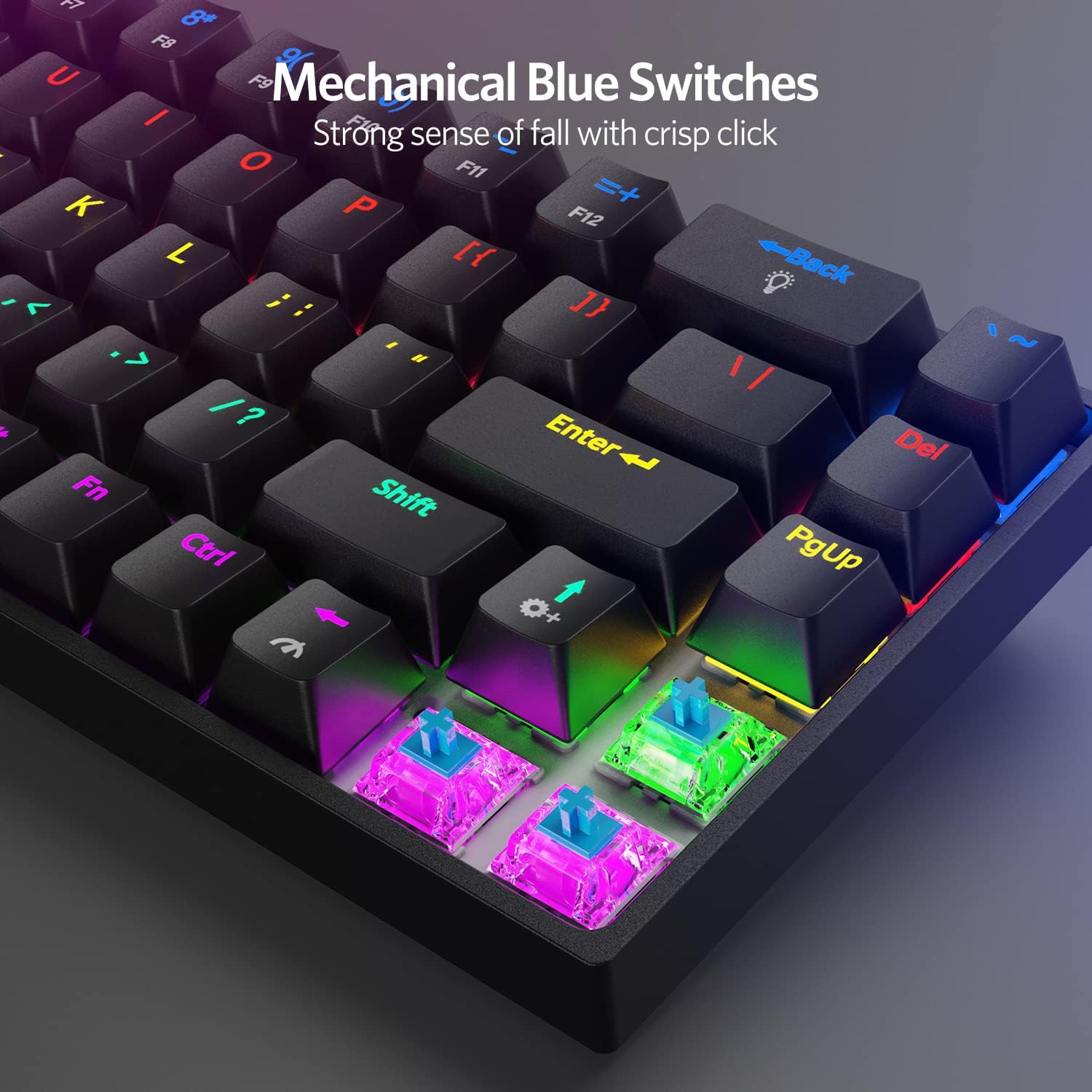
The TEWELL T68HGS keyboard features durable mechanical blue switches, known for their distinct tactile bump and audible click sound, providing precise feedback for typing and gaming.

The keyboard offers vibrant rainbow LED backlighting with 12 different lighting modes, 4 brightness levels, and 4 speed settings, allowing for personalized visual effects.

Designed for extended use, the keyboard provides up to 18.5 hours of continuous typing with backlighting off, 185 hours of standby time, and features an auto-stop function after 5 minutes of inactivity to conserve battery. It charges via a modern USB Type-C connection.

With its compact 65% layout, the TEWELL T68HGS keyboard is highly portable, making it easy to carry and use with laptops or other devices on the go.

The keyboard includes ergonomic adjustable feet that allow you to set a comfortable typing angle, such as 6.5 degrees, to reduce wrist strain during prolonged use.

The TEWELL T68HGS keyboard supports simultaneous connection to up to three devices via wireless Bluetooth or wired Type-C, allowing for seamless switching between a PC, laptop, or other compatible devices.
Setup
Wired Connection
To use the keyboard in wired mode:
- Connect the provided USB Type-C cable to the keyboard's Type-C port.
- Connect the other end of the USB cable to an available USB port on your computer.
- The keyboard will be automatically recognized by your operating system and is ready for use.
Wireless (Bluetooth) Connection
The keyboard supports connecting to up to three Bluetooth devices. Ensure the keyboard's power switch (located on the underside) is in the 'ON' position.
- Select a Bluetooth Channel: Press and hold the Fn key simultaneously with either Z (for BT1), X (for BT2), or C (for BT3) for approximately 3 seconds. The selected key's backlight will pulse slowly, indicating it's ready for pairing.
- Enable Bluetooth on Your Device: On your computer, laptop, tablet, or smartphone, navigate to the Bluetooth settings.
- Pair the Keyboard: In your device's Bluetooth settings, search for available devices. The keyboard should appear as "T68HGS". Select it to initiate the pairing process. The selected key's backlight on the keyboard will pulse faster during pairing and become solid once connected.
- Switching Between Devices: To switch between paired devices, simply press Fn + Z, Fn + X, or Fn + C. The keyboard will automatically connect to the last paired device on that channel.
Video demonstrating the wireless connectivity and compact design of the TEWELL T68HGS keyboard, highlighting its space-saving features.
Video showcasing the tenkeyless design of the TEWELL T68HGS mechanical keyboard, emphasizing its space-saving benefits for various setups.
Operating Instructions
Backlight Modes
The keyboard features 12 different lighting modes. To cycle through them, press Fn + Backspace. You can also adjust:
- Brightness: Use Fn + Up Arrow and Fn + Down Arrow to adjust the 4 brightness levels.
- Speed: Use Fn + Right Arrow and Fn + Left Arrow to adjust the 4 lighting speeds.
Note: Some backlight adjustments may not function on all operating systems (e.g., macOS) for certain key combinations.
Function Keys
The keyboard's compact layout utilizes the Fn key for accessing secondary functions:
- Fn + R: Toggles 2.4GHz wireless signal (receiver not included with this model). Note that Bluetooth and 2.4GHz modes cannot be active simultaneously.
- Fn + Z/X/C: Switches between Bluetooth devices 1, 2, and 3 respectively. Long press to enter pairing mode for the selected channel.
- Fn + Win: Toggles the Windows key lock.
Maintenance
To ensure the longevity and optimal performance of your keyboard, follow these maintenance guidelines:
- Cleaning: Use a soft, dry cloth to wipe the keyboard surface. For deeper cleaning, use compressed air to remove dust and debris from between the keycaps. Avoid using harsh chemicals or abrasive materials.
- Storage: Store the keyboard in a cool, dry place away from direct sunlight and extreme temperatures.
- Liquid Exposure: Avoid spilling liquids on the keyboard. If a spill occurs, immediately disconnect the keyboard, power it off, and allow it to dry completely before reconnecting.
Troubleshooting
If you encounter issues with your TEWELL T68HGS keyboard, refer to the following common solutions:
- Keyboard Not Responding (Wired):
- Ensure the USB Type-C cable is securely connected to both the keyboard and the computer.
- Try connecting the keyboard to a different USB port on your computer.
- Test the keyboard on another computer to rule out system-specific issues.
- Bluetooth Connection Issues:
- Ensure the keyboard's power switch is 'ON'.
- Make sure Bluetooth is enabled on your device.
- Verify that the keyboard is in pairing mode (selected BT channel key pulsing). If not, long-press Fn + Z/X/C for 3 seconds.
- If the keyboard was previously paired but won't connect, try removing "T68HGS" from your device's Bluetooth list and re-pairing.
- Ensure the 2.4GHz mode is not active (press Fn + R once to turn it off if necessary).
- The keyboard can connect to up to 3 devices. Ensure you are trying to connect to an available or correctly selected channel.
- Backlight Not Working/Adjusting:
- Ensure the keyboard is powered on.
- Cycle through backlight modes using Fn + Backspace.
- Adjust brightness using Fn + Up/Down Arrow.
- Some operating systems may have limited support for certain backlight functions.
- Keys Not Registering:
- Clean the keycap and switch area to ensure no debris is obstructing the mechanism.
- If using wireless, check battery level and recharge if low.
Specifications
| Feature | Detail |
|---|---|
| Model Number | T68HGS |
| Connectivity | Bluetooth 5.1 Wireless, USB Type-C Wired |
| Key Layout | 68 Keys (65% Layout) |
| Switch Type | Mechanical Blue Switches |
| Backlighting | Rainbow LED (12 modes, 4 brightness, 4 speed) |
| Anti-ghosting | Full Keys Anti-ghosting |
| Multi-device Support | Connects up to 3 devices simultaneously |
| Compatible Devices | Laptop, PC, Desktops, Mac, Phone (Windows 2000/XP/ME/Vista/7/8, PS5/PS4, Mac OS) |
| Product Dimensions | 12.9 x 5.4 x 1.7 inches (32.77 x 13.72 x 4.32 cm) |
| Item Weight | 1.4 pounds (0.64 kg) |
Warranty and Support
TEWELL products are designed for reliability and performance. For warranty information or technical support, please refer to the contact details provided on the product packaging or visit the official TEWELL website. Keep your purchase receipt as proof of purchase for warranty claims.