
Introduction
The KuWFi CPE200M is a 900Mbps long-range outdoor wireless bridge designed for stable point-to-point (PTP) and point-to-multipoint (PTMP) wireless connections. It supports various operation modes including Access Point (AP) and Repeater, making it suitable for extending Wi-Fi coverage up to 2-3 kilometers. This device is built to withstand outdoor conditions, featuring waterproof, dustproof, and lightning protection. This manual provides detailed instructions for setting up, operating, and maintaining your CPE200M units.

Image: Two KuWFi CPE200M outdoor wireless bridge units, showcasing their sleek white design.
Package Contents
The package includes the following items:
- 2 x KuWFi CPE200M Wireless Bridge Units
- 2 x PoE Power Adapters (24V 0.5A)
- 1 x Quick Start Guide
- 4 x Metal Rings with Screws for mounting
Product Features
The KuWFi CPE200M offers a robust set of features for reliable outdoor wireless connectivity:
- Wireless Standard: Complies with IEEE 802.11ac/a for 900 Mbps data rates.
- Ports: 1x 10/100 Mbps WAN port, 1x 10/100 Mbps LAN port.
- Memory: 8MB FLASH, 64MB DDR2.
- Antenna: Integrated 11 dBi MIMO panel antenna for enhanced signal strength and coverage.
- Power over Ethernet (PoE): Supports passive PoE on the WAN port.
- SSID Management: Supports SSID broadcasting and up to 4 Multi SSIDs.
- Operation Modes: Wireless AP and Repeater modes.
- Security Features: Integrated firewall with IP filter, URL filter, and MAC filter.
- Advanced Wireless Technologies: IEEE 802.3az compliant, beamforming technology, RF power adjustment, and frequency analyzer.
- Network Protocols: Supports DDNS, VPN pass-through, port forwarding, and DMZ host.
- Wireless Security: WEP 64/128-bit, WPA 128-bit (TKIP/AES).
- Output Power: Up to 28 dBm.
- Environmental Protection: Waterproof, dustproof, and lightning protection.
- Operating Temperature: -30°C to 55°C.
- Storage Temperature: -40°C to 70°C.
Setup
The KuWFi CPE200M units are designed for straightforward setup. Follow these steps for initial configuration:
1. Physical Connection
Connect one end of an Ethernet cable to the LAN port of the CPE unit and the other end to the PoE port of the provided PoE adapter. Connect another Ethernet cable from the LAN port of the PoE adapter to your computer or network device. Plug the PoE adapter into a power outlet.

Image: This diagram illustrates how to connect the CPE unit to the PoE adapter and then to an IP camera or a network switch/computer. The CPE WAN port connects to the PoE adapter's PoE port, and the IP camera or switch connects to the PoE adapter's LAN port.
2. Master/Slave Configuration (Auto-Pairing)
The CPE200M units can be configured as Master (transmitter) and Slave (receiver). For quick setup, the units support automatic pairing.
- Power on both CPE units using their respective PoE adapters.
- Observe the LED display on each unit. The display shows the operation mode, channel, and signal strength.
- To initiate auto-pairing, press the reset button on each unit for approximately 1 second. The units will attempt to pair automatically.
- The H/C switch on the unit controls the Master/Slave role. Ensure one unit is set as Master and the other as Slave for a point-to-point link.

Image: This image shows the LED display and the H/C switch on the KuWFi CPE200M unit. The LED display provides information on the device's status, while the H/C switch allows selection between Master (H) and Client/Slave (C) modes.
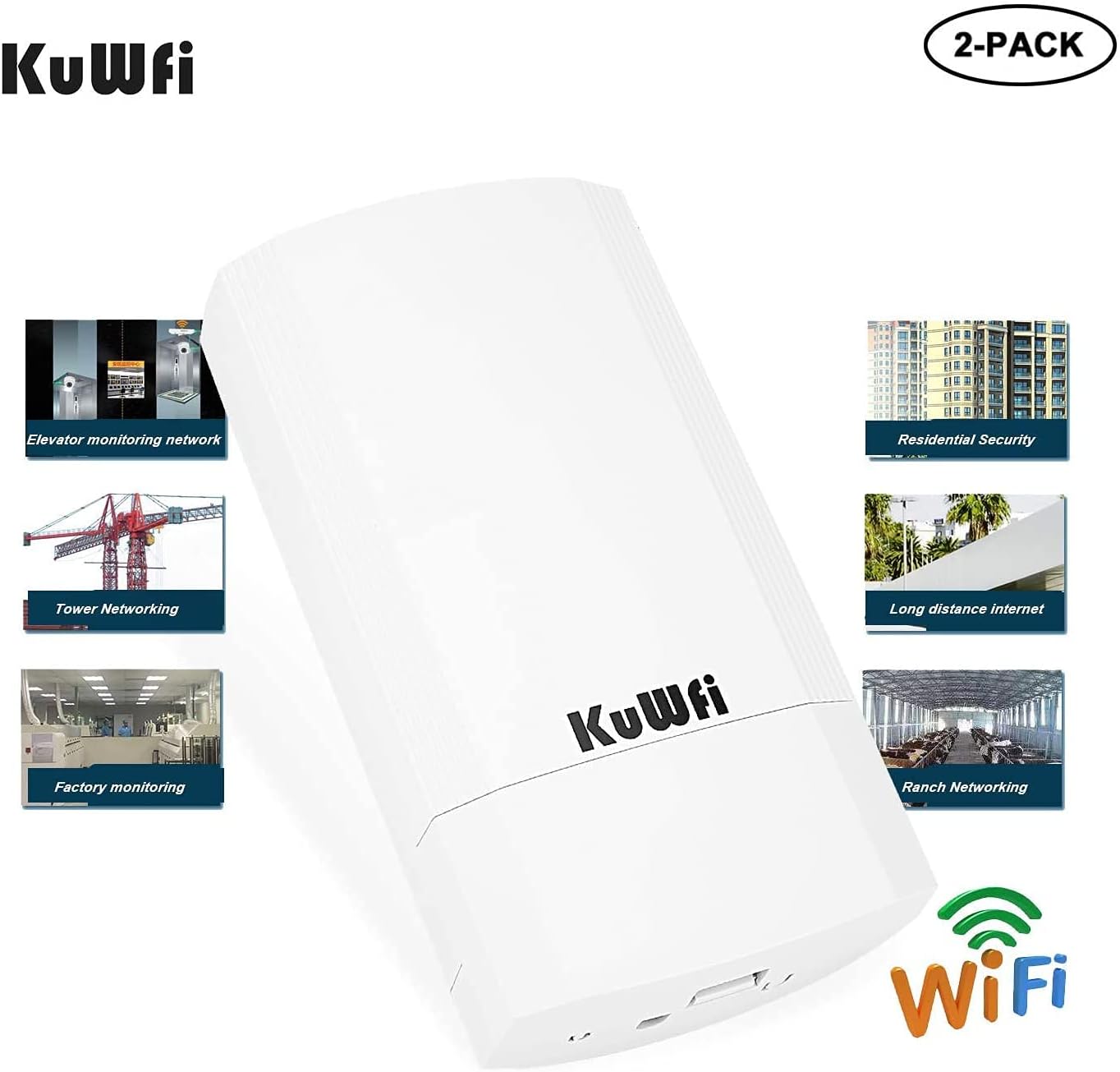
Image: The rear view of the KuWFi CPE200M unit, displaying product labels, model number, and default IP addresses for Master (192.168.188.253) and Slave (192.168.188.100) configurations.
3. Advanced Configuration (Optional)
For advanced settings or if automatic pairing fails, you can access the web-based management interface. Connect your computer directly to the CPE unit's LAN port (via the PoE adapter) and configure your computer's IP address to be in the same subnet as the CPE (e.g., 192.168.188.x). Then, open a web browser and navigate to the default IP address of the CPE (e.g., 192.168.188.253 for Master or 192.168.188.100 for Slave). Refer to the Quick Start Guide for default login credentials.
If you encounter issues with incorrect gateway or DNS information, consider setting a manual IP address, gateway, and DNS on the connected devices.
Operating Modes
The KuWFi CPE200M supports multiple operating modes to suit various network requirements:
1. Point-to-Point (PTP) Connection
In this mode, two CPE units establish a direct wireless link to extend network coverage over a long distance (up to 2-3 KM). One unit acts as the Master (transmitter) and the other as the Slave (receiver).

Image: An illustration demonstrating the long-range capability of the KuWFi CPE200M, showing two units establishing a wireless link between two houses, covering a maximum distance of 2-3 kilometers.

Image: This diagram illustrates a typical Point-to-Point WiFi coverage setup. A Master CPE unit connects to a router and transmits wirelessly to a Slave CPE unit, which then provides network access to a remote location.
2. Point-to-Multipoint (PTMP) Connection
One CPE unit can act as a central Access Point (AP) to connect to multiple other CPE units configured in Repeater mode. This is useful for distributing network access to several remote locations from a single source.

Image: A diagram showing a multi-to-multi connection scenario where multiple CPE units in Repeater mode connect to a central CPE unit in AP mode, often used for surveillance camera networks.

Image: This diagram illustrates a Point-to-Multipoint connection, where a single Master CPE unit in AP mode serves multiple Slave CPE units in Repeater mode, typically for extending network to several IP cameras or remote devices.
3. Repeater Mode
In Repeater mode, the CPE unit extends the range of an existing wireless network. It receives a wireless signal and re-transmits it, effectively boosting coverage.
4. IP Surveillance Camera Integration
The CPE200M can be used to extend surveillance coverage. Connect an IP camera to the secondary LAN port of a CPE unit (acting as a client) and transmit the video feed wirelessly back to your network DVR or monitoring station.

Image: This image highlights various applications for the KuWFi CPE200M, including elevator monitoring networks, residential security, tower networking, long-distance internet access, factory monitoring, and ranch networking.
Maintenance
The KuWFi CPE200M is designed for outdoor use with waterproof, dustproof, and lightning protection features, requiring minimal maintenance. To ensure optimal performance and longevity, consider the following:
- Environmental Protection: Ensure the units are securely mounted and connections are properly sealed to maintain their waterproof and dustproof integrity.
- Line of Sight: For optimal performance, maintain a clear line of sight between the Master and Slave units. Obstructions can degrade signal quality.
- Cleaning: Periodically clean the exterior of the units to remove dirt or debris that might accumulate, especially on the antenna surface, using a soft, damp cloth. Do not use harsh chemicals.
- Firmware Updates: Check the manufacturer's website periodically for firmware updates to ensure optimal performance and security.
Troubleshooting
If you encounter issues with your KuWFi CPE200M, refer to the following troubleshooting tips:
- No Power: Ensure the PoE adapter is correctly connected to the CPE unit and a working power outlet. Check all cable connections.
- No Wireless Link:
- Verify that both units are powered on and the LED indicators are active.
- Ensure one unit is configured as Master and the other as Slave (or Client).
- Check for clear line of sight between the units. Obstacles like trees or buildings can block the signal.
- Try pressing the reset button on both units for 1 second to re-initiate auto-pairing.
- Poor Signal/Low Speed:
- Adjust the alignment of the units to ensure they are pointing directly at each other.
- Reduce the distance between the units if possible.
- Check for potential sources of interference (e.g., other 5GHz devices).
- Ensure the units are mounted securely and not swaying in the wind.
- Cannot Access Web Interface:
- Verify your computer's IP address is in the same subnet as the CPE (e.g., 192.168.188.x).
- Ensure the Ethernet cable is connected correctly from your computer to the PoE adapter's LAN port, and from the PoE adapter's PoE port to the CPE.
- Try using the default IP addresses (Master: 192.168.188.253, Slave: 192.168.188.100).
- Reset the unit to factory defaults (press and hold the reset button for 5-10 seconds) if you have forgotten the login credentials or made incorrect configurations. Note: This will erase all custom settings.
- Incorrect Gateway/DNS Information: If connected devices receive incorrect network information, manually configure the IP address, gateway, and DNS settings on those devices.
Specifications
| Feature | Detail |
|---|---|
| Brand | KuWFi |
| Model Number | CPE200M |
| Color | White |
| Wireless Technology | 802.11ac |
| Hardware Interface | Ethernet |
| Connector Type | Wi-Fi |
| Compatible Devices | Security Camera, Smartphone, Tablet |
| Data Transfer Rate | 900 Megabits per second |
| Data Link Protocol | Ethernet, IEEE 802.11ac |
| Antenna Gain | 11 dBi (integrated) |
| Operating Temperature | -30°C to 55°C |
| Storage Temperature | -40°C to 70°C |
| Environmental Features | Waterproof, Dustproof, Lightning Protection |
| UPC | 734257440288 |
Warranty and Support
KuWFi provides a 2-year manufacturer's warranty for the CPE200M. For quality-related issues, a replacement or full refund is offered within 12 months of purchase. Additionally, customers can return undamaged KuWFi products for any reason within 30 days of purchase for a full refund.
For technical support or warranty claims, please contact KuWFi customer service through their official channels or the retailer where the product was purchased.


