
Govee H5051
Govee Smart Plug (Model H5051) User Manual
Brand: Govee | Model: H5051
1. Introduction
This manual provides detailed instructions for setting up and operating your Govee Smart Plug (Model H5051). The Govee Smart Plug offers convenient control over your home appliances through WiFi and Bluetooth connectivity, enabling features such as voice control via Alexa and Google Assistant, custom scheduling, and energy consumption tracking. Enhance your home automation with this versatile smart device.

2. What's in the Box
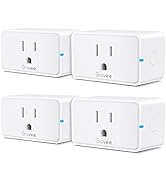
- Govee Smart Plug(s) (Model H5051)
- User Manual
3. Specifications
| Feature | Detail |
|---|---|
| Brand | Govee |
| Model | H5051 |
| Connectivity | Wi-Fi (2.4GHz only), Bluetooth |
| Voice Control Compatibility | Amazon Alexa, Google Assistant |
| Mounting Type | Plug-In Mount |
| Connector Type | Plug-in |
| Material | Copper (internal components), Fire-resistant exterior |
| No. of Wires | 3 |
| Plug Format | ELECTRICAL |
| Certifications | FCC, ETL |
| Date First Available | January 11, 2023 |
4. Setup Guide
4.1. Download the Govee Home App
- Search for "Govee Home" in the App Store (iOS) or Google Play Store (Android).
- Download and install the application.
- Open the app and create a new Govee account or log in with an existing one.
4.2. Connect the Smart Plug
- Plug your Govee Smart Plug into a standard wall outlet. Ensure it is within range of your 2.4GHz Wi-Fi network. Note: The Govee Smart Plug does not support 5GHz Wi-Fi networks.
- Open the Govee Home app. The app should automatically detect the new device or prompt you to add a new device. If not, tap the '+' icon in the top right corner to manually add the device.
- Follow the on-screen instructions to connect the smart plug to your home Wi-Fi network. This typically involves selecting your Wi-Fi network and entering the password.
- Once connected, you can name your smart plug for easy identification (e.g., "Living Room Lamp").

5. Operating the Smart Plug
5.1. App Control
The Govee Home app provides comprehensive control over your smart plug:
- On/Off Control: Tap the power icon next to your device name to instantly turn the connected appliance on or off.
- Scheduling: Create custom schedules to automatically power your electronic appliances on or off at specific times. This feature helps save energy and can automate daily routines.
- Timers: Set countdown timers for devices to turn off after a set duration.
- Group Control: Manage multiple Govee Smart Plugs simultaneously by grouping them within the app.
- Energy Monitoring: Track the energy consumption of devices connected to your smart plugs (if supported by the specific plug model).

5.2. Voice Control with Alexa and Google Assistant
Integrate your Govee Smart Plug with Amazon Alexa or Google Assistant for hands-free control:
- Ensure your Govee Smart Plug is successfully set up in the Govee Home app.
- Open the Amazon Alexa app or Google Home app.
- Navigate to the 'Skills & Games' section (Alexa) or 'Works with Google' section (Google Home).
- Search for and enable the "Govee Home" skill.
- Link your Govee Home account when prompted.
- Discover devices. Your Govee Smart Plug(s) should now appear in your Alexa or Google Home device list.
- You can now use voice commands such as:
- "Alexa, turn on [device name]"
- "Hey Google, turn off [device name]"


5.3. IFTTT Integration
For advanced automation, you can connect your Govee Smart Plug with IFTTT (If This Then That):
- Register for a Govee Home account and ensure your smart plug is connected.
- Create an IFTTT account if you don't already have one.
- Connect your Govee Home account to your IFTTT account.
- Use IFTTT to create custom applets (commands) that will automatically operate the smart plug in response to various triggers (e.g., turn on a light when you arrive home).
6. Maintenance
- Keep the smart plug clean by wiping it with a dry, soft cloth.
- Avoid exposing the device to water or excessive humidity.
- Do not attempt to disassemble or repair the smart plug yourself. Contact customer support for assistance.
- Ensure the connected appliances do not exceed the maximum current rating of the smart plug (15A Max Current, as indicated in product images).
7. Troubleshooting
7.1. Device Not Connecting to Wi-Fi
- Ensure your Wi-Fi network is 2.4GHz. The smart plug does not support 5GHz networks.
- Check if the smart plug is within range of your Wi-Fi router.
- Verify that your Wi-Fi password is entered correctly in the Govee Home app.
- Restart your Wi-Fi router and try connecting again.
7.2. Voice Control Not Working
- Confirm that the Govee Home skill is enabled in your Alexa or Google Home app and your accounts are linked.
- Ensure the device name used in voice commands matches the name set in the Govee Home app and discovered by Alexa/Google Assistant.
- Check the internet connection of your smart speaker/display and the smart plug.
7.3. App Not Finding Device
- Make sure Bluetooth is enabled on your smartphone during the initial pairing process.
- Ensure the smart plug is powered on and the indicator light is blinking, indicating it's in pairing mode.
- Try unplugging and re-plugging the smart plug.
8. Safety Information
Your Govee Smart Plug is designed with safety in mind:
- The product is FCC and ETL certified, ensuring compliance with safety standards.
- Constructed with V0 fire-resistant material for enhanced safety.
- Features an overcurrent protection fuse to prevent damage from electrical surges.
- Do not use in wet or damp conditions.
- Do not exceed the maximum load rating of the smart plug.
- Keep out of reach of children.

9. Warranty and Support
Specific warranty details are not provided in this manual. For warranty information, technical support, or customer service inquiries, please refer to the official Govee website or contact Govee customer support directly. You can often find contact details on the product packaging or the Govee Home app.